Codex Comes to Windows: AI Agents Take Over Your Computer to Get Work Done
Codex Comes to Windows: AI Agents Take…
OpenAI Codex update: AI can now directly control your Windows PC, with mobile remote command support.
OpenAI's Codex app has received a major update, with the Windows version officially supporting Computer Use — allowing AI to directly control your mouse and keyboard to complete tasks in your real desktop environment. It also adds Chrome multi-tab background parallel work integration and iOS/Android mobile remote access, letting users monitor and launch AI tasks on their PC from anywhere, achieving a true human-AI collaboration model where AI works while you're away.
OpenAI's Codex app has received a major update — the Windows version now officially supports "Computer Use" functionality, along with new mobile remote access capabilities. This means you can have an AI agent directly control your Windows PC to complete various tasks, even when you're not sitting in front of it.
Computer Use: Letting AI Take Over Your Screen
Codex's Computer Use feature allows AI to control any application on your computer, performing operational tasks on your behalf. Unlike traditional AI assistants, it doesn't just offer suggestions or generate code — it actually controls your mouse and keyboard to get real work done in your desktop environment.
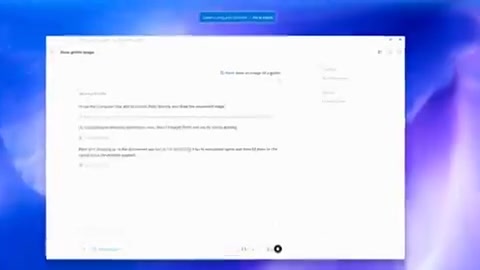
Enabling it is straightforward: go to the Codex app's settings page and toggle on the Computer Use option. Then, in any new conversation, you can activate computer control mode via the "Add Computer" button, and even specify particular applications installed on your computer for Codex to operate.
When Codex starts executing a task, it takes over your screen and cursor. You'll notice visual changes to your desktop and cursor — that's the AI at work. The official recommendation? Feel free to get up and stretch, grab a glass of water, or head to your next meeting. Just leave your laptop on the desk.
Chrome Integration: Background Multi-Tab Parallel Work
If your tasks are primarily browser-based, OpenAI recommends using the Codex for Chrome integration. Compared to Computer Use's full-screen takeover mode, Chrome integration has one significant advantage: it can work across multiple tabs in the background simultaneously without taking over your screen control.

The division of labor is clear: hand browser-based tasks to the Chrome integration, and use Computer Use for tasks that require operating desktop applications. The two complement each other, covering the vast majority of everyday work scenarios.
Mobile Remote Control: Command Your Computer Anytime, Anywhere
One of the most exciting features in this update is mobile access. Through the ChatGPT app on iOS or Android, you can remotely monitor and manage tasks that Codex is executing on your Windows PC.

Here's the setup process:
- Tap the mobile icon at the bottom of the Codex app, or go to "Settings > Connections"
- Make sure you're logged into your ChatGPT account
- Scan the QR code to log into Codex through the ChatGPT app on your phone
- Your Windows device will automatically appear in the device list
Once connected, you can view running tasks on your phone and launch new ones. As long as your computer is powered on and connected to the internet, you can use existing plugins and even start new tasks involving Computer Use — truly achieving "you're out and about while AI works from home."

A Paradigm Shift in How We Work
This update reveals an interesting work philosophy: while your AI agent is busy on the computer, you can pick up a pen and paper to do some deep thinking. The team even calls this a "power move" — let AI handle the execution layer while you focus on thinking and decision-making.
This human-AI collaboration model is moving from concept to reality. In the past, when we discussed AI agents, we were mostly talking about their capabilities in sandboxed environments. Now, Codex's Computer Use feature brings AI agents directly into users' real work environments, controlling real applications and completing real tasks.
Safety and Experience: Issues Worth Considering
Of course, this "AI takes over your computer" model raises some questions worth thinking about:
- Security: AI may access sensitive information while controlling your computer — how should permission boundaries be defined?
- Reliability: If AI makes a mistake during task execution, the impact could be far greater than in pure text-based interactions
- User Experience: Computer Use mode completely takes over the screen, meaning you can't use your computer during that time
Nevertheless, this is undoubtedly an important step in bringing AI agents to real-world use. From "conversational AI" to "action-oriented AI," this Codex update on Windows shows us a clear path for AI assistants transitioning from the role of "advisor" to "executor."
Related articles
 Product Reviews
Qoder vs Cursor Real-World Comparison: Which $20/Month AI IDE Is Better?
Hands-on comparison of Qoder vs Cursor AI IDEs: Agent autonomy, human interaction count, and architecture decisions. Qoder needed only 2 interactions vs Cursor's 8.
 Product Reviews
Cursor Cloud Agent Demo: Eliminating Bottlenecks Across the Entire Software Development Lifecycle
Deep analysis of Cursor's Cloud Agent demo showing how cloud VMs, automated test artifacts, and a full-chain control plane systematically eliminate human bottlenecks across the software development lifecycle.
 Product Reviews
Cursor 3.0 Deep Dive: Multi-Agent Parallelism, Design Mode, and Best-of-N Model Comparison
Cursor 3.0 evolves from an AI coding assistant into an Agent fleet command center. Explore multi-agent parallelism, Design Mode, and Best-of-N model comparison.