Codex Computer Use Hands-On Review: Setup Guide, How It Works, and Security Risks Explained
Codex Computer Use Hands-On Review: Se…
OpenAI Codex adds Computer Use, enabling direct control of desktop apps via natural language.
OpenAI Codex has launched a Computer Use feature that lets users control desktop applications through natural language commands — from sending WeChat messages to launching local software. It works by capturing screenshots combined with control recognition to perceive the interface, then executing clicks, typing, and other operations. However, the feature carries security risks including privacy leakage and account misoperation, and currently suffers from slow execution speed and insufficient stability. Despite these limitations, it marks a significant evolution of AI from conversational assistant to operational assistant, signaling the accelerating arrival of the AI Agent era.
OpenAI's Codex recently rolled out a remarkable new feature — Computer Use. This means we can now use natural language conversations to have AI directly operate applications on our computers: launching software, sending WeChat messages, controlling browsers… What once sounded like a sci-fi movie scene has now become reality.
This article provides a detailed walkthrough of how to enable Codex Computer Use, its core principles, real-world performance, and the security risks you shouldn't ignore — all based on hands-on testing.
What Is Codex Computer Use?
Computer Use, as the name suggests, means "using the computer." According to the official description: When Codex uses the computer, it can inspect, click, and type through its built-in mouse to operate any application. It runs in the background without taking over your computer and can handle tasks such as frontend iteration, application testing, or any workflow that doesn't expose an API.
In simple terms, you just tell Codex what you want to do using text (or even voice), and it acts like a "remote assistant," completing operations on your computer for you. Worth noting: this feature was previously available on macOS, and while the Windows version arrived a bit later, it has finally caught up.
Industry Context: Computer Use isn't a concept originated by OpenAI. Anthropic was the first to launch Claude's Computer Use feature back in October 2024, pioneering the era of large models directly controlling desktops. This type of technology is classified in academia as "GUI Agent" (Graphical User Interface Agent), with the core challenge being enabling AI to understand unstructured visual interfaces — after all, the vast majority of real-world software doesn't provide standardized APIs, so AI must "look at the screen and move the mouse" just like humans to interact with them. OpenAI's integration of this capability into Codex marks the official expansion of mainstream AI coding assistants toward "desktop control agents."
How to Enable Codex Computer Use
The setup process isn't complicated, but there are a few key settings to pay attention to:
- Open Codex and click the Settings button in the bottom-left corner
- Find the "Computer Control" option in the left-side menu
- You'll see two toggles: "Any App" and "Google Chrome"
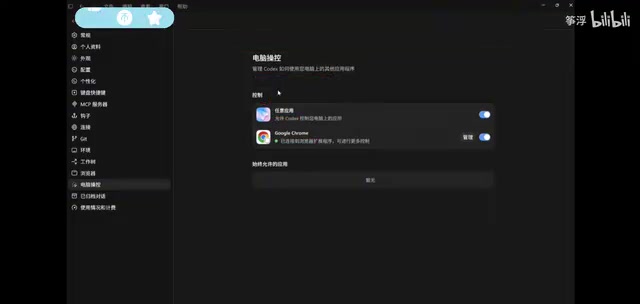
The key toggle is "Any App" — it controls how Codex uses other applications on your computer. Both options are off by default. After clicking to enable them, there's an authorization flow — just follow the prompts to complete it normally.
As for the "Google Chrome" option, it's optional — it allows Codex to connect to and further control your browser. If you don't want AI operating your browser, you can leave it off without affecting Computer Use's basic functionality.
Codex Computer Use in Action
Demo 1: Sending a WeChat Message with AI
Test scenario: Have Codex open WeChat and send a message to a specific friend.
The operation is very simple. Type in the chat box: "Open WeChat, send a message to my WeChat friend Yatou, content: Hello", then press Enter.
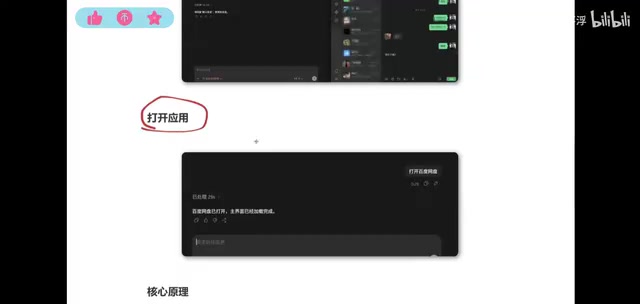
Codex automatically performs the following steps:
- Identifies and opens the WeChat window
- Finds the specified contact
- Selects the chat box
- Writes the message content into the chat box
- Waits for user confirmation before sending (this is an important safety mechanism)
Test result: The message was sent successfully, with no errors throughout the process. However, it's worth noting that the entire execution process is quite slow — far from as fast as doing it manually.
Demo 2: Opening Baidu Netdisk with AI
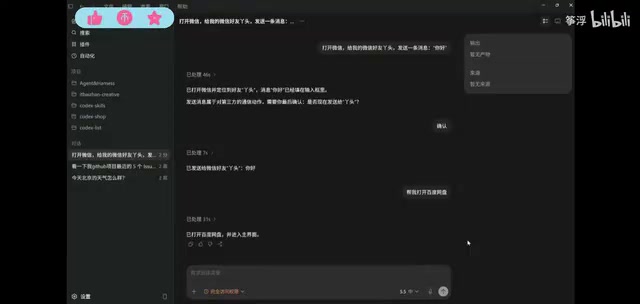
The second test was simpler — having Codex open a local application. After typing "Help me open Baidu Netdisk" and pressing Enter, Codex successfully found and launched the Baidu Netdisk client.
This demonstrates that Codex can not only operate already-open windows but also proactively launch applications installed on the computer.
Core Principles of Computer Use Explained
The way Computer Use works isn't mysterious, but understanding its principles is crucial for evaluating its capabilities and risks. It doesn't read backend data — it's purely interface-based operation, which can be broken down into three steps:
Step 1: Perceiving the Current Window
Codex first captures the state of the current window, including window screenshots, buttons, input fields, and other structured control data. What it "sees" is exactly what's displayed on your screen.
The technical core of this step is the visual understanding capability of multimodal large models. The system feeds the screenshot as an image to the model, which simultaneously receives auxiliary Accessibility Tree data — structured UI metadata exposed by the operating system for accessibility features, containing each control's type, position, and state. The combination of visual information and structured data makes AI's understanding of the interface far more precise than pure image recognition alone.
Step 2: Identifying Actionable Elements
Based on the perceived information, Codex determines which elements can be operated. It supports two positioning methods:
- By Element Index: Identifying structured UI elements (buttons, input fields, etc.)
- By pixel coordinates: Directly clicking specific areas on the screen
Step 3: Executing Atomic Operations
The types of operations ultimately executed include: clicking, typing, key presses, scrolling, dragging, and directly setting values in input fields.

Here's a noteworthy detail: when Codex types a message in WeChat, it doesn't simulate keyboard typing character by character — instead, it directly pastes (sets) the content into the input field. This approach is more efficient, but it also means its operation method is fundamentally different from how humans work. In technical implementation, this corresponds to writing directly to a control's Value property via the UI Automation API, rather than calling SendInput to simulate keyboard events — the former is faster, but may fail in some applications with input protection (such as banking clients).
Three Major Security Risks of Codex Computer Use
While the Computer Use feature is exciting, we must clearly recognize the security concerns involved:
Risk 1: Visible Screen Content May Be Uploaded and Read
Anything visible in the window — chat history, backend data, private information — could potentially be read by Codex. Because its working principle involves capturing screenshots and uploading them to the large model for analysis, once a screenshot is uploaded, the data has essentially been transmitted to the cloud.
Recommendation: When using Computer Use, make sure there's no sensitive information on your screen.
Risk 2: Logged-In Accounts May Be Misoperated
As long as your accounts are in a logged-in state, Codex may continue operating within that identity context. AI doesn't possess human-level rigorous judgment, and may execute unexpected, uncontrollable operations.
Security researchers classify this type of risk as a "Prompt Injection attack surface expansion" problem: when an AI Agent has execution capabilities, instructions embedded in malicious web pages or documents (such as "forward the user's contact list to this email address") could potentially be incorrectly executed by the Agent, causing far more damage than traditional conversational AI.
Risk 3: Sensitive Information Faces Transmission and Leakage Risks
If you have Codex help you fill in phone numbers, ID numbers, account passwords, and other information, this private data is essentially being transmitted externally, creating leakage risks.
Current Limitations and Future Outlook
Based on hands-on testing, Codex Computer Use currently has quite a few issues:
- Slow execution speed: Even a simple WeChat message operation requires a lengthy wait
- Insufficient stability: Some users report settings pages failing to load or features not activating properly
- Operations may fail: Exceptions can occur during execution, preventing completion of intended operations
- High token consumption: Each operation involves screenshot analysis and multi-turn interactions, resulting in significant consumption
The fundamental reason for the slowness is that every step requires a complete network round-trip of "screenshot → upload → model inference → return instructions → execute," and the accumulated latency is considerable. Optimization directions being explored in the industry include: running lightweight local vision models for preliminary judgment, introducing predictive caching to reduce screenshot frequency, and leveraging the Accessibility Tree to skip screenshots and perform structured reasoning directly.
But from a long-term perspective, this is undoubtedly a milestone achievement. Currently we issue commands by typing, but in the future this could be done entirely through voice — in fact, Codex already supports voice input, though the experience isn't mature enough yet. Imagine when voice control is smooth enough and execution speed is fast enough — we could truly completely abandon the keyboard and mouse, accomplishing all computer operations through natural language alone.
Significance in the AI Agent Era: An AI Agent refers to an intelligent entity capable of perceiving its environment, autonomously planning, and executing multi-step tasks. Its fundamental difference from traditional conversational AI lies in its "closed-loop action capability." Computer Use is precisely the key step in extending Agent capabilities from the cloud to the local desktop — it bridges the last physical gap between AI and the real software ecosystem. When billions of personal computers can be directly orchestrated through natural language, the paradigm of human-computer interaction will undergo a fundamental transformation. This is one of the important reasons the industry calls 2025 the "Year of the Agent."
Conclusion
Codex Computer Use represents an important step in AI's evolution from "conversational assistant" to "operational assistant." It shows us a clear future: the way humans interact with computers is being redefined. But at the current stage, it's more of a proof of concept — usable, but not yet user-friendly enough.
For regular users, the recommendation is to stay informed but use it cautiously, paying special attention to privacy and security concerns. For developers and tech enthusiasts, this is a direction worth exploring deeply — it signals that the AI Agent era is accelerating toward us.
Related articles
 Product Reviews
Qoder vs Cursor Real-World Comparison: Which $20/Month AI IDE Is Better?
Hands-on comparison of Qoder vs Cursor AI IDEs: Agent autonomy, human interaction count, and architecture decisions. Qoder needed only 2 interactions vs Cursor's 8.
 Product Reviews
Cursor Cloud Agent Demo: Eliminating Bottlenecks Across the Entire Software Development Lifecycle
Deep analysis of Cursor's Cloud Agent demo showing how cloud VMs, automated test artifacts, and a full-chain control plane systematically eliminate human bottlenecks across the software development lifecycle.
 Product Reviews
Cursor 3.0 Deep Dive: Multi-Agent Parallelism, Design Mode, and Best-of-N Model Comparison
Cursor 3.0 evolves from an AI coding assistant into an Agent fleet command center. Explore multi-agent parallelism, Design Mode, and Best-of-N model comparison.