Photoshop 2026 January Update: In-Depth Analysis of 5 New Features
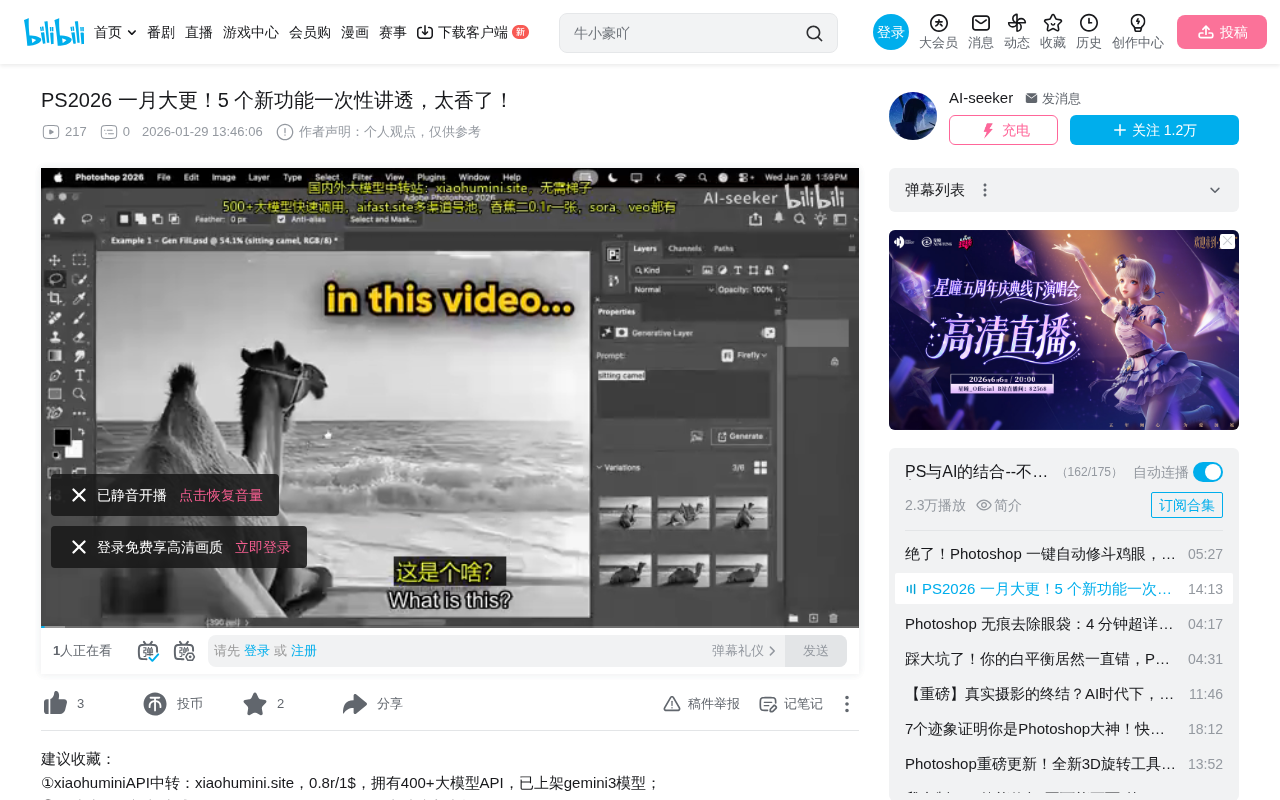
Photoshop 2026 January update brings Grain Adjustment Layer, upgraded Generative Fill, and 3 more features
Adobe Photoshop 2026 (v27.3) January 2025 update officially introduces 5 new features: Grain Adjustment Layer simplifies film texture workflows, Clarity & Dehaze become independent Adjustment Layers with mask support, the new Firefly Fill and Expand model doubles generation resolution from 1K to 2K, Reference Image enables smart object placement and swapping, and the Remove Tool significantly improves complex background handling without consuming Generative Credits.
Overview
Adobe Photoshop 2026 (version 27.3) received a significant update in January 2025, introducing 5 practical new features. Worth noting: these features were previously tested in the Beta version and have now officially landed in the stable release. This update covers the Grain Adjustment Layer, Clarity & Dehaze Adjustment Layers, a brand-new Generative Fill model, Reference Image functionality, and an improved Remove Tool—each one worth exploring in depth.
Grain Adjustment Layer: Say Goodbye to Tedious Film Grain Workflows
One-Click Grain Effects
This is one of the most exciting features in this update. Previously, adding film grain to an image required going into Camera Raw, or creating multiple gray layers and changing blend modes—a rather cumbersome process. Now, you simply click the Adjustment Layer icon and select "Grain" to get it done.
This improvement reflects Adobe's ongoing commitment to building a non-destructive editing ecosystem. Adjustment Layers are the core component of Photoshop's non-destructive editing workflow—unlike modifying pixels directly on a layer, Adjustment Layers exist as independent instruction layers in the Layers panel without permanently altering the original pixel data. Users can modify parameters at any time, reduce opacity, add masks to limit the affected area, or even delete the layer entirely to restore the original state. This design philosophy originates from the professional printing and darkroom workflow concept of "preserving the original negative," which has evolved in the digital age into the best practice of protecting source file integrity.
The Grain Adjustment Layer offers three core parameters: Amount, Size, and Roughness, all controlled via sliders for extremely intuitive adjustments.
The Aesthetic Value of Film Grain
Film Grain originates from the random distribution of silver halide crystals in traditional silver-based photography. During exposure and development, these tiny crystals form irregular granular textures, with their size and density influenced by film sensitivity (ISO/ASA), development temperature, and duration. High-sensitivity films (ISO 800 and above) produce coarser, more visible grain, while low-sensitivity films are fine and smooth. In the digital photography era, film grain has transformed from a technical limitation into an aesthetic choice—it can add organic texture, a sense of era, and emotional atmosphere to overly "clean" digital images. Many photographers and designers intentionally add grain to break the plastic feel of digital images, making them warmer and more artistic.
Key Difference from Camera Raw Grain
Here's an important technical detail: regardless of how you adjust the parameters, the Grain Adjustment Layer keeps the image's sharpness completely unchanged. In contrast, Camera Raw's grain effect introduces slight blurring when the size is increased, simulating a texture closer to real film.
Understanding this difference requires knowledge of the collaborative relationship between Camera Raw and Photoshop. Adobe Camera Raw (ACR) was originally designed as a plugin for processing RAW format data, later evolving into a powerful global image adjustment tool. It shares the same processing engine as Lightroom and excels at global adjustments to tone, exposure, and color across an entire image. Photoshop's core strength lies in layer- and mask-based local precision editing. For a long time, many features existed only in Camera Raw, requiring users to access them indirectly through the Camera Raw filter or Smart Objects, unable to directly leverage Photoshop's mask system for precise regional control. This update nativizes these features as Adjustment Layers, bridging the functional gap between the two tools.
Therefore, here are the usage recommendations:
- Need to maintain image sharpness: Use the Grain Adjustment Layer
- Pursuing more authentic film feel: Still choose Camera Raw
Practical Tip: Using with Clipping Masks
The Grain Adjustment Layer affects all layers below it by default. If you only want to add grain texture to a specific element (such as a logo icon in a design), you can use a Clipping Mask to restrict the effect to the target layer. This is extremely useful in design work—a small amount of grain can make design elements look more textured and premium.
Clarity & Dehaze Adjustment Layers: Precise Control Over Image Atmosphere
Powerful Tools Liberated from Camera Raw
Clarity and Dehaze have similarly been "liberated" from Camera Raw to become independent Adjustment Layers. This means you can more flexibly leverage Photoshop's core strength—the mask system—to precisely control the effect's range.
From a technical perspective, Clarity is essentially a midtone contrast enhancement algorithm. Unlike regular contrast adjustments that affect global highlights and shadows, Clarity primarily enhances local contrast in midtone areas, making the image appear more transparent and sharp without causing highlight clipping or crushed shadows. Its underlying implementation is similar to high-radius, low-intensity USM sharpening. Dehaze is based on computer vision algorithms such as Dark Channel Prior, restoring contrast and color saturation that have been weakened by haze, mist, or atmospheric perspective by estimating the degree of atmospheric scattering in the scene. Using Dehaze in reverse (negative values) can artificially add a hazy feel, which is a common atmosphere-building technique in portrait and landscape photography.
Creative Combination Uses
The true power of this feature lies in multi-layer stacking:
- First layer: Add high clarity to a subject's face, using an inverted mask + white brush to affect only the facial area
- Second layer: Reduce dehaze values on the background area to create a dreamy atmosphere
- Combined with gradient masks: Achieve a natural transition from sharp to hazy
This workflow is far more flexible than making one-time adjustments in Camera Raw, allowing completely different or even opposite effects to be applied to different areas of the image.
New Firefly Generative Fill Model: Resolution Jumps from 1K to 2K
A Quantum Leap in Output Quality
The most technically significant improvement in this update is the new Adobe Firefly Fill and Expand model. Compared to the previous Firefly Image 3 model, the new model's output resolution has increased from 1K to 2K—a quantum leap.
Adobe Firefly is Adobe's generative AI model family launched in 2023, with its core differentiator being training data compliance—primarily using Adobe Stock licensed libraries, public domain content, and specifically licensed datasets for training, thereby providing copyright safety guarantees for commercial use. Firefly has undergone multiple iterations: Firefly Image 1 laid the foundation, Image 2 improved text rendering and human generation, and Image 3 significantly enhanced overall quality and realism. This Fill and Expand model is a specialized model optimized specifically for image filling and expansion tasks, rather than a general-purpose image generation model. The resolution increase from 1K to 2K means pixel count has quadrupled (from approximately 1 million to approximately 4 million pixels), which is crucial for detail fidelity and seamless blending with high-resolution source images.
Real-World Comparison: Clear Gap Between Old and New Models
Using camel generation as a comparison test:
- New model: Generated camels are rich in detail, remaining clear and natural even when zoomed to 100%
- Old model (Firefly Image 3): Generation quality is noticeably worse, even producing distortions resembling an "Ice Age animation" style
In Generative Expand testing, after expanding a photo to square proportions:
- The new model makes it nearly impossible to distinguish the boundary between generated and original areas at 50% or even 100% zoom
- The old model shows obvious generation artifacts even at 50% zoom
- You need to zoom to approximately 400% to identify generated areas in the new model's results
Reference Image Feature: AI-Powered Smart Placement & Object Replacement
Two Modes: Place and Swap
Complementing the new Generative Fill model, the Reference Image feature provides two core operation modes:
Place Mode: Places an object from the reference image into the selection while preserving the original background. The system automatically generates shadows, reflections, and matches the scene's color and lighting. Even if the reference image has completely different lighting conditions, the AI intelligently adapts.
Swap Mode: Removes the existing object within the selection and replaces it with the object from the reference image. For example, when replacing a necklace worn by a person, the AI automatically handles occlusion relationships and light-shadow blending.
Smart Cutout & Scene Integration
When selecting "Object" mode, the system automatically removes the reference image's background, extracting only the main subject. Each generation provides 3 alternative options, and the accuracy of color matching and lighting adaptation is impressive.
The Reference Image feature represents an important evolution of generative AI from pure text-driven to multimodal input. Traditional generative fill relies solely on text prompts to guide generated content, while the Reference Image feature introduces visual conditioning, similar to IP-Adapter or Reference-Only techniques in the Stable Diffusion ecosystem. The system needs to complete multiple complex tasks: extracting semantic features and appearance details from the reference image, estimating the target scene's lighting environment map, calculating correct perspective transformations and scaling ratios, generating physically plausible shadows and reflections, and finally ensuring color harmony. These steps would require a professional retoucher hours of manual work in traditional compositing workflows, but AI can now complete them in seconds.
Remove Tool Upgrade: Better Complex Scene Handling
Stronger Complex Background Processing
The Remove Tool received significant improvements in this update, particularly when handling complex backgrounds. In testing, removing a person against a background with a grid pattern:
- New version: Virtually no smearing artifacts visible, with extremely natural edge processing
- Old version (PS 2025): Obvious smearing artifacts and unnatural edges visible when zoomed in
Important Note: No Generative Credits Consumed
Currently, although the Remove Tool uses generative AI, it does not consume any Generative Credits, which is great news for heavy users.
Adobe's Generative Credits are the metering unit for its AI features, with different subscription plans including varying amounts of monthly credits. Credits are consumed each time you use Generative Fill, Generative Expand, text-to-image generation, and other AI features. Once credits are depleted, generation speed decreases but doesn't stop entirely. This mechanism reflects the high computational cost of generative AI—each inference requires extensive floating-point operations on GPU clusters. The Remove Tool's current credit-free status may be a strategic decision by Adobe aimed at lowering the barrier to entry and collecting more usage data to continuously improve the model, though future policies may change.
Best Practice
When using the Remove Tool, always operate on a new layer. Click the "Create New Layer" button at the top so that each removal operation generates on an independent layer, making subsequent adjustments and undos easier while avoiding destructive editing.
Conclusion
While this Photoshop 2026 January update doesn't introduce revolutionary new concepts, every improvement meaningfully enhances daily workflow efficiency. The Grain and Clarity Adjustment Layers make non-destructive editing more convenient, the new Firefly model achieves a perceptible leap in quality, and the Remove Tool improvements make retouching work less stressful. For professional designers and photographers, these features officially landing in the stable release means they can be confidently deployed in production environments.
Key Takeaways
- The Grain Adjustment Layer makes adding film texture simple and intuitive, though it differs from Camera Raw's grain effect in sharpness handling
- Clarity and Dehaze as independent Adjustment Layers can be combined with the mask system for precise regional control
- The new Firefly Fill and Expand model increases generation resolution from 1K to 2K, with significant quality improvements
- The Reference Image feature supports both Place and Swap modes, intelligently matching scene lighting and color
- The Remove Tool shows marked improvement in complex background handling and currently doesn't consume Generative Credits
Related articles
 Product Reviews
Qoder vs Cursor Real-World Comparison: Which $20/Month AI IDE Is Better?
Hands-on comparison of Qoder vs Cursor AI IDEs: Agent autonomy, human interaction count, and architecture decisions. Qoder needed only 2 interactions vs Cursor's 8.
 Product Reviews
Cursor Cloud Agent Demo: Eliminating Bottlenecks Across the Entire Software Development Lifecycle
Deep analysis of Cursor's Cloud Agent demo showing how cloud VMs, automated test artifacts, and a full-chain control plane systematically eliminate human bottlenecks across the software development lifecycle.
 Product Reviews
Cursor 3.0 Deep Dive: Multi-Agent Parallelism, Design Mode, and Best-of-N Model Comparison
Cursor 3.0 evolves from an AI coding assistant into an Agent fleet command center. Explore multi-agent parallelism, Design Mode, and Best-of-N model comparison.