Windows Codex Experience: Not an IDE, But an AI Project Manager
Windows Codex Experience: Not an IDE, …
Windows Codex desktop is an AI project manager, not an IDE, filling a gap in the Vibe Coding ecosystem.
OpenAI's Windows Codex desktop app isn't a traditional IDE — it's an AI project manager. It supports parallel multi-project development with an interface that only retains project lists, AI conversations, Git management, and a terminal, removing code editing features entirely. Using the O3 model, you only need to check code once every twenty to thirty conversations, transforming developers from code writers into project managers and filling the human-AI collaboration management gap in the Vibe Coding ecosystem.
Introduction: This Is Not an IDE
When I first opened the Windows Codex desktop app, I was just as confused as most people — where's the code? Where's the IDE? I expected something like Android Studio or Cursor, a full integrated development environment. Instead, there was no code editor in sight.
But after two days of intensive use, I realized this product's positioning is far more interesting than I initially imagined: It's not an IDE — it's an AI project manager. This positioning fills a neglected gap in the Vibe Coding ecosystem.
What is Vibe Coding? This concept was coined by OpenAI co-founder Andrej Karpathy in early 2025, describing an entirely new programming paradigm: developers no longer write code line by line, but instead describe their intent in natural language, letting AI generate and maintain the codebase while humans only need to set direction and review results. The term quickly went viral in the developer community because it precisely captures the qualitative shift in AI-assisted programming from "assistive tool" to "primary executor." The rise of Vibe Coding spawned tools like Cursor, Windsurf, and Devin, but most of these still center around the IDE. The Codex desktop app is the first product to extract the "human-AI collaboration management layer" into a standalone tool.
How to Get Windows Codex
OpenAI has officially released the Windows version of Codex. Note that this app can only be downloaded through the Microsoft Store — direct browser downloads are not supported. For users in certain regions, the Microsoft Store connection may require additional network configuration.
After downloading and installing, you'll see a very clean interface — a project list on the left, an AI conversation window in the center, and an option to open code in VS Code or other tools in the upper right corner.
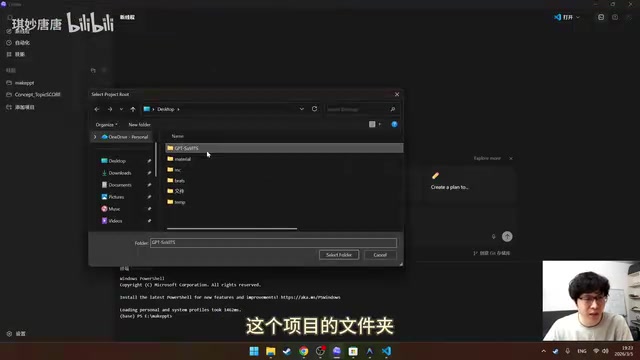
Core Positioning: From Code Editor to Project Manager
Why Do We Need a Standalone AI Project Manager?
This was my initial question: since there's already a Codex plugin in VS Code, why do we need a separate desktop app?
The answer lies in the fundamental shift in how we work in the AI programming era. Before AI-assisted programming, we didn't need a project manager — putting projects in folders and opening multiple VS Code windows was enough. The focus was always on coding itself, not project management.
But things are different now. In an hour of programming time, AI might be thinking and writing code for 40 minutes. If we're still staring at a traditional IDE, devoting most of our attention to code details while the AI plugin is squeezed into a sidebar, there's a misalignment of priorities.
Parallel Multi-Project Management: Working Like a Product Manager
This is the design that impressed me most about the Codex desktop app. You can manage multiple projects simultaneously on the left panel, with each project able to invoke AI operations concurrently.
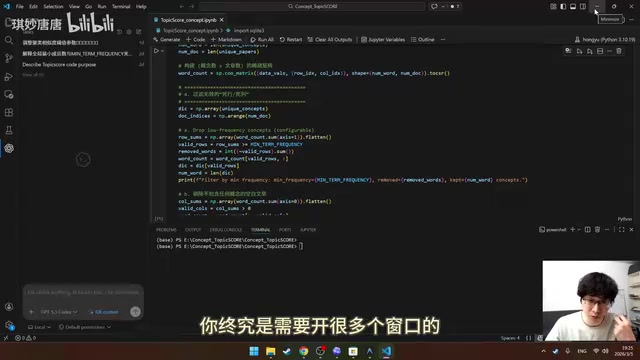
Think of it this way: you're like a skilled product manager overseeing four or five projects at once. You have a chat window open with five developers communicating with you, and all you need to do is keep providing requirements and feedback — you don't need to constantly monitor everyone's code.
Before this, writing code for multiple projects simultaneously was virtually impossible. There's a deep cognitive science reason behind this: Cognitive Load Theory shows that human working memory can only effectively process 7±2 chunks of information at a time. Frequently switching between different codebases creates enormous "switching costs" that cause efficiency to plummet. It's not about lacking time — it's that the brain cannot simultaneously maintain context for multiple complex systems. AI fundamentally changes this constraint — AI has no working memory limitations and can simultaneously maintain complete context for multiple projects, while humans only need to intervene at the high-level decision and requirements layer. So the Codex desktop app essentially extracts the "human-AI collaboration interface" from the IDE, letting you focus on management and decision-making rather than code details.
Interface Design: The Art of Radical Subtraction
The Codex desktop interface embodies a philosophy of radical subtraction. What does it keep?
- Project list: All projects displayed on the left at a glance
- AI conversations: Multi-turn conversation history under each project
- Git management: A minimalist version control interface, even simpler than VS Code's Git plugin
- Terminal: For running and debugging code
- External editor access: One-click to open VS Code when you need to view code

It's worth noting that Git plays an entirely new role in the AI programming era. In traditional development workflows, Git was primarily used for team collaboration and code history tracking. In the AI programming era, it becomes a critical checkpoint for humans to supervise AI output — after each AI code generation, Git diff lets you quickly see exactly what the AI changed without reading code line by line. The Codex desktop app makes Git management even simpler than VS Code plugins, based precisely on this insight: developers don't need the full Git feature set, but rather the ultimate optimization of one core action — "quickly reviewing AI changes."
What did it remove? Breakpoint debugging, syntax highlighting, file tree browsing, environment configuration panels... all these core features of traditional IDEs are gone. Because in this product's logic, code itself is handled by AI — humans only need to do project management, version control, and communication with AI.
Environment Configuration: An Underrated Highlight
In the settings interface, there's a feature I find extremely practical — environment configuration. Previously, environment handling was always a pain point when running AI programming tools locally. The Codex desktop app explicitly surfaces this issue, letting you clearly tell the AI how to access your running project environment. This is a very useful feature for complex projects.
Real-World Experience: Twenty to Thirty Conversations Before Needing to Look at Code
In my experience using the Codex O3 Extra High model, most of the time I could go through twenty to thirty conversations without personally checking the code, and the AI would deliver excellent results. At most, I needed to personally review code once every 10 interactions and make some manual adjustments.
Behind this experience is the technical characteristics of the o3 model itself. Unlike conversational models like GPT-4o, o3 uses a Chain-of-Thought Reasoning architecture, performing extensive internal reasoning steps before providing answers. It significantly outperforms previous models on complex programming tasks and cross-file dependency analysis. The "Extra High" compute tier means the model allocates a larger reasoning token budget, sufficient to handle most medium-complexity engineering problems — which is precisely why AI can autonomously complete tasks most of the time without requiring frequent human intervention for error correction.
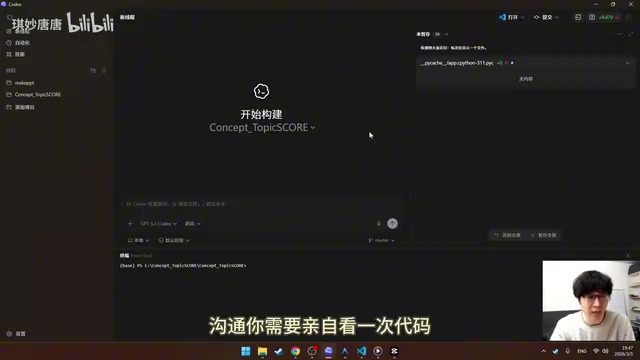
If you have a secondary monitor, the optimal workflow is: put the Codex project manager on your main screen and VS Code or another IDE on the secondary screen. The main screen focuses on requirements communication and project management; the secondary screen is for viewing and adjusting code when needed.
The feeling this workflow brings is: more relaxed, more focused, more fluid. The entire development process shifts from "writing code" to "managing projects," significantly reducing cognitive burden.
Who Is It For?
Of course, this product isn't for everyone:
- Senior developers may not need it: Developers comfortable with the command line might find the GUI unnecessary
- Complete beginners might find it complex: You still need to understand basic concepts like terminal and Git
- The ideal users: Intermediate-and-above developers who prefer graphical interfaces and are using AI for parallel multi-project development
Conclusion: Filling a Critical Gap in the Vibe Coding Ecosystem
The Codex desktop app fills the gap between human needs and Vibe Coding itself. In the chain of "Human → Vibe Coding → Code," the "Vibe" part — the management interface for human-AI collaboration — had never been extracted into a standalone tool before. The Codex desktop app targets precisely this positioning.
Whether it will become the ultimate answer in the AI programming ecosystem remains to be seen — it may take six months to a year to see the market's true response. But based on current experience, it genuinely offers a novel and comfortable development experience. If you're using AI for programming development, I strongly recommend trying it yourself.
Related articles
 Product Reviews
Qoder vs Cursor Real-World Comparison: Which $20/Month AI IDE Is Better?
Hands-on comparison of Qoder vs Cursor AI IDEs: Agent autonomy, human interaction count, and architecture decisions. Qoder needed only 2 interactions vs Cursor's 8.
 Product Reviews
Cursor Cloud Agent Demo: Eliminating Bottlenecks Across the Entire Software Development Lifecycle
Deep analysis of Cursor's Cloud Agent demo showing how cloud VMs, automated test artifacts, and a full-chain control plane systematically eliminate human bottlenecks across the software development lifecycle.
 Product Reviews
Cursor 3.0 Deep Dive: Multi-Agent Parallelism, Design Mode, and Best-of-N Model Comparison
Cursor 3.0 evolves from an AI coding assistant into an Agent fleet command center. Explore multi-agent parallelism, Design Mode, and Best-of-N model comparison.