3 Ways to Integrate AI with Obsidian: A Complete Guide to Building a Smart Knowledge Base

Three methods to integrate AI into Obsidian in 5 minutes, no coding experience needed.
This guide covers three ways to bring AI into your Obsidian vault: opening it directly in an AI IDE like Cursor (zero config, but requires app switching), installing community plugins like Copilot or Claude for a unified experience, or running CLI tools via the Terminal plugin for maximum capability. It also details three ways to install plugins not listed in the official marketplace and compares the Claude plugin against native Claude CLI to help you pick the right approach.
Why Connect AI to Obsidian
Using Obsidian without AI is like buying a Ferrari and riding it like a bicycle — you're completely wasting the biggest advantage of a local knowledge base. Traditional document management leaves you buried in folders and scattered notes, but AI transforms Obsidian from a passive storage tool into a living "second brain."
Depending on the AI tools you already use, this guide covers three mainstream approaches to help you get up and running in 5–6 minutes — even if you have zero coding experience.
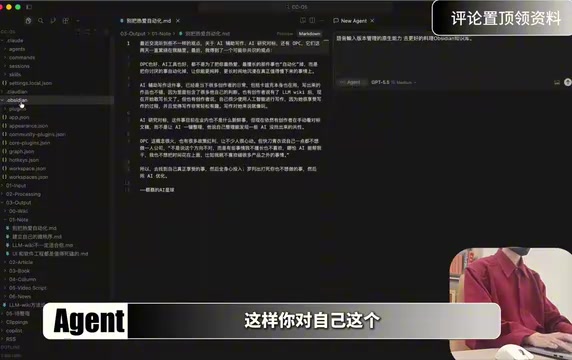
Method 1: AI IDE + Direct Obsidian Integration
Best For
If you're already using an AI IDE like Cursor or Windsurf, this is the simplest and most straightforward approach.
Setup Steps
Simply open your Obsidian vault folder directly in your AI IDE — that folder becomes your project workspace. This method requires virtually no configuration, and you can immediately use the IDE's built-in models along with its native capabilities for context selection, voice input, and version control.
Pros and Cons
Pros:
- Zero configuration required
- Fully leverage the IDE's native capabilities for your knowledge base
- Visibility into hidden files and folders (like
.obsidian), giving you a clear view of all plugins and settings
Cons:
- Requires switching between two applications
- Workflow is somewhat fragmented — the AI IDE handles knowledge processing while Obsidian handles presentation and visualization
Method 2: Obsidian Community AI Plugins
Plugin Marketplace Overview
Like any good IDE, Obsidian has its own community plugin marketplace. Three popular AI plugins stand out: Copilot, Claude, and OpenNote. The latter two are not currently listed in the official community marketplace, so their installation differs from Copilot.
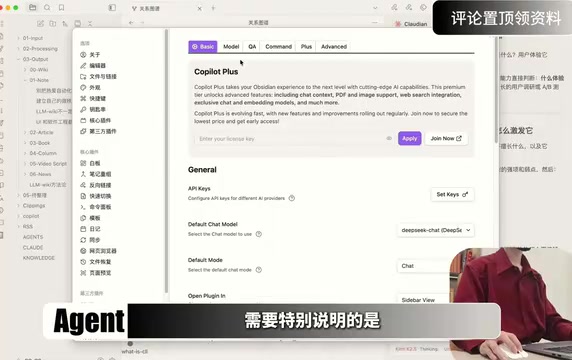
Installing and Configuring the Copilot Plugin (Available in Marketplace)
- Open Obsidian Settings → Community Plugins → Browse the plugin marketplace
- Search for "Copilot" and find the version with over 1.26 million installs
- Install and enable it, then configure your API Key for your preferred model
Note: The models built into and supported by the Copilot plugin are mostly international providers. If you prefer more cost-effective Chinese models, DeepSeekAd and Zhipu Qingyan are currently supported.
Standout Feature: Conversations can be automatically saved as documents (enabled by default). If you don't need this, go to plugin settings, find "Auto-save chat," and toggle it off. Once configured, you can reference specific files or folders in the right-side panel to chat in context.
Installing Claude and OpenNote Plugins (Not in Marketplace)
Since these two plugins aren't in the official marketplace, there are three installation methods:
Method 1: Fully Manual
- Visit each plugin's GitHub repository
- Download three files from the latest release:
main.js,manifest.json, andstyles.css - Create a folder named after the plugin inside your Obsidian vault's plugin directory (
.obsidian/plugins/) - Copy the three downloaded files into that folder
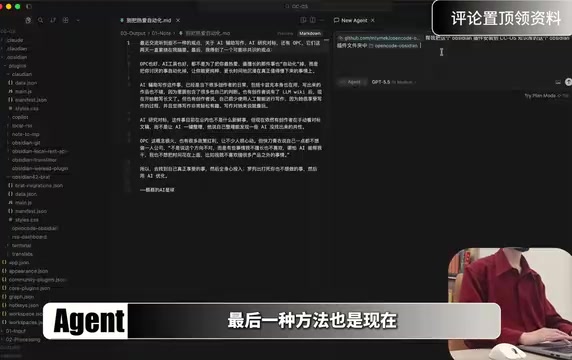
Method 2: Use the BRAT Plugin
BRAT is a tool specifically designed for testing and using plugins not yet listed in the marketplace. After installing BRAT, add the third-party plugin link, select a version, and click install.
Method 3: AI-Assisted Installation
This is an increasingly popular approach: give the plugin link to an AI and ask it to install the plugin into the correct Obsidian vault plugin folder for you.
Local Environment Setup
Regardless of which installation method you use, you'll also need Claude or OpenNote installed locally for the plugins to work properly. For complete beginners, the easiest path is:
- Install a free AI IDE (e.g., the Chinese-language version of Cursor)
- Ask the AI to help you install Claude/OpenNote locally
- Use a configuration tool (like Config Switch) to walk through the model setup step by step
Config Switch is beginner-friendly and works well for experienced users too.
Method 3: Terminal Plugin + Coding CLI
Best For
This method also avoids switching between apps, making it ideal for power users already comfortable with command-line interfaces in tools like Cursor.
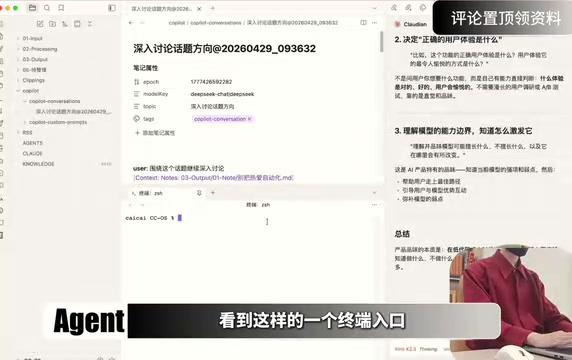
Setup Steps
- Search for and install the "Terminal" plugin from the Obsidian community marketplace
- After enabling it, find the Terminal icon in the left sidebar and click it
- In the popup, select "Integrated"
- A terminal panel will appear at the bottom of Obsidian
- Type the launch command for your preferred Coding CLI tool
Pro Tip: You can click and hold the terminal window to drag it to the right-side panel, adjusting the AI conversation layout to suit your workflow.
Claude Plugin vs. Native Claude CLI
If you primarily use Claude, the difference between the plugin and the native CLI won't be dramatic — both ultimately call the Claude CLI under the hood. However, they each have distinct strengths:
Claude Plugin Advantages:
- Enhanced experience tailored for Obsidian
- Supports inline PDF viewing and in-note editing
- Better experience for light to moderate use
Native Claude CLI Advantages:
- Full Agent capabilities
- More stable
- Access to the latest features
Recommendation: If you mainly use Obsidian for note-taking and knowledge management, the Claude plugin delivers 80–90% of Claude's capabilities with a better integrated experience. If you do heavy software development and need maximum stability and cutting-edge features, run Claude directly in the terminal — you can always keep both open simultaneously.
How to Choose Between the Three Methods
Choose AI IDE + Obsidian If You:
- Don't want to spend time on configuration
- Want to bring more of your IDE's native capabilities into knowledge management
- Don't mind switching between applications
Choose the Plugin Approach If You:
- Want to stay in one application and maintain focus
- Primarily use Obsidian for knowledge management rather than heavy development
- Prefer to handle everything within a single unified interface
Choose the Terminal Approach If You:
- Are already comfortable with command-line workflows
- Need the full capabilities of CLI tools
- Want to complete AI interactions without leaving Obsidian
Conclusion
Integrating AI into Obsidian is simpler than it sounds, and each of the three methods has its strengths. The AI IDE approach requires the least setup, the plugin approach offers the most seamless experience, and the Terminal approach provides the most complete capabilities. Whichever method you choose, you'll transform Obsidian from a passive storage tool into a truly intelligent second brain.
The upfront configuration investment pays off quickly — once set up, your knowledge base gains powerful abilities like automatic organization, intelligent search, and content generation, putting an end to the chaos of scattered documents for good.
Related articles

Build a Reasoning Model from Scratch: An 11-Hour Open-Source Course Breakdown
Sebastian Raschka releases a free 8-episode, ~11-hour video course teaching you to build a reasoning model from scratch with Python and PyTorch—from a small Qwen3 model through Verifier, Inference Time Scaling, GRPO, and distillation, with open-source code on GitHub.

An 11-Hour Reasoning Model Course in Practice: How Small Models Learn to Think
Starting from Sebastian Raschka's 11-hour reasoning model course and HN buzz, this analyzes small-model training, legal text version control, Anthropic data policy, and product reliability reviews.

Lightpanda: A Headless Browser Built for AI and Automation
Lightpanda is a headless browser built from scratch in Zig for AI and automation, with 37,852 GitHub stars. This analysis covers its technical approach, design choices, and use cases.