A Step-by-Step Vibe Coding Tutorial: Get Started with AI Programming in 3 Steps
Set up Vibe Coding in 3 steps: install dependencies, connect DeepSeek, verify in editor.
This article is a written Vibe Coding starter guide based on a Bilibili tutorial. It breaks the process into three steps: installing Node.js, Git, and Claude Code with version checks; creating a DeepSeek API Key and configuring it via CC Switch; and installing the editor with the Claude Code plugin and Chinese language pack, then verifying the model connection. It also covers common pitfalls like npm errors, one-time-only API Key display, wrong plugin versions, and interface changes in third-party tools.
Recently, the concept of Vibe Coding has become extremely popular. It lets complete beginners with zero coding experience create their own games or tools with just a few sentences, greatly boosting work efficiency. A creator on Bilibili released a step-by-step tutorial video claiming you can get started in 4 minutes and 3 steps. I followed the video myself and added some key details and lessons learned from pitfalls, organizing it into this written tutorial.
It should be noted that the original video centers on installing and configuring Claude Code; the creator just mispronounced "Vibe Coding" as "webcoding," "Claude Code" as "Cloud Code," and "DeepSeekAd" as "DeepSig" in the narration. This article has standardized the names so readers can search and cross-reference the official documentation.
Why Vibe Coding Is Worth Trying
The essence of Vibe Coding is letting developers describe requirements in natural language while an AI agent handles code writing, file operations, and command execution in the local environment. Compared with copying and pasting code in a chat window, these tools are rooted directly in your project folder—they can read and write files and run terminal commands, truly letting you "just talk, no hands-on work."
For people with no programming background at all, it lowers the barrier to "if you can type, you can build things." You just need to articulate your ideas clearly and leave the rest to the AI. Of course, the prerequisite is getting the environment set up—which is exactly the core problem this tutorial solves.
The Relationship Between Vibe Coding and AI Coding Agents
The concept of Vibe Coding was proposed by Andrej Karpathy in early 2025, referring to a way of programming where you "hardly write any code by hand and rely entirely on natural language to drive AI generation and modification." Its feasibility depends on the AI Coding Agent that has emerged in recent years—these tools are no longer "Q&A-style" code completion in a chat box, but run in your local project directory as a command-line tool or editor plugin, with the ability to read and write files, execute terminal commands, and call external APIs, autonomously advancing tasks according to multi-step plans. Claude Code is a representative of this form: it starts as a CLI, reads files in the current directory, understands the project structure, and then makes modifications. Understanding this explains why the first step of the tutorial is to install Node.js and Git—they provide the underlying support for agent execution and version management, rather than being optional附属 steps.
Step 1: Install the Base Environment
The creator's installation steps reference the DeepSeek API documentation; following the video avoids getting stuck midway. The entire first step can be broken down into three sub-steps.
Install Node.js and npm
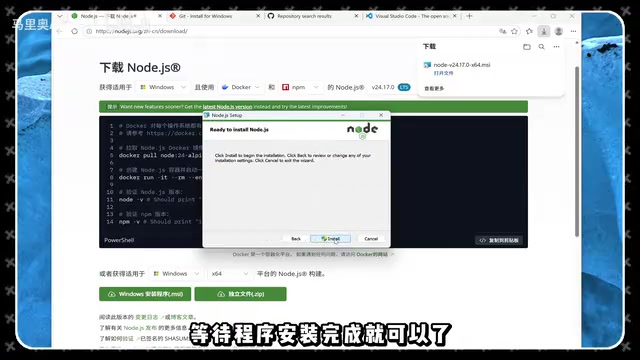
First, go to the official Node.js website to download the installer. The video chose the Windows system; after downloading, open the file, click Next all the way to accept the agreement, and wait for installation to complete.
After installation, Windows users open PowerShell and enter node -v to display the version number. Then enter npm -v. The creator encountered an error here once; the solution is to enter a specific command, press y to confirm, then re-enter npm -v to check. Seeing the version number means the environment is installed successfully.
What Is the Relationship Between Node.js and npm
Node.js is a server-side runtime environment that lets JavaScript run directly on the operating system without a browser; npm (Node Package Manager) is the package manager installed alongside Node.js, used to download, install, and manage third-party code libraries. Many modern command-line tools (including tools distributed through the Node ecosystem like Claude Code) are installed globally via npm, so whether npm -v correctly outputs a version number directly determines whether subsequent installation commands can execute. The common cause of an error when running npm -v for the first time on Windows is that the system's PowerShell script execution policy restricts unsigned scripts by default; entering the command and confirming as prompted removes the restriction. This is a configuration issue, not a corrupted installation, so reinstalling won't solve it.
Install Git
Windows systems also require Git to be installed separately. Go to the official Git website, download the installer, and click Next all the way to complete installation. Git's role is to enable subsequent tools to perform version management and dependency pulling properly; it cannot be skipped.
Formally Install Claude Code
Once the environment is ready, enter the official installation command in PowerShell to install Claude Code. After it runs, enter the check command; if a version number pops up, Claude Code is formally installed.
This step is the foundation of the entire process; failure at any link will prevent subsequent steps. It's recommended to verify the version number after each sub-step rather than checking everything at the end.
Step 2: Connect the DeepSeek Model
Claude Code connects to Anthropic's own models by default, but many users want to use DeepSeek to reduce costs or get output more aligned with Chinese conventions. The video uses a third-party configuration tool called CC Switch to complete the switch.
Obtain an API Key
First, go to the DeepSeek API official website to create an API Key. Give the Key a name (e.g., "Claude Code"); after clicking create, a key starting with SK will be generated. The creator particularly emphasizes: be sure to copy and back it up on the spot, because it won't be visible after leaving the page.
More importantly, this Key is equivalent to your account's spending credential—never share it with people you don't trust, or they'll be spending your tokens during Vibe Coding.
API Key and Token Billing Mechanism
An API Key is a credential used for identity authentication; the server identifies the caller and bills accordingly. When using large model APIs, fees are usually settled by Token: a Token is the basic unit of text processed by the model, roughly understood as a "word fragment," and both input and output count toward consumption. Therefore, giving the Key to someone else is equivalent to letting them make calls with your account quota, incurring real costs. For security reasons, most platforms display the Key in full only once at creation and afterward keep only a masked form that cannot be viewed again—this is the fundamental reason the tutorial repeatedly emphasizes "copy and back up on the spot." If a Key is accidentally leaked, the correct action is to immediately delete it in the console and regenerate it, not to continue using it.
Configure in CC Switch
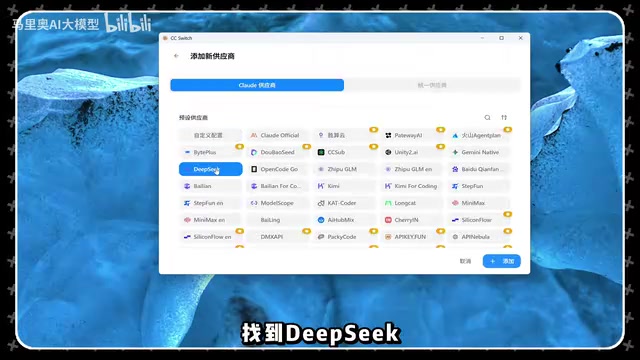
Open the installed CC Switch, click the Claude Code icon, then click the plus sign to find DeepSeek. This interface lists many other large models to choose from. Paste the Key you just copied, then scroll down to configure the model.
According to the creator's testing, the default model configured in the latest version of CC Switch is already usable. Check all three options, also check maximum-intensity thinking, and click Add in the bottom right corner. After adding, you can click the test button to verify connectivity; a normal response means configuration succeeded.
Note that third-party configuration tools iterate quickly, and the interface and default options may change with versions. If you find something inconsistent with the video, refer to the official documentation and in-tool prompts.
The Principle of Third-Party Configuration Tools and Model Switching
Claude Code natively determines which model service requests go to through environment variables (such as API address and key fields). Tools like CC Switch exist to help you visually modify these configurations, redirecting requests that default to Anthropic to services with compatible interfaces like DeepSeek, thereby switching backend models without modifying the tool itself. Such solutions depend on the target service's compatibility with the interface protocol, so different models may perform differently in tool calling and long-context handling. Also, because it's a "configuration layer" wrapper, field names and default model lists may change after tool version updates; specific operations mentioned in the tutorial, such as "check all three options" and "maximum-intensity thinking," need to be judged based on the actual interface at the time.
Step 3: Dispatch AI in the Editor
The final step is connecting Claude Code to a code editor so it actually works in your project.
Install the Editor and Plugin
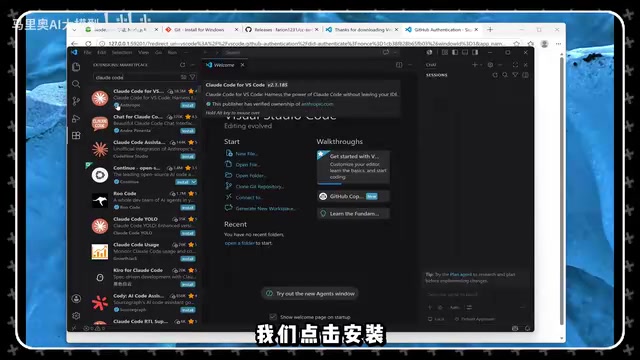
Go to the editor's official website to download the installer and click Next to complete installation. After logging in, search for Claude Code in the search bar; note that you must download the version with the single-column icon (the video particularly emphasizes this detail—installing the wrong version will cause the icon not to appear). Click Install.
Next, search for Chinese to install the Simplified Chinese language pack for the editor. Click "Change Language Now" in the bottom right corner; after automatic restart, the interface becomes Chinese, and the Claude Code icon will also appear in the interface.
Create a Working Folder and Verify
Click Open Folder, create a new test folder (e.g., Test), and select it as your future workspace. Then click the Claude Code icon in the upper right corner and ask in the dialog box, "What model are you?" After waiting for it to think, if it answers that it is a DeepSeek model and shows it's running in the Claude Code environment, the entire chain is connected.
At this point, all three steps are complete. You can start describing requirements in natural language and let the AI create files, write code, and run commands in your folder.
A Few Pitfalls to Watch Out For
Looking back at the whole process, several details deserve separate mention. First, npm errors are the most common stumbling block for beginners; entering the specified command as prompted solves it—no need to reinstall. Second, the API Key cannot be retrieved after the copy window closes, so be sure to back it up on the spot. Third, choose the correct plugin version—the single-column icon version is Claude Code. Fourth, the interface of third-party configuration tools may change with version updates; when encountering inconsistencies, trust the official documentation first.
Vibe Coding has great potential, but the toolchain's stability is still evolving rapidly. Getting the environment running first, then gradually exploring prompting techniques to make the AI smarter and more efficient, is a relatively reliable path.
One-line Summary
Set up the Vibe Coding environment in three steps: install dependencies, connect DeepSeek, verify the model in the editor.
Paragraph Summary
This article is a written Vibe Coding starter guide based on a Bilibili tutorial video. Vibe Coding lets zero-background users complete code writing and file operations in a local environment through natural language, but the prerequisite is setting up the environment first. The article breaks the process into three steps: first, install Node.js, Git, and Claude Code and verify version numbers item by item; second, create an API Key on the DeepSeek official website and configure it into Claude Code through the third-party tool CC Switch; third, install the editor, Claude Code plugin, and Chinese language pack, create a new working folder, and verify whether the entire chain is connected by asking "What model are you?" The end also summarizes common pitfalls such as npm errors, API Keys being displayed only once, choosing the wrong plugin version, and third-party tool interface changes, noting that the toolchain is still evolving rapidly and you should get the environment running first before refining prompting techniques.
Related articles

Generative UI Comes to Android: A2UI Lets Agents Build Native Interfaces in Real Time
A2UI is Google's open protocol that lets AI Agents generate native Android UI from declarative JSON. Learn Catalog and Surface concepts, the three-step integration flow, two-way data binding, self-correction loops, and custom component extensions.

Jetpack Glance + Remote Compose: Wear OS Tiles Evolve into Widgets
Wear OS Tiles evolve into Wear Widgets built on Jetpack Glance and Remote Compose, sharing infrastructure with phone widgets. Migration strategies, code model, and AI tools explained.

Jetpack Navigation3 Type-Safe Deep Links in Practice
A deep dive into the Jetpack Navigation3 type-safe deep link API: from DeepLinkRequest and URIDeepLinkMatcher to Kotlin Serialization parsing, lazy synthetic back stacks, and KMP sharing.