Advanced Remotion Tutorial: AI-Powered Data Animations & Video Asset Production

An advanced guide to combining Remotion with AI for efficient programmatic video production
This article systematically covers advanced Remotion framework techniques, focusing on deeply integrating AI capabilities with programmatic video production. By importing an official Markdown configuration file to improve AI code generation quality, it enables data chart animations, screenshot-to-animation recreation, article-to-video conversion, dynamic tracking, transparent background asset creation, and automated ad generation—achieving efficiency gains of 10-50x over traditional approaches.
Introduction
Remotion is a React-based programmatic video creation framework that's easy to pick up yet incredibly powerful. If basic usage is just "drawing a circle," then advanced usage is like a Swiss Army knife—data analysis animations, dynamic tracking, transparent assets, ad generation—all handled by one tool. This article systematically covers Remotion's advanced techniques, helping you move from "can use it" to "efficient production."
Project Initialization & Advanced Configuration
Creating a Blank Project
Use pnpm (more efficient than npx) to create a Remotion project:
pnpm create video --blank
Select blank (empty template), enable CSS support and Agent Skills. After installing dependencies, run pnpm dev to start the development server and see Remotion's test page.
Key Configuration for AI IDE Integration
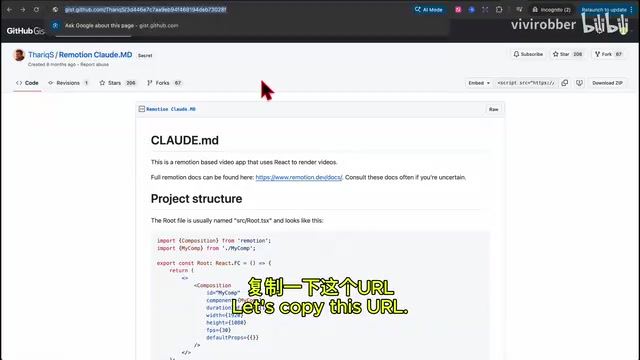
Here's an important advanced tip: Remotion officially provides a Markdown configuration file designed for collaboration with Claude Code, containing best practice rules for video production. Although it was originally designed for Claude Code, testing shows that importing this configuration into Android Studio's Gemini assistant (or other AI-powered IDEs like Windsurf or Cursor) works equally well.
The approach: place this Markdown file in the project root directory so the AI assistant can read and understand its specifications. Afterward, the quality of AI-generated Remotion code improves significantly—it automatically follows best practices for component structure, animation timing, file naming, and more.
Data Analysis Animations: From Data to Dynamic Charts
Using AI to Auto-Generate Bar Chart Animations
The most straightforward use case is having AI generate chart animations from data. Simply describe your requirements in an AI conversation (e.g., "Create a bar chart animation for import/export data"), and the AI will automatically install required dependencies (like Recharts), generate complete TSX components, and register them in root.tsx.

The resulting chart animations are smooth—bars rise one by one, data labels fade in. Creating this effect manually in After Effects would take at least 30 minutes, while Remotion + AI takes just seconds.
Recreating Stock Trend Animations from Screenshots
A more advanced technique is giving AI a static chart screenshot and having it identify the data and recreate it as an animation. For example, provide a stock trend chart image with these specifications:
- Place the image in the
publicfolder - Generate a 6-second animation based on the trend data
- Name the file
stock.tsx
The AI will analyze data points in the image and generate a dynamic trend line animation that closely matches the original. This means you can quickly convert any static chart from reports into video assets for presentations or social media content.
Complete Workflow: From Article Summary to Video Generation
This is an extremely practical workflow: Read long article → AI summary → Extract prompts → Generate video.
Two-Step Strategy
-
Planning Phase: Send the article link (e.g., a GitHub Gist) to the AI, asking it to summarize core points and convert them into video production prompts. Use Planning mode here—the AI won't modify code directly but outputs a structured content summary.
-
Execution Phase: Send the extracted prompts combined with specific requirements (e.g., "tech-forward aesthetic, 15 seconds long") to the AI, switching to Agent mode to have it directly generate video code.

For complex tasks, the AI automatically generates a task list and executes step by step—this is thanks to the workflow specifications in the previously imported Markdown configuration file. The final video output is polished, information-dense, and perfectly suitable as base material for educational short-form content.
Dynamic Tracking Animation Production
Using shipping tracking as an example, simply describe: "Create a shipping tracking animation for the Persian Gulf region, 10 seconds long, filename ocean.tsx."
During production, the AI will proactively search for real-time map information to ensure geographic accuracy (requires authorization), then automatically draw a Middle East/Persian Gulf map with dynamic shipping route tracking effects overlaid. While geographic precision may not match professional GIS tools, it's more than adequate for demonstration animations, and the production speed absolutely crushes traditional approaches.
Transparent Background Assets: Bridging the Post-Production Workflow
This is one of Remotion's most practical features in actual video production.

Creating Transparent Background Animated Assets
Ask the AI to generate a message bubble animation with a transparent background—two message boxes float in sequentially, containing "Hello" and "Oil prices went up again." The key is setting the background to transparent (i.e., no background color specified).
Overlay Usage in Editing Software
The rendered video outputs to the out folder, with format support for Alpha channel. Import this asset into any video editing software (like DaVinci Resolve or Premiere Pro), drag it to an upper video track, and overlay it on live-action footage.
This means you can use Remotion to batch-produce various dynamic stickers, annotations, and transition effects, then flexibly use them in traditional editing workflows—a hybrid workflow combining code generation + traditional editing that balances efficiency and flexibility.
Ad Generation & Template Ecosystem
One-Click Project Promo Video Generation
You can even give AI a GitHub repository link and have it read the project information to automatically generate a promotional ad. The AI extracts the project name, core features, tech stack, and other information, combining them with motion effects to produce a short but complete promotional video.
Remotion Official Template Resources
The Remotion website provides numerous free templates (via the Find Template entry) covering common video types. When installing projects, you can directly select these templates as starting points. For most scenarios, the free templates are more than sufficient.
Summary: Efficiency Comparison of Advanced Remotion Usage
The core of advanced Remotion usage lies in deeply integrating AI capabilities with programmatic video production:
| Scenario | Traditional Approach | Remotion + AI |
|---|---|---|
| Data chart animations | 30-60 minutes | 1-2 minutes |
| Article to video | 2-3 hours | 5-10 minutes |
| Transparent asset creation | 15-30 minutes | 1-2 minutes |
| Ad videos | 1-2 hours | 3-5 minutes |
The key is that Markdown configuration file—it helps AI understand Remotion's best practices, enabling it to generate high-quality, production-ready code. Whether you're using Cursor, Windsurf, or Android Studio with Gemini, this workflow is worth trying.
Related articles
 Tech Frontiers
A Rare Quiet Day in AI: Recursive Self-Improvement Stirs Beneath the Surface
A rare quiet day in AI sees multiple sources go silent simultaneously. Behind the calm, Recursive Self-Improvement (RSI) research continues. What this means for the industry.
 Tech Frontiers
Reve 2 vs. Ideogram 4: A Deep Dive into Layout Control in AI Image Generation
A deep comparison of Reve 2 and Ideogram 4's layout control capabilities, covering technical approaches, real-world use cases, and industry trends for designers and creators.
 Tech Frontiers
In the Weights: Check Your Influence Score in the AI World
In the Weights is an AI influence search engine that quantifies your presence in the AI world with a score. Explore how it evaluates practitioners and what it means for digital identity.