Build an AI Customer Follow-Up System with n8n (No Code): Auto-Draft Reply Emails in 5 Minutes

Use n8n and Claude to auto-draft personalized reply emails from contact form submissions — no code required.
This guide walks through building a customer inquiry automation with n8n: when a visitor submits a contact form, the system validates and scores the lead, calls Claude (Haiku) to generate a personalized reply based on the message, and saves the draft to Gmail for human review. The entire setup takes about ten minutes, starts from an importable blueprint, and requires zero code. Key details include lowercase-only field labels, a draft-not-send design for quality control, and a production URL that plugs directly into your website's contact button.
One Form Submission, One Ready-to-Send Reply
Imagine this: a customer just fills out the contact form on your website, and before you even open your inbox, a personalized reply email is already drafted and sitting in your drafts folder waiting for your review. This isn't science fiction — it's a real workflow you can build with n8n and a large language model.
This tutorial is based on a complete blueprint shared by a YouTube creator. The entire process requires zero code. From importing the ready-made template to swapping in your own credentials, you can have it running in about ten minutes. It's especially well-suited for non-technical small business owners who need to handle a steady stream of inbound inquiries.
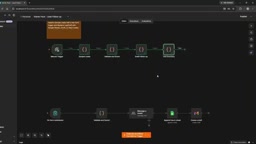
The Five Core Nodes of the Workflow
The entire automation starts with an importable pre-built template. After creating a new workflow in n8n, click the three dots in the top-right corner and select "Import from File" to load the blueprint. The template consists of five nodes — understanding each one is essential before making any changes:
- Manual Trigger: Starts the workflow; used during testing.
- Sample Leads: Contains several mock customer records with fields like name, email, company, message, and source — including one record intentionally missing a name to test error handling.
- Validate and Score: The brain of the workflow. It checks whether email addresses are real, scores each lead out of 100, and categorizes them into buckets like sales, operations, or general.
- Draft Follow-up: Generates a reply draft for each valid lead.
- Test Summary: Lets you quickly see which leads have been tested and which are pending review.
The creator emphasizes that the Validate and Score node must be kept as-is, since it handles spam filtering and lead validation. The template is a practice version — the customers are fictional and the replies are hardcoded. To make it production-ready, you'll need to replace the key nodes one by one.
Replace the Trigger with an n8n Form to Collect Real Leads
The first step is to delete the Manual Trigger and Sample Leads nodes (which are just for practice) and replace them with an "n8n Form" node. Click the plus button, search for "n8n form", and under triggers, select "on new n8n form event". This node does double duty: it provides a real contact form with its own URL, and it automatically triggers the workflow every time someone submits it.
Name the form "contact us", then add five fields: name (text input), email (email type), company (text input), message (text area), and source (dropdown with three options: website, referral, social). The source field lets you track traffic channels at a glance — whether a lead came from your website, a referral, or social media.
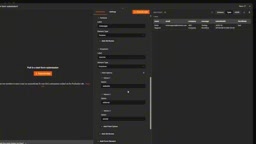
Here's a common pitfall: all field labels must be entirely lowercase. The scoring node looks up fields by exact label name, so if anything is capitalized, it won't match — and the system will incorrectly flag valid leads as invalid. The creator mentions this can be fixed with code, but to keep things no-code, just follow the lowercase rule from the start.
Connect Claude to Let AI Write the Replies
The next node to replace is Draft Follow-up — this is where the actual reply gets written. The hardcoded placeholder text needs to be swapped out for a large language model. GPT or Claude both work; the tutorial author uses Claude.
To connect Claude, you'll need an Anthropic API key. Go to the Anthropic website, click "Create Key" in the top-right corner, name it, copy it. Back in n8n, click the plus button, search for Anthropic, select "message a model", then create a new credential and paste in the key. For the model, the author uses Haiku — the lower-cost, faster option.
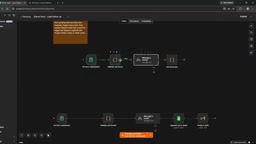
The key piece is the prompt — it tells the model how to write a reply based on the customer's message. Remember to update the sign-off at the end of the email with your own name. Once configured, connect the form node to the Claude node. This upgrade transforms the workflow from a template with static sentences into a system that actually understands customer intent and generates personalized replies.
About Claude Haiku: Claude Haiku is Anthropic's lightweight model — the fastest and most affordable in the Claude 3 family, making it ideal for high-frequency, straightforward text generation tasks like drafting emails. Claude Sonnet and Opus are more capable but also pricier. Anthropic's API is billed per token — the more text in and out, the higher the cost. For a small business processing dozens of inquiries per day, Haiku's costs are typically very manageable. Note that new Anthropic accounts require an initial deposit before using the API — similar to OpenAI, there's no automatic free credit upon signup. If you'd prefer to use GPT instead, search for the OpenAI node in n8n — the configuration logic is identical, just swap in your API key and choose your model.
Save Drafts to Gmail with the Gmail Node
The final step is adding a Gmail node. Search for Gmail and select "create a draft" — Claude's generated reply will be saved to your Gmail drafts folder for human review before sending, rather than going out automatically. This design preserves a quality-control step.
To configure it, double-click the node and go to the message field, then pull in the generated text from the Claude node. Click "add option", select "to email", and drag in the customer's email address from the Validate and Score node. Set a generic subject line like "thanks for reaching out" — you can always change it during review. Connecting Gmail credentials is straightforward: just authorize the account.
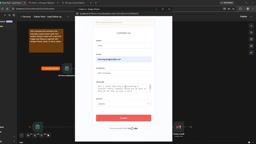
The creator demonstrated this live: filling out the form as a customer named Krish, with a message asking for help setting up a Faceless Shorts channel automation. After submitting, they refreshed the Gmail drafts folder — and a complete reply email with the subject "thanks for reaching out" had already been generated. It addressed the customer by name, expressed willingness to help, asked for more details about their specific needs, and included a proper sign-off.
How Customers Actually Access the Form
Once the workflow is running, the key question is how customers reach the form. This tutorial uses a self-hosted n8n instance. To make it publicly accessible, you'll need to activate the workflow and ensure n8n is deployed on a cloud server or using the official n8n app.
Click the form node and go to the production URL — this is your public-facing link. Set your website's "Contact Us" button to point to this URL. Visitors will see a normal-looking form. Every time someone submits it, the workflow triggers automatically, AI drafts the reply, and it lands in your inbox. Check your drafts folder each morning and you're done.
Starting from an importable template, you can build a complete lead follow-up automation in under ten minutes. The creator also mentioned this is just one workflow from their small business automation starter pack — others include content repurposing, invoice replies, inbox categorization, and automated weekly reports. The approach is the same throughout: plug in your own n8n instance, swap out the credentials, and it runs. For non-technical people looking to get started with automation, this blueprint-style approach significantly lowers the barrier to entry.
Background: What Is n8n?
n8n is an open-source workflow automation tool, similar in positioning to Zapier or Make (formerly Integromat), but with support for self-hosted deployment — meaning your data doesn't have to pass through third-party servers. It connects different apps and services through a visual "node" system, where each node handles one specific action (triggering, transforming data, calling an API), and nodes pass JSON data between them. The free self-hosted version has no task limits, which is a significant advantage for budget-conscious small businesses. An official cloud-hosted paid plan (n8n Cloud) is also available if you'd rather skip server configuration. In the self-hosted scenario used in this tutorial, you'll need a continuously running cloud server (such as a VPS) so the workflow can respond to form submissions even when your computer is off.
Related articles

DeepSeek Open-Sources DeepInfer: What Is an Inference Framework Actually For?
DeepSeek open-sources its inference framework DeepInfer under Apache 2.0, supporting DeepSeek V4.1 Flash offline inference. This article explains its request scheduling, FlashMLA/DeepGEMM compute optimization, DSPark speculative verification acceleration, and what it means for developers and ordinary users.

Open-Source AI Learning Agent: A Full Workflow Experience from Topology Graphs to Exam Generation
Explore an open-source AI learning agent: built on DeepSeek API, it constructs knowledge systems via topology graphs, with automatic document generation, notes, super documents, and exams. Learn about its Agent workflow and design highlights.

DeepSeek Whale Girl Open-Source MV Meme: AI Industry Coded Slang About Pivoting to Closed Source
Bilibili's DeepSeek Whale Girl rap MV uses fictional memes to tease the AI open-source vs. closed-source debate, with lyrics full of industry slang. This article explains the meme culture, the Whale Girl symbol, and the open/closed tension.