Building AI Agents with n8n (No Code): A Hands-On Gmail Auto-Reply Tutorial

Build a Gmail AI auto-reply agent with n8n's no-code workflow platform — no programming required.
This article introduces how n8n, a no-code automation platform, lowers the barrier to Agentic AI development for non-technical users. Starting from n8n's naming origin and core concepts (nodes, workflows, triggers), it walks through building a three-node Gmail auto-reply agent: a Gmail trigger monitors incoming emails, an OpenAI node uses an LLM to generate personalized replies, and a Gmail send node delivers the response. The tutorial also covers OAuth credential setup, API Key integration, and trigger filter debugging. The instructor notes that credential configuration is the steepest part of the learning curve — after that, complexity barely increases.
Why n8n Has Become a Catalyst for the Agentic AI Boom
One key reason Agentic AI has taken off so quickly is the emergence of tools like n8n. It offers a no-code approach to connecting different types of nodes, enabling people without programming, machine learning, or data science backgrounds to rapidly build fully functional agent systems.
According to the Venkat Reddy AI course, n8n lowers the barrier to agent development — you don't need to write a single line of code to orchestrate a working Agentic AI system. It also provides extensive integration capabilities, connecting to a wide range of APIs and equipping agents with the tools they need. The course instructor emphasizes that once you grasp four or five core concepts, most people can build their own n8n agents — and that's precisely why its adoption has been so rapid.
As for the name, there's a fun backstory: n8n stands for node automation. Take the "n" from "node" and the "n" from "automation" — the "8" in the middle represents the eight letters skipped between those two n's. The result is a quirky-looking but logically consistent name: "n8n".
Agentic AI refers to AI systems capable of autonomous planning, decision-making, and execution. The key difference from a standard chatbot is that it doesn't just "answer questions" — it can receive goals, break down tasks, call external tools (such as search, email, or databases), and take continuous action across multiple steps until the task is complete. Typical examples include an assistant that autonomously researches competitors and generates reports, or a personal assistant that books meetings and manages your inbox. Systems like these used to require deep engineering expertise to build, but visual orchestration tools like n8n have made "assembling an autonomous AI agent from building blocks" something anyone can do.
Core Concepts: Nodes, Workflows, and Triggers
At its core, an n8n agent is modular and code-free. It can accept input from various sources — forms, emails, and more — then execute a logical sequence of steps. This sequence is captured by a key term in n8n: the workflow.
A workflow answers questions like: How do we receive input data? How does the AI agent analyze it? How is the final output generated? How does the whole process run automatically? Inside a workflow, each functional unit you place is called a node. Connect the nodes one by one, and the entire pipeline runs.
The most special type of node is the trigger. A trigger determines where the workflow starts — it might be a user submitting a form, someone clicking a button, or a new email arriving in your inbox. When creating any workflow, you always begin with a trigger.
Also worth exploring is the Templates section in n8n's left sidebar. It contains a large library of ready-made workflows created by the community, covering scenarios like IT, sales, and more — for example, "automatically pull recent company news before a call" or "analyze email headers to detect IP reputation and spoofing." All of these templates are free to explore and reuse.
Creating an Account and Advice on Pricing
The first step to building n8n agents is registering at n8n.io. The platform offers a 14-day free trial, but the course instructor is clear on one point: don't stay on the free trial. Once it expires, you should purchase the basic plan.
The reasoning is straightforward — relative to the learning value and full feature set n8n provides, the basic plan is reasonably priced and well worth it for anyone serious about learning and building. During registration, you'll need to create a unique cloud account name. Once logged in, the home screen displays your workflow list (active/inactive), your credentials (Gmail, OpenAI, Telegram, etc.), and your execution history (successful, failed, and cancelled runs).
All of these sections will be empty on first login. As you create workflows and connect various APIs, they'll gradually fill up.
Hands-On: Building Your First Gmail Auto-Reply Agent
The first hands-on project in the course is a Gmail-based AI personal assistant agent. Its logic is straightforward: monitor the inbox for new emails → use a large language model (LLM) to analyze and understand the email content → automatically generate a professional, personalized reply → send that reply back to the original sender.
The instructor emphasizes that this is not a generic "your email has been received" auto-reply. It's a smart reply — one that responds to the actual content of the email, just like a real person would. He also notes that this kind of personal assistant is already entering our everyday systems. Microsoft Copilot, for instance, is used by many organizations to observe how users handle tasks and proactively offer suggestions.
The entire workflow is built from three core nodes chained together:
Step 1: Gmail Trigger Node
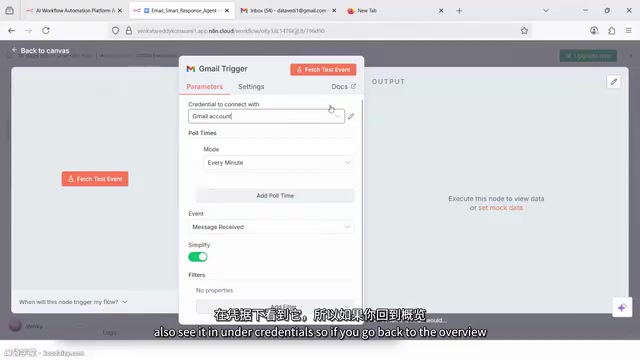
After creating a new workflow (named "email reply agent"), add the first node — a Gmail trigger with the event set to "On message received." On first use, a red warning icon will appear on the node indicating that credentials haven't been configured. You'll need to create new credentials, selecting the recommended OAuth method, then sign in with your Google account and grant n8n permission to read your emails. Once authorized, you can set the polling frequency (every minute, hour, day, etc., subject to Gmail API limits) and use filters to process only "Inbox" or "Important" emails. Click "Fetch test event" to pull in a test email and verify the connection is working.
Step 2: OpenAI Node to Generate the Reply
Add an OpenAI node after the trigger, with the operation type set to "Message a model." This step also requires credentials — create new credentials and paste in your own OpenAI API Key (the organization ID is optional). The instructor is candid about this: when building your first n8n agent, roughly half the effort goes into connecting these credentials. But once they're set up, everything downstream becomes much smoother.
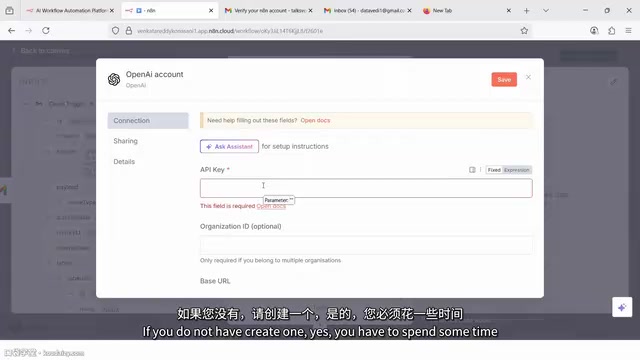
With credentials configured, the key task is writing the prompt. For example: "You are a helpful assistant. Read and understand the email below and reply in a professional tone. Here is the email:" — then drag and drop the email snippet field from the previous node's output directly into the prompt. n8n encourages using drag-and-drop over manual code wherever possible. After selecting your model (e.g., GPT-4o latest) and clicking execute, you'll see the AI-generated reply.
OAuth (Open Authorization) is an industry-standard authorization protocol that allows third-party applications (like n8n) to access a user's resources (such as Gmail messages) with explicit user consent, without ever obtaining the user's password. During the authorization flow, the user is redirected to a Google login page to select the permissions they want to grant. Google then issues an access token to n8n. This approach is far more secure than entering a password directly, since tokens can be revoked at any time and are scoped to specific permissions. API Keys, by contrast, are static strings that represent direct access credentials to a service (like OpenAI). They must be kept secure and never exposed — if leaked, they should be immediately regenerated in the service provider's dashboard.
Step 3: Gmail Send Node
Finally, add another Gmail node with the operation set to "Send a message." Drag the "from" field from the trigger node into the recipient field — this sends the reply back to the original sender. Prefix the subject with "Re:" and append the original subject. The email body pulls from the OpenAI node's output, with HTML formatting available. A green checkmark after execution confirms the reply has been sent.
Debugging Details from the Live Demo
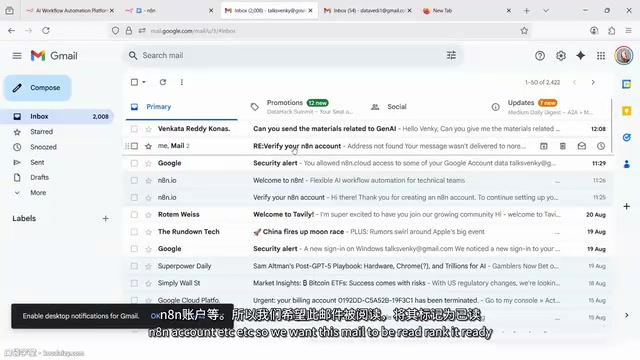
During the live demo, a debugging scenario worth learning from came up: after the instructor sent a test email, the workflow kept reading n8n's welcome email rather than the newly sent one. The root cause was that the trigger's filter was set to "Inbox + Important" — the new email was in the inbox, but hadn't been marked as Important. Changing the filter to "Inbox only" resolved the issue, and the email was successfully read and auto-replied to.
By default, a workflow is in inactive state and only runs when you manually click "Execute workflow." Once switched to active, any incoming email will be processed and auto-replied to in real time. The instructor warns: if you've connected your personal Gmail account, make sure to deactivate the workflow after testing — otherwise it will start auto-replying to everyone.
A few other helpful details: the "Append n8n attribution" option in the send node is enabled by default and adds the line "This email was sent automatically with n8n" to the bottom of each email — you can toggle this off manually. The "Tidy up" button automatically rearranges your node layout. The "Executions" panel logs every run, showing successes and failures (failures appear in red) for easy troubleshooting.
From Simple Assistant to Complex Agent
This Gmail auto-reply agent is simple, yet it covers the complete skeleton of an agent: input → LLM analysis → output → automated deployment. The instructor notes that future lessons will build on this foundation to increase complexity — for example, connecting a calendar tool so the agent can read your schedule, determine whether a time slot is free, automatically reply, book meetings, and set reminders. Or integrating additional tools to craft personalized replies for specific users.
Overall, though, the instructor believes n8n has a very gentle learning curve: "If you find n8n difficult, that means the problem is with how I'm explaining it." The real complexity is concentrated in the first-time credential setup. After that, each additional node or workflow adds at most 10–15% more complexity. For anyone looking to bring an AI project idea to life, n8n offers a nearly zero-barrier path to making it happen.
Large Language Models (LLMs) are the core AI engine powering these agents — OpenAI's GPT-4o being a prime example. Trained on massive volumes of text data, LLMs have learned to understand natural language, generate coherent text, and perform logical reasoning. In an n8n workflow, the LLM acts as the "brain" node — receiving context (such as the original email) and instructions (the prompt), then outputting structured or natural-language results. The quality of your prompt directly determines the quality of the output: the more clearly you define the role, task objective, and output format, the more accurate and professional the LLM's response will be. This is why, in n8n practice, crafting a good prompt often takes more iteration than connecting the nodes themselves.
Related articles

T3 Code: The Open-Source AI Coding Assistant's Comeback Story
T3 Code is an open-source AI coding assistant that unifies subscriptions like Codex and Claude, with powerful remote control and parallel task management.

Never Elected, Yet Ruled New York for 30 Years: The Ultimate Case Study in the Mechanics of Power
Robert Caro's biographies reveal how unelected Robert Moses ruled New York for 30 years through legal drafting and public authorities, and how Lyndon Johnson built leverage as a "powerless" Senate Majority Leader. Unpacking the underlying logic of accumulating and sustaining power.

The CPython 3.10 Recursion Trap and Synthetic Recovery in TokenGuard, an LLM Circuit Breaker
TokenGuard's author recounts a recursion crash caused by OrderedDict.pop in CPython 3.10 and introduces v0.3.0's Loop Nudge synthetic recovery, inline DLP scanning, and other new LLM agent circuit-breaker capabilities.