Building an AI Agent with a Chat Interface Using Python and MCP
Use Streamlit, MCP servers, and simple document retrieval to turn a terminal agent into a usable personal tool.
The article introduces a three-step path to upgrading a terminal AI Agent into a practical personal tool. First, build a chat interface with Streamlit, decoupling the agent's core logic in core.py from the page layer, saving conversation history with session_state, and displaying agent memory in the sidebar, while adding Allow/Deny authorization buttons for sensitive tools like file writing. Second, integrate ready-made MCP servers for file system, Web, and GitHub directly through the MCP standard without handwriting tool code, but check source, permissions, and tool descriptions and lock versions before integrating. Third, build a minimal document retrieval server implementing a simplified RAG via keyword matching. All three reflect the architectural idea of separating core logic from the interaction and tool layers.
From Terminal to Chat Interface: Upgrading the AI Agent Experience
Most AI Agent tutorials stop at the terminal—the agent runs, it can call tools, but ordinary users can't actually use it. A tutorial from the YouTube channel LearnTech demonstrates a complete path to real-world deployment: wrapping the agent in a chat page with Streamlit, extending its capabilities with ready-made MCP servers, and finally letting it read your own documents. Each of these three steps solves a genuine pain point, and it's all done in pure Python.
Why You Need a Chat Page
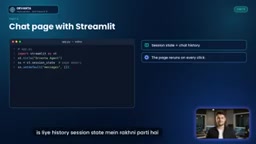
An agent in the terminal has no history, no memory display, and users have no way to say "no" to sensitive operations. The tutorial's approach is to extract the agent's core logic into core.py, exposing a run_agent function that takes a list of messages and returns either a final answer or a signal that "this tool requires authorization." The page layer, app.py, is only responsible for rendering and interaction. With the two decoupled, the terminal version and the web version can share the same agent logic.
Streamlit's value here is that it eliminates front-end engineering: session_state serves as the store for conversation history, because the page re-executes on every interaction, so state must be saved explicitly. The sidebar reads memory.json and displays the user information the agent remembers directly—a level of transparency you can't get in the terminal.
Streamlit's session_state mechanism is a prerequisite for understanding the page layer design. Streamlit re-executes the entire script from scratch on every user interaction, and ordinary variables get reset on each rerun, so they can't preserve conversation history across turns. st.session_state is a dictionary tied to the user session; its values persist across script reruns, making it suitable for storing message lists, authorization states, and other data that needs to persist. In practice, you usually check whether a key exists first and initialize it only if it doesn't, to avoid overwriting it on every rerun. This also explains why the agent's core logic can't depend on any global variables—it must take state in as parameters and return results as return values.
Authorization Buttons: Giving Control Back to the User
One design worth noting in the tutorial is the Allow / Deny buttons. When the agent wants to call a tool that changes state (such as adding a task or writing a file), the page first shows a warning, and only executes if the user clicks Allow; clicking Deny sends a rejection signal back to the agent.
This detail seems simple but is actually key to productizing an agent. Once tool calls involve writing or deleting, unconditional automatic execution is a risk exposure. The tutorial also maintains a pre-defined "sensitive tool list" in advance: any tool whose name starts with add, write, edit, create, or delete will likewise trigger the Allow button before writing a file.
Ready-Made MCP Servers: Adding External Capabilities Without Writing Code
The significance of MCP (Model Context Protocol) is standardization—any agent can talk to any server that follows the protocol. This means the thousands of MCP servers that already exist in the community can be used directly.
Three Typical Servers
The tutorial demonstrates the three most common integration scenarios:
- File system server: Lets the agent read and write a specified folder, with permissions strictly limited to the directory the user specifies
- Web server: Opens and reads the content of any web page
- GitHub server: Views repositories, Issues, and Pull Requests
Configuration is exactly the same as for a self-built server—just add a few lines to the server list, each line only needing to declare the startup command and arguments. The last argument of the file system server is the authorized directory—this is the first gate of the permission boundary. The GitHub server requires a token, and the tutorial emphasizes two points: give the token read-only permissions; never write the token into code—put it in an environment variable.
The hands-on flow is: ask the agent to list the files in the shared folder, and the file system server executes and returns the list; then ask it to read a web page and save it as a file, and the Web server first reads the content, the page pops up an Allow button, and after confirmation the file is written successfully. Throughout the whole process, not a single line of tool code was handwritten.
Check Before You Trust
The tutorial raises an easily overlooked issue: every MCP server is essentially a program running on your computer, and the agent will unconditionally trust its output. So before integrating, you should do a few checks:
- Who made the server—official or unknown
- Read the code or README
- See what permissions it requests—the fewer the better (single folder, read-only token)
- List its tools first and check the names and descriptions for any strange instructions
- Lock the version to prevent behavior changes after updates

The tutorial provides a small script, inspectserver.py, that lists the names and descriptions of all of a server's tools when run. But it also warns: this script itself executes the server program, so read the README before running it, and run it in a directory that doesn't contain important files.
MCP's communication method is worth adding: it's based on JSON-RPC, and the client (here, the agent) and the server exchange structured messages over standard input/output or network transport. The protocol abstracts server capabilities into three types of primitives—Tools (functions the model can call, with names, descriptions, and input parameter schemas), Resources (readable data such as file contents), and Prompts (preset prompt templates). When the agent starts, it first initiates capability negotiation with the server, and after getting the tool list, injects the tools' descriptions into the model context, based on which the model decides which tool to call and what arguments to pass. This is precisely why checking tool names and descriptions is so important: this text goes directly into the model's decision-making basis.
Letting the Agent Understand Your Own Documents
The LLM has never seen your notes and documents; ask it directly what the refund policy says and it can only guess or answer wrong. RAG (Retrieval-Augmented Generation) solves exactly this problem: first find the relevant passages in the files based on the question, then hand the passages to the model and have it answer based on that content.
A Minimal Document Retrieval Server
The tutorial creates a My Docs folder to hold text and Markdown files, then writes a Docserver.py: it first splits each file into paragraphs, provides a Search Docs tool that takes a query term, matches paragraph by paragraph, ranks by the number of matched words, and returns the top three highest-scoring paragraphs along with their file names; it also adds a List Docs tool that lists all files.
Adding this server to the agent's list takes just one line, and the system prompt states: for questions involving documents, call Search Docs first, cite the file name in the answer, and no guessing allowed.
This Is a Simplified Version of RAG
The tutorial's author says it plainly: this search only does keyword matching, whereas real RAG is semantic retrieval, i.e., Embeddings, which is another topic. But as a teaching starting point, the logic of this simplified version is complete—retrieve, inject context, constrain the answer source—and upgrading later just means replacing keyword matching with vector retrieval.
Embeddings and vector retrieval are the core of the upgrade path. Embeddings map a piece of text to a high-dimensional numerical vector, and texts with similar semantics are closer together in vector space. In practice, you precompute vectors for all document paragraphs and store them in a vector database; at query time you convert the user's question into a vector too and take the closest paragraphs by cosine similarity. Compared with keyword matching, it can handle synonymous expressions and reworded questions—for example, asking "how do I handle returns" can also match a paragraph that says "refund process." The cost is additional embedding model calls, vector storage, and tuning of the chunking strategy, which is why the tutorial uses the keyword version first to lower the barrier.
What the Three Things Have in Common
Looking back at these three parts: the chat page solves usability, ready-made servers solve capability extension, and document retrieval solves data privatization. They share the same architectural judgment—the agent's core logic stays separate from the interaction layer and the tool layer. core.py can be called by the web page or by the terminal; MCP servers can be added or removed at any time without changing the agent code. This structure brings a teaching demo much closer to a usable personal tool.
FAQ
What programming background do MCP servers require? Integrating ready-made servers requires no coding—you just declare the startup command and arguments in the configuration. Writing your own server requires an understanding of basic Python and the protocol interface.
Why do sensitive tools need separate authorization? Tools that change state (writing, deleting, creating) are hard to undo once triggered by mistake. The Allow / Deny buttons leave the final decision to the user, which is a basic means of risk control.
Is the simplified keyword search good enough? For scenarios with a small volume of documents and clear terminology, it's basically sufficient. As the document scale grows or questions become more semantic, you need to switch to Embeddings-based vector retrieval.
One-line Summary
Using Streamlit, MCP servers, and simple document retrieval to turn a terminal agent into a usable personal tool.
Paragraph Summary
The article introduces a three-step path to upgrading a terminal AI Agent into a practical personal tool. The first step is building a chat interface with Streamlit, extracting the agent's core logic into core.py to decouple it from the page layer, using session_state to save conversation history, and displaying the agent's memory in the sidebar; at the same time, adding Allow/Deny authorization buttons for sensitive tools like file writing. The second step is directly integrating ready-made servers such as file system, Web, and GitHub through the MCP standard without handwriting tool code, though before integrating you need to check the source, permissions, and tool descriptions and lock versions. The third step is building a minimal document retrieval server that implements a simplified form of RAG with keyword matching. Together, the three reflect the architectural idea of separating core logic from the interaction layer and the tool layer.
Related articles

T3 Code: The Open-Source AI Coding Assistant's Comeback Story
T3 Code is an open-source AI coding assistant that unifies subscriptions like Codex and Claude, with powerful remote control and parallel task management.

Never Elected, Yet Ruled New York for 30 Years: The Ultimate Case Study in the Mechanics of Power
Robert Caro's biographies reveal how unelected Robert Moses ruled New York for 30 years through legal drafting and public authorities, and how Lyndon Johnson built leverage as a "powerless" Senate Majority Leader. Unpacking the underlying logic of accumulating and sustaining power.

The CPython 3.10 Recursion Trap and Synthetic Recovery in TokenGuard, an LLM Circuit Breaker
TokenGuard's author recounts a recursion crash caused by OrderedDict.pop in CPython 3.10 and introduces v0.3.0's Loop Nudge synthetic recovery, inline DLP scanning, and other new LLM agent circuit-breaker capabilities.