Claude Code Deep Configuration Guide: From Model Selection to Skills in Practice
A hands-on Claude Code configuration guide: the key levers of model tiers, permission modes, CLAUDE.md, Skills, and context management.
Based on Tech With Tim's nearly three-hour hands-on course, this article distills Claude Code's key configuration decisions in the order you'd get started. The core point is that the gap between default and carefully tuned setups is huge: use Opus for 99% of scenarios, keep effort level at Medium day-to-day, since higher tiers multiply time and usage; default to Auto permission mode and use Plan for approving a plan before acting. At the project level, generate CLAUDE.md via /init to lock in the tech stack and conventions, encapsulate repetitive instructions in Skills, isolate context with subagents, connect external tools via MCP, and bind event automation with Hooks. Context management relies on the three commands /context, /clear, and /compact. The ultimate meta-point: you don't need to memorize features—just know the levers exist and let Claude do the configuration itself.
Most people use Claude Code by "installing it, typing a prompt, and waiting for results," but in a nearly three-hour hands-on course, Tech With Tim points out that the gap between the default setup and a carefully configured one is "enormous." He has used Claude every day for the past year and breaks down the entire body of experience into about 24 short sections, walking through them in the recommended order for getting started. This article distills the key decision points to help you truly configure your workspace.
Where to Install It and Which Version to Use
Claude exists across four entry points: web, desktop app, terminal, and mobile. Tim's recommendation is clear: install the desktop app first—he spends 90% of his time working there, and it's nearly on par with the web version in features but delivers a better experience. The mobile app is also worth installing for tracking an agent's progress on the go or asking a few quick questions. Advanced users can install Claude Code in the terminal and, under the same account system, jump straight into a project directory from the command line.
On the subscription side, the free tier is "quite generous," but doing serious work requires at least the Pro plan—only Pro and above unlock the code tab and Claude Code capabilities in the terminal. Tim himself uses Max 20x but admits he rarely comes close to the usage limit.
Models and Effort Levels: The Most Overlooked Cost Lever
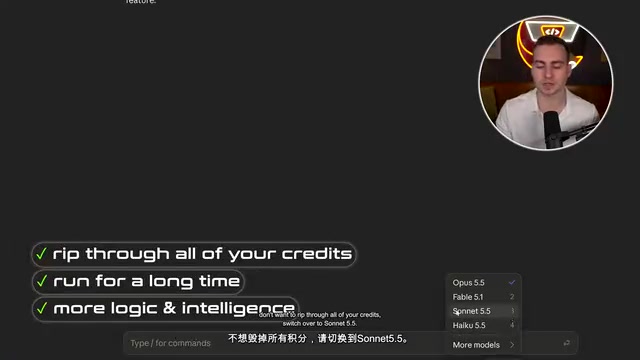
After opening a new session, there are two selectors in the bottom right: model and effort level. The model tiers from low to high are Haiku, Sonnet, Opus, and Fable, but Tim's judgment is "prefer Opus over Fable 99% of the time"—the latter is slightly stronger in some workflows, but the gains don't justify the cost. Higher-tier plans can simply default to Opus; lower-tier or free users should switch based on the task: use Haiku for repetitive small tasks, Sonnet for longer tasks that need some logical reasoning, and save your quota for the genuinely complex parts.
The effort level determines how long the model thinks and how many times it checks its work. Low is fastest and cheapest, suited to prototypes and proof-of-concepts; Medium is the everyday default and runs a few rounds of self-checking; from High upward, time and usage roughly double with each step, and the Max and Extra tiers can spend one to three hours even on simple tasks; Ultra Code is even more extreme—Tim mentions letting it run for six or seven hours when High would have sufficed for the same job. His advice: keep Medium for daily work, and only push to the highest tier for security audits or scenarios that must be 100% correct, while mentally preparing to "let it run all night."
Permission Modes: The Default Auto Is Enough
The mode selector at the bottom of the interface has five options: Auto, Manual, Accept Edits, Plan, and Bypass Permissions. Auto is already the default and is Tim's choice in 90% of scenarios—it automatically performs operations it judges safe and only asks for confirmation on deletions, bulk modifications, or the first invocation of a tool.
Manual asks about every tool call—verbose but controllable; Accept Edits automatically accepts file changes; Plan mode doesn't touch code at all and only produces a plan for your approval, which is especially good for thinking things through before acting; Bypass Permissions never asks, and Tim explicitly does not recommend it. In practice, Auto and Plan are the two he uses most, in combination.
Plan First, Then Act: A Complete 3D Scene Workflow
Tim uses "building a 3D render of the Toronto skyline" as a demo. Before starting, he switches to Plan mode, writes a long prompt describing the requirements, and explicitly asks at the end to "ask me questions first to clarify the requirements"—which he calls "a really good practice." Claude then proactively asks about style, interaction (orbit zoom and pan), additional elements (Lake Ontario, info labels, traffic animation), time of day (golden hour), and other details that users might not think of themselves.
Once the plan is produced, review it item by item for the tech stack (Three.js here), dependencies, built-in data, and file organization, because "this step will save you a ton of time in the future." After confirming, accept with one click and the mode automatically switches back to Auto to begin building. The project ultimately ran for about 30 minutes, and the finished product includes reflective water and cars driving on the road.
CLAUDE.md: So the Agent Never Forgets Project Conventions
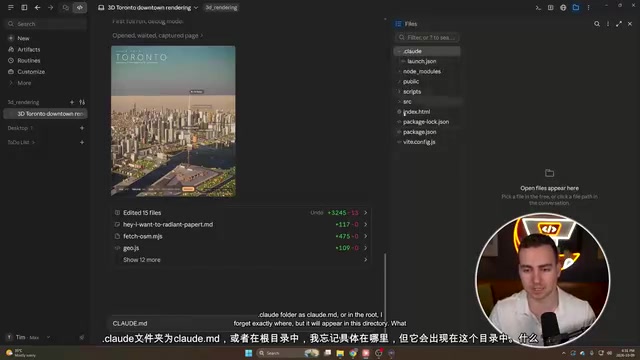
Every project should have a CLAUDE.md. It's a Markdown-format instruction file that the agent automatically reads and follows at the start of each new session, covering the tech stack, common commands, architecture notes, and more. Generating it is simple: type /init, optionally with a description, or leave it blank and let Claude summarize on its own. Tim emphasizes that its value is that "the agent will never forget the tech stack, nor miss key steps," and a new session can immediately have context without rescanning the entire project.
The file supports nesting: put one in the root directory and optionally one in subdirectories (like src); whichever directory you open as the project is the one that gets read. In addition, the .claude folder may automatically generate launch.json (recording how the app launches) and a manually maintained settings.json. The latter is project-level configuration where you can set command allowlists, operations requiring confirmation, files that must not be read (such as environment variable files), and even customize the prompt phrases in the loading animation—in the demo, Claude added a batch of Toronto-themed phrases to the spinner. This kind of configuration is shared with the repository, so team members see the same set of rules.
The Memory Mechanism: Where It Lives and Whether You Should Care
Tell Claude directly to "remember this," and it will decide where to store it. In the demo, it simultaneously updated CLAUDE.md and created memory.md and a user identity file in a global path outside the project directory—meaning these memories don't go into the Git repository by default and stay only on the local machine. If you want memories to travel with the project, you need to explicitly ask it to write them into the project folder; Claude will create a memory.md inside the project and keep reading it. This detail is a bit convoluted, but once you understand that "memory is a file, and its location can be specified," it's not hard to grasp.
Skills: Codifying Repetitive Instructions
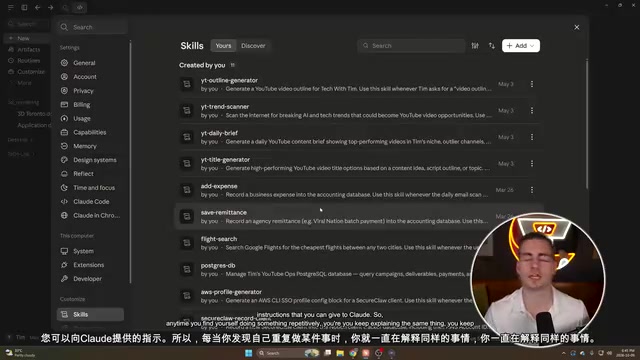
Typing a slash expands a long list of commands, some of which are skills. Tim's definition: a skill is just a Markdown file that encapsulates a reusable set of instructions. "When you find yourself explaining the same five steps over and over, that's the signal to make a skill." He has made skills for YouTube outline generation, flight search, expense tracking, and more, each specifying a fixed structure and tone requirements.
Creating one is equally plain—just ask Claude to write a skill for you and choose the scope: global (placed in the global .claude directory, available in any project) or project-level (placed in the project's .claude/skills subdirectory). In the demo, he moved an Indonesian quiz skill from global to the project directory, and it completely disappeared in other projects, then immediately reappeared when he returned to the original project. The skills marketplace also has plenty of skills shared by others that you can install directly.
Subagents, MCP, Hooks, and Plugins
Subagents solve the problem of context pollution. All conversations and tool calls in the main session pile up in the same context window, and the fuller it gets, the more error-prone and token-expensive it becomes. A subagent can throw a task into the background to run independently, without occupying or reading the main context, and report the result when done. You can also specify a separate model and effort level for it, and run several in parallel. With /agents, the era has shifted to simply asking Claude to create the agent file, which specifies the name, description, available tools, model, and reasoning tier.
MCP (Model Context Protocol) handles connecting to external tools. Most mainstream services provide ready-made MCP servers, and you can also add them manually in the interface by declaring the server URL and name. Plugins are collections that bundle skills, MCP, subagents, and configuration together, managed with /plugins; the official frontend design plugin, for example, contains just a single skill.
Hooks let Claude Code automatically execute shell commands on specific events, with configuration written in settings.json—developers will find it very familiar.
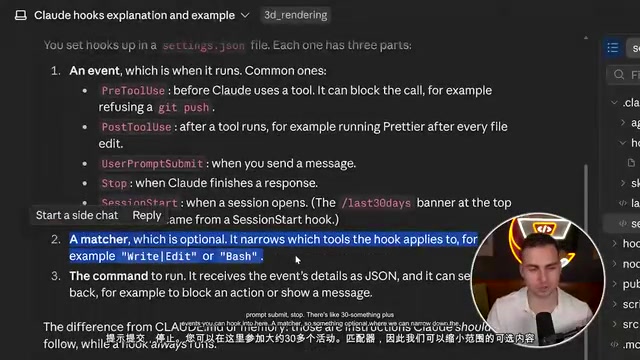
Each hook consists of three parts: the event (there are more than thirty available events), an optional matcher, and the command to execute. Tim's demo adds a PowerShell script to the project that pops up a Windows desktop notification when the session ends—the first attempt failed because system notification permissions weren't enabled, but after enabling them, every time Claude finishes replying, "Toronto skyline app is ready" pops up in the bottom right corner. This kind of mechanism can be used for pre-commit checks, environment variable leak protection, and similar scenarios.
MCP (Model Context Protocol) is a standardized protocol open-sourced by Anthropic in late 2024 for letting large model applications connect to external data sources and tools in a unified way. It uses a client-server architecture: Claude Code acts as the client, connecting to individual MCP server processes, each of which exposes a certain type of capability (such as reading and writing a database, calling the GitHub API, or accessing the local file system) in the three forms specified by the protocol: tools, resources, and prompt templates. This way, developers don't need to write separate integration code for each external service—as long as the service provides an MCP server, any MCP-compatible client can connect directly. The reason the protocol was quickly adopted by mainstream editors and AI tools is that it standardizes "how models discover and call tools": tool descriptions, parameter schemas, and call results all have a unified format, and models can dynamically discover available capabilities without hardcoding.
Hooks are essentially event-driven automation callbacks, mechanically similar to Git's pre-commit hooks or middleware in web frameworks. During operation, Claude Code emits a large number of lifecycle events, such as session start and end, the user submitting a prompt, before the model prepares to call a tool, after a tool finishes executing, and files being modified. Each hook binds together "a certain event + optional matching conditions + a shell command to execute," with configuration stored in settings.json. Matchers narrow the trigger scope, for example triggering only when the Bash tool is called, or only for operations matching a certain file path. Because commands run in the local shell, hooks can access event context (such as tool name, arguments, and file paths), so they can be used for running lint before commits, intercepting writes that contain secrets, auto-formatting, sending desktop notifications, and more. Note that hook commands have the same permissions as the current user, so review carefully when the configuration source is untrusted.
Context Management: Three Commands You Must Remember
The context window is the metric you should watch most closely in Claude Code. The button at the bottom of the session displays both the usage limit and context occupancy. The fuller the window, the higher the error rate and the higher the token cost. The three commands each have their role: /context directly shows the occupancy percentage, /clear wipes the current conversation and starts fresh (equivalent to clicking the plus button without switching tabs), and /compact compresses the history into a summary and clears the original text. In the demo, one compact brought context from about 150k tokens down to just over 90k—Tim also admits the numbers don't quite add up, but the mechanism is to summarize old messages and replace them. Usually Claude auto-compacts as it approaches the limit, and running it manually is just an extra layer of insurance.
There are also two handy tricks: pressing the up and down arrows in the input box lets you recall previous prompts; /rewind can roll back the conversation, the code, or both to any point, and the rollback itself can be undone.
The context window refers to the total token limit the model can "see" at once in a single inference. Conversation history, tool call records, file contents read in, and the system prompt all consume this quota. It is a different concept from the usage limit: the former is the memory capacity of a single session, while the latter is the total amount the account can consume within a billing cycle. Filling the window has two consequences—first, the model must weigh information within limited space, and the closer to the limit, the more likely it is to miss early instructions or produce inconsistencies; second, every request must resend the entire history, so token cost rises linearly with window growth. Therefore, the point of compaction and clearing is not just to "make room," but also to maintain output quality and control costs. Subagents are effective precisely because they put long tasks into an independent context, and the main session only receives the final conclusion, avoiding pollution of the main window by intermediate steps.
Parallel Sessions and Code Review
Multiple sessions can be open simultaneously under the same project, with each one's progress shown on the left. If you're worried about parallel write conflicts, you can enable work tree—it's a clone of the current code, and each session works in an independent copy without overwriting each other, but you first need to initialize a GitHub repository, and merge conflicts can still occur when merging branches.
/code review is good for self-checking before committing: after connecting to a Git repository, it performs a read-only review of all current changes without making any modifications. Routines are scheduled tasks that can be triggered at fixed times on weekdays (for example, a briefing at 4:18 PM), provided your computer is on while the local runtime is active.
The Most Practical Piece of Advice
Perhaps the most important meta-point of the entire video comes at the end: none of the above features need to be memorized. Claude can help you complete almost any configuration—all you need to remember is that "this feature exists," and then tell it to set it up. The real barrier isn't in the operations; it's in knowing which levers can be pulled.
Related articles

world2vec: Building Mechanistic World Models with Latent Dynamics Learning
world2vec proposes a reward-free method for learning mechanistic world models via latent dynamics, faithfully reproducing systems over long horizons with at least an order of magnitude fewer parameters than DreamerV3, TD-MPC2, and LeWM, and achieving accurate system identification on 71 attractor benchmarks.

A New KL-DRO Paradigm: Adaptive Scenario Generation Around a Learned Density Model
KL-DRO research proposes centering the KL ball on a learned density model instead of the empirical distribution, with adaptive scenario generation guiding sampling toward the worst case. Experiments show lower cost under distribution shift when records are scarce and the model can extrapolate, with comparable in-distribution cost.

ODE Samplers for Discrete Diffusion Models: Exponential Residual Flows Accelerate Generation
Discrete diffusion models lack deterministic ODE sampling? This article introduces Exponential Residual Flows (ERFs), which introduce continuous residual variables per token to construct piecewise ODEs for deterministic sampling and support consistency distillation acceleration. Superior to prior methods on code and text generation tasks.