Cursor Localization Tutorial: Full Chinese UI in Three Steps (With Troubleshooting Guide)

A community solution for fully localizing Cursor editor's UI to Chinese in three simple steps.
This article introduces a community-maintained Cursor localization pack that achieves full Chinese UI translation by directly replacing Cursor's hardcoded English text, covering the main interface, Agent panel, Composer interface, and settings page. Installation requires just three steps: download the pack, completely close all Cursor processes, and run the one-click installation script. The solution features built-in automatic backup and dry run mode for safety, though version compatibility should be noted — it currently supports Cursor version 1.105.X.
For many developers in China, Cursor is one of the most powerful AI coding tools available today, but the all-English interface remains a usability barrier. Agent conversations are in English, the Composer interface is in English, and even the settings options require guesswork — this genuinely impacts productivity for users who aren't proficient in English.
Today we'll introduce a community-maintained Cursor Chinese localization package that achieves full UI translation in three steps, with a built-in automatic backup mechanism to keep risks under control.
Why the Cursor Localization Pack Works: Why Regular Plugins Aren't Enough
Many people's first instinct is to install the official VS Code Chinese Language Pack extension, but the results are far from ideal. The reason is that Cursor has extensive custom development on top of VS Code, and much of the interface text is hardcoded in the program files — regular language pack plugins simply can't reach it.
The core approach of this localization pack is to directly replace Cursor's hardcoded English text, covering:
- Main Interface: Top menu, sidebar, status bar, and other base UI elements
- Agent Panel: AI conversation interaction interface
- Composer Interface: Multi-file editing collaboration area
- Settings Page: All configuration options
It uses a merged version combining Cursor's native interface text with the official VS Code Chinese Language Pack, providing much more complete coverage than installing the plugin alone.
Three-Step Installation Process for the Cursor Localization Pack
The entire installation process is very straightforward, but each step has details worth noting.
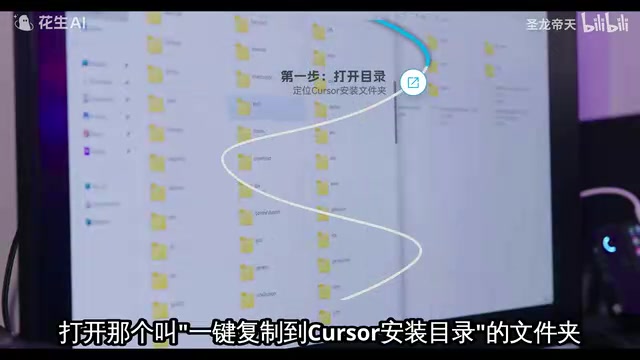
Step 1: Download the Pack and Locate the Installation Files
After downloading the localization project, open the folder named "一键复制到 Cursor 安装目录" (One-click copy to Cursor installation directory). This folder contains all the scripts and patch files you'll need.
Step 2: Completely Close All Cursor Processes
This is the step most likely to cause problems. You must fully exit Cursor — not just close the window, but also confirm there's no Cursor icon lingering in the system tray (bottom-right of the taskbar). The safest approach is to open Task Manager, search for all Cursor-related processes, and terminate them one by one. Many users' installation failures are rooted in Cursor processes not being fully killed.
Step 3: Run the One-Click Installation Script
Double-click to run the "一键安装汉化包.cmd" (One-click install localization pack) script, wait for the command-line window to indicate completion, then reopen Cursor to see the Chinese interface.
If double-clicking the CMD file doesn't produce any response, it's usually a system permissions issue. In that case, open PowerShell as Administrator and manually execute the corresponding PS1 script file.

Technical Composition of the Localization Pack
Understanding the internal structure helps with troubleshooting. Here's a brief overview:
| File Type | Purpose |
|---|---|
| CMD file | Entry script for regular users to double-click |
| PS1 files (two) | Core installation logic: finding Cursor installation path, auto-backup, copying localization files |
| Patch files (multiple) | Responsible for replacing standard UI text, main interface hardcoded text, and Composer interface text respectively |
| V6 language pack file | The merged official Chinese language pack |
Notably, the script automatically generates a Backup folder during execution, saving replaced original files with timestamps. If any issues arise after localization, you can roll back to the original English version at any time using the backup files.
Security and Risk Assessment
For any operation that modifies software's core files, security is the primary concern.

From a technical perspective, this localization pack has several commendable safety designs:
- Passive Execution: It won't run automatically in the background — it only takes effect when the user actively double-clicks the script
- Automatic Backup: Original files are automatically backed up before each installation, supporting one-click rollback
- Dry Run Mode: You can add the
-WhatIfparameter to preview which files the script will modify, then execute for real only after confirmation - Based on Official Resources: The localization content is sourced from the official VS Code Chinese Language Pack, not third-party translations
However, risks should also be noted: modifying Cursor's core files may cause compatibility issues after software updates, and this modification approach is not an officially supported localization method.
Common Issues and Troubleshooting
Based on community feedback, here are the most common problems and their solutions:
What to Do If Installation Reports Failure
It's most likely that Cursor processes haven't fully exited. Open Task Manager, search for the keyword "Cursor," ensure all related processes have been terminated, then retry.
Installation Completes but Cursor Interface Is Still in English
First try completely restarting Cursor (not just refreshing the window, but closing and reopening it). If it still doesn't work, it's likely a version mismatch issue.

This localization pack currently targets Cursor version 1.105.X. Cursor updates frequently, and each update may change the internal file structure, causing older localization packs to become ineffective. In such cases, you can only wait for the pack author to release an update adapted to the new version.
Can I Manually Copy Files Instead of Using the Script
Theoretically yes, but it's strongly discouraged. Manual operations can easily miss files or overwrite to incorrect locations, and troubleshooting becomes extremely difficult if something goes wrong. The script already handles path discovery, file backup, version verification, and other details — there's no need to do it manually.
Conclusion: Is Cursor Localization Worth the Effort
For developers who genuinely find the English interface a barrier to usage, this localization pack provides a relatively complete solution. The automatic backup mechanism and dry run mode designs also demonstrate the author's consideration for safety.
However, a rational perspective is needed: Cursor's core value lies in its AI coding capabilities — interface language is just icing on the cake. Since Cursor updates frequently, the localization pack requires continuous adaptation, involving ongoing maintenance costs. If your English reading ability permits, using the original interface actually avoids all this extra hassle.
A final reminder: This type of modification is recommended only for personal devices. Don't deploy it in company or team shared development environments to avoid unnecessary compatibility and compliance issues.
Related articles
 Tech Frontiers
A Rare Quiet Day in AI: Recursive Self-Improvement Stirs Beneath the Surface
A rare quiet day in AI sees multiple sources go silent simultaneously. Behind the calm, Recursive Self-Improvement (RSI) research continues. What this means for the industry.
 Tech Frontiers
Reve 2 vs. Ideogram 4: A Deep Dive into Layout Control in AI Image Generation
A deep comparison of Reve 2 and Ideogram 4's layout control capabilities, covering technical approaches, real-world use cases, and industry trends for designers and creators.
 Tech Frontiers
In the Weights: Check Your Influence Score in the AI World
In the Weights is an AI influence search engine that quantifies your presence in the AI world with a score. Explore how it evaluates practitioners and what it means for digital identity.