DSH Desktop Mobile Remote Control Tutorial: Let AI Keep Working After You Leave

DSH Desktop open-source tool lets tasks keep running on your computer while your phone remotely views and appends instructions.
DSH Desktop is a local AI Agent desktop tool open-sourced by the Data Element team. Its phone connection feature addresses the pain point of tasks being tied to the computer so you can't follow up once you leave. Tasks don't migrate—they still run locally, and the phone acts as a remote terminal for viewing progress, appending requirements, switching models, and stopping generation. It offers WiFi and Internet modes; for leaving scenarios, switch to Internet mode in advance and enter a connection password. Setup requires downloading the client and configuring an API Key. Prerequisites: computer powered on, online, and client running; Internet mode exposes the local computer to the public internet, so mind password confidentiality and network trust.
AI Agents are becoming everyday productivity tools for many people, but there's an awkward reality: tasks are often tied to your computer. Once you leave your desk, either the task stalls or you're left guessing at progress remotely. The open-source DSH Desktop from the Data Element team offers a lightweight solution—your computer stays on the desk running tasks while you carry your phone to check progress and add requirements anytime, anywhere, with no plugins to install and no app to download on your phone.
The Core Logic of Remote Control: Tasks Don't Move, Interaction Travels With You
DSH Desktop's phone connection doesn't migrate tasks to your phone for execution. According to the video demo, tasks still run on the computer, and the phone serves only as a remote interaction terminal: checking how far a conversation has progressed, seeing which intermediate answers were produced, and continuing to add instructions.
This differs from the approach of many cloud Agent products. Cloud solutions require syncing the workspace and context to a server, while DSH chooses to keep the workspace on the local computer, with the phone accessing it through a connection channel. The benefit is that the task environment, files, and project materials don't need to be re-uploaded or migrated; the cost is that the computer must stay powered on and connected, and DSH must remain running—a prerequisite the video specifically emphasizes at the end.
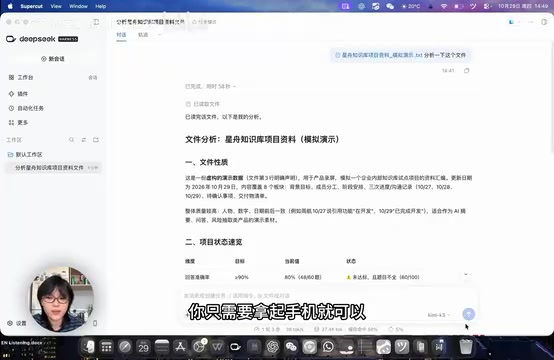
To sum it up in the video's words: "The computer stays on the desk continuing to work, and you carry your phone to check progress and add requirements anytime, anywhere." From a user experience standpoint, it solves the specific scenario of "human-machine separation" rather than replacing the complete desktop workflow.
AI Agent refers to an intelligent agent capable of autonomously planning, invoking tools, and continuously executing multi-step tasks. Unlike single-turn Q&A chatbots, it runs continuously toward a goal and may take minutes to hours. Precisely because execution is long and full of intermediate states, users need to check progress and intervene at any time—which is the root of the "human-machine separation" pain point. Cloud Agents typically host the Agent runtime on a server; the advantage is continuous operation independent of local devices, but it requires uploading the workspace, syncing context, and involves data leaving your domain. Local Agents keep the runtime, files, and model calls on the user's machine, offering more direct privacy and file access at the cost of depending on the local machine being online. DSH Desktop belongs to the latter, with the phone merely accessing the locally running Agent session through a connection channel.
Connection Modes: WiFi and Internet
After opening DSH Desktop, there's a phone-shaped icon in the lower-left corner; click it to enter the connection interface. The video presents two connection modes:
- WiFi connection mode: Suitable when the phone and computer are on the same WiFi network; scan the QR code to connect.
- Internet connection mode: Suitable when you've already left the office or home. You need to select this mode on the computer in advance, then scan the QR code with your phone and enter the connection password to complete the connection.
In the demo, pairing completes after entering the connection password. This design front-loads the key step of "continuing to operate after leaving" to before you leave—you need to switch to Internet mode while still at the computer, otherwise you won't be able to establish a connection after heading out.
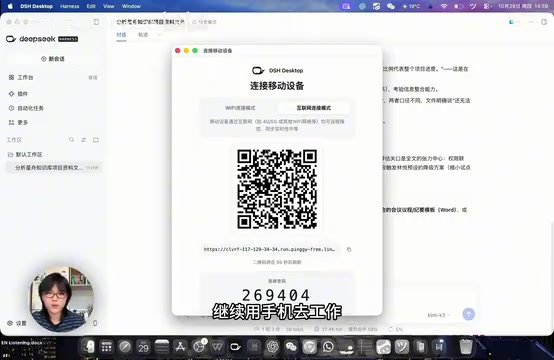
The presence of the password step also indicates that Internet mode isn't a fully open, publicly accessible channel—there's at least one layer of connection credential protection. However, the video doesn't elaborate on password strength, expiration, or connection encryption details, so users need to pay attention to these themselves.
API Key is an identity credential for calling large model services, typically generated by the model vendor in a console. It looks like a string of random characters and is sent with each request to handle billing and permission verification. DSH Desktop doesn't have a built-in account system; instead, users fill in their own API Key, meaning model usage fees are billed directly to the user's own account, and model vendors can be freely swapped. Things to note: an API Key is equivalent to an account password and should not be shared in plaintext or committed to public repositories; different vendors have different Key formats and available models, so verify that the endpoint URL matches the model name during configuration; if a Key leaks, revoke it in the vendor console and regenerate it as soon as possible.
What You Can Do on the Phone: View, Append, Switch Models
Once connected, the phone displays a workspace selection screen where you can open recent conversations. In the demo, the user has DSH analyze project materials and organize progress and to-dos on the computer, then opens the same conversation on the phone to see which step it has reached and which answers it has given.
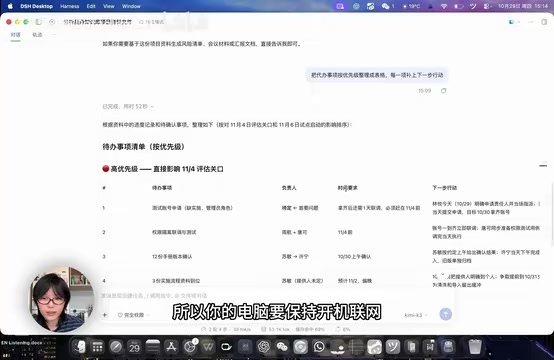
Next, the user appends a request on the phone: organize the to-dos into a table by priority and add a next action for each item. After tapping send, DSH continues processing the same task on the computer. Since the conversation context is fully preserved, the user doesn't need to restate the background.
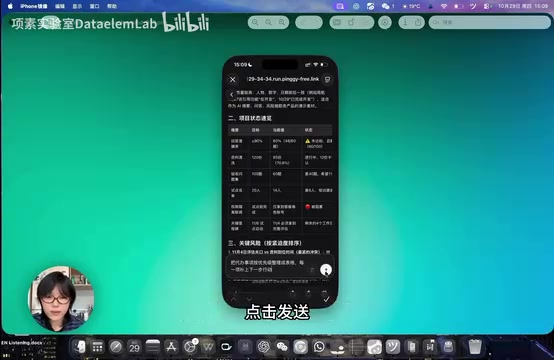
Besides appending instructions, the phone also supports selecting a workspace to create a new reply, starting a new task, switching models, and stopping the current generation. These operations cover the most common intervention actions during a running task—especially "stop generation," which lets you cut losses promptly when an Agent goes off track.
From a product positioning standpoint, this is a "remote control" rather than a "second workstation." Complex workspace management and file operations are still better done on the desktop; the phone handles lightweight viewing and instant instruction additions.
Installation and Initial Configuration
The latter part of the video covers the installation path: visit DSHDesktop.com in your browser to reach the official site, choose to download the DSH client, and install according to your device type. After installation, configure your API Key under the "Model" option in settings to complete initial setup, after which you can connect your phone following the process above.
The entire process doesn't involve account registration or activating a cloud sync service; the configuration threshold centers on the API Key. For users already accustomed to bringing their own model keys, this process is quite straightforward; for new users unfamiliar with API configuration, they may need to sort out model access first.
Applicable Boundaries and a Few Reminders
The value of this feature is most obvious in specific scenarios: a task is already running but you have to leave, you suddenly remember a requirement to add while on the road, or you just want to confirm progress while out. It's not suitable as a long-term way of working away from your computer, since task execution depends on the local machine.
Before use, confirm three things: the computer stays powered on, the network connection is stable, and the DSH client is running. If any one is interrupted, operations on the phone can't actually advance the task. Additionally, Internet mode involves accessing your local computer from the public internet, so it's advisable to use it on trusted networks and maintain basic confidentiality awareness regarding the connection password.
DSH Desktop is open source; for users who want to control the local Agent runtime environment while also needing some remote interaction capability, it's an option worth trying. Data Island (数据像素实验室) also mentions at the end of the video that it provides enterprise AI customization and implementation services, indicating the tool has extended intentions for enterprise scenarios.
Overall, DSH Desktop's phone connection feature isn't a disruptive innovation, but it hits a high-frequency and real pain point: AI is working, but the person has to walk away. Decoupling these two things at the lowest configuration cost is exactly where the value of such small features lies.
Public internet access to a local service means exposing a port that was originally only reachable within the LAN to the internet. Common implementations include NAT traversal, reverse proxies, or relay servers. If such channels lack sufficient authentication, they may be probed by scans and subjected to unauthorized access attempts, so at minimum strong passwords and connection credential expiration limits are needed; ideally, transport encryption (such as TLS) and access logs should also be in place. For Agent tools that carry project files and conversation context, the larger the exposure surface, the higher the risk. Practical advice: enable Internet mode only when needed, and switch back to WiFi mode or close the connection when done; use long random combinations for connection passwords rather than easily guessed content like birthdays or phone numbers; avoid pairing operations on public WiFi; and watch for whether the official app provides connection records or a device list for troubleshooting anomalies.
One-line Summary
DSH Desktop open-source tool lets tasks keep running on your computer while your phone remotely views and appends instructions.
Paragraph Summary
DSH Desktop is a local AI Agent desktop tool open-sourced by the Data Element team. Its phone connection feature addresses the pain point of tasks being tied to the computer so you can't follow up once you leave. The idea is that tasks don't migrate—they still execute locally on the computer, and the phone serves only as a remote interaction terminal for viewing conversation progress, appending requirements, starting new tasks, switching models, and stopping generation, with conversation context continuing automatically. Connections offer WiFi and Internet modes; for leaving scenarios, switch to Internet mode on the computer in advance and enter the connection password. Installation involves downloading the client from the official site and configuring an API Key in settings—no account registration or cloud sync required. Prerequisites are the computer being powered on, connected, and the client running. Internet mode involves public internet access to the local computer, so pay attention to password confidentiality and network trustworthiness.
Related articles

Anthropic IPO Explained: Fuel for the AI Boom or the Spark for a Bubble?
Anthropic files for an IPO under ticker ANT. Breaking down the prospectus: 80% of revenue from usage-based pricing, $72B of an $80.7B net loss being non-cash charges, 900% net revenue retention, and how past IPOs like SpaceX performed on day one and over three years — answering the AI bubble question.

Will AI Kill the Research Paper? Mathematicians Offer a New Answer
Mathematicians on the Lex Fridman podcast discuss whether AI will kill research papers—from journal review pressure to Lean formal verification, GitHub open source fatigue to Mathlib's crowdsourcing model, exploring the evolution of academic contributions and the future of mathematical knowledge verification.

Enterprise LLM Development: From RAG to Multi-Agent in Practice
A course breakdown of enterprise LLM application development: from prompt engineering and RAG to multi-agent engineering practice and FDE project delivery, helping developers understand why Agent technology is a key focus for enterprise deployment and learn systematically to avoid detours.