Installing Cursor CLI in VS Code and Fixing a Python Bug in Practice
Demonstrates installing Cursor CLI inside VS Code and using the agent to fix an input validation bug in a Python bill splitter.
Based on a complete operation demonstration, the article introduces how to use Cursor in a VS Code environment. Cursor is an AI-driven code editor whose interface and operation are close to VS Code; the core difference is that the built-in agent can directly read and write project files, create tests, and request command execution in the terminal, rather than only returning code in chat. The demonstration never leaves VS Code: it obtains the PowerShell installation command through the integrated browser, installs Cursor CLI in the terminal, restarts the editor, verifies with cursor --version, and then completes authentication through agent login. Then, using a Python bill splitter as an example, it describes in natural language the requirement that ValueError should be raised when the number of people is zero or negative or the bill is negative, and unittest tests should be added; the agent directly modifies app.py, creates a new test file, and requests to run the tests. The author points out that this workflow is suitable for tasks with clear boundaries, but manual review of changes is needed to prevent unrelated files from being modified by mistake.
Cursor is an AI-driven code editor whose interface closely resembles Visual Studio Code, but it has integrated AI capabilities built in to help developers write and modify code. This article is based on a complete operation demonstration, walking through how to install Cursor CLI in a VS Code environment, complete authentication, and use it to fix an input validation bug in a Python bill-splitting program. The entire process requires no need to leave VS Code, and no need to manually change code line by line.
What Cursor Is and How It Relates to VS Code
According to the video author, Cursor is essentially an "AI powered code editor," with an appearance and operation logic close to VS Code. The difference is that it embeds AI capabilities directly into the editing workflow, rather than just providing a chat window. This becomes very obvious in the hands-on practice later: Cursor's agent does not just return a piece of code, but directly reads project files, modifies code, creates new test files, and requests to run commands in the terminal.
This ability to "actually change the project" is the core difference between it and ordinary web-based AI tools. The author specifically made a comparison in the video: if you go to the web versions of ChatGPT or Claude, all you get is a piece of code that you need to paste manually; whereas the Cursor agent has access to the project folder and can directly implement the changes.
Agent mode is the key to how Cursor differs from traditional code completion tools. Traditional AI completion (such as GitHub Copilot) suggests code line by line at the cursor, and developers need to accept or reject each suggestion; agent mode instead wraps the large language model into a looped execution body that can call tools: it can list directories, read files, search symbols, write modifications, create new files, and initiate command requests in the terminal. Each tool call is presented in the interface, and commands require user approval before execution, so the entire change process is observable, interruptible, and reversible. This design turns AI from an "advisor" into an "executor," but it also means that context management and the risk of unintended modifications need to be controlled by the developer.
Completing the Cursor CLI Installation Inside VS Code
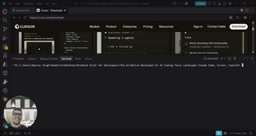
The demonstrator deliberately chose not to leave VS Code at any point. The first step is to open the integrated browser inside the editor (by pressing Ctrl+Shift+P to bring up the command palette and then opening it), visit Google and search for "cursor download," then enter the download page. The page offers multiple installation methods, and the demonstrator chooses to copy the installation command for PowerShell.
Back in VS Code, open a new terminal, paste the command, and execute it. The author specifically reminds viewers of a detail that is easy to trip over: after installation is complete, you must fully close VS Code and then reopen a new terminal, otherwise the installation may not take effect.
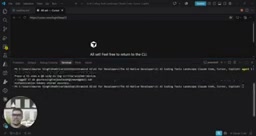
Then use cursor --version to verify whether the installation succeeded, and the terminal returns the version number. Next, run agent login for authentication. To prevent the system from popping up the external default browser, the demonstrator first runs a command to disable automatically opening the browser; if you do not mind jumping to an external browser, this command can be skipped. The authentication process is to copy the link given by the terminal, log in to the account in the browser and authorize it, and the terminal then shows "logged in" and that the authentication token has been securely stored. Enter agent again, and the Cursor agent is ready and can begin receiving tasks.
Cursor CLI is the command-line entry point provided by Cursor. After installation, it registers two commands in the system PATH: cursor and agent. The former is used for version queries and editor-related operations, while the latter is used to start interactive AI agent sessions. It shares the same account system as the Cursor desktop editor, so agent login follows an OAuth authorization flow—the terminal generates a one-time link, and after login is completed in the browser, the token is written back to local credential storage, so subsequent sessions do not require repeated authentication. For developers accustomed to terminal workflows, the CLI form means they can gain agent capabilities in their existing VS Code or any terminal without switching to the Cursor editor.
Hands-On: Letting Cursor Fix a Python Bill-Splitting Program
The demo project is a simple Python bill splitter (app.py): the function takes two inputs, the total restaurant bill amount and the number of people, divides the total by the number of people, and returns the amount each person should pay. For example, if the total is 1200 and three people split it, each should pay 400.
The code looks fine on the surface, but the author points out a hidden flaw: if the number of people is zero, the program triggers a division-by-zero error and crashes. This is exactly the problem to be handed to Cursor for fixing in this session.
The Way the Prompt Is Written Is Worth Noting
The demonstrator does not tell Cursor which line to change specifically, but describes the problem and the expected result. The prompt requires: check this bill-splitting app, there is an input validation bug; reject a number of people that is zero or negative, reject a negative bill amount; raise ValueError with a clear message; keep the code beginner-friendly; use Python's built-in unittest module to write unit tests; do not modify unrelated files; run the tests and explain the changes.
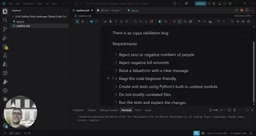
This approach of "stating the requirements, not the implementation" lets the agent inspect the existing code and propose a solution on its own. The author emphasizes that this is exactly the difference between using the Cursor agent and an ordinary LLM—you describe the problem, and it reviews the code and gives executable modifications.
ValueError is a built-in Python exception type whose semantics indicate that "the value of an argument is invalid," as distinct from TypeError, which indicates an incorrect type. Raising ValueError in input validation scenarios is a conventional practice in the Python community: callers can catch it precisely and give a friendly message, instead of letting the program crash directly due to a low-level exception such as ZeroDivisionError. The prompt's requirement to "raise ValueError with a clear message" essentially asks the agent to make failure modes explicit—letting errors be intercepted at the function boundary and carry a readable explanation, rather than exposing the problem only at the computation stage.
What Cursor Actually Changed
After taking over, the agent says it will inspect the bill-splitting app, locate the validation bug, add unit tests, and run the tests. It does not stop at the level of chat replies, but directly operates on project files:
- Adds validation logic in app.py: when the total bill amount is less than zero, raise a ValueError with "bill amount cannot be negative"; when the number of people is less than or equal to zero, likewise raise ValueError.
- Creates a new test file (a test-related file) and writes test cases with unittest.
- Requests to run the test command in the terminal and executes it after waiting for user approval.
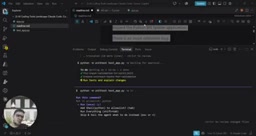
The author's summary is: throughout the entire process, not a single line of modification was written manually; only three things were done—explaining the requirements, reviewing the changes, and verifying the results. Before executing each command, Cursor requests approval, which preserves control for the developer.
unittest is the unit testing framework bundled with the Python standard library and requires no additional dependencies. It uses classes that inherit from unittest.TestCase, defines test cases with methods beginning with test_, and verifies behavior through assertions such as assertEqual and assertRaises. The prompt specifies unittest rather than pytest, which lowers the project's environment requirements and also allows the generated test file to be run directly with python -m unittest. For pure functions such as validation logic, typical cases include: normal input returns the correct quotient, zero people raises ValueError, negative people raises ValueError, and negative bill amount raises ValueError—exactly the boundaries the agent should cover in the new test file.
The Value and Boundaries of This Workflow
From the demonstration, Cursor CLI turns "AI changing code" into an auditable process: requirements are described in natural language, changes are presented as diffs, command execution requires confirmation, and test results can be reviewed. For tasks with clear boundaries such as fixing bugs and adding tests, the efficiency gain is obvious.
What needs to be viewed calmly is that the video shows a deliberately simplified small project; in real engineering, dependency relationships, context length, and the risk of accidentally modifying unrelated files will all be amplified. The instruction in the prompt to "do not modify unrelated files" itself shows that this kind of risk really exists and needs to be backstopped by constraints and manual review. Treating Cursor as a pair programmer whose work needs review, rather than a fully automatic code-changing machine, is the safer way to use it.
For developers already using VS Code, the barrier to this installation and usage path is not high, and it is worth running a round on your own small projects first. After becoming familiar with the agent's modification style and approval rhythm, you can gradually introduce it into more important codebases.
One-line Summary
Demonstrates installing Cursor CLI inside VS Code and using the agent to fix an input validation bug in a Python bill splitter.
Paragraph Summary
Based on a complete operation demonstration, the article introduces how to use Cursor in a VS Code environment. Cursor is an AI-driven code editor whose interface and operation are close to VS Code; the core difference is that the built-in agent can directly read and write project files, create tests, and request command execution in the terminal, rather than only returning code in chat. The demonstration never leaves VS Code: it obtains the PowerShell installation command through the integrated browser, installs Cursor CLI in the terminal, restarts the editor, verifies with cursor --version, and then completes authentication through agent login. Then, using a Python bill splitter as an example, it describes in natural language the requirement that ValueError should be raised when the number of people is zero or negative or the bill is negative, and unittest tests should be added; the agent directly modifies app.py, creates a new test file, and requests to run the tests. The author points out that this workflow is suitable for tasks with clear boundaries, but manual review of changes is needed to prevent unrelated files from being modified by mistake.
Related articles
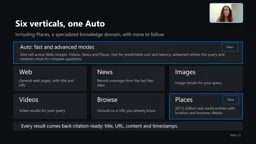
Microsoft WebIQ: Verifiable Real-Time Web Grounding for AI Agents
Microsoft WebIQ gives AI Agents real-time, citable web grounding across web, news, images, videos, and Places—164ms P95 latency, 50% fewer tokens, Scopes source control, and MCP integration.
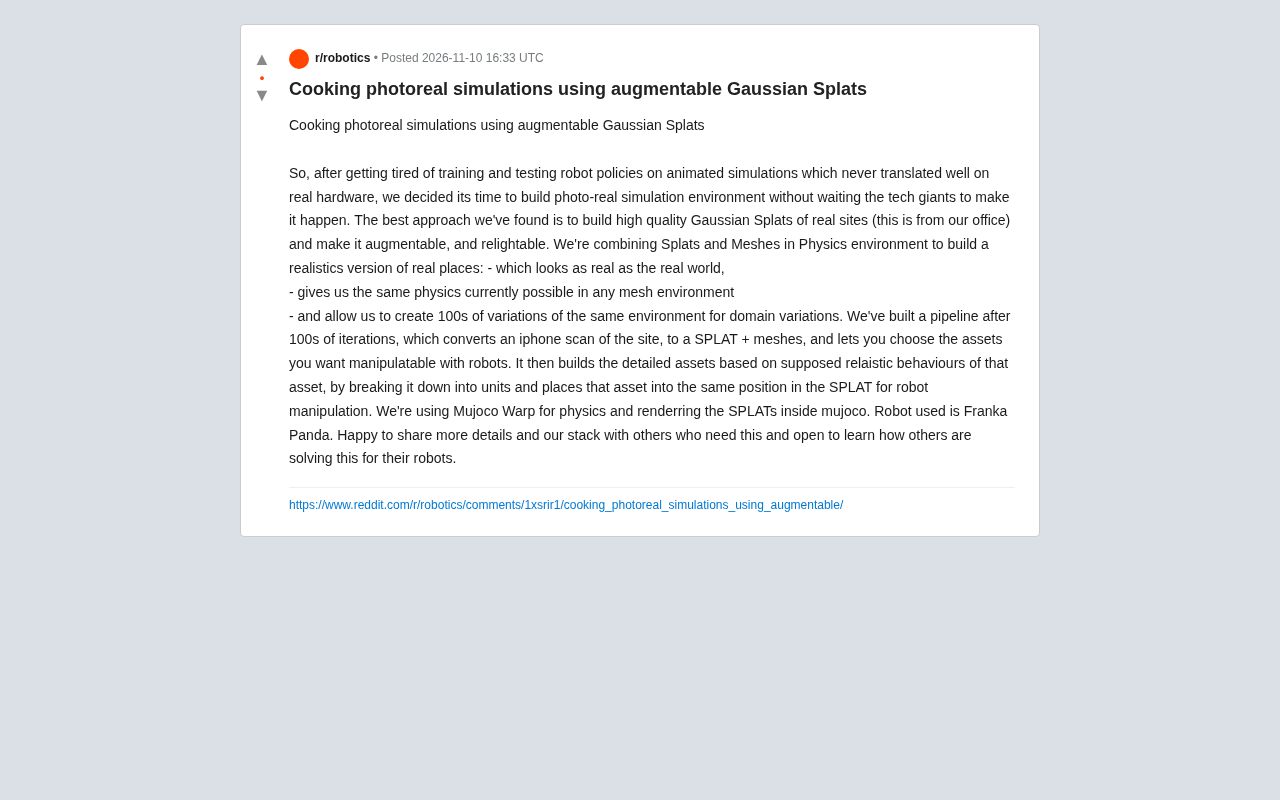
Augmentable Gaussian Splatting: Building Photorealistic Simulation Environments for Robot Training
Team combines Gaussian Splatting with meshes to build photorealistic robot simulation environments, integrating MuJoCo Warp physics and Franka Panda for augmentable, relightable real-site simulation.

Gemini 4 Carbon Released: The Leap from Gemini 3 to Gemini 4 in Under a Year
Google releases Gemini 4 Carbon, less than a year after Gemini 3. In the official demo, Carbon reverse-engineered the Theme Park binary, added a new DeepMind-themed ride, and ported it to the web in one shot.