Master Claude in 12 Minutes: 10 Practical Tips from Beginner to Advanced

Ten tips upgrade Claude from a chat box to a proactive personal assistant.
Based on a 15-year marketing creator's real-world experience, the article presents ten tips to turn Claude from a passive Q&A tool into a true assistant across three tiers. Beginner: register with a permanent email to protect memory assets, use the import tool and proactive "interview" to build personal context, tier model usage by task complexity to save quota, and use Skills and Projects to lock in repetitive instructions and isolate recurring work. Intermediate: connect email and calendar for sorting and planning, and use the Chrome extension to let Claude operate web pages. Advanced: desktop app with scheduled tasks for morning briefings and file cleanup, Claude Code for non-developers to build tools and edit video, and layout design for slides and prototypes. The core logic: first let Claude remember you, then connect it to your workflow, and finally let it proactively handle the boring stuff.
If you pay for Claude every month but only use it as a search box—type a question, copy the answer, close the tab—then you're wasting its greatest value. Based on insights from a creator with 15 years of marketing experience who uses Claude daily for writing, planning, data analysis, and video editing, this article distills 10 tips that turn Claude from a chat box into a genuine assistant, organized into beginner, intermediate, and advanced tiers.
Beginner: Make Claude Remember You
1. Sign up with a permanent email address
The email on your Claude account cannot be changed. If you register with a work email, everything Claude has learned about you stays behind when you leave the job. Choose an email you'll never abandon to protect this history that grows more valuable the more you use it.
About Claude's Memory mechanism: Claude's memory feature lets it retain persistent information about the user across conversations—professional background, writing style preferences, common workflows, and so on. These memories are stored as entries under the account, and users can view, edit, or delete them in settings. Memory accumulates gradually—Claude actively judges during conversations which information is worth keeping long-term, and users can also explicitly ask it to remember something. Because memory is tied to the account rather than the device, switching login methods or devices doesn't lose it—but once the account itself becomes inaccessible (e.g., a work email is reclaimed), those memories vanish with it. This is exactly why the author emphasizes a permanent email: memory value compounds over time, while migration costs are extremely high.
2. Migrate quickly and proactively "interview"
Switching from ChatGPT to Claude doesn't mean starting from zero. Claude has a built-in import tool: find memory in settings, click Start Import, copy the generated prompt and paste it to your old AI, then paste the response back into Claude—context migrates in minutes.
But import has a shortcoming: it mainly preserves work-related content and skips personal preferences. So next, have Claude "interview" you—one question at a time about your work, goals, weekly rhythm, and preferred answer style, then save to memory. There are many questions, so consider answering by voice rather than typing.
3. Use models by tier to save quota
The fastest way to burn through your Claude limits is to use the smartest model for every task. Think of the models as a team: Haiku handles quick back-and-forth, Sonnet is the daily workhorse, Opus is the senior member for multi-layered complex tasks (like data analysis), and at the top there's Fable for the hardest work. Start with Sonnet and only upgrade when the answer isn't good enough.
Another big consumer is research mode. A vague question can trigger a long report you don't actually need. The fix is to spend a minute describing your needs precisely before clicking, e.g., "Compare three project management apps for a five-person team, list pricing, free plans, and mobile support, this year only." A sharp question is cheaper than a lengthy report.
About model tiers and quota consumption: Claude offers multiple capability tiers of models, typically forming a gradient in reasoning depth, response speed, and call cost. Lightweight models suit deterministic tasks like classification, rewriting, and format conversion—fast and low-cost; mid-tier models cover most daily writing and analysis; flagship models excel at multi-step reasoning, long-document comprehension, and complex data analysis, but consume significantly more per call. Usage limits under subscriptions are usually weighted by model, so "using the strongest model for everything" is the most common way to waste quota. The practical principle: try a mid-tier model first, and only escalate when output quality falls short—rather than calling the most expensive model from the start.
4. Use Skills to lock in repetitive work
If you've explained the same instruction to Claude three times, you're doing Claude's job. A Skill is a set of saved instructions for a single task, run the same way every time. The author has built separate Skills for data analysis, emails, LinkedIn posts, and video scripts to ensure output always matches their personal style. Once a chat result satisfies you, just type "turn what we just did into a skill."

There are thousands of shared Skills online, but always open and read the file before installing. Some Skills ask Claude to install software or send data to external websites. Only install from trusted sources, and delete anything that connects to unknown sites.
About the nature of Skills and security risks: A Skill can be understood as a set of pre-written instruction templates plus optional supporting resources (such as reference files, scripts, or tool-call configurations), injected into the conversation context when triggered so Claude completes a specific task through a fixed process. It solves the repetitive labor of "re-explaining the same set of requirements every time," functioning much like a dedicated assistant customized for a certain type of task. Since Skill files are plain text and can be written arbitrarily, they may also contain instructions that induce Claude to perform dangerous operations—such as requesting package installation, sending data outward, or accessing unknown domains. Shared community Skills vary in quality, so reading the file line by line before installing and confirming whether the external services it calls are trustworthy is an essential security habit.
5. Rethink Projects
Many tutorials suggest avoiding Claude Projects, but that advice is outdated. The old problem was: the tone and goals you taught Claude in regular chats seemed unknown once you opened a project. Today, projects can use regular chat memory, and what's learned inside a project can appear in chats. Projects still don't share memory with each other; if you want a project to be completely private, turn off "Use account memory" on its page. The author uses projects daily: one each for data analysis, emails, family, and video scripts. Build projects for recurring work, not for every topic.
Intermediate: Connect Your Workflow
6. Connect email and calendar
After connecting Gmail in settings, you can ask Claude to find emails from the past day that need replies, draft brief responses, and flag items containing dates or amounts. Drafts stay in Gmail and you press send—Claude only looks at your inbox when you ask, never reading in the background.

Same for calendar, but note: if your calendar only has meetings, Claude can't plan your week. Add workouts, family dinners, and commutes too, then ask "where's my free hour."
About connectors and permission boundaries: Claude accesses external services like Gmail and Google Calendar through official Connectors, which essentially grant it permission to read data within specific scopes. Unlike always-on background automation, these connections typically use on-demand reading—Claude queries your inbox or calendar only when you explicitly ask, and write operations (like drafting emails) usually appear as drafts that still require human confirmation to send. This design balances convenience and security, but it's still wise to periodically review authorized services in settings, revoke connections you no longer use, and keep sensitive accounts (like banking or medical) out of scope.
7. Use the Chrome extension to let Claude operate web pages
After installing the Chrome extension and logging in, Claude can click, fill out forms, and switch tabs on pages you have open. Treat it like a new employee on their first day: capable but prone to mistakes. Enable "manual approval" so it asks before every action. Close banking and personal tabs first, and start with boring tasks—like comparing the price, shipping, and return policy of the same blender across four websites. Give it boring work first, then build trust gradually.
Advanced: Let Claude Work Proactively
8. Desktop app and scheduled tasks
In the Claude desktop app, authorize a notes folder, connect email and calendar, then set a scheduled task for 7 AM on weekdays: summarize what was completed yesterday, sort new emails into "reply today," "read later," and "ignore," and list today's meetings and top three tasks. Your computer needs to stay on with the app open. Set it once, then just read.
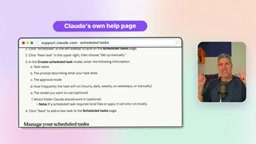
It can also clean up your downloads folder—those files named "final final version three." Claude presents a plan first, and after you confirm, it finishes organizing in minutes. You can even pair your phone with the desktop app to dispatch tasks while you're out.
9. Claude Code isn't just for developers
The author is a marketer but uses Claude Code to edit long and short videos. There's a code tab in the desktop app—no need to learn the terminal. Describe the task in plain English, and it writes the code and tests it. If you've tracked something in a spreadsheet for years that an app doesn't cover—fitness, side hustles, family budgets—describe the tool you want and let Claude build it.
10. Use Claude for layout design
Claude isn't suited for photo-style images, but it excels at anything involving layout: slides, one-page proposals, app prototypes. It can build real prototypes with clickable buttons. Turn meeting notes into a five-page slide deck, one idea per page. Leave images to image tools; leave layout to Claude.
Start Tonight
Even using half of these tips puts you ahead of most people still "typing a question, copying the answer, closing the tab." Iron Man's Jarvis wasn't about doing more boring work for Tony—it was about getting the boring work handled so he could create. Where you direct the saved time is up to you—family, a shelved hobby, or the side project you keep pushing to next month. Start tonight with the "interview" prompt; it takes just 10 minutes, and every tip after that will work better.
Related articles
 Tech Frontiers
Stylome Bot Slammed as Useless Junk: Why Do AI Detection Tools Keep Failing?
Reddit users test the Stylome AI detection bot: Gemini-rewritten text judged human-written, consistently low confidence. An analysis of AI text detection's technical dilemmas, privacy concerns, and credibility crisis in community governance.
 Tech Frontiers
When AI Becomes a Productivity Divide: Clarity or "AI Psychosis"?
A civil engineer's deep use of agentic AI boosted efficiency but bred contempt for peers who refuse to learn. Is this clarity or AI psychosis? An analysis of the cognitive and psychological challenges behind the AI productivity divide.
 Tech Frontiers
Opus 5.5 Benchmark Scores Climb, Community Says Its "Weights Are Blessed"
Reddit community discusses Opus 5.5's rising scores on the Benchmaxxing Bench, with users describing its performance as "weights are blessed." This article interprets the community reaction and cautions against conflating benchmark scores with real capability.