One Link Gives Figma AI a New Skill: Hands-On with MCP Connectors

MCP lets the AI Agent in Figma connect to external tools by pasting a link, with conservative permissions by default.
The article explains how to quickly add new capabilities to the AI Agent in Figma via MCP (Model Context Protocol): copy an MCP server link and paste it into the connector settings, and the Agent can call that tool. Over 20 apps support one-click connection, including Notion, Linear, and Slack. MCP's core value is standardizing tool integration—apps expose an HTTPS link and the Agent discovers and calls tools via a unified protocol, greatly reducing integration cost. The flow is: Add context → Connectors → Create and name → Paste URL → Confirm. The key limitation is that the link must be a public HTTPS address; local services cannot connect. The article stresses that permission control is the real risk boundary: write tools are off by default, and each tool can be set to ask every time, always run, or never run.
Adding new capabilities to an AI assistant usually means writing code, spinning up services, and wiring up APIs. But someone accomplished it a simpler way: copy a link, paste it in, and the AI Agent in Figma picks up a skill it didn't have before.
The link points to an MCP server. Think of MCP as a "plug"—any application that provides this plug can become a tool the Agent can call directly. According to the video creator's demo, more than 20 apps can now be connected with one click, including everyday work tools like Notion, Linear, and Slack; other MCP-supporting apps require manually pasting the link to complete setup.

What problem does MCP actually solve?
Traditionally, getting an AI Agent to operate external tools required developing a separate integration for each app—a lot of work and hard to reuse. MCP (Model Context Protocol) standardizes "tool connection": the app exposes a public HTTPS link, and the Agent reads the list of available tools and calls them according to a unified protocol.
The direct benefit of this design is a dramatic reduction in integration cost. For ordinary users, there's no need to understand the protocol details—you just need to know where to get that link. For app developers, implementing an MCP service once makes it usable by every Agent that supports the protocol, with no need to re-adapt for each platform.
The video doesn't provide specific performance data, but judging from the workflow, the entire setup takes just a few clicks—a textbook low-barrier integration path.
MCP was proposed and open-sourced by Anthropic in late 2024, and is often compared to "the USB-C port of the AI world." Before it, getting models to call external tools relied mainly on two approaches: platform-specific Function Calling formats, or writing plugins or integration code separately for each app. Both faced the same dilemma—the same tool had to be repeatedly adapted across different Agents and vendors.
MCP uses a client-server architecture: the app side implements an MCP server, declaring which tools it exposes and their parameter structures; the Agent side acts as the client, completing tool discovery and invocation through standardized JSON-RPC messages. The protocol itself only specifies the communication method, not the specific tools, so a single server can be reused by any MCP-compatible client. This is the technical basis for the "implement once, use everywhere" claim in the article.
Setup workflow: from entry point to connection
The actual entry point is inside the prompt box. Click "Add context," go to the "Connectors" management page, choose to create a new connector, name it, then paste the server URL and confirm the connection.

The key limitation appears at this step: the link must be a public HTTPS address. The author specifically emphasizes that local services running on your own laptop cannot be connected. This means MCP connectors are intended for services already deployed on the public internet—individual developers debugging only locally need to complete a public deployment first before this path will work.
Once configured, type "@" in the prompt box and select the corresponding connector, and the Agent can call that tool in subsequent tasks.
MCP server connections generally fall into two categories: local processes (communicating via stdio standard input/output) and remote services (via HTTP transport). The latter is further divided into two transport specs: the earlier HTTP+SSE and the newer Streamable HTTP. The requirement for a "public HTTPS link" corresponds to the remote HTTP transport category, because the Agent runs in the cloud and cannot access services on the user's local loopback address.
As for "one-click connection," this essentially means the platform maintains a pre-configured list of known MCP server addresses and authorization settings, so users can complete OAuth authorization or establish a connection directly with a click, skipping the manual URL lookup. What requires manual pasting are third-party or self-built servers not yet in the platform's directory.
Permission control is the real focus
Connecting is only the first step—what truly defines the risk boundary is the permission settings. When creating a connector, you can distinguish read tools from write tools, with write permissions disabled by default.
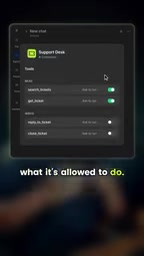
Each tool can also have its own execution policy: ask every time, always run, or never run. These three tiers effectively turn "AI autonomy" into an adjustable dial—query-type operations can be set to run automatically, while modification-type operations retain a human confirmation step.
This conservative-by-default design is commendable. When an Agent calls an external tool, a single misstep can produce real side effects—sending messages, modifying records, creating tickets. Disabling write permissions by default and letting users set execution policies item by item is a reasonable trade-off between convenience and controllability.
At the specification level, the MCP protocol already distinguishes tools by capability, with common annotations including read-only, destructive, and idempotent, so clients can decide whether user confirmation is needed. This aligns with the article's design of separating read/write tools and disabling write permissions by default.
It's worth noting that an MCP connection itself involves authorization tokens, and the scope of context the server can see is determined by authorization. If a connector is granted overly broad data access, the Agent may read information beyond what the task requires when calling it. So in addition to setting execution policies item by item, regularly reviewing each connector's authorization scope is a necessary part of risk control.
The boundary of local deployment and what's next
The public HTTPS requirement is not just a technical constraint—it also draws a usage boundary. It naturally separates "services already online" from "local experiments": the former can connect directly, while the latter needs an extra deployment step. For individual users, this may be a barrier; for enterprise users, it aligns well with existing service governance practices.

The video creator previews the next part of the series: turning an ordinary spreadsheet into a real data dashboard. Following MCP logic, this step likely involves using a connector to let the Agent read spreadsheet data and generate visualizations—once tools are connected, data flow is where the value is realized.
From a broader perspective, protocols like MCP are shifting the boundary of AI Agent capabilities from "what the model itself can do" to "what it can connect to." When a single link can grant an Agent new skills, the competitive focus will gradually shift from model capability to the breadth of ecosystem connections and the granularity of permission governance.
For users currently using Figma or other MCP-supporting tools, it's advisable to start with a read-only scenario to validate the connection workflow, and only gradually open up write permissions after confirming that the tool list and execution behavior meet expectations.
One-line Summary
MCP lets AI Agents in Figma connect to external tools by pasting a link, with conservative permissions by default.
Paragraph Summary
The article explains how to quickly add new capabilities to the AI Agent in Figma through MCP (Model Context Protocol): copy an MCP server link and paste it into the connector configuration, and the Agent can call that tool. More than 20 apps already support one-click connection, including Notion, Linear, and Slack. The core value of MCP is standardizing tool integration—apps expose an HTTPS link, and the Agent discovers and calls tools according to a unified protocol, greatly reducing integration costs. The setup workflow is: Add context → Connectors → Create and name → Paste URL → Confirm. The key limitation is that the link must be a public HTTPS address; local services cannot connect. The article emphasizes that permission control is the real risk boundary: write tools are off by default, and each tool can be set to ask every time, always run, or never run.
Related articles

OpenAI's Claimed Refutation of ETH Sparks Debate, Meta Bets Big on AI Infrastructure
OpenAI claims an AI-assisted discovery that challenges the Exponential Time Hypothesis (ETH) and launches the mid-tier GPT-6.1 Tera. Cloudflare discloses a cross-customer data leak postmortem, and Meta plans $95B in AI infrastructure financing.

Data Scraping, AI Proofs, and Open Source Contracts: This Week's Deep Dive into the Tech World
From the 3D model crawler controversy and OpenAI's Lean formal proofs to AI agents challenging Brooks' Law and Debian rejecting LLM review, this week's tech discussions center on openness and verifiability.
Build a Reasoning Model from Scratch: An 11-Hour Open-Source Course Breakdown
Sebastian Raschka releases a free 8-episode, ~11-hour video course teaching you to build a reasoning model from scratch with Python and PyTorch—from a small Qwen3 model through Verifier, Inference Time Scaling, GRPO, and distillation, with open-source code on GitHub.