The Ultimate Bilibili Guide to Codex: From Installation to Hands-On Practice, Let AI Operate Your Computer

Codex can directly operate your local computer to complete real work; the tutorial demonstrates the full workflow from installation and configuration to dashboard iteration.
Using a Bilibili step-by-step tutorial as the thread, the article points out that the essential difference between Codex and chat tools like Doubao is that it can directly operate the user's computer and complete real tasks locally. The tutorial covers installation and configuration (recommending Everyday Work mode and project folders to define scope), then validates capabilities through two hands-on projects: organizing messy sales records, invoices, and inventory into a summary table while detecting anomalies, and building a coffee shop visual dashboard via Plan Mode and iterating it into an Apple-style theme. It ends with beginner tips, noting the real limitation is whether you clearly know what you want it to do.
Why Is Codex Different from Doubao?
Many people, upon first hearing about Codex, instinctively categorize it as "just another chatbot." But this Bilibili step-by-step tutorial offers a clear distinction: tools like Doubao and DeepSick mostly stay at the conversation level, whereas Codex can directly operate your computer and complete real work locally.
This means it doesn't just answer questions—it can organize files, create reports, read work content, write weekly summaries, and even directly operate a browser or build complex software. You can set up a task to run in the background, go to sleep, and wake up to find it done. The video emphasizes that "it can do almost anything you can think of," and you don't need any technical knowledge. This "digital employee" positioning is the most fundamental difference between it and ordinary chat interfaces.

Codex's ability to "directly operate the computer" relies on a technical paradigm known as Computer Use: the model doesn't just generate text but operates graphical programs and browsers by recognizing interfaces through screenshots and simulating mouse clicks and keyboard input. It typically runs in a controlled local or cloud sandbox, where it can read and write to specified folders, execute scripts, and open applications. Unlike chatbots that only return answers, such systems string together "understanding intent—breaking down steps—executing actions—checking results" into a closed loop, enabling cross-application tasks like organizing files and generating reports. This is also where its risks and boundaries lie: permission scope, accidental file operations, and private data all need to be constrained through project isolation and human confirmation.
Installation and First Configuration: Tucking Away the Technical Details
Codex is already available in the Microsoft and Apple app stores—just search for the name to install it directly. The interface after opening looks very similar to the web version of Doubao: an input box in the center and a sidebar on the left, but the sidebar has additional features like plugins, automation, and workflows that Doubao doesn't have.
The uploader suggests changing one setting right after opening: the work mode. This option determines how much technical detail Codex shows you, and he prefers to switch to "Everyday Work" mode. This way, Codex's capabilities stay the same, but it won't throw a pile of incomprehensible technical details at you, making the experience much better. For non-technical users, this is an almost mandatory noise-reduction step.
Project Folders: Letting Codex Know Where to Work
Since Codex works directly on your computer, it needs a working folder—these folders are called "projects" in Codex and appear in the sidebar. By categorizing different matters into different folders, you can find the corresponding content at a glance.
After selecting the project this conversation will work on below the input box, Codex can directly read all the files inside. The video prepares a real folder called "Computer Things and Coffee Shop," stuffed with sales records, invoices, and inventory lists in formats ranging from spreadsheets and PDFs to images—a complete mess. This is exactly the real-world scenario used to test Codex.
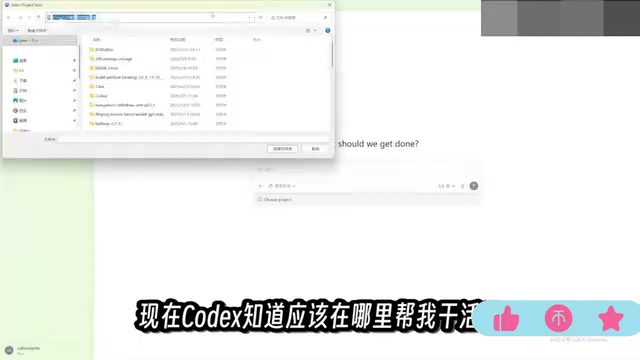
In tools like Codex, a "project" essentially defines the workspace and context boundary for the model. Once a folder is selected, the model's reading, retrieval, and writing are all restricted to that directory, giving it automatic access to the context of relevant files while avoiding accidental touching of other personal data. For mixed directories containing spreadsheets, PDFs, and images, the model typically first performs file type identification and content extraction (such as parsing invoice fields from PDFs), then aggregates everything uniformly. Splitting projects by purpose also reduces interference from irrelevant files, making answers more focused and reproducible.
Practice 1: Organizing Messy Files and Generating a Summary Table
The first task is entry-level: ask Codex to tidy up the folder and extract and organize the information and data into an Excel file for easy reference. Sounds simple, but it's actually quite laborious—Codex needs to analyze files, move files, modify content, and create new files.
A few minutes later, the task was done. It organized the files by purpose, generated a detailed data table, categorized sales data and product rankings, and even read the PDF invoices and extracted the details. More importantly, the uploader had deliberately planted some traps in the files, and Codex actually found them: it flagged some missing transaction records and pointed out anomalies in two invoices.
This case shows that Codex can already reliably handle tasks like organizing reports and writing daily summaries that require reading local files and summarizing them.

Practice 2: Building a Visual Dashboard with Plan Mode
The second task is noticeably harder. The uploader directly added the summary table just generated in the command line and asked Codex to create a visual dashboard for the coffee shop based on the data in the table, showing business conditions like sales, expenses, costs, and inventory, and to analyze the issues that need attention.
Because the task was complex, he switched Codex to "Plan Mode." In this mode, Codex doesn't act immediately; instead, it first plans out a detailed execution checklist, confirms task details with you, and then executes. The video suggests: if you need Codex to perform the same task, turning on Plan Mode is the safer choice.

During execution, Codex indeed asked questions in return, and only after the uploader chose answers did it continue working. This demonstrates the value of Plan Mode—analyze first, ask when uncertain, present a plan, and let the user adjust the plan's content or submit it directly for execution.
"Plan Mode" corresponds to the plan-and-execute strategy in agent design. Ordinary conversational execution tends to think while doing, and easily goes off track when encountering ambiguity; Plan Mode first produces a structured task checklist, breaking goals into verifiable steps, and asks the user to confirm at key points of uncertainty before proceeding with execution. The benefits are lower rework costs, letting users adjust direction before execution, and making it easier to trace what was done at each step afterward. It's especially effective for complex tasks involving multiple files and steps, at the cost of requiring an extra round of interaction upfront.
The Little Pet: A Visual Entry Point for Task Progress
The video also shows an interesting detail midway: typing a slash in the input box brings up a desktop pet. Besides being cute, it also displays all the tasks currently being executed, and clicking on one jumps to the corresponding task. The pet's appearance can be changed in settings, though the uploader ultimately switched back to the default style. This little design solves the problem of progress awareness when running multiple tasks in parallel—a clever touch that improves the everyday experience.
Results and Iteration: From a Professional Dashboard to an Apple-Style Theme
The dashboard was finally completed, containing all the previously requested content, with business recommendations and key items listed below. The uploader admitted that he isn't a sales professional and can't judge the dashboard's actual business value—that would require evaluation by someone in the field.
He then continued iterating: feeling the current theme wasn't suitable, he asked for a more modern and intuitive style, "just like Apple." After Codex finished, he commented that "it really has that Apple vibe," and tossed the scoring question to the audience. This detail shows that Codex's output isn't one-off—users can keep requesting modifications based on existing results, treating it like a development collaborator that understands natural language.
A Few Practical Tips for Beginners
- Start with "Everyday Work" mode to avoid being overwhelmed by technical details.
- Create project folders by purpose so Codex has a clear context boundary.
- For complex tasks, prioritize Plan Mode—let it ask questions before acting.
- Boldly plant "traps" in files; Codex's anomaly-detection ability is worth verifying.
- If you're not satisfied with the output, just ask for changes—iteration costs are very low.
Overall, this video uses two real projects of increasing difficulty to walk through the complete Codex workflow—from installation, configuration, and project organization to Plan Mode and result iteration. Its core message is: the barrier to entry for these tools is already low enough that "a few simple sentences can produce something cool," and the real limitation is more about whether you clearly know what you want it to do.
One-line Summary
Codex can directly operate your local computer to complete real work; the tutorial demonstrates the full workflow from installation and configuration to dashboard iteration.
Paragraph Summary
Using a Bilibili step-by-step tutorial as the thread, the article points out that the essential difference between Codex and chat tools like Doubao is that it can directly operate the user's computer and complete real tasks locally, positioning it closer to a "digital employee." The tutorial first covers installation and configuration: after installing from the app store, it recommends switching to "Everyday Work" mode to reduce technical-detail interference, and then using project folders to define Codex's working scope. It then validates capabilities through two hands-on projects of increasing difficulty: one, organizing mixed sales records, invoices, and inventory files and generating a summary table, which also successfully detected missing transactions and anomalous invoices; two, using Plan Mode to create a coffee shop visual dashboard and iterating it into an Apple-style theme based on natural-language feedback. The article ends with beginner tips, emphasizing that the barrier is already low enough to produce results with just a few sentences—the real limitation is whether you clearly know what you want it to do.
Related articles

Hermes Agent in Depth: From Deployment to Skills, MCP, and Hooks
A complete walkthrough of Hermes Agent based on a YouTube deep-dive: VPS deployment, soul.md and user.md memory layering, auto-generated skills, MCP and connectors for Notion, multiple profiles and sub-agent delegation, gateway and shell hooks, and voice call configuration essentials.

Codependency in Addiction: Let Go of the Rope So the Other Person Can Move Toward Recovery
Stanford addiction expert Dr. Anna Lembke explains how codependency sustains addiction: when families stop over-intervening, attend Al-Anon, and let go, addicted individuals are more likely to recover.

Where Does Autonomous Driving Training Data Come From? Cosmo 3 Uses Scene Graphs to Generate Multi-Sensor Data
Cosmo 3 offers a generative solution for autonomous driving training data: controlled generation via world scene graphs, synchronized RGB and LiDAR output, and continuous generation for closed-loop simulation, now open for developer trials.