Zapier vs. Make vs. n8n: Building the Same AI Workflow Three Times — All Three Failed

The same AI lead workflow built in Zapier, Make, and n8n — all three failed, with one shared lesson: never exact-match AI output.
A creator built the same AI automation workflow — reading a contact form, classifying leads via Gemini, writing results to Google Sheets, and emailing only sales leads — in n8n, Make, and Zapier. All three failed: n8n's variable never reached the AI (expression mode needed), Make's exact match was broken by invisible trailing characters in AI output (use contains instead), and Zapier's default model was disabled with no warning. The test also revealed a fundamental billing difference: n8n counts an entire workflow run as one execution regardless of step count, while Zapier and Make bill per step. n8n led on speed, build time, and cost — but the universal lesson is to never use exact string matching on AI output.
What happens when you build the exact same AI automation workflow in Zapier, Make, and n8n? One YouTuber ran this rigorous experiment: a contact form comes in, AI reads the message, classifies it as sales, support, or spam, writes the result back to a Google Sheet, and only sends an email notification for genuine sales leads. Same form, same AI, same spreadsheet — and all three tools failed without exception. This article breaks down the entire test, revealing which tool is fastest to build, which has the lowest long-term cost, and which one you can actually trust with your leads.
The Foundation of a Fair Test: Unified Inputs
The biggest risk in any tool comparison is dirty variables. The author's solution was to build a shared input source first — a single Google Form monitored by all three tools simultaneously. Using separate forms or spreadsheets for each tool would mean any differences could come from configuration, not the tools themselves.
The form had three fields: name (required), email (with format validation to avoid junk data), and message (paragraph format, since this is the text the AI needs to classify). The form was linked to a Google Sheet called "Video 2 Leads," which auto-generated four columns: timestamp, name, email, and message.
This setup hid a trap: Google Forms only writes to the one worksheet tab it's currently linked to. If that link changes, the form keeps working fine — but your automation will be staring at an empty sheet. This detail came back to bite the author later.
For the AI component, Google Gemini was used across all three tools (it has a free tier and is supported by all three). An API key was generated in Google AI Studio and pasted into each tool, ensuring the AI side was completely consistent. Signing up for all three accounts took about 5 minutes total, so onboarding cost wasn't a deciding factor.
n8n: 6 Minutes 30 Seconds — Fastest, But Still Failed
The author started with the most familiar tool: n8n. The trigger used Google Sheets' "On Row Added," with a polling interval set to once per minute — one of n8n's advantages, since you can set your own check frequency.
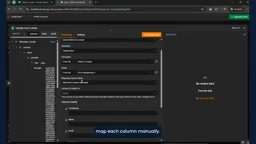
The first failure appeared in the AI node. The author had manually typed the message field, but after running it, Gemini returned "Spam" for what was clearly a quote request. The reason: the field was in fixed mode, so n8n sent the literal curly-brace text to Gemini — the model never saw the customer's actual message. After switching to expression mode, the answer correctly changed to "Sales."
This type of error is the most dangerous kind — the node turns green, the AI confidently gives an answer, but it's answering the wrong question. If you're not watching the outputs closely, every single lead gets classified as spam.
For writing back to the sheet, since there was no row number column, the author used the timestamp as a unique matching key. Routing was handled with an if node, with the condition set to text equals "sales" with case-insensitive matching enabled. The author used an "equals" check and got lucky — the same logic would fail in another tool.
The real test came with four actual submissions: a Spanish-language quote request, a login issue (support), a promotional bot (spam), and a duplicate submission test. The first lead — Maria's message in Spanish — never appeared in the sheet at all. This was the Google Sheet tab trap mentioned earlier; Google had written the lead to a newly created tab. After fixing that, Maria was correctly identified as a sales lead. The duplicate submission generated two emails, which is a common issue across all tools and requires a deduplication step to resolve.
A note on n8n's "expression mode" vs. "fixed mode": This distinction is key to understanding the failure. In n8n, node fields default to fixed mode — whatever string you type is sent as-is to the next step, including variable placeholders wrapped in curly braces like
{{ $json.message }}. They're treated as plain text, not evaluated. Switching to expression mode tells n8n to parse the content inside the curly braces as actual dynamic data references, pulling real values from upstream nodes. This trips up beginners constantly: the variable looks like it's been filled in, the test passes, but the AI always receives the literal placeholder string rather than the customer's actual message. Similar "template variables not rendered" issues exist in nearly every low-code tool — they just trigger differently. It's the first thing to check when debugging AI automation workflows.
Make: 7 Minutes 30 Seconds — Exposing a Fatal Trap in AI Text Matching
Make's interface is completely different from n8n — it uses a canvas with circular nodes in a visual style. The trigger was set to "Watch New Rows" on the same spreadsheet.

Make asked a useful question that n8n didn't: where should processing start? Selecting "All" would reprocess all existing rows. The author chose to manually specify the last row.
The AI configuration was more deeply nested than n8n — you add an item inside Messages, set the role, add parts, choose text type, and only then reach the prompt input field. Three levels of clicks to get to the prompt. It's not hard, just more clicking. One upside: Make provides a flat "Result" field that directly surfaces the AI's answer, avoiding the need to parse nested paths.
The real failure came at the filter. The author used the same "equals sales" logic as in n8n. The first lead triggered an email correctly; the second identical lead produced no email, no error, and Gmail simply never ran. The reason: AI output isn't byte-for-byte consistent — this time "sales" may have had an invisible trailing newline or space. To the human eye it looks identical; to an "equals" check, they're two completely different strings.
The fix was changing the operator from "equals" to "contains." This is the central lesson running through the entire experiment: never use exact matching on AI output — use contains, or trim the text first. This rule applies to if nodes, filters, routers, spreadsheet formulas — anywhere you're comparing AI-generated text.

The scheduling settings at the bottom of the canvas are also worth noting: Make's free plan runs at a maximum of every 15 minutes, while n8n runs every minute. For hot leads, 15 minutes could be the difference between a reply and a lost deal.
On invisible characters in LLM output: This is extremely common with large language models. When generating text, LLMs predict tokens sequentially — newline characters
\n, spaces, and even zero-width spaces can be appended as separate tokens at the end of a response, especially when the prompt doesn't explicitly say "output only the single word, no other characters." To the human eye, "sales" and "sales\n" look identical; to a strict equality check, they're different values. This is why industry best practice for any AI output comparison is to.trim()(strip leading/trailing whitespace) and.toLowerCase()(normalize case) before comparing, and to use contains rather than equals. This principle applies not just to Make, but whenever you're writing code, configuring database queries, or handling AI return values in any automation platform.
Zapier: 9 Minutes 30 Seconds — Slowest, But the Most Guided Experience
Zapier is the most well-known of the three, has the largest app library, and offers the most guided interface — a vertical step-by-step list where each step follows a fixed flow: App, Event, configuration, test.

Zapier failed three times in a row. The first failure was a 404 error: the default Gemini 2.5 Flash model had been disabled for new users, with no warning in the settings. Switching to Gemini 3.8 Flash resolved it. The second failure was more subtle: the test ran, but checking the input data revealed the prompt had never actually been entered in the field — the sales/support/spam definitions never reached the model. The AI still gave an answer, just not based on your rules. The third failure was in the row selector when writing back to the sheet: if you pick a fixed row number from the dropdown, the Zap will always update that same row. You must use the dynamic row ID from the trigger.
The row number trap is especially insidious — tests will pass because they use the sample row, and you'll only discover weeks later that one row has been overwritten repeatedly while all other leads are blank.
Zapier also has some genuine strengths: filter steps don't consume a task — only the actions that pass the filter are billed. On a real contact form where spam can dominate, this means filtered-out spam leads cost nothing. Zapier's filters also show the evaluation result before you go live, which is a genuinely useful preview feature.
One honest observation: during testing, the Gemini servers were temporarily overloaded. n8n, with "retry on failure" enabled, automatically retried; Zapier's run simply stopped and required manually replaying from the history. If your AI provider has a rough patch, this difference determines whether leads arrive late or disappear entirely.
Side-by-Side Scores
Build time: n8n 6:30, Make 7:30, Zapier 9:30. The author acknowledges having built in n8n once before, so this should be treated as a rough feel rather than a controlled result.
Speed: n8n checks every minute; Make's free plan checks at most every 15 minutes; Zapier's free plan also maxes out at 15 minutes, with the paid plan going down to 2 minutes. For sales leads, 15 minutes may be the line between winning and losing.
Pricing and billing logic (based on current pricing pages):
- Zapier free plan: 100 tasks/month, but limited to two steps — this 5-step workflow requires Professional ($19.99/month and up)
- Make free plan: 1,000 credits; Core starts at $9/month
- n8n: no free cloud tier; Starter at $20/month, or self-host for free
The real difference lies in how billing is calculated: Zapier counts each action as one task (this workflow uses roughly 3); Make counts each module as one credit (roughly 4); n8n counts the entire run as a single execution. When you add five more steps to the workflow, Zapier becomes 8 tasks, Make becomes 9 credits — n8n is still 1 execution.
Where each tool failed: n8n — literal text never reached the AI (needed to switch to expression mode); Make — exact matching blocked real leads due to invisible characters in AI output (needed to switch to contains); Zapier — the default model was disabled (needed to manually swap in a new one). The shared lesson across all three: never trust exact matching on AI output.
On n8n's "execution" billing model: This deserves a closer look. In Zapier and Make, the billing unit is directly tied to the number of steps in your workflow — each action module consumes a task or credit, so the more steps you have, the more you pay per trigger. n8n uses a "one execution per workflow run" model: whether your workflow has 3 nodes or 30, one trigger equals one billed execution. This is especially valuable when workflows grow alongside your business — adding Slack notifications, CRM writes, SMS triggers, and so on linearly increases monthly costs in Zapier and Make, while n8n's billing stays flat. The self-hosted version of n8n is only limited by server resources, with no cap on execution count. This is one of the core reasons it's popular in developer communities.
How to Choose
- Want the simplest onboarding experience and the largest app library, and willing to pay for it: choose Zapier
- Want the most affordable paid plan and a visual canvas, but don't depend on it for fast lead response (and upgrade before you do): choose Make
- Your workflow will keep growing: choose n8n — one run is one execution regardless of how many steps you add, and you can self-host
For this specific workflow, n8n wins on build time, speed, and cost. Make is a close second.
The value of this experiment isn't in declaring an absolute winner — it's in exposing the "silent failures" of AI automation: no errors thrown, nodes turn green, answers look correct, but leads quietly vanish or get misclassified. Whatever tool you use, watching the actual output of every step and never using exact matching on AI-generated text are the habits that will actually save you.
Related articles

Vibe Coding Full-Stack in Practice: AI Programming from Beginner to Enterprise Deployment
From Cursor to Claude Code, this Bilibili AI programming course uses four progressive projects to cover full-stack development, open-source secondary development, and team collaboration. The article analyzes the shock to frontend roles, the efficiency shift from 50 people to 5, and the methodology required for enterprise-grade projects.

David Blaine's Global Quest for Real Magic: From South Africa to Japan and India
David Blaine travels to South Africa, Japan, and India in his Do Not Attempt special, documenting Spinning drivers, black mamba rescuers, iaijutsu masters, and ascetics—exploring the boundary between magic and real human极限 challenges.

Is a Touchscreen MacBook Coming? Vergecast Reveals Apple Executive's Response
Vergecast podcast reveals a conversation between a reporter and Apple executive John Ternus about a touchscreen MacBook and Apple Pencil support. Ternus says iPad is the best device for a stylus, while the reporter bets MacBook will eventually support Apple Pencil.