Complete Guide to OpenAI Codex: Installation, Configuration, and Practical Tips
A comprehensive guide to installing, configuring, and mastering OpenAI Codex APP for AI-assisted programming.
This guide covers everything developers need to know about OpenAI Codex APP, from prerequisite software installation (Git, Node.js, VS Code) to core features like multi-task parallelism, OS-level sandbox security, context management, and the real-time Steer function. It also compares Codex with Cursor and Claude Code, helping developers choose the right tool for different scenarios.
OpenAI Codex recently launched as a standalone APP, becoming yet another highly anticipated AI programming tool following Cursor and Claude Code. This article is based on a comprehensive Codex tutorial series from Bilibili, systematically covering everything from installation and configuration to core features and usage tips, helping developers quickly get started with this tool.
Codex's Four Forms and Competitor Comparison
Currently, Codex has four usage forms: Terminal (CLI), Web, Plugin, and Standalone APP. The APP form offers the most complete functionality and best experience, and is the officially recommended way to use it.
Many developers tend to compare Codex with Claude Code. The key differences between them are:
- Pricing: Codex APP has lower subscription costs, with the Pro version starting at around $8/month, while Claude Code is relatively more expensive
- Stability: Claude Code has rate-limiting and account suspension issues, while Codex performs more reliably in this regard without rate limits or account bans
- Strengths: Claude Code excels at logical correctness, code structure, and feature implementation, making it preferred by backend developers; Codex focuses more on UI details, color coordination, animations, and interaction prompts, providing a better experience for frontend and app developers
Of course, as the current "big three" of AI programming—Cursor, Claude Code, and Codex—developers are encouraged to master all three and switch flexibly based on different scenarios. These three represent three different technical approaches to AI programming tools: Cursor is a deeply customized IDE based on VS Code that embeds AI capabilities directly into the editor workflow, suitable for developers accustomed to traditional IDE operations; Claude Code, launched by Anthropic, uses the command line as its primary interaction method, with its underlying Claude model excelling at code reasoning and long-context understanding, making it popular among backend developers and system architects; Codex takes the standalone APP route, emphasizing multi-task parallelism and visual interaction, with its underlying GPT series models having unique advantages in creative generation and UI design. The competition among these three essentially reflects that the AI programming field has not yet formed a unified paradigm, with different tools excelling in different scenarios.
Prerequisites: Three Essential Software Installations
Before installing Codex, you need to install three prerequisite software packages.
Git
Git is a fundamental dependency for virtually all AI development tools and Agents (such as Hermes Agent, Claude Code, etc.). Visit the Git official website to download the installer for your operating system—installation is straightforward.
Git is a distributed version control system created by Linus Torvalds (the creator of Linux) in 2005. In the context of AI programming tools, Git's importance goes far beyond code version management—it serves as the underlying infrastructure for nearly all AI Agents to implement "rollback operations." When AI generates or modifies code, tools automatically create Git commits, meaning every operation has a snapshot record, and users can revert to any historical state at any time. This mechanism essentially provides a safety net for AI's "trial and error"—even if AI generates incorrect code, it won't cause irreversible damage.
Node.js
Node.js handles installing project dependencies. Visit the official website, click "Get Node.js," and download the installer for your operating system. After installation, verify it by opening a command prompt (Win+R, type cmd) and running node -v. Codex has no special Node.js version requirements—just install the latest version.
Node.js is a JavaScript runtime environment built on Chrome's V8 engine, enabling JavaScript to run on the server side outside of browsers. In the AI programming tool ecosystem, Node.js's core value lies in its bundled npm (Node Package Manager). npm is the world's largest open-source software registry with over 2 million packages. When Codex generates a frontend project, it often needs to install dependency libraries like React, Vue, and Tailwind CSS via npm install—this is why Node.js is a prerequisite.
VS Code
While VS Code isn't strictly required, it's strongly recommended. Since Codex itself doesn't provide code editing capabilities, you'll still need a traditional editor when making detailed modifications to AI-generated code. After installation, search for and install the "Chinese" plugin to switch to a Chinese interface if needed.
Codex Installation and Basic Usage
Installation Process
Visit the Codex official website and download the Windows or Mac version for your operating system. What you download is actually a downloader that connects to the Microsoft Store to download an approximately 400MB installation package. The entire process requires a VPN, including subsequent daily use.
After installation, the first launch will prompt you to "Set up sandbox"—click to set it up. The sandbox mechanism will be explained in detail later.
Workspace Management
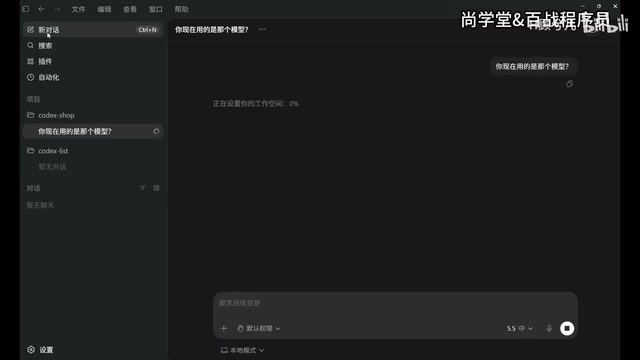
One of Codex's standout features is support for multi-project, multi-task parallelism. Here's how to use it:
- Create project folders locally (e.g.,
Codex-Shop,Codex-List) - Drag and drop folders into Codex's left sidebar to add them as workspaces
- Select the current project at the top of the conversation window
Multi-Task Parallelism
Codex supports running multiple tasks simultaneously, with three status indicators for each task:
- In Progress: Icon spinning continuously, indicating the task is executing
- Awaiting Approval: Task pauses for user confirmation when it needs to create files, download dependencies, or request permissions
- Completed: Icon turns into a blue dot
Use Ctrl+N (or Command+N on Mac) to quickly create a new conversation window and switch between tasks across different projects. Conversations created without selecting a project are categorized under "Conversations" in the lower left corner.
Core Feature Modules Explained
Search and Conversation Management
Use the search button on the left sidebar or Ctrl+G to search conversation history, but only conversation titles can be searched, not conversation content. Therefore, it's recommended to rename important conversations (double-click the conversation title to edit) for easier retrieval later.
For conversations you no longer need, click the archive button to archive them. Archived conversations can be viewed and restored in "Settings → Archived Conversations."
Permission Management and Sandbox Mechanism
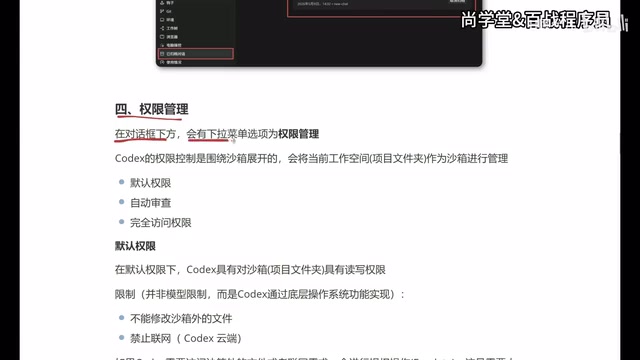
This is one of Codex's most noteworthy security features. Permission management revolves around the sandbox, which isolates and manages the current project folder as a sandbox environment with three levels:
A sandbox is a security isolation technology whose core concept is to restrict program execution within a controlled environment, preventing unintended or malicious effects on the host system. Codex's sandbox implementation operates at the operating system level (not the application level), meaning it leverages the OS kernel's process isolation, file system permission controls, and network access controls. In contrast, if AI behavior is only restricted at the model level through prompts (e.g., telling the model "don't delete files"), the AI could potentially bypass these restrictions due to hallucinations or prompt injection. OS-level sandboxing fundamentally eliminates this possibility—even if the model "wants" to perform unauthorized operations, the operating system will directly refuse.
Default Permissions: Read and write access to files within the sandbox, but cannot modify files outside the sandbox, and network access is prohibited (e.g., npm install, accessing GitHub, etc.). These restrictions are implemented at the OS level rather than the model level, providing high security. Operations requiring elevated privileges trigger manual review.
Auto-Review (Recommended): Codex invokes a small permission management model to assess the safety of privilege escalation requests. Low-risk operations are automatically approved, while high-risk operations (such as deleting files) still require manual confirmation. This mode effectively reduces the interruption of frequent authorization prompts.
Full Access: Ignores sandbox restrictions, allowing access to and modification of external files, network access, etc. This is a dangerous setting—a confirmation dialog appears when first enabled. Unless you have specific needs, this is not recommended.
By comparison, Claude Code's sandbox requires users to actively configure it with no sandbox concept by default, making Codex's design more user-friendly in this regard.
Context Management
Click the progress bar icon in the conversation window to view the current conversation's context usage, including used space and total space.

The context window is the maximum text length a large language model can process at once, measured in Tokens. A Token is the smallest unit the model uses to process text—in English, each word corresponds to roughly 1-2 Tokens, while in Chinese, each character typically corresponds to 1-2 Tokens. The context window size directly determines how much conversation history and code content the model can "remember." When the context approaches its limit, earlier conversation content gets compressed or discarded, which is why managing context properly is crucial for the user experience. Additionally, Token consumption directly correlates with usage costs—every input and output Token is billed, so residual irrelevant historical information not only interferes with the model's attention allocation but also causes unnecessary expenses.
When context approaches the limit, Codex automatically compresses conversation history. You can also manually trigger compression by typing /compress. However, the recommended approach is: start a new conversation for new tasks, because clearing is better than compressing—residual historical information interferes with the model's focus and increases Token consumption.
Model Selection and Quotas
Model selection offers three configuration dimensions:
- Intelligence Level: Low/Medium/High/Ultra-High—choose based on task complexity, default is Medium
- Model Version: Supports GPT-5.5, 5.4, 5.4 mini, 5.3 codex, 5.2, etc.—using the latest model is recommended
- Speed: Standard mode and Fast mode (1.5x speed but consumes 2x Tokens)
Regarding quotas, Codex has two limiting dimensions: 5-hour quota and weekly quota. Reaching either limit prevents further use, but both reset to 100% after the corresponding time period. Check your remaining quota in "Settings → Remaining Quota."
Steer Function: Real-Time Course Correction for AI Execution
Steer is a powerful Codex feature that allows human intervention and direction correction during AI execution.
This feature embodies the Human-in-the-Loop design philosophy. In traditional AI programming interactions, users can only wait for the AI to complete the entire task after issuing instructions. If the result is unsatisfactory, they need to re-describe requirements and wait for regeneration—this "send-wait-evaluate-resend" cycle is very inefficient. Steer breaks this linear interaction pattern, allowing users to observe and intervene in real-time during AI execution, similar to the "manual takeover" mechanism in autonomous driving. This design is particularly important when handling complex, ambiguous requirements—users often cannot perfectly describe all details at the outset, but after seeing the AI's initial execution direction, they can quickly determine whether adjustments are needed.
When you notice the AI has misunderstood or deviated from expectations, you can type new instructions directly in the dialog box and click the "Steer" button. Codex will immediately pause the current task and re-execute according to the new instructions.
If you send without clicking "Steer," the new task enters a queue and executes after the current task completes. This behavior can be toggled in "Settings → General → Follow-up Behavior"—the default is queue mode, which is recommended to keep.
Practical example: When modifying the About section of a restaurant homepage, if the AI's modifications don't match expectations (e.g., the content isn't warm enough), you can type "Make this section feel warmer and more inviting" during execution, click Steer, and the AI will immediately adjust direction and re-execute.
Summary and Practical Recommendations
As OpenAI's standalone AI programming tool, Codex APP excels in multi-task parallelism, sandbox security mechanisms, and UI generation quality, making it particularly suitable for frontend developers. For beginners, its visual workspace management and intuitive permission controls significantly lower the barrier to entry.
Some practical recommendations:
- Choose "Auto-Review" as your permission mode for the best balance of security and efficiency
- Start new conversations for new tasks to avoid context pollution
- Leverage multi-task parallelism to boost development efficiency
- Use it alongside VS Code to compensate for Codex's lack of built-in code editing
Related articles

Codex + Claude Code in Practice: From Vibe Coding to Enterprise-Grade AI Engineering
A deep dive into Codex and Claude Code for real-world AI programming—from Vibe Coding prototypes to Plan mode and SuperPAL engineering, with LLM selection strategies and enterprise workflows.
Hands-On Tutorial: Building an AI Trending News Dashboard from Scratch with Claude Code
Learn to build an AI trending news dashboard from scratch with Claude Code — no coding required. Covers CC setup, domestic model integration, and full-stack development.
HAMAS Multi-Agent Framework in Practice: A Guide to Building 5 AI Personas Working in Harmony
Learn how to build a multi-Agent AI team with the HAMAS framework: 5 role configurations, Skill mechanisms, gradient model scheduling, and solutions for AI hallucination and deception.