Coze Platform Beginner's Guide: Interface Features Explained & Hands-On Workflow Building
A beginner's guide to ByteDance's Coze platform covering interface features and workflow building.
This guide walks beginners through ByteDance's Coze AI platform, covering its core interface features including project management, resource library, template marketplace, and plugin store. It provides step-by-step instructions for building visual workflows from scratch, along with practical tips and a recommended learning path for non-technical users.
Introduction
As AI agents and automated workflows become increasingly popular, more and more non-technical users are starting to build their own AI applications. Coze (known as "Kouzi" in Chinese), developed by ByteDance, is a low-code/no-code AI development tool designed for the general public. This article provides a systematic overview of Coze's core interface features and workflow building fundamentals to help complete beginners get started quickly.


What Is the Coze Platform?
Coze is an AI application development platform launched by ByteDance. Users can access the platform through a browser at coze.cn (note: .cn, not .com), or simply search for "Coze" in a search engine to find the entry point.
The platform's core mission is to enable everyday users who can't code or program to build AI agents and automated workflows. Although the platform entrance is labeled "Coze Programming," the actual operation is entirely based on visual drag-and-drop — no programming skills required.
First-time users need to register an account and complete identity verification by following the platform's prompts.
Coze Core Interface Features Explained
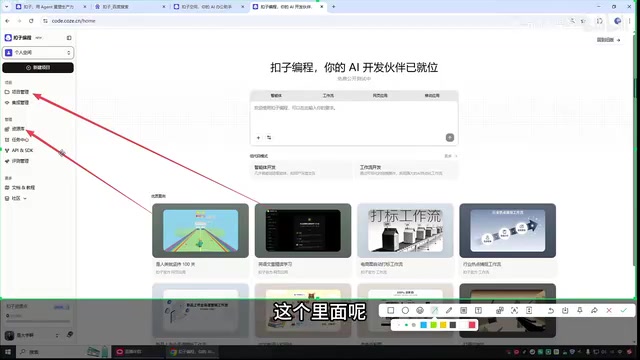
Project Management: Your Portfolio Repository
After entering Coze, Project Management in the left navigation bar is one of the most frequently used features. All completed AI agents and applications are saved here — think of it as your "portfolio repository." Whether published or still in development, all projects can be managed in one place.
Resource Library: Centralized Management for Workflows and Knowledge Bases
The Resource Library is another high-frequency module that stores:
- Created workflows
- Configured knowledge bases
- Built databases
- Connected external software configurations
The Resource Library serves as the "asset center" for building workflows, and new workflows are also initiated from here.
Overview of Other Feature Modules
- Integration Management: Pre-configured AI models provided by the platform, ready to call directly
- Task Center: Better suited for the intermediate stage of learning
- API: For advanced development scenarios — beginners can skip this for now
- Documentation and Tutorials: A "self-help manual" for troubleshooting, including development guides, API documentation, and real-world examples
- Coze Compass: A data analytics tool that most regular users won't need
Template Marketplace & Plugin Store: Shortcuts to Getting Started
Template Marketplace: A Treasure Trove for Learning
Coze's Community/Template Marketplace features a large collection of AI agents and workflows built by third-party users, covering areas such as marketing, information processing, chat companions, customer service, education, and more.
The greatest value of these templates lies not just in being "ready to use," but in learning how others structure their builds. Here's how to make the most of them:
- Search for workflows related to your industry
- Click "Copy" to import them into your personal workspace
- Open the workflow to examine the node structure and design logic
- Use the logic as a reference to adapt it for your own business needs
However, keep in mind that the quality of free templates varies significantly. Custom-built AI agents or workflows on the market often come with substantial price tags, and free templates may lack refinement. They're better suited as learning references rather than production-ready solutions.
Plugin Store: A Powerful Tool for Extending Workflow Capabilities
The Plugin Store offers a rich selection of functional extension components that can be directly configured into your workflows. Common plugin types include:
- Image Generation: Automatically generate images from text input
- Text-to-Speech: Convert text into audio
- Link Reader: Scrape webpage content
- News Search: Retrieve real-time news information
Plugins are divided into official plugins and third-party plugins. Official plugins are more stable and work out of the box; third-party plugins (labeled "3rd Party") offer richer functionality but may be less stable, and some require API key authentication.
Hands-On Workflow Building: Creating from Scratch
Basic Steps to Create a Workflow
- Go to the Resource Library and click the "+" button in the upper right corner
- Select "Workflow"
- Enter a workflow name (English or Pinyin only — Chinese characters are not supported)
- Add a workflow description explaining its purpose
- Click confirm to enter the visual editing interface
For example, to create a news summary workflow, you could name it "GateNews" and describe it as "Enter a news keyword to retrieve relevant news content and summarize it into a short, easy-to-understand paragraph."
Basic Operations in the Workflow Editor
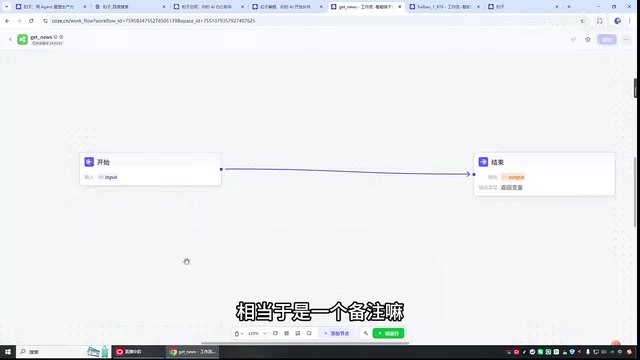
Upon entering the editor, you'll see two default nodes: Start and End. Every workflow uses these two nodes as its starting and ending points, with various functional nodes added in between to implement the business logic.
Basic operations include:
- Left-click and drag: Move the canvas
- Mouse scroll wheel: Zoom in/out
- Connect nodes: Drag from the small circle on one node to the next node (Note: connections can only go forward, not backward)
Two Ways to Add Nodes
Method 1: Click the "Add Node" button at the bottom, select the desired node type from the function list (e.g., LLM, plugin, etc.), and the node will appear on the canvas for you to manually connect.
Method 2: Click the "+" icon on the connection line between two nodes to insert a new node at that position — the system will automatically complete the wiring.
Handy Features to Boost Efficiency
- Annotation Feature: Add descriptive notes to nodes for your own reference or to help others understand the workflow. For example, annotate the Start node with "Enter a news keyword" so that anyone you share the workflow with knows exactly what to input.
- Auto-Layout: When nodes pile up and the canvas gets messy, use the one-click auto-layout feature to tidy things up
- Export as Image: Export the workflow as an image file for easy sharing and presentation
Recommended Learning Path for Beginners
For users new to the Coze platform, here's a recommended step-by-step learning path:
- Get familiar with the interface: Understand where each module is and what it does
- Start with simple workflows: For example, a three-step process like "Keyword → Search News → AI Summary"
- Browse the Template Marketplace: Study the design logic of well-built workflows
- Gradually introduce plugins: Extend your workflow capabilities based on actual needs
- Advance to API integration: Learn how to connect external tools
Conclusion
Coze's design philosophy is all about lowering the barrier to AI application development. The entire process revolves around mouse-based drag-and-drop combined with visual node orchestration, enabling even users with zero programming experience to build practical AI workflows in a short time. The key is understanding your business logic — figure out what task you want AI to handle, break that task down into individual nodes, and connect them in sequence. That's all there is to it.
Related articles
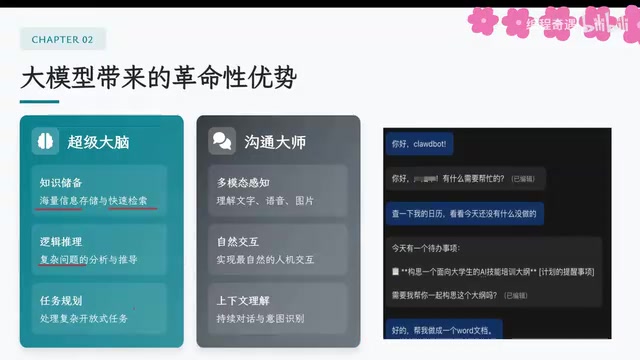
AI Agent Core Architecture Breakdown: From Concept to Enterprise-Grade Intelligent Agent Development
Deep dive into AI Agent architecture: perception, brain, and action modules. Covers RAG memory systems, tool calling mechanisms, Chain of Thought reasoning, and enterprise agent development roadmap.
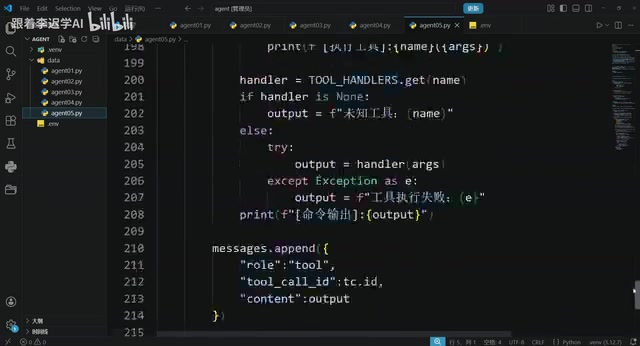
Hands-On Tutorial: Build an AI Agent from Scratch with 200 Lines of Python
Build an AI Agent from scratch with 200 lines of Python, covering prompts, memory, tool calling, RAG, and Skills — a practical guide for developers.
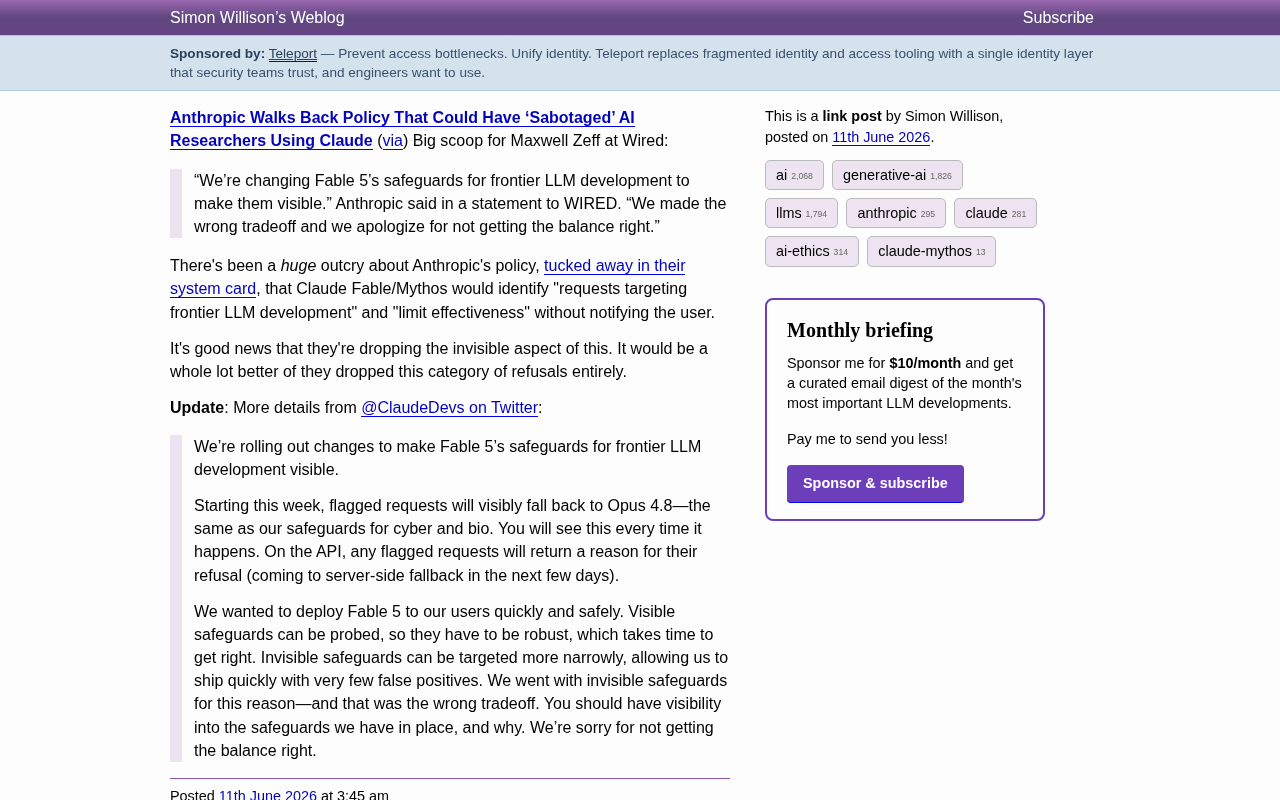
Anthropic Reverses Controversial Policy of Secretly Throttling AI Researchers Using Claude
Anthropic reverses its controversial policy of secretly throttling Claude Fable/Mythos responses to frontier LLM development requests after community backlash, raising critical questions about AI transparency.