Building a Professional Website with AI: A Hands-On Guide to Firebase Google Login

A complete walkthrough of AI website building, from ChatGPT-generated frontend code to Firebase auth and database configuration, plus pitfalls.
The article documents a YouTube creator's complete website-building demo using ChatGPT to generate HTML, CSS, and JavaScript frontend code, then connecting to Firebase for email registration and Google login. The process covers creating three core files in VS Code, setting up a Firebase project and web app, enabling Email/Password and Google login, creating a Firestore database, and configuring security rules. The key pitfall: local Live Server preview breaks Google login because the domain isn't in Firebase's Authorized Domains, requiring manual addition and a force refresh. Also, Firestore database location can't be changed after creation, so latency and storage location must be weighed beforehand. The author estimates ~90% completion, with hosting remaining, and notes AI lowers the operational barrier, not the conceptual one.
Using AI to write code is nothing new, but taking AI-generated code and actually turning it into a complete website with Google login, email registration, and a database backend still involves a series of easy-to-trip-over pitfalls. A YouTube creator, responding to viewer requests, gave a full walkthrough from generating code with ChatGPT to configuring Firebase authentication—and the pitfalls exposed along the way are worth knowing in advance for anyone considering this path.
First, Have AI Spit Out the Frontend Code
The starting point is straightforward: open ChatGPT and describe your website requirements clearly, by typing or voice input. The creator emphasizes that the more specific your requirements, the closer the AI's code will be to something usable. This time, the AI returned HTML, CSS, and JavaScript code all at once, covering both the appearance and the interaction logic of the login page.
Once you have the code, create a new folder in VS Code and then create three files: index.html, style.css, and app.js. Paste the AI-returned code into the corresponding files. This is the least technically demanding step in the whole process, but also the most error-prone one—pasting CSS into the HTML file is not uncommon.
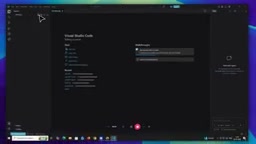
Having the frontend code in place doesn't mean the website works. The creator makes it clear that the site still lacks backend support—specifically, a database and an authentication system—and these two pieces need to be handed off to Firebase.
Firebase Backend: The Order of Configuring Auth and Database
After entering the Firebase console, first create a project, then use Add App to select the Web option and connect the website to Firebase. Firebase will return a set of configuration parameters used to establish the connection between frontend and backend.
Authentication configuration is the core step. In the Authentication section, click Get Started, then enable Sign-in Providers one by one: first turn on Email/Password, then Google login. If you want visitors to enter without registering, you can additionally enable Anonymous authentication; but if the site only intends to offer Google and email login, there's no need to turn on the anonymous option.
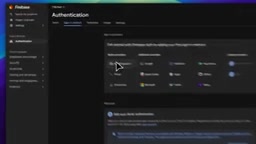
For the database, the creator chose Firestore and specifically warns that the database location needs to be chosen carefully. Taking Indian users as an example, you can choose the Asia South One (Mumbai) region. He also clarifies a common misconception: the database location does not determine that the website can only be accessed in a certain country; its actual impact is on database read/write speed, latency, and the physical location where data is stored. More critically, once a Firestore database is created, its location usually cannot be changed—if you choose wrong, you can only rebuild it.

Security rules are also handled by AI. Ask ChatGPT for Firestore security rule code that fits your website's structure, paste it into the rules editor, confirm that the rules actually protect the data, and then click publish. The creator is fairly cautious here, stressing that you should not blindly replace the default rules.
Firebase is a backend-as-a-service (BaaS) platform provided by Google that packages capabilities such as databases, user authentication, file storage, cloud functions, and website hosting into SDKs that can be called directly from the frontend. For personal projects and small applications, its significance lies in eliminating the operational overhead of setting up your own server, writing APIs, and maintaining a database. The two core services used in this article are Authentication and Firestore: the former manages user accounts and login credentials, supporting email/password, Google, anonymous, and other login methods; the latter is Firebase's document-oriented NoSQL database, where data is organized hierarchically into collections and documents, suitable for storing flexibly structured data. After a Firebase project is created, you get a set of configuration parameters (apiKey, authDomain, projectId, etc.), and the frontend connects by initializing the SDK. These parameters are not secrets themselves; actual access control is handled by security rules.
Authorized Domains is a security mechanism in Firebase Authentication: only when the domain where the webpage is hosted is whitelisted will OAuth-based popup or redirect flows such as Google login be allowed to execute. This is because the OAuth flow needs to pass the authentication result back to the page that initiated the request, and Firebase must confirm that this source is approved by the developer; otherwise, a malicious site could reuse the same configuration to trick users into logging in. Firebase by default adds the project's own *.firebaseapp.com and *.web.app domains as well as localhost, but tools like Live Server typically use addresses such as 127.0.0.1:5500, so they need to be added manually. Beyond local development, when you later bind a custom domain or deploy to another hosting platform, you'll likewise need to come back here to add the domain—otherwise the same login failure will occur.
That Domain Pitfall That Breaks Google Login
Local preview uses the VS Code Live Server extension. After installing and enabling it, right-click index.html and select Open with Live Server, and the website opens in the browser.
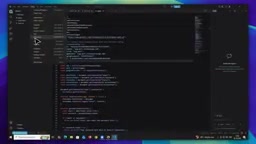
Then the problem appears: Google login throws an error. The reason is that Firebase needs to know which domain the website is running under, and the domain used by Live Server differs from the previously configured domain. The creator's solution is practical—copy the error message directly to ChatGPT, follow the prompts back to Firebase's Authentication settings, add the current domain to Authorized Domains, then return to the webpage and press Ctrl+Shift+R to force refresh, and Google login immediately returns to normal.
Almost everyone doing local development will hit this pitfall; knowing it in advance can save a lot of troubleshooting time.
Live Server is a commonly used VS Code extension that starts a lightweight local HTTP server, serving the current folder as the site root for external access, and automatically refreshing the browser when files are saved. Compared with directly double-clicking an HTML file to open it via the file:// protocol, Live Server provides a standard http:// service, so behaviors such as module loading, cross-origin requests, and OAuth callbacks meet the browser's requirements for a real website—which is why the article must use it rather than opening the file directly. It listens on port 5500 by default, so the URL is often http://127.0.0.1:5500, which is not the same string as the localhost that Firebase recognizes by default, causing domain whitelist validation to fail. Understanding this makes it clear why the error message points to the domain, and lets you anticipate similar issues when changing ports or using other local servers.
The Real Boundaries of AI Website Building
After completing the whole process, the creator's progress estimate is about 90% done. The remaining 10% is website hosting—publishing the site to a shareable link—which he saved for the next video.
From this demonstration, you can see AI's real role in the website-building process: it excels at generating text with clear patterns, such as frontend code and configuration rules, but areas involving platform mechanisms and long-term decisions—such as domain authorization and database region selection—still require human understanding and judgment. A wrongly chosen database location cannot be changed, and AI will not bear the consequences of such decisions for you.
Another observation is that AI lowers the operational barrier to building a website, but does not eliminate the conceptual barrier. Calling ChatGPT, pasting code, and clicking publish—the actions themselves are simple; but knowing why Authorized Domains need to be configured and why anonymous login is optional is the key to actually getting the website running. Treat AI as a technical partner you can ask anytime, not a one-click generator—that's how this path becomes viable.
One-line Summary
From ChatGPT-generated frontend code to Firebase authentication and database configuration, a complete walkthrough of the AI website-building process and its pitfalls.
Paragraph Summary
The article documents a YouTube creator's complete website-building demonstration: using ChatGPT to generate HTML, CSS, and JavaScript frontend code, then connecting to Firebase to implement email registration and Google login. The process includes creating three core files in VS Code and pasting the code, creating a project in the Firebase console and connecting a web app, enabling Email/Password and Google login, creating a Firestore database, and configuring security rules. The key pitfall exposed in the demo: when previewing locally with Live Server, Google login throws an error because the current domain has not been added to Firebase's Authorized Domains; it must be added manually and the page force-refreshed. In addition, the Firestore database location cannot be changed after creation, so latency and storage location must be weighed in advance. The author estimates the process is about 90% complete, with the remainder being website hosting, and points out that AI lowers the operational barrier, not the conceptual one.
Related articles

AI Weekly: Claude Code Backdoor Incident and AI Giants' Capital Game
AI security this week: Cursor marketplace seeded with a Claude Code backdoor affecting Mac and Windows developers. Meanwhile, Amazon AI capex hits $75.9B, Google AI search revenue lags traditional search, Anthropic launches Ultra subscription, and OpenAI commits to robots.txt training signals while publicly defending fair use.

Malicious Claude Code Extension Infiltrates Cursor: Version 2.1.313 Self-Check and Cleanup Guide
A malicious Claude Code build 2.1.313 appeared in the Cursor extension marketplace for about 11 hours, affecting up to 5,000 users. StepSecurity disclosed that it stole system information, git email, and environment variable names, and attempted to implant SSH keys and reverse tunnels. This article covers the incident, malicious behavior, and complete self-check and cleanup steps.

15 Essential Prompts for Vibe Coding: Keep AI from Wrecking Your Code
Vibe Coding often tempts AI to break your code. These 15 prompts—from PRD, architecture, and database to testing and debugging—chain each output as the source of truth, turning AI coding from casual chat into a controllable engineering process.