Codex App Complete Guide: From Installation to Hands-On Practice — AI Automatically Organizes Files and Builds Reports

Codex is an Agent-type AI that can directly operate your computer; this tutorial teaches everything from installation to hands-on practice.
The article introduces an AI tool called Codex. Its fundamental difference from chat-based AIs like Doubao and DeepSeek is that it can directly operate a computer to complete real tasks — organizing files, building reports, generating PPTs, and constructing software — without technical knowledge. The tutorial starts with app store installation, recommends switching the work mode to "Everyday Work" to hide technical details, and explains the role of "project" folders as working boundaries. In the hands-on section, it first tests file organization and Excel extraction with mixed coffee shop data; Codex successfully categorizes files, extracts PDF invoice details, and detects deliberately planted data anomalies. The advanced section uses Plan Mode to generate a business analysis dashboard, demonstrating a workflow of planning and confirming before executing. It concludes that Codex suits ordinary users with automation needs who don't want to program.
1. What Is Codex? How Is It Different from Doubao and DeepSeek
If you've used Doubao or DeepSeekAd, you're familiar with the "type and chat" style of AI interaction. But Codex takes a different path: it doesn't just chat — it can directly operate your computer — organizing files, building reports, reading work content, writing weekly reports, making PPTs, and even operating a browser to build complex software. Once you've set up a task, it can run automatically while you sleep, and it'll be done when you wake up.
According to the Bilibili creator's demo, Codex can do almost "anything you can think of," and it doesn't require any technical knowledge. This video starts from zero and teaches step by step with a real project, with the goal of helping viewers master Codex in one episode.
Agent is the key concept for understanding Codex's positioning. Traditional chat-based AI (like the ordinary conversations in Doubao and DeepSeek) is essentially "question and answer": you input text, it returns text, and all operations still need to be done manually by you. Agent-type AI, beyond the language model, is also equipped with tool-calling capabilities — it can read and write local files, execute commands, operate a browser, call external APIs, and autonomously decide the next action based on execution results, forming a "perceive—decide—act" loop. The reason Codex can organize folders, extract PDF invoices, and generate Excel files and dashboards is precisely because it uses the large model as its "brain" and the file system and command line as its "hands and feet." This also explains why it needs a "project" folder as a working boundary, and why complex tasks should first be planned with Plan Mode — the longer an Agent's execution chain, the more important it is to confirm direction beforehand, otherwise it's easy to go further and further down the wrong path.
2. Installation and Basic Configuration: Get Started in Three Minutes
2.1 Install Directly from the App Store
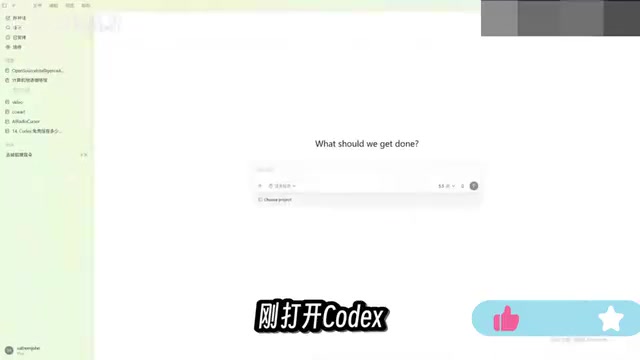
Codex is already available in the Microsoft and Apple app stores — just search for "Codex" and install it directly. When you open it, the interface looks a lot like the web version of Doubao: an input box in the middle, a sidebar on the left, and in the sidebar are features Doubao doesn't have, such as plugins and automated workflows.
2.2 The First Configuration Worth Changing: Work Mode
When you first open Codex, the creator suggests changing one simple setting first — the work mode. This is where you configure how much technical detail Codex shows you. The creator usually switches to Everyday Work mode: Codex is still very capable, but it won't show you a bunch of technical details you can't understand, which makes for a much better experience.
2.3 Understanding the "Project" Concept
Codex works directly on your computer, so it needs working folders — Codex calls these folders "projects," and they appear in the sidebar. The creator suggests categorizing different matters into different folders so you can find the corresponding content at a glance. Below the input box, you can select the project for the current conversation, and Codex can then directly read all the files inside it to help you complete the task.
Context Window is supplementary knowledge for understanding the principle behind the "project" mechanism. The amount of text a large model can "see" at one time is limited, and this upper limit is the context window. After you select a project, Codex reads the contents of the files in that project folder and provides them to the model as context for analysis in the current conversation. Therefore, the more clearly projects are divided and the fewer irrelevant files there are in a folder, the more effective information the model can focus on, and the more accurate its answers and operations will be. Conversely, if you set your entire hard drive or a giant folder stuffed with miscellaneous items as a project, a large amount of irrelevant content will crowd out the context — it may prevent the model from grasping the key points, and may also make it unable to read key files because the window limit is exceeded. This is also the technical reason the creator suggests creating folders by category rather than just out of tidiness habits.
3. Hands-On Beginner Practice: Testing File Organization with Coffee Shop Data
3.1 Prepare a Real, "Messy" Folder
The creator prepared a folder called "Computer Story Cafe," stuffed with real data such as sales records, invoices, and inventory lists, in all kinds of file formats: spreadsheets, PDFs, and images.

3.2 Send the First Task
The task description was: "These are files related to my coffee shop called Computer Story. It looks messy right now — help me organize these files, then extract and organize the information and data into an Excel file so I can easily look up the detailed data for this shop."
Don't let this beginner-level task fool you — it's actually quite demanding. Codex needs to analyze files, move files, modify file contents, and also create new files. The creator deliberately planted some traps in the files to test whether Codex could find them.
3.3 The Result: Automatic Categorization, PDF Detail Extraction, and Anomaly Detection
After a few minutes, the task was complete. Codex organized the messy files by purpose, generated a detailed data table, categorized and organized the sales data and product rankings, and also read the invoice information in the PDFs and extracted the details. More importantly, it really did find the errors the creator planted: it flagged some missing transaction records and discovered anomalies in two invoices.
According to the creator's summary, many everyday tasks can already be handed to Codex: writing daily reports, reading computer files and organizing and summarizing them, and so on — it can handle them all with ease.

4. Advanced Practice: Generating a Visual Dashboard with Plan Mode
4.1 A More Complex Task: A Business Analysis Dashboard
Since the beginner task wasn't satisfying enough, the creator tried something harder: adding a file directly in the command line, having Codex read a specified summary table, and then asking, "Please use the data in this table to help me create a visual dashboard for Computer Story Cafe so I can easily view the business situation — for example, sales, expenses, costs, inventory, etc. — or help me analyze anything that needs attention."
Because the task was complex, the creator switched the mode to Plan Mode. Plan Mode means Codex doesn't execute the task directly; instead, it first plans out a detailed execution checklist based on the requirements, confirms task details with you, and then executes.
Plan Mode corresponds to a "plan first, execute later" Agent workflow paradigm, often called Plan-and-Execute. In normal mode, the model thinks and acts at the same time, with each step directly materializing as file operations or commands; once there's a misunderstanding, errors accumulate layer by layer. In Plan Mode, the model first breaks the task into an ordered checklist of steps, turns uncertain points into questions for you, and then executes step by step after you confirm or adjust. The benefit is that the execution path of a complex task is visible, reviewable, and modifiable before any action is taken, avoiding "running for ten minutes before realizing the direction was wrong." For tasks involving batch modification or deletion of files, Plan Mode also serves as a human confirmation checkpoint, reducing the risk of misoperation.
4.2 How Plan Mode Works
After sending the task, Codex first analyzed it and asked for confirmation of details. The creator typed a slash in the input box and discovered a "pet" feature — a little pet appears on the desktop that can be placed anywhere on the computer. Besides looking cute, it also displays all the tasks currently being executed. Clicking on it shows that Codex is asking questions; after the creator makes a selection, it continues working.
The core of Plan Mode is: analyze the task in detail first, ask you questions where there is uncertainty, and finally give you a detailed plan. You can continue adjusting the plan content, or click submit directly to execute the task.

4.3 Dashboard Results and Modifications
When the dashboard was done, it looked very professional, including the requested content such as sales, expenses, costs, and inventory, with suggestions and key matters listed below. The creator admitted that he isn't a sales professional and can't judge the actual value, but if you're in a related field, you can see whether this dashboard can help you run your company better.
Of course, you can keep making modifications. The creator said, "I'm not a big fan of this theme — please help me switch to a more modern and intuitive theme, like Apple's," and after Codex finished, it really did have "that Apple feel."
5. A Few Details Worth Noting
5.1 The Little Pet's Appearance Is Customizable
Besides the default look, you can also change the desktop pet's appearance in settings — just click the one you like. The creator usually sticks with the default style.
5.2 Plan Mode Is Suitable for Complex Tasks
The creator explicitly recommends: when Codex executes relatively complex tasks, it's advisable to turn on Plan Mode. That way it will plan first and confirm details, avoiding the deviations that come with direct execution.
5.3 No Need to Specifically Learn Technical Skills
The creator repeatedly emphasizes that Codex doesn't require you to specifically learn a bunch of related technical skills — a few simple sentences can produce very cool things. You can absolutely just play around freely based on your own ideas first, but understanding concepts like projects and Plan Mode will make it easier and more powerful to use.
6. Summary: Who Is Codex For
As this step-by-step tutorial shows, Codex's positioning is an AI that can directly do work on your computer, not just a chatbot. It's suitable for users who need to handle large numbers of files, generate reports, create visual dashboards, or even build simple software. Installation is simple and configuration isn't complicated; the key is understanding the two concepts of "projects" and "Plan Mode." For ordinary users who don't want to learn programming but have automation needs, Codex offers a low-barrier path.
Related articles
 Tech Frontiers
Google Omni 1.2 Flash: 15-Second AI Video at Just $0.07 per Second
Google DeepMind releases Gemini Omni 1.2 Flash: 15-second video, 720p at $0.07/sec (30% cheaper), multi-turn editing without regeneration, draft upscaling to 4K.
 Tech Frontiers
No AI Ghostwriting: Writer's Quarter Reinvents Novel Writing with a Visual Workbench
The Writer's Quarter is an AI-free novel writing and planning tool that unifies character building, story planning, and manuscript writing in one visual workbench. This article analyzes its positioning, target users, and differentiated value amid the rise of AI writing tools.
 Tech Frontiers
Fleeep: A Unified Inspiration Collection Notes App for Creatives
Fleeep is a notes app for creatives that unifies screenshots, bookmarks, saved posts, and inspiration into one calm, cross-device, offline-capable space. This article analyzes its positioning, differentiation, and target users.