Codex Extension Won't Start? VS Code Error Fix Guide

Fix the Codex extension UI startup failure in VS Code by reading logs first and ruling out network, dependency, and platform issues.
The article addresses the "The extension could not start its user interface" error for the Codex extension in VS Code and Cursor, explaining it's a UI initialization failure that can occur locally, in Remote SSH, Dev Containers, and Cursor. It stresses reading logs before matching a fix, since the same error has different causes. It covers three common triggers—remote network isolation, Cursor API incompatibilities, and missing local CLI/runtime dependencies—and gives a five-step troubleshooting flow.
The Error: Codex Won't Start in VS Code
When you open the Codex extension in VS Code, you may encounter: "The extension could not start its user interface". This error isn't limited to local VS Code—it also appears in Remote SSH, Dev Containers, and the Cursor editor. Many developers' first instinct is to reinstall the extension, but the problem is often related to network isolation or the runtime environment.
This article will help you understand what the error means and provide a complete path from log investigation to targeted fixes.
Step 1: Read the Logs—Don't Rush to Act
The official primary recommendation is clear: read the logs first, then match a fix to what they show. Because the same error message can stem from completely different causes, blindly reinstalling is likely to waste your time.
Logs are usually in VS Code's Output panel—find the output channel corresponding to the Codex extension. Focus on:
- Whether there are clear network request failure messages
- Whether it indicates the required CLI or runtime can't be found
- Whether there are permission or path-related errors
The first error in the log is often the root cause; subsequent errors are mostly chain reactions.
Common Causes and Corresponding Fixes
Remote Environment Can't Access External Services
In Remote SSH or Dev Containers, the extension's UI process runs locally, but the backend service may run in a remote container or server. If the remote environment can't reach the external endpoints Codex needs, the UI won't start.
Fix approach: Check the remote host's network egress, confirm proxy or firewall rules allow access to the relevant services; configure a proxy in the remote environment if necessary.
Remote SSH and Dev Containers are two of VS Code's remote development modes: the former connects to a remote host via SSH and runs the extension host there, while the latter runs the development environment in a local Docker container. What both share is that the extension's background process (the extension host) runs on the remote end while the UI renders locally. So when the remote end can't reach external endpoints, extension services that depend on network requests get blocked, causing UI initialization to time out. To troubleshoot, first test connectivity to the target endpoint from the remote terminal using curl or wget, then check whether the HTTP_PROXY/HTTPS_PROXY environment variables are in effect in the remote session—locally configured proxies are not automatically passed to the remote.
Cursor Compatibility Issues
Cursor is based on the VS Code core, but it isn't identical. Some extensions that rely on VS Code's native UI APIs may behave abnormally in Cursor.
Fix approach: Confirm whether the extension version declares support for Cursor; try updating to the latest version; if the problem persists, check Cursor's extension settings for a compatibility toggle or alternative configuration.
Cursor is an editor built on VS Code's open-source codebase (Code-OSS), retaining the extension marketplace and most extension APIs, but it modifies some UI-layer implementations and integrates its own AI features. This means extensions that rely on VS Code-proprietary UI APIs (such as certain webview or status bar interfaces) may behave inconsistently in Cursor. To determine whether it's a compatibility issue: check the engines.vscode field and activationEvents in the extension's package.json, then compare against the API differences listed in Cursor's official docs; if the logs show errors about APIs not existing or webview creation failing, you can basically pinpoint it as a platform difference rather than a network problem.
Missing Runtime or Dependencies
If Codex depends on a locally installed CLI tool or a specific runtime, and these components aren't installed or the versions don't match, UI initialization will fail.
Fix approach: Check against the extension docs whether all prerequisites are present, and verify the corresponding executable can be found in PATH.
Systematic Troubleshooting Flow
Rather than trying fixes one by one, proceed in this order:
- Open the logs: Locate the Codex extension's output channel and note the first error
- Distinguish environments: If local VS Code works but remote fails, the issue is network or remote configuration
- Check dependencies: Confirm the CLI and runtime versions match the extension's requirements
- Isolate variables: Reproduce in Cursor to determine if it's a platform compatibility issue
- Apply targeted fixes: Choose the corresponding solution based on the specific error message in the logs
The core of this flow is using logs to narrow the scope, not trying every possible fix.
When to Reinstall or Downgrade
If the logs show the extension files are corrupted or there's a version conflict, reinstalling the extension is usually effective. If the latest version introduced a regression, downgrading to the previous stable version can temporarily restore your workflow. But reinstalling should be a choice made after investigation, not the first step.
It's worth noting that the root cause of this error is version-specific, and fixes change with version iterations. When troubleshooting, it's recommended to consult the extension's changelog and official docs to confirm known issues in the current version.
Summary
Codex failing to start in VS Code is essentially a UI initialization failure. The error itself doesn't point to a single cause—it's a log-driven troubleshooting process. In Remote SSH, Dev Containers, and Cursor, the problem is more likely related to network isolation or platform compatibility. Remember the official advice: read the logs first, then apply the matching fix.
Background Notes
Extension Host is the separate Node.js process in VS Code that runs extension code, distinct from the Electron main process that renders the UI. This architecture means an extension crash won't directly bring down the editor, but it also means that when an extension fails to start, error information appears in the Extension Host channel of the "Output" panel or in the Developer Tools console, rather than in a pop-up notification. In Remote SSH and Dev Containers scenarios, the extension host process actually runs on the remote end, so when locating logs you need to distinguish between local window logs and remote-end logs—running "Developer: Show Running Extensions" from the command palette shows the extension's activation status and host location.
Related articles

Japan's Trains Are World-Class—So Why Is Booking One So Hard?
Japan's trains are punctual and efficient, but booking tickets frustrates many travelers. Drawing on a Hacker News discussion, this article analyzes structural causes such as fragmented rail ticketing, language barriers, and third-party platforms.
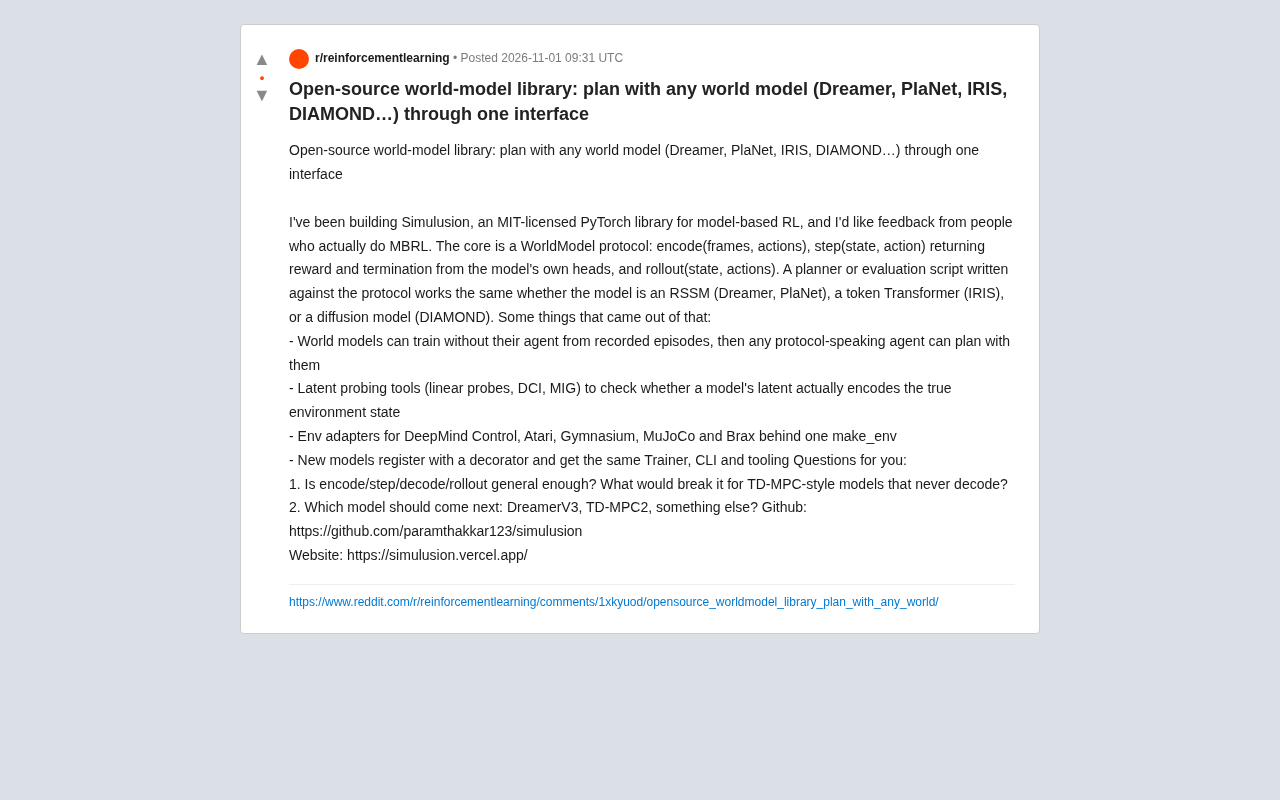
One Interface Runs Dreamer, IRIS, and DIAMOND: Simulusion, an Open-Source World Model Library
Simulusion is an MIT-licensed PyTorch world model library that uses a unified WorldModel protocol to let Dreamer, PlaNet, IRIS, and DIAMOND share the same planner and evaluation pipeline, with latent probe tools and cross-environment adapters.
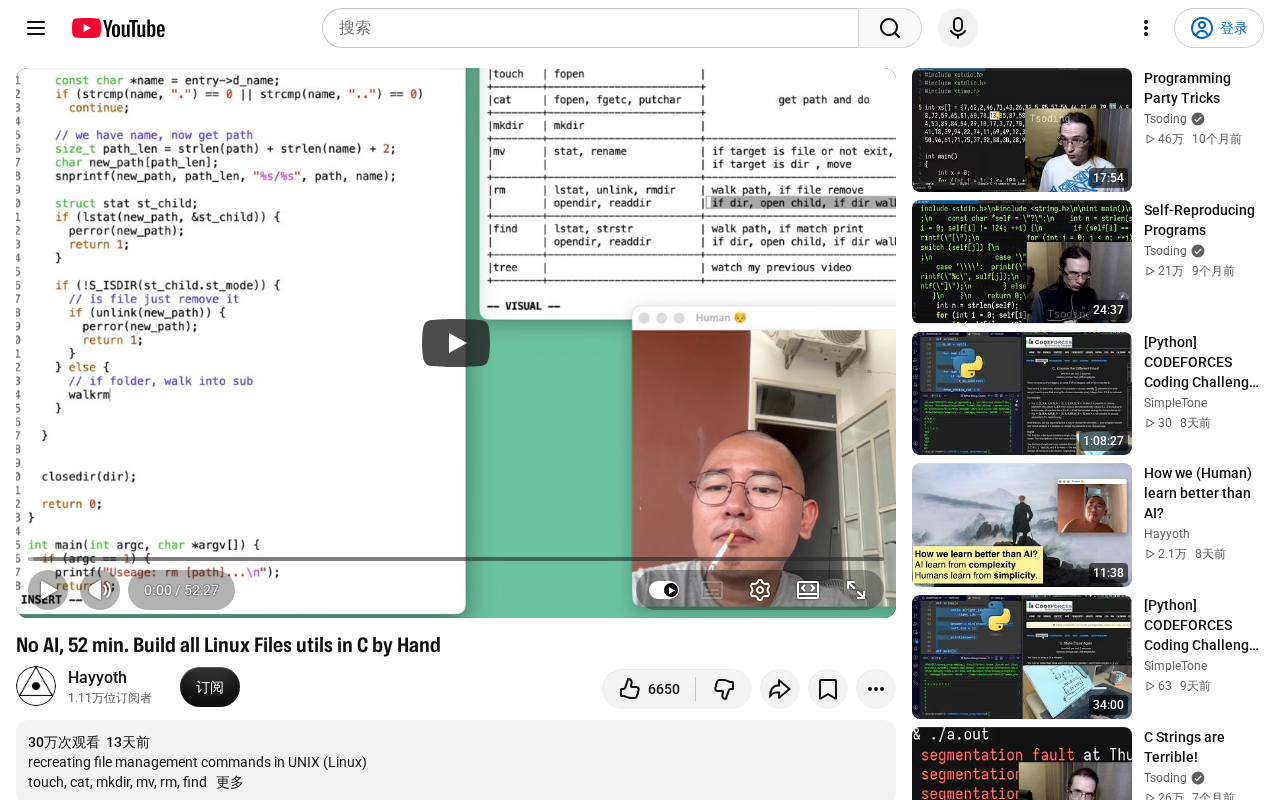
No AI, 52 Minutes: Hand-Writing a Linux File Utilities Suite
A developer hand-writes a Linux file utilities suite in C in 52 minutes without AI, sparking Hacker News discussion on manual systems programming vs. AI-assisted coding.