Complete Guide to Claude Cowork 2.0 Workflow Automation: Multi-Agent Collaboration in Practice

From context setup to scheduled automation, build a repeatable Claude workflow system.
Based on a bilingual Bilibili tutorial, this article systematically walks through building an AI work system with Claude Cowork 2.0 from scratch. The core logic: users describe goals, Claude produces a plan and moves autonomously between files, apps and the browser to deliver results. It covers five layers—basic setup with a dedicated folder, three context files and global instructions; file workflows via receipt organization and multi-file reports, with forced checkpoints and separate handling of anomalous items; layering mechanisms of Projects (domain-isolated rules) and Skills (encapsulated repeat tasks) via learning scenarios; scheduled tasks, connectors and the browser for handing off research, cross-app briefings and web price comparison; and finally a three-part prompt structure plus beginner path advice. Two disciplines run throughout: always review important outputs, and grant sensitive access cautiously.
Claude Cowork 2.0 turns "letting AI do the work for you" from a concept into a repeatable process. This complete guide is based on a bilingual Chinese-English tutorial from a Bilibili creator, systematically demonstrating how to build from scratch an AI work system that runs files, connects to apps, and executes automatically on a schedule. The core logic isn't complicated: you describe the result you want, Claude produces an execution plan, and then it moves between files, apps, and the browser on its own until it delivers a finished product. What really sets implementations apart is the configuration and trade-offs made around this process.
Configuring from Scratch: Helping Claude Truly Understand Your Work Environment
Many people are disappointed the first time they use general-purpose AI tools, often because Claude knows nothing about your files or the way you work. The tutorial's solution is a three-step setup: first create a dedicated Cowork Home folder with three subfolders—Context (for information Claude needs to know about you), Inbox (files to be processed), and Output (finished deliverables). When granting access, give it only this one folder, not your entire documents directory, and keep sensitive files out.
The second step is writing three context files: AboutMe.md explains your profession, who you serve, and the tools you commonly use; Preferences.md specifies document length, heading levels, table styles, date formats, and whether to ask proactively or make its own judgment when information is unclear; WritingStyle.md records your tone, a few real email examples, and words to never use. You don't have to write from a blank page—have Claude interview you with twelve questions, then review the draft, correct any deviations, and save it. The tutorial particularly emphasizes the "no fabricating" rule, otherwise your About Me might end up with a more impressive title than your actual position.
The third step is global instructions: paste a set of universal rules into settings that apply to all tasks. This way, each task prompt only needs to focus on the task itself. Verifying the configuration is simple: after creating a new task, ask Claude "what do you know about me and what kind of documents do I like?"—if the answer matches the files, the setup succeeded; if not, the folder permissions probably weren't granted correctly.
Context Files are the key mechanism that turns a general-purpose AI from a "stranger" into an "assistant familiar with your way of working." Large language models have no persistent memory across sessions—each new conversation starts from scratch understanding your needs. Context files are essentially a "long-term memory carrier" that users actively maintain—plain text written in Markdown, read by Claude at the start of a task as the basis for understanding your identity, preferences, and style. Markdown is chosen over databases or proprietary formats because it's readable, editable, and version-controllable—you can open and verify the content at any time. The usual trio is: an identity file (who you are, what you do), a preferences file (document format and decision boundaries), and a style file (tone and forbidden words). Keeping them separate rather than merging into one file makes it easy to load selectively by task type and to iterate individually—when you find a certain type of output is consistently off, you can quickly pinpoint which dimension's description is the problem.
The First Task and Multi-File Workflows: From Receipts to Reports
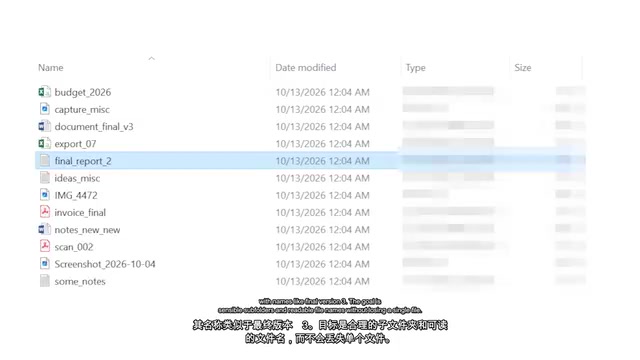
For the first task, deliberately choose a low-risk scenario: toss a pile of PDFs with messy names, screenshots, spreadsheets, and documents like "final version 3" into Inbox, and ask it to organize them into sensible subfolders with readable filenames without losing any files. The prompt doesn't say "don't delete" and "produce a plan first" because the global instructions already cover these two rules—so this is also a configuration acceptance test. Check whether it follows the rules before executing the plan; if Claude intends to delete files or modify originals, stop it and correct the plan. After execution, opening the folder should reveal new subfolders, renamed files, and a log recording where everything went.
Closer to real work is the "receipt flow": put a dozen or so receipts and invoices into a subfolder of Inbox, and produce a spreadsheet, report, and presentation in one run. Three details are worth remembering here: summarize by currency separately, because adding euros and dollars together gives a meaningless total; list problematic scans (e.g., ones with the amount cropped) separately with the reason noted, rather than shoving them into the main table to force an estimate; and force a stop at the end of the process to verify the numbers, because all subsequent outputs are built on this data. In the tutorial, Claude did catch an order confirmation and invoice for a duplicate purchase, and flagged one unrecognizable receipt, letting you correct the total before continuing without touching the original files.
Reviewing the outline before generating slides is also a time-saving trick: changing six headings takes a minute, changing six finished pages takes much longer. After the deliverable is complete, be sure to spot-check whether a number in the presentation matches the spreadsheet—copy-pasting between files is exactly where small errors sneak in.
Learning Scenarios, Projects, and Skills: Layering Rules for Long-Term Accumulation
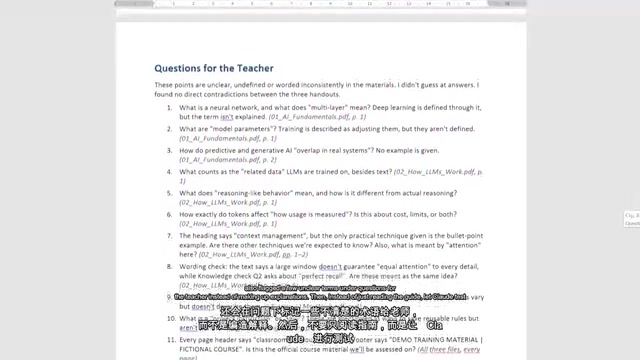
The same file-processing capability can be transferred to learning scenarios. Put lecture notes, slides, and PDFs on a topic into a course subfolder of Inbox, and ask Claude to generate a study guide, glossary, quiz questions, and source citations based only on the provided materials. In the tutorial, Claude listed several ambiguous terms in a "questions for the teacher" list rather than making up explanations. You can then, in the same session, have Claude quiz you, grading each question against the original materials and recording what needs review, so the next round's review scope narrows. The same two prompts also apply to onboarding documents and certification exam prep.
When rules need to be distinguished by domain, use Projects. Each project has its own files, instructions, and memory—for example, a "weekly planning" project specifies working hours and scheduling preferences, then you drop in a messy to-do list for next week, and the task prompt itself can be very short. After the plan comes back, check whether every deadline falls before its due date and whether any tasks couldn't fit—finding these problems on Monday is far better than discovering them on Thursday. And when plans get disrupted, don't start over: stay in the project and describe the changes, and Claude will rearrange while maintaining the original project rules (like the six-hour cap), with tasks that don't fit written to didn't fit.md rather than silently disappearing. The tutorial mentions that Claude is introducing shared memory between chat and Cowork, but for information that must be precise—like work hours and unfinished tasks—keeping it in files is still safer, because you can open and verify it at any time.
Skills are narrower than projects: an instruction set for a certain type of work, like meeting minutes or weekly reports, called automatically across projects. The easiest way to write a skill isn't starting from a blank page: first do the task for real, revise the output until you're satisfied, then have Claude solidify the effective practices into a skill. The tutorial demonstrates with a meeting record written in half-sentences with to-dos buried in the middle—first verify the action items table, then propose changes one by one (shorter summary, bolded owners, follow-up emails as a separate file), and finally have Claude write these corrections into the skill. Skills are plain text files that can be read and edited directly; test with a different meeting record, and it should automatically apply the same structure. Plugins go a step further, packaging skills, connectors, and settings into a single install. But for beginners, two or three skills grown from your own work are more useful than installing a bunch of ready-made plugins.
Skills and Projects are often confused, but they solve problems at different levels. Projects are "spatial isolation": each project has its own file library, instruction set, and memory, suitable for dividing by business domain—work and personal projects don't interfere with each other, and their rules don't bleed together. Skills are "capability encapsulation": a reusable instruction set defining the standard approach for a type of task (e.g., what sections meeting minutes should include, what structure weekly reports should use), which can be called automatically in any project. By analogy, projects are the offices of different departments, and skills are the standard operating procedures shared across departments. Skills are more suitable for beginners than plugins because they're distilled from your own real work—do it once, revise until satisfied, then solidify—so the rules that accumulate naturally fit your actual needs rather than being generic templates from someone else's scenario. Plugins package and distribute skills, connectors, and settings, suitable for scaled deployment once your process is running smoothly.
Scheduled Tasks, Connectors, and the Browser: Handing Off Repetitive Work
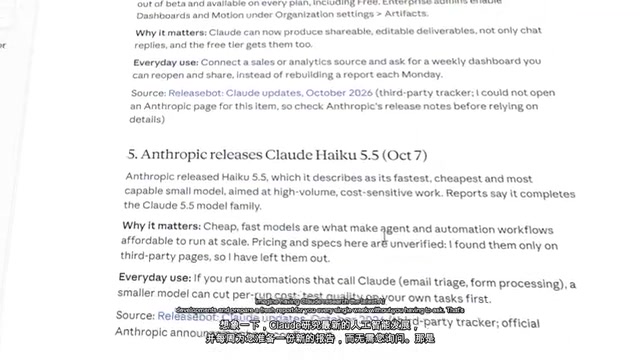
Scheduled tasks let you describe something once and have it run automatically at a set frequency. The tutorial uses form mode to demonstrate a Monday AI intelligence briefing: the prompt requires prioritizing genuinely important developments, explaining their significance, and attaching original source links, while explicitly stating "if there are no important updates, do not fabricate content to fill the report." After configuration, you don't have to wait until next Monday—use "Run Now" to test. Research-type tasks like this can run in the cloud without keeping your computer on; tasks that depend on local files may have different requirements.
Connectors let Claude access apps you already use, like Gmail and Google Calendar. After authorization, give it a practical task: prepare tomorrow's briefing, combining meetings, important emails, and items that need advance preparation. The prompt should specify read-only rules—it can view and organize, but cannot send emails or modify the calendar. In the tutorial, Claude found five meetings and four action items, cross-referenced email information with calendar events, and discovered a scheduling conflict: the marketing review ends at 11:45 and another task is due at 12:00, leaving almost no buffer. The deliverable was saved as a Markdown file in the Output folder.
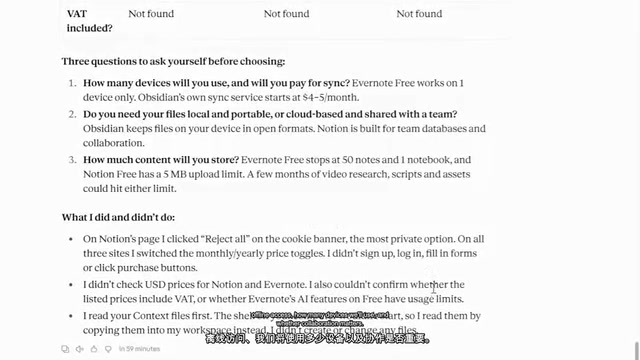
The browser feature suits scenarios where information is scattered across multiple web pages. After selecting the built-in browser in settings, you can have it compare Notion, Evernote, and Obsidian: Claude will open each site, navigate between pages, toggle between monthly and annual pricing, handle cookie pop-ups, and verify plan information, finally producing a comparison with prices, free-tier limits, key features, and original links, plus three questions to help with the decision. When details are unclear, it marks them as "not found" rather than pretending to know—exactly the attitude such research should have. Switching to Chrome mode enables even more hands-on tasks: with a $50 budget to find a wireless office mouse, Claude will open Amazon, use the search box, filter for items under $50 with at least four stars, enter each product page to verify details, and finally compare three mice on price, rating, battery life, and connectivity, recommending the Logitech Signature M650. It also notes that prices differ by color, that some specs aren't explicitly listed, and that one product has a high return rate. For information that changes frequently—like prices and specs—you still need to verify it yourself.
Connectors are bridges that, based on authorization protocols like OAuth, let AI access third-party app data as you. Their value lies in breaking down "file islands": without connectors, Claude can only see files you manually place in Inbox; with Gmail and Calendar connected, it can proactively read email threads, identify meeting times, and associate action items, piecing together a complete picture from information scattered across different apps. But the scope of authorization is the first line of defense—the "read-only rules" emphasized in the tutorial are implemented precisely through permission configuration: it can view and organize, but cannot send emails or modify the calendar. This prevents both accidental operations and prompt injection risks (i.e., malicious email content inducing the AI to perform unintended actions). Another implicit prerequisite of connectors is data real-time-ness: emails and calendars change constantly, so connector-based tasks are better suited to scheduled tasks than relying on one-off manual triggers.
Assembling It into a System: Prompt Structure and Getting-Started Path
Putting all the capabilities together gives you a personal work system: files provide context, projects fix rules, skills handle repetitive work, connectors bring in external information, and automation runs the tasks you don't want to start manually anymore. The tutorial's final integration demo combines context, receipt reports, study guides, meeting minutes, and email/calendar briefings into a simple dashboard task, also output to the Output folder. On top of this, you can continue layering on workday briefings, Friday to-do reviews, and other processes that fit your personal rhythm.
The general structure of a prompt isn't complicated: tell Claude what it's handling, what the finished product should look like, and where the boundaries are. Two disciplines to always remember: important outputs must be reviewed before you rely on them; and access to sensitive files, emails, and websites should be granted cautiously, because Claude makes mistakes, and external content may contain instructions not meant for you. If you're starting from scratch, do the configuration and folder organization first—this is the training ground for two habits: "read the plan before execution" and "spot-check one thing after execution." Add projects and skills once this process is running smoothly.
(This article is compiled based on a bilingual Chinese-English video tutorial released by a Bilibili creator; prices, membership tiers, and feature names cited are all from the original video demonstration.)
Related articles

Medicare Spends $50,000 Treating a Heart Attack but Won't Spend $100 Preventing One: The Mismatch in Healthcare
Medicare pays ~$50,000 to treat a heart attack but won't spend $100 to prevent one. This article unpacks the MedPage Today opinion piece and Hacker News debate on why healthcare payment favors treatment over prevention and the deep causes of incentive misalignment.

Nvidia May Cosign Loan for Nscale's West Virginia AI Data Center
Nvidia is considering cosigning a loan for Nscale's West Virginia AI data center. This article analyzes the signal significance of chip vendors entering data center financing, the risk-sharing logic, and project uncertainties.
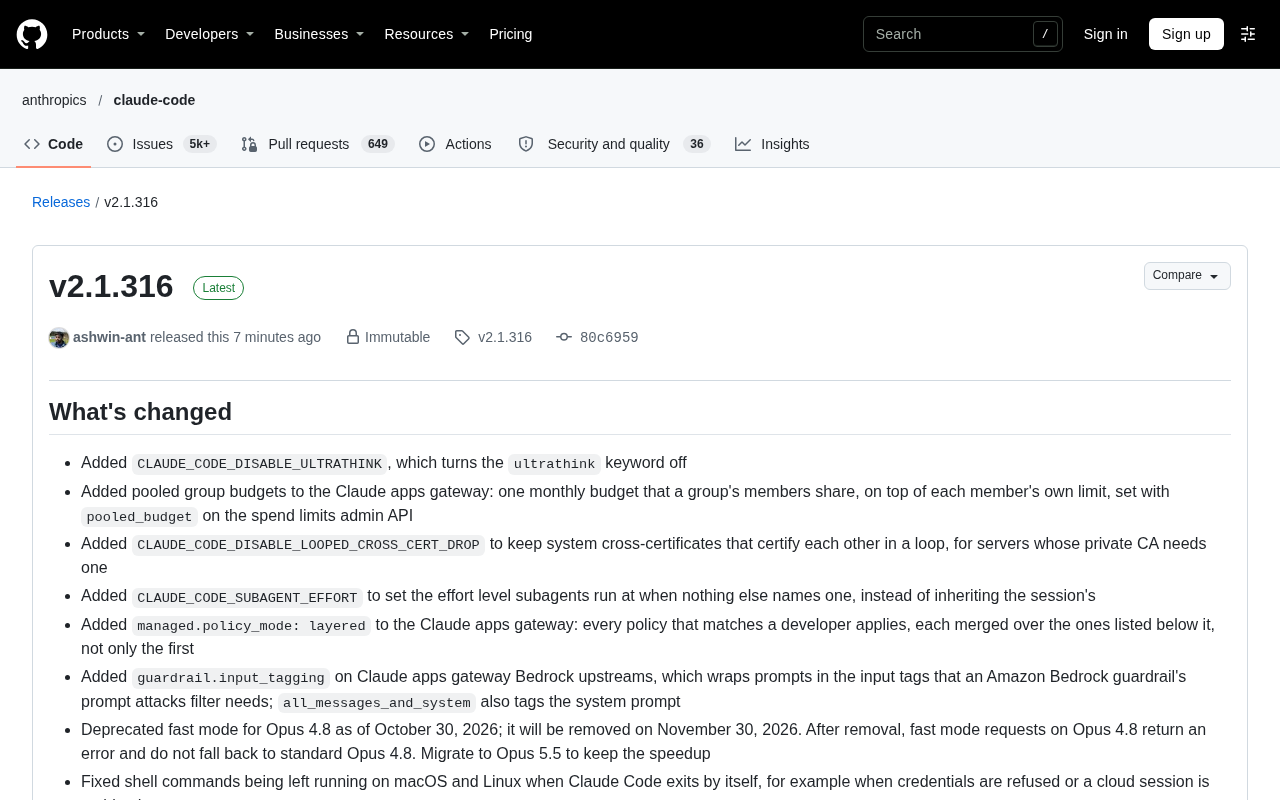
Claude Code v2.1.316 Update Analysis: Enterprise Gateway and Multiple Stability Fixes
Claude Code v2.1.316 released: new enterprise gateway pooled group budgets, layered policy mode, subagent effort control, dozens of Shell, network, and session recovery fixes, and Opus 4.8 fast mode deprecated.