DeepSeek Harness Step-by-Step Guide: Desktop Installation and Plugin Development in Practice

DeepSeek Harness desktop guide: installation, permissions, four modes, and the full plugin development workflow.
This article outlines the complete getting-started path for DeepSeek Harness on desktop. After installation, you must first add a workspace, and file operations are restricted to that folder; the three permission levels progressively increase risk from View only to Full permissions, which should be enabled cautiously. Harness includes four modes—Standard, PTC, Minimal, and Creation—for everyday tasks, batch tool calls, testing basic model capabilities, and plugin development. The plugin architecture is the core design: all Agent capabilities are composed of plugins, installable via the DSH Market community marketplace or generated directly by the model in Creation mode. The article ends with a full demo of integrating the Doubao image-generation API, from generating the plugin to entering the key, and offers three getting-started suggestions.
After the official release of DeepSeek Harness for desktop, many users interested in AI office automation have been looking for a practical getting-started guide. This step-by-step video on Bilibili covers installation, permission configuration, the four operating modes, and use of the plugin marketplace, and finally walks through a complete demo of building an image-generation plugin from scratch using Creation mode. For developers who want to build personal automated AI applications, this workflow is worth going through end to end.
Installation and Workspace Initialization
Download and Installation
The installation entry point is on the official DeepSeekAd Harness website. Choose the installer for your operating system, download it, and double-click to complete installation. The desktop installation process has no extra hurdles; after installation you go straight to the main interface.
Adding a Workspace
On first use, you need to add a workspace: choose an existing folder or create a new folder as the workspace. This step determines the scope of Harness's file operations—it can only read and modify content within this folder. The workspace mechanism is both a permission boundary and the foundation for all subsequent file-related tasks.
Interface Structure and Permission Model
Plus Menu and Common Features
The plus button in the upper-left corner of the main interface gathers preset functions, including adding files, compressing conversations, and changing permissions. It is a shortcut entry for high-frequency operations.
Logic for Choosing Among the Three Permission Levels
Harness offers three permission levels. Understanding their differences is a prerequisite for using the tool well:
- View only: The model can only read content inside the workspace folder and cannot make any modifications.
- Modify within workspace: Adds write capability on top of read access, covering creating and deleting files.
- Full permissions: The model can operate on all files on the computer. This level carries the highest risk, and the video author explicitly recommends enabling it as appropriate rather than using it by default for everyday tasks.
The permission design reflects a "grant on demand" approach: high-risk capabilities are explicitly exposed to the user rather than all being enabled by default.
Model Selection
For the model, DeepSeek V4E Flash is recommended. According to the video, it is DeepSeek's current strongest model, comes with vision capabilities, and responds quickly. For office scenarios that require reading images or handling mixed content, vision capability is a real advantage.
Here, "Flash" in DeepSeek V4E Flash usually refers to a model version optimized for low latency and high throughput, focused on response speed and cost efficiency; "vision capability" means the model can directly understand image input, such as reading screenshots, scanned documents, or chart content. For office automation scenarios, vision capability means Harness can process files containing images without first doing OCR conversion, instead letting the model directly understand the image content and then complete the task with file read/write tools. Note that models with vision capability can still make mistakes in scenes with dense image details or extremely small text, so it is best to keep a manual verification step for critical data.
Breaking Down the Four Operating Modes
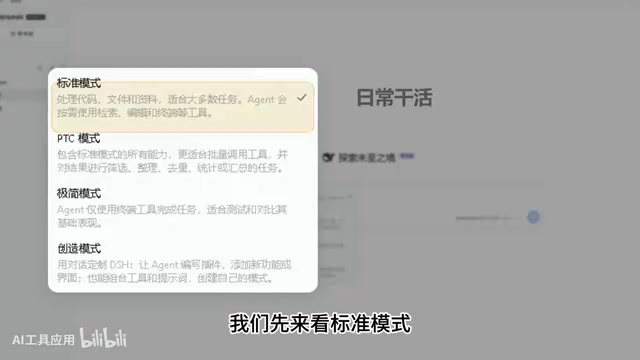
Harness includes four configuration modes, aimed at completely different usage scenarios.
Standard Mode
The default mode, providing general Agent capabilities: reading and writing files, executing commands, searching, and more. This mode is sufficient for everyday office tasks.
PTC Mode
The capability set is the same as Standard mode; the difference lies in how tools are called: instead of having the model click through tools one by one, it writes a piece of code to call tools in batches. When processing large numbers of files, executing in batches, and aggregating results, this approach has a clearer efficiency advantage.
PTC stands for Programmatic Tool Calling. It means letting the model, rather than relying on a dialog of individual tool calls, generate code that calls multiple tools according to program logic, processes intermediate results, and aggregates output. Compared with calling tools one at a time, PTC reduces the number of round trips between the model and tools, lowers context usage, and makes it easier to explicitly control loops, conditional branches, and batch processing. It requires the model to have good code-generation ability and also imposes requirements on tool interface specifications—tools need to be reliably callable from code. PTC has clear advantages in batch file processing, data cleaning, and aggregation tasks, but debugging costs are higher than in normal mode; when errors occur, you often need to read the generated code to locate the problem.
Minimal Mode
Only a terminal is kept, all other capabilities are removed, and the system prompt is compressed to a single sentence. Its purpose is to test the model's own basic capabilities and compare them horizontally with other modes; it is basically not needed for everyday tasks.
Creation Mode
On top of Standard mode's toolset, it adds the ability to query Harness's internal API and write plugins. If you want to add features to Harness, change the interface, or customize a new mode, this is the mode to start with.
Plugin Architecture: Everything Is a Plugin
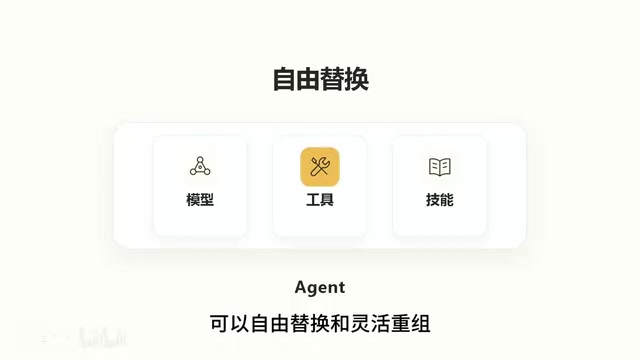
The plugin system is Harness's most closely watched design. In Harness, all Agent capabilities such as models, tools, and skills are composed of plugins, which can be freely replaced and recombined. The direct benefit of this architecture is that adding plugins extends the Agent's capability boundary, ultimately assembling an Agent that fits your own workflow.
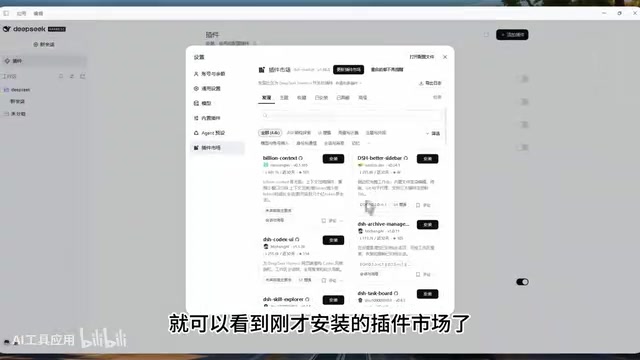
The official release includes a plugin community and the ability to add plugins, but according to the video author's experience, the built-in version is not very easy to use. Therefore, the first step in the tutorial is to install the community plugin marketplace DSH Market: click Plugins in the upper-left corner, choose Add Plugin, enter DSH Market, and install it, then enable it immediately after completion. Return to the home page and click Settings in the lower-left corner, and you will see the newly installed plugin marketplace; subsequent plugins can all be browsed, searched, and managed in one place here.
A concrete example is Token usage monitoring. Under the Usage & Billing category, install the DSH Context plugin. After refreshing the page, the corresponding entry appears in the upper-left corner, where you can filter Token consumption by time and also see the consumption of each conversation. For users who often run long tasks, this kind of observability plugin is very practical.
Building an Image-Generation Plugin with Creation Mode
When the plugin marketplace does not have a suitable plugin, you can build one yourself. The video demonstrates a complete example: adding image-generation capability to Harness and connecting it to the Doubao image-generation API.
Letting the Model Generate the Plugin
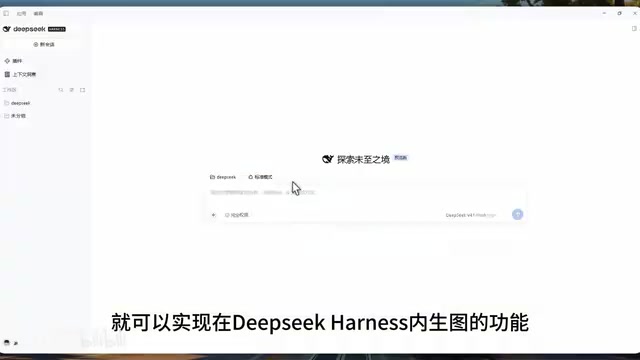
Create a new conversation, switch the mode to Creation mode, and send the preset prompt; the model will begin writing the plugin. After waiting for completion, go to the settings page and you will see the newly added "Doubao Image Generation" plugin; at this point you need to fill in the API Key.
Getting the API Key
The API Key comes from the Volcengine Ark platform: click Large Models, find the Doubao Image Creation Model 5.0, and click API Access in the upper-right corner. The first step is to obtain an API Key; if you do not have one, create it first. The second step is quick access testing, where you can enable all models with one click. After activation is complete, fill the API Key back into Harness's plugin page and save it, and Harness will have image-generation capability.
Throughout the whole process—from plugin generation to API integration to enabling—no handwritten code is involved; Creation mode handles most of the engineering work. This is also the practical value of the "everything is a plugin" architecture: the barrier to capability expansion is reduced to the level of prompts and API Keys.
Volcengine Ark is a model service platform under ByteDance, providing API access, key management, and usage billing for models such as the Doubao series. The "Doubao Image Creation Model 5.0" mentioned in the article is the platform's text-to-image model; after API integration, it can be called by request to generate images. An API Key is a calling credential, equivalent to an account password at the interface level. Once leaked, others may consume your quota, so it should be kept secure and avoided in public code or screenshots. The platform usually bills by call volume or number of images generated; before integration, it is advisable to understand quotas and pricing, and to implement failure retries and error prompts in the plugin to avoid unexpected consumption during batch calls.
Getting-Started Suggestions
For office automation users preparing to try Harness, you can start from three lines: first use Standard mode plus Modify within workspace permission to get everyday file tasks working; then install basic plugins such as DSH Market and DSH Context to build awareness of Token consumption; finally use Creation mode to transform a capability you use frequently, such as connecting an internal API or third-party service. Keep permissions restrained, and enable Full permissions only temporarily in necessary scenarios.
One-line Summary
A getting-started guide to DeepSeek Harness for desktop: installation, permissions, four modes, and the full plugin development workflow.
Paragraph Summary
This article outlines the complete getting-started path for DeepSeek Harness on desktop. After installation, you must first add a workspace, and file operations are restricted to that folder; the three permission levels progressively open up risk from View only to Full permissions, and Full permissions should be enabled cautiously. Harness includes four built-in modes—Standard, PTC, Minimal, and Creation—aimed respectively at everyday tasks, batch tool calls, testing the model's basic capabilities, and plugin development. The plugin architecture is the core design: all Agent capabilities are composed of plugins. You can install plugins such as Token monitoring through the community marketplace DSH Market, or let the model directly generate plugin code in Creation mode. The article ends by using integration with the Doubao image-generation API as an example to demonstrate the complete process from generating a plugin to filling in the key, and gives three getting-started suggestions.
Related articles
Microsoft Fabric Database Agent in Action: From Reactive Firefighting to Intelligent Detective
A deep dive into the Microsoft Fabric Database Agent: how to enable it, supported monitoring scenarios, a blocking-issue demo, and the roadmap from reactive to autonomous operations.

Zendesk Uses ChatGPT Enterprise to Build a Sales Agent with 1,000 Daily Active Users
Zendesk opened ChatGPT Enterprise to all employees, who built about 600 apps themselves, including a sales expansion agent with about 1,000 daily active users. This article analyzes how it turns internal data into sales opportunities and its "don't wait" implementation strategy.

Google Releases Gemini 4 Carbon: Its Strongest Model Yet, Debuting with a Cybersecurity Focus
Google releases Gemini 4 Carbon, calling it its strongest model, with a cybersecurity focus. It tops the third-party composite ranking at 59 points but leads by only one or two. This article analyzes its security test results, staged rollout, token pricing, and the divergence between self-reported and third-party tests on hallucinations.