Four Habits to Boost Efficiency with Cursor AI: Tab Completion, Cmd-K, Context, and Rules Files

Four Cursor habits: Tab completion, Cmd-K local edits, @ for context, and a rules file to codify conventions.
The article distills four habits for boosting coding efficiency with Cursor: accept only the logically correct parts of Tab completions, keeping human judgment rather than blindly accepting; select code and use Cmd-K with a one-sentence description to lock scope locally and reduce communication cost; explicitly @-mention relevant files to give the model accurate context and avoid vague prompts producing vague code; and write a rules file declaring your stack, code style, and forbidden directories so constraints become default configuration. The author adds one warning: Agent mode can batch-edit multiple files, so you must read every diff before accepting, because "faster only counts if it still runs." The core idea is to treat AI as a collaborator that needs explicit instructions, not a fully automatic code generator.
Cursor can write the boring code for you, but doing it all by hand costs you time. A hands-on YouTube walkthrough distills four habits with a clear underlying logic: let Tab handle the repetitive work, let Cmd-K handle local edits, turn "guessing" into "giving context," and codify team conventions into a rules file. The author stresses that this method is "tested, not hyped," and the final warning about Agent mode is a fitting footnote to how efficiency and risk coexist.
Habit 1: Accept Only the "Right Part" of Tab Completion
The first habit sounds plain but is the easiest to overlook: let Tab finish the boring parts. Cursor's Tab completion predicts the next chunk of code based on cursor position, and the author's advice is to "accept what fits, reject the rest."
The key here isn't "use Tab more" but staying judgmental. The code completion offers may be syntactically valid but logically wrong, and blindly pressing Tab introduces hidden problems. Treating Tab as a "copilot's draft" rather than an "auto-submitted answer" is how you balance speed with correctness.
Tab completion is Cursor's built-in inline code completion mechanism: when the cursor rests somewhere, the model predicts the next several lines or even an entire block based on the current file content, the code around the cursor, and the project index, presenting it as gray "ghost text" that is accepted wholesale with the Tab key. This differs from traditional single-identifier completion—its granularity can be a full function body, a conditional branch, or a test case. Because predictions are probabilistic rather than semantically verified, you need to judge whether the logic holds before accepting; when a suggestion is only partly right, you can press Tab to accept just the first word (Cursor supports word-by-word acceptance) and hand-write or re-trigger the rest.
Habit 2: Describe the Edit in One Sentence with Cmd-K
The second habit targets local changes: select the code, press Ctrl or Cmd-K, and describe what to change in one sentence.

Compared with opening a dialog and writing a long essay, Cmd-K's advantage is that the scope is locked to the selection, so the model doesn't have to guess which file or which logic you want to change. The author puts it directly: describe the change in one sentence. This "edit in place" mode suits high-frequency operations like renaming, refactoring small snippets, and adjusting conditionals, saving the overhead of switching context back and forth.
Cmd-K (Ctrl-K on Windows) is Cursor's "inline edit" entry point, a separate channel from the side chat. Triggering it pops up an input box in the editor; the model sees only the selected code snippet and your one-sentence instruction, and the result is presented directly as a diff that you accept or reject with a shortcut. Because the scope is limited to the selection, it doesn't reorganize the entire file the way a dialog does, nor does it trigger cross-file changes, so latency is lower and controllability is stronger. In practice it's best suited to small-granularity changes like renaming variables, extracting functions, adding boundary checks, and rewriting regexes; if the selection is empty, Cursor also supports inserting generated content on the current line.
Habit 3: Use @ to Mark Files—Don't Make the Model Guess
The third habit is giving context. Mark the exact files with the @ symbol so the model doesn't have to guess. The original has a precise summary: vague prompts get vague code; explicitly named files get fitting code.
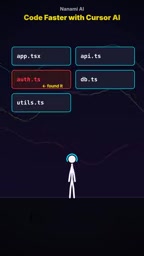
Many developers complain that AI-generated code "doesn't look like it belongs in my project," and the problem is often missing context—the model doesn't know what your utility functions are called or how your data layer is organized. Proactively @-mentioning relevant files is like telling the model your project's "dialect." The payoff of this habit scales with project complexity.
@-mention is the context-injection syntax Cursor provides in chat and Cmd-K. After typing @, you can select files, folders, code symbols (functions/classes), documentation, or even web pages; the referenced content is spliced into the prompt as explicit context, so the model no longer relies on retrieval to "guess" which code you mean. Cursor itself builds a vector index of the project for automatic retrieval, but automatic recall is uncertain; explicit @ is like putting the relevant files directly in the model's field of view, with a significantly higher hit rate. Note that the context window is limited—referencing too many files dilutes the focus, so usually @-mention only the 1-3 files directly relevant to this change.
Habit 4: Write a Rules File Once to Codify Your Stack and Style
The fourth habit is a one-time investment with long-term returns: write a rules file declaring your tech stack, your code style, and what should never be touched.
The value of a rules file is that it turns repeated reminders into default configuration. Emphasizing "use TypeScript strict mode" and "don't touch the migrations directory" in every conversation is time-consuming and easy to forget. Once written into a rules file, the model reads these constraints in every interaction, and output consistency improves noticeably.
In Cursor, the rules file corresponds to .cursorrules in the project root (newer versions also support split rule files in the .cursor/rules directory); it is essentially a system prompt automatically appended to every model call. Content written there applies to all conversations, Cmd-K, and Agent requests in the project, so it's suited to carrying "things the model should know every time": stack versions, naming conventions, directory structure notes, paths that must not be modified, test framework preferences. It complements temporary instructions in a single conversation: temporary instructions solve one-off needs, while the rules file solves long-term consistency. When collaborating as a team, putting the rules file under version control aligns everyone's AI output style and makes onboarding turnkey for newcomers.
One Warning: Read Every Diff in Agent Mode
The author ends with a single but important warning: Agent mode can edit multiple files at once, and you must read every diff before accepting.

This warning highlights the core tension of efficiency tools: the more convenient batch edits are, the larger the blast radius when something goes wrong. The original line is worth remembering—"faster only counts if it still runs." Agent mode suits tasks with clear boundaries and verifiable outcomes, and reviewing diffs one by one before accepting is the lowest-cost way to keep risk within acceptable limits.
Why This Method Works
Taken together, the four habits map to four kinds of friction in AI programming: Tab solves "repetitive typing," Cmd-K solves "the communication cost of local edits," @-mentioning files solves "missing context," and the rules file solves "repeatedly restating conventions." None of them requires complex configuration, yet together they cover most everyday coding scenarios.
You may not have noticed that this method doesn't treat AI as a "fully automatic code generator" but as "a collaborator that needs explicit instructions." The more specific the instruction, the more usable the output—perhaps a more fundamental habit than any keyboard shortcut.
The original ends with "follow for more AI tools," while the methodology itself boils down to four words: Tab, Cmd-K, context, rules. Tested, not hyped—that attitude alone is worth borrowing.
Related articles

Java4Shell Vulnerability Analysis: Has Java's Memory Safety Myth Been Shattered?
Computerphile breaks down the Java4Shell vulnerability: OpenJDK's native Base64 decoder mishandles AVX-512 mask calculation, causing out-of-bounds writes and RCE. Covers root cause, Base64 padding mechanics, AI-assisted discovery debate, and fixes.

Controversial US Surveillance Law Section 702 Nears Expiration: Congress Races to Renew
FISA Section 702 surveillance authority is nearing expiration. Congress is urgently pushing reauthorization, possibly attaching it to the NDAA. This article analyzes the controversies, legislative strategy, and future outlook.

iFood Manages 15,000 Repositories with Coding Agents: An Architectural Lesson at 4 Cents per Run
How iFood scaled coding agents to 15,000 repositories with its Remote Agents Platform: REST API-driven, GPT-5.6 Luna selection, structured output acceptance, $0.04 per run, security fixes doubled.