Guide to Seamlessly Migrating GitHub Copilot App Sessions to VS Code

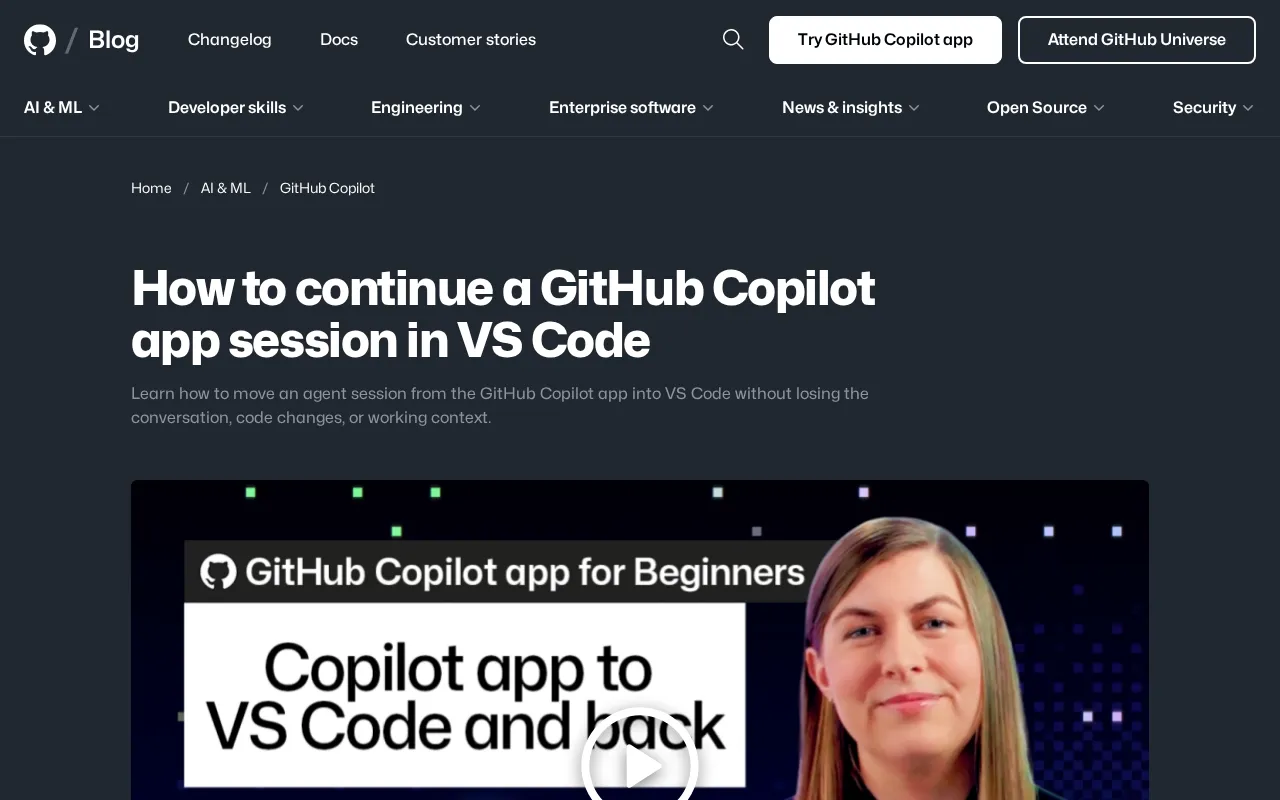
GitHub Copilot supports migrating Agent sessions from the app to VS Code, preserving conversation, code changes, and working context.
The official GitHub blog explains how to migrate Agent sessions from the GitHub Copilot app to VS Code to continue working. Agent sessions contain conversation history, code analysis, and changes already produced; starting over would lose valuable reasoning context. Migration relies on GitHub account session sync, with the Copilot extension in VS Code loading session state. Developers should ensure the session is synced, review code diffs after migration, and verify local/cloud environment consistency. This reflects Agent sessions as persistent assets and reduces team lock-in concerns.
GitHub Copilot is evolving from a simple code completion tool into an intelligent agent capable of executing tasks independently. When you start an Agent session in the GitHub Copilot app (such as Copilot Workspace or Copilot sessions on mobile/web) and want to switch back to the more familiar VS Code environment midway through to continue working, how do you avoid losing context, code changes, and conversation history? The official GitHub blog provides the solution.
Why Cross-App Session Migration Is Needed
Developer workflows are often fragmented. You might quickly kick off a task in the browser through the GitHub Copilot app, letting the Agent analyze the repository and propose changes, but when it comes time to actually review code, debug, or run tests, VS Code remains the main battleground. In the past, this kind of switch meant either re-describing the requirements in VS Code or manually copy-pasting code snippets—both inefficient and prone to losing the reasoning context the Agent had already built up.
The official blog points out that the core pain point is "not losing the conversation, code changes, and working context." This isn't just a matter of convenience—it's about the continuity of Agent workflows. An Agent session that already understands the task background and has explored relevant files is far more valuable than a new session starting from scratch.
Agent Session refers to the complete state container that an AI agent maintains during a single task execution, typically including conversation history, tool call records, exploration results of the codebase, and code changes already produced. Unlike traditional single-turn code completion, Agent sessions are persistent and stateful: the agent gradually accumulates understanding of the task within the session, forms a reasoning chain, and decides the next action based on previous steps. Session persistence means these states can be restored across time and interfaces without starting from scratch each time. In the context of GitHub Copilot, the session becomes the core carrier connecting the app side and the IDE side, and its synchronization capability directly determines whether developers can seamlessly switch between different tools. Understanding what constitutes a session helps grasp why the migration feature must preserve the three elements of conversation, changes, and context.
How the Migration Mechanism Works
According to the GitHub blog, the process of continuing from the Copilot app to VS Code revolves around the concept of a "session." The Agent session in the Copilot app contains conversation history, analysis results of the codebase, and code changes already produced. When the user chooses to continue in VS Code, these states need to be transferred to the local development environment.
Although the original article doesn't elaborate on the specific technical implementation details, from the product logic it can be inferred that this relies on session synchronization capabilities under the GitHub account system. The GitHub Copilot extension in VS Code can identify and load sessions from the app, presenting the conversation records and code diffs to the developer, allowing the Agent to continue based on previous progress rather than starting over.
This capability aligns with GitHub's "Copilot as a platform" strategy in recent years—enabling Copilot's capabilities to span editors, web, and mobile to form a unified experience.
GitHub Copilot Extension is the official plugin installed in VS Code, responsible for providing code completion, chat, and Agent capabilities within the editor. It authenticates through GitHub accounts and can communicate with GitHub cloud services to retrieve data generated by users in other Copilot interfaces. In the session migration scenario, the extension serves as the access point for the local environment: it identifies and pulls the Agent session saved in the cloud, rendering the conversation records and code diffs into VS Code's Copilot chat view or diff editor. This process relies on API communication between the extension and the GitHub backend, rather than simple file copying. Therefore, the reliability of migration depends on the extension version, network status, and consistency of account permissions. Developers should ensure the Copilot extension in VS Code is the latest version to avoid session loading failures caused by interface incompatibilities.
Key Points in Practice
For developers who want to try this workflow, there are several aspects worth noting.
Ensure the Session Is Synced
The prerequisite for migration is that the session state in the Copilot app has been saved and synced to the cloud. Before initiating migration, confirm that the Agent in the app has completed processing the current stage, avoiding switching while code changes haven't been persisted.
Restore Context in VS Code
After entering VS Code, find the corresponding session through the relevant entry point in the GitHub Copilot extension. After restoration, focus on whether the conversation history is complete and whether code changes are presented as diffs. Developers should make reviewing changes the first thing after migration, rather than directly letting the Agent continue executing—after all, after an environment switch, the local branch state may differ from the cloud.
Handle Environment Differences
The Agent in the app typically works in an isolated cloud environment, while VS Code connects to the local workspace. After migration, pay attention to whether dependencies, branches, and uncommitted changes are consistent. The official blog emphasizes "not losing working context," but developers still need to confirm themselves that the prerequisites of the local environment match those of the cloud session.
Isolated Cloud Environment means that the Agent in the Copilot app typically runs in a GitHub-hosted container or virtual machine, with its own file system, dependency installations, and branch state. This environment is independent of the workspace opened in the developer's local VS Code; the two may be on different branches, have different uncommitted changes, or even inconsistent dependency versions. When a session migrates from the cloud to local, the assumptions the Agent previously made based on the cloud environment (such as the content of a certain file or the existence of a certain dependency) may not hold locally. Therefore, after migration, you should not blindly let the Agent continue executing; instead, first compare the code changes recorded in the cloud session with the actual state of the local workspace, and manually sync branches or install missing dependencies if necessary. The official emphasis on "not losing working context" focuses on preserving session data, but environment consistency still requires developers to actively verify—this is the prerequisite for ensuring the correctness of the Agent's subsequent operations.
Significance for Agent Workflows
This feature may seem like just a convenient entry point, but it actually reflects a key trend in AI programming tools: Agent sessions are becoming persistent assets independent of specific interfaces. In the past, conversation history was bound to a particular product interface; now, sessions can flow between the app and the IDE, meaning developers can choose the most suitable tool according to the task stage—using the app for quick starts in lightweight scenarios, and returning to VS Code for deep development.
For teams, this portability also lowers the psychological barrier to adopting Copilot Agent: no need to worry about being locked into a certain interface, and you can return to the standard development environment at any time to take over subsequent work.
Summary
The ability to migrate GitHub Copilot app sessions to VS Code solves the pain point of interrupted Agent workflows. The core value lies in preserving the three elements of conversation, code changes, and working context. In practice, focus on confirming session sync status, reviewing code diffs after migration, and verifying local environment consistency. As the Copilot ecosystem extends to multiple endpoints, this kind of cross-interface session continuity capability is expected to become increasingly important.
One-line Summary
GitHub Copilot supports migrating Agent sessions from the app to VS Code, preserving conversation, code changes, and working context.
Paragraph Summary
The official GitHub blog explains how to migrate Agent sessions from the GitHub Copilot app to VS Code to continue working. The article notes that developer workflows often switch between different interfaces, and Agent sessions contain conversation history, code analysis, and changes already produced—starting over directly would lose valuable reasoning context. The migration mechanism relies on session synchronization under the GitHub account system, with the Copilot extension in VS Code responsible for loading session state. In practice, developers need to ensure the session is synced, prioritize reviewing code diffs after migration, and verify consistency between the local and cloud environments. This capability reflects the trend of Agent sessions as persistent assets, supports choosing the most suitable tool by task stage, and reduces lock-in concerns for teams adopting Copilot Agent.
Related articles

Zero-Cost Local Jarvis: Open-Source Voice Cloning and Task Automation in Practice
AI Workshop shows how to build a zero-cost local Jarvis with Ollama and Voice Studio: local model switching, open-source voice cloning, file retrieval, and tool-calling tests, with setup steps and hardware trade-offs.

Mistral Large 4 Released: 1T-Parameter MoE Tops Western Open-Source Leaderboard
Mistral releases its flagship Mistral Large 4: a 1T-parameter MoE architecture activating only 49B parameters at inference, trained from scratch on 3,800 Grace Blackwell GPUs, topping the Western open-weight leaderboard with third-party endorsements in law, finance, and cybersecurity.

Mistral Large 4 Review: Can Europe's Strongest Open-Source Model Challenge the US and China?
Mistral Large 4 (L-Charm) review: trillion-parameter MoE, standout cybersecurity benchmarks but behind Kimi K3 in software engineering, 3,800 GPUs, a key step for European sovereign AI.