n8n for Beginners: Build 3 AI Automation Workflows from Scratch

Build three progressive workflows from a blank canvas and master n8n automation fundamentals and self-hosted deployment.
This is a hands-on n8n tutorial for ordinary users who just want to automate repetitive work. It first compares official cloud service vs. self-hosted VPS, highlighting self-hosting's advantages in execution limits, data sovereignty, and long-term cost, and introduces one-click deployment via Hostinger. Then it builds three workflows of increasing complexity from a blank canvas: form-triggered auto-email, a customer service Agent with memory and system message constraints, and a Webhook receiving a landing page waitlist and writing to a spreadsheet. The tutorial runs through two foundational principles — every workflow starts with a trigger event, and node output is downstream input — plus HTTP Request node usage and FAQ troubleshooting, emphasizing key practices like using system messages to suppress hallucinations and replacing test URLs with production URLs.
AI Agent tools keep multiplying — Hermes, OpenClaw, and others pack powerful features, but most of them are useless to the average user. If all you want is to make repetitive work run on autopilot, n8n remains the best balance between barrier to entry and payoff. The value of this tutorial is that it doesn't stop at conceptual drag-and-drop explanations — it starts from a blank canvas and builds three workflows of increasing complexity back to back, thoroughly explaining the two foundational principles of n8n.
First, Decide Where It Runs: Cloud or Self-Hosted
Before building workflows, the most important decision is the n8n runtime environment. The official cloud service is fine for trying things out, but the cheapest plan caps executions at 2,500 per month — once your automations run more frequently, you'll need to upgrade to a pricier tier.
Self-hosting is a different equation: unlimited executions, full data ownership, and noticeably lower costs on an annual basis. It sounds technical, but Hostinger's VPS offers one-click n8n deployment without touching terminal commands. The tutorial author chose the KVM2 plan — dual-core with 8GB RAM — which is more than enough for every workflow demonstrated here, at under $10/month on a long-term plan. Once deployed, set up the owner account and you're in; from then on, all workflows run 24/7, even with your laptop closed.
VPS (Virtual Private Server) can be thought of as an isolated mini-server carved out of a physical server through virtualization technology, with its own operating system, CPU, memory, and public IP. Unlike shared hosting, VPS resources are relatively isolated, giving users full control over the environment — ideal for deploying self-hosted apps like n8n that need to run long-term and may consume significant resources. KVM is one of the mainstream virtualization solutions today, with low performance overhead and good isolation; Hostinger's KVM-series VPS is based on it. When choosing a VPS, the key factors are vCPU cores, memory, and monthly bandwidth — a 2-core, 4GB setup is usually enough to support personal or small-team n8n workflows.
The Two Foundational Principles Behind All Three Workflows
Before getting hands-on, it's worth clarifying n8n's mental model. Each node is a single task execution — receiving an email, having AI read it, writing data to a spreadsheet — and you connect nodes in the order you want, so the entire chain runs automatically when the trigger condition is met.
The tutorial repeatedly emphasizes two basic concepts common to all automations:
First, every workflow starts with an event. Triggers can be manual execution, scheduled intervals, form submissions, chat messages, app events (new email, new Stripe payment, new Google Drive file), and the most universal one: Webhook calls. The trigger you choose determines how the workflow gets "woken up."
Second, one node's output is the next node's input. This rule gives rise to n8n's most essential habit: don't type fields by hand — drag them from the left input panel into the target box, and they become dynamic tags whose values update automatically with upstream data. The same two nodes work identically whether you're sending to one person or a thousand.
Workflow 1: Automatically Send a Free Guide from a Form
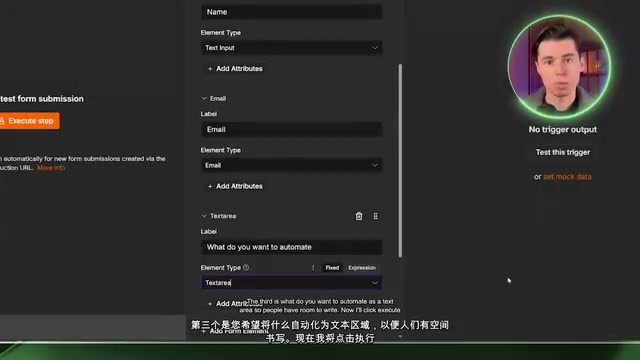
The first workflow uses a "form submission" trigger to build a form collecting name, email, and a description of needs; after submission, it automatically sends the guide email and notifies the operator.
A few details worth remembering. During testing, use the node's test URL — the form is only available while the editor is open; after clicking execute step, n8n opens the form in a new tab from a visitor's perspective. The pin icon at the top of the output panel pins this submission so subsequent node tests can reuse the data without repeatedly filling out the form.

The Gmail node requires credential configuration the first time. For the self-hosted version, you need to create a project in Google Cloud and paste the client ID and secret — the official docs have step-by-step guidance. The author offers a shortcut: just ask Claude for the connection steps, mention you're on the self-hosted version, and it'll give you the corresponding interface paths. In the email body, drag in the name and email fields — the preview area shows the filled-in result. By default, emails carry a "sent with n8n" attribution line at the bottom; turn off append n8n attribution in the node to remove it.
An easily overlooked operational habit is renaming nodes. A month later, seeing "Gmail" and "Gmail 1" in the executions tab, you won't be able to tell which is which. Once confirmed, click publish to release the version — only then does the form's production URL actually open to visitors.
Workflow 2: A Customer Service Agent with Memory and Boundaries
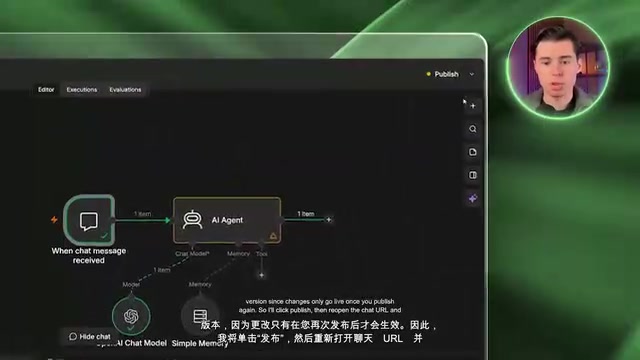
The second workflow starts from a chat window and evolves into a customer service agent that can automatically reply to emails. The core is the AI Agent node, whose three slots below correspond to three questions: what model to think with, what to remember, and what tools it can use. Only the chat model is required.
For model selection, the tutorial uses GPT-5 mini — fast, cheap, and sufficient for customer service scenarios. Note this is pay-per-use API key billing, entirely separate from a ChatGPT subscription; $5 goes a long way since each response costs only a fraction of a cent.
Memory is a key dividing line. Without memory, every message is a brand-new conversation — you say "I'm going to Lisbon in October," then ask "what's the weather like there," and it has no idea what you're referring to. With simple memory attached, the last five messages are retained by default, so follow-up questions stay in context. Here's a pitfall beginners often hit: the public chat page is still running the old version — changes only take effect after re-publishing.
What really makes the Agent usable is the system message. The prompt in the tutorial is short: tell it it's customer service for a web design studio, list the five facts it's allowed to use (e.g., pricing for a single-page site, billing cycle), and explicitly require — when the answer isn't in the list, say someone will follow up; don't make things up. The author's own words: that last rule does most of the work, because an unconstrained Agent will confidently promise a delivery date you never agreed to. In testing, when asked how long a five-page site takes, it accurately quoted the two weeks from the prompt; when asked whether the studio builds online stores, it honestly admitted it didn't have that information.
After swapping the chat trigger for a Gmail receive trigger, the same Agent can take over the inbox. At this point, change the memory session ID to the sender's email so each customer gets independent memory; then add a Gmail reply node, fill the Agent output into the body, and the reply lands in the same thread. The author points out that the trigger and the Agent are two independent components — the same Agent can run on a chat window, an inbox, or WhatsApp just by swapping the trigger.
System message is a special role in large language model conversations, positioned before user messages, used to set the model's role, behavioral boundaries, and response rules. Unlike ordinary user messages that the model "sees" and directly responds to, it acts as the highest-priority instruction throughout the conversation. In customer service Agent scenarios, the system message typically includes identity definition (who you are), knowledge scope (the list of allowed facts), and fallback strategy (how to respond when you don't know). Compared to fine-tuning a model, the system message is extremely low-cost and instantly editable — the most direct way to control AI output quality.
Simple memory is n8n's built-in lightweight conversation memory component, typically storing recent conversation turns in memory or a database. Its session ID acts as a conversation isolation key: conversations with the same session ID share history, while different session IDs don't interfere. In chat scenarios, the session ID can be a fixed value or user ID; when switching to an email trigger, change it to the sender's email to establish independent memory per customer. Note that simple memory only retains the most recent several messages — it's not a complete conversation archive, so earlier information in long conversations gets dropped.
Workflow 3: A Webhook to Catch Your Landing Page's Waitlist
The third workflow handles systems n8n doesn't know about — like your own website. A Webhook is essentially a special link that n8n keeps watching; any service that can send data to it can start the workflow.
The flow: use an AI site builder to generate a single-page site with a "Join Waitlist" button, with a popup collecting name, email, and company; on the n8n side, choose the webhook call trigger with HTTP method set to POST. Here's a principle that can save you an hour — the site and n8n must use the same method: whatever you set in the node, tell the site builder to use. When testing, click listen for test event first, then submit the form, because the test URL only stays open from the click until the first request arrives.

Received data lands under the body field. Before writing to Google Sheets, the sheet must already have a header row (name, email, company) — n8n relies on this row to identify column names; without headers, there's nothing to map to. Choose append row in sheet and drag the left-side fields into the corresponding boxes one by one.
The publishing step is the easiest to miss: the site still points to the test URL, so copy the webhook node's production URL over to replace it. Finally, configure an error workflow in settings — specify a workflow to run on failure. The author uses a two-node flow starting with an error trigger that just sends an email notification, the goal being to know you have a problem before your customers find out.
Webhook is a "reverse API" pattern: instead of n8n actively asking a system whether there's new data, the external system proactively sends an HTTP request to a URL provided by n8n when an event occurs. That URL is the Webhook address, and common request methods include POST (submitting data) and GET (retrieving data). n8n's Webhook node has two URLs: the test URL only opens briefly after clicking "listen for test event" for debugging; the production URL stays valid long-term after the workflow is published, for external systems to call officially. Therefore, any scenario switching from testing to production must replace the address configured in the external system with the production URL, otherwise requests will fail — which is also the high-frequency mistake the tutorial repeatedly emphasizes.
From Receiving to Sending: HTTP Request Node Completes the Picture
All three workflows receive requests. To have n8n actively send requests outward, use the HTTP Request node, which can connect to any app that provides an API. The real barrier is never the node itself — it's not knowing what to fill in. The author's approach: open Claude, explain which system you want to connect to n8n and what you want to happen, ask it to read that app's API docs before answering, then follow its steps to obtain API access, and fill in the method, URL, authentication, and request body.
This also explains why three workflows can run simultaneously without slowing each other down — they run on your own server, with no execution limits.
FAQ
How do I choose between n8n cloud and self-hosting? If you're under 2,500 executions per month and want to skip deployment, the cloud service is enough; once you exceed that volume, self-hosting's cost advantage grows quickly, and your data stays under your control.
Why does the AI Agent make things up? Lack of system message constraints. Explicitly write out the list of facts it may use and specify that anything outside the list should get a "someone will follow up" response — this significantly reduces hallucinated promises.
What if testing works but production doesn't? Check whether you've published the version, and whether the external system still points to the test URL instead of the production URL. These two spots are the most frequent troubleshooting points.
Related articles

AI Comic Drama with WorkBuddy from Scratch: A Step-by-Step Skill Pack Installation Guide
Learn how to create AI comic dramas with WorkBuddy from scratch. This guide covers installation, Skill pack import and invocation, plus a script generation demo with manual revision tips to get you through the first step from script to storyboard.

WorkBuddy Agent Runs the Entire GEO Database Mining Pipeline with a Single Prompt
WorkBuddy agent automates GEO database mining: from data search and curation to batch correction, differential analysis, co-expression networks, feature gene screening, and immune infiltration—a single prompt generates a complete bioinformatics report, greatly lowering the barrier to bioinformatics analysis.

PC Memory Wasted? Hacker News Debates Centralized Data Centers
Hacker News users argue that personal computer memory is wasted and should be centralized in data centers, sparking debate on centralized vs. distributed computing resource allocation. This article analyzes the logic behind the claim, the costs of centralization, and new tensions in memory resource allocation in the AI era.