Ollama Beginner's Guide: Zero-Basics Local Deployment of AI Large Models
Ollama local large model installation and usage guide: choose models by VRAM, leave headroom, and turn off thinking mode.
This article explains the complete process of running large models locally with Ollama. It clarifies that Ollama is a model runner rather than a large model, covers disk space planning and three installation methods, explains how to change the model directory and restart for changes to take effect, and describes downloading and running models by name and using ollama list. Model selection should be based on VRAM: 12GB for 8B-level models, 8GB or 6GB for 3B or 4B models, never filling VRAM completely, and small-VRAM users should turn off thinking mode. The goal is to complete one local conversation.
Ollama is one of the most popular local large model running tools available today. It is not itself a large model, but rather software that lets large models run on your computer. For users who want to experience a local AI assistant with zero barriers to entry, it is almost always the first choice.
What Ollama Is and Why Use It
Ollama plays the role of a "model runner": through it, you download, load, and run various open-source models, all done locally without relying on cloud APIs. In the tutorial, the Bilibili creator repeatedly emphasizes an easily confused point—Ollama itself is not a large model; it is simply software that can connect to large models and let them run locally.
For zero-basics users, its value lies in simple installation, unified commands, and convenient model switching. Once installed, you can directly call the ollama command in any terminal, which is also the most direct sign of whether installation succeeded.
Preparation Before Installation: How to Plan Disk Space
Before installing, you should first think clearly about how to allocate space. The creator's reference is: after extraction and installation, the software occupies a few GB of space, and model files are also not small—a small model is about 5GB each, while larger models may reach 18GB or more. Therefore, the first step is to confirm whether the remaining space on the C drive is sufficient.
There are three typical space planning scenarios: both software and models on the C drive, software on the C drive while models on another drive, and neither software nor models on the C drive. The creator's advice is that for most users, the first two are enough; the third is slightly more troublesome and suitable for users whose C drive is genuinely tight.
Three Installation Methods
Method 1: Install Everything on the C Drive (Simplest)
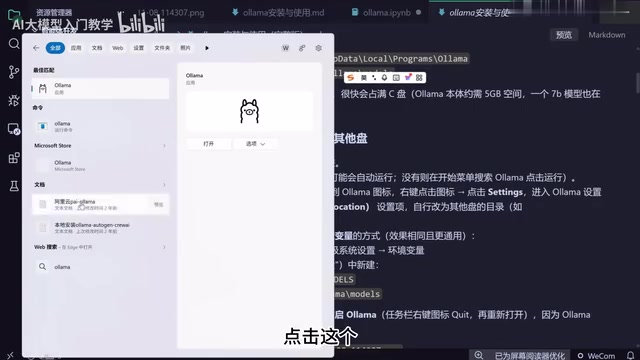
After downloading the installation file from the official website or community, double-click to run it. The installation process has no path selection; just click install. After installation, the software usually runs automatically, and a llama icon appears in the taskbar. Note that this software runs automatically at startup by default, but automatic startup only means the software itself has started; it does not mean the large model is already running. It does not consume many resources by itself.
Method 2: Software on C Drive, Models on Another Drive
The installation steps are the same as Method 1. The difference is after installation is complete: right-click the llama icon to enter settings, find the model location option in settings, change the model directory to another drive, close settings, exit the application, and restart for the settings to take effect. The creator also mentions that a more advanced approach is to change the model directory through environment variables, but for ordinary users, the software's built-in settings are enough.
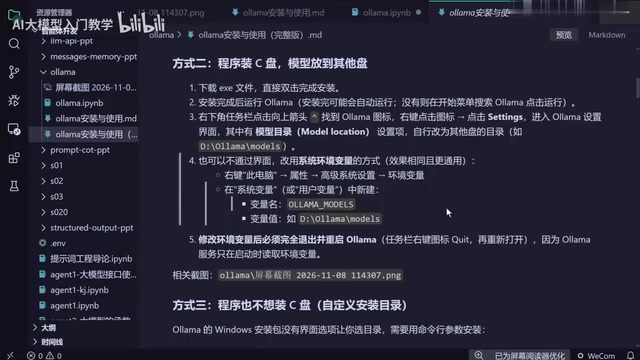
Method 3: Install Both Software and Models Outside the C Drive
This method requires an extra command-line step. After downloading the installer, open a terminal in its directory, execute the installation command, and change the installation path in the command to your desired directory; the software will then be installed to the specified location. After that, follow Method 2 to change the model directory to a non-C drive through settings, then exit and restart the application.
How to Use It After Installation
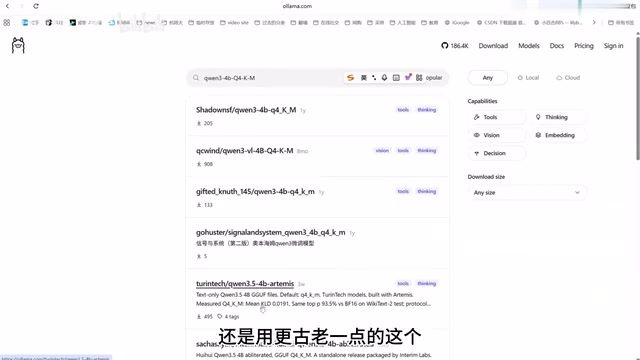
The sign of successful installation is that the ollama command can be used in the terminal, and running it outputs help information. To actually use a model, you need to specify the model name; the model name following the command determines which one you want to run. In the demonstration, the creator uses models from the Qwen series. The "8B" in the name indicates the model scale, and the suffix indicates that the model has undergone quantization compression.
After running the command, Ollama automatically downloads the model from the network, and once the download is complete, you can chat locally. The creator verified through GPU usage that the model was indeed running locally. In addition, commands such as ollama list can show which models are already installed on the machine, and model files are stored in the model directory you set.
Suffixes such as "q4" and "q8" in model names indicate quantization levels. Quantization is a model compression technique that greatly reduces model file size and runtime VRAM usage by lowering the numerical precision of model weights (for example, from 16-bit floating point to 4-bit integers), at the cost of possible slight performance loss. Common 4-bit quantization (q4) can compress model size to about one quarter of the original, making models that originally could not run on consumer-grade GPUs feasible. For users with limited VRAM, choosing a quantized version is a key means of balancing performance and resources; usually the q4 level still maintains good usability on most tasks.
How to Choose a Model: Let VRAM Decide
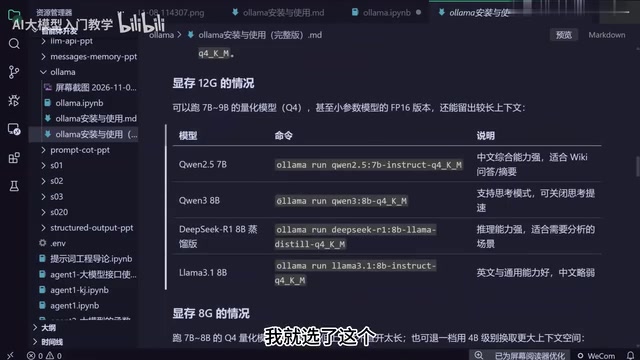
The core basis for choosing a model is VRAM size. The creator's own GPU has 12GB of VRAM, and running an 8B model uses up more than half of it. His reference recommendations are:
- 12GB VRAM: You can choose an 8B-level model, which is the configuration he actually uses;
- 8GB or 6GB VRAM: It is recommended to choose the 3B or 4B tier, or smaller models; such models use about three to four GB of VRAM;
- Even less VRAM: You need to continue looking for smaller models.
An easily overlooked principle is: do not let the model fill up VRAM. This is because the conversation content itself also uses VRAM, and you must leave headroom for input and output. The creator emphasizes that this is the key to "frugal housekeeping."
The "B" in model names is short for "Billion," representing the model's parameter count in billions. Parameter count is a core metric for measuring model scale. Generally, the larger the parameter count, the stronger the model's language understanding and generation capabilities, but it also requires more VRAM or memory to load and run. For example, an 8B model has about 8 billion parameters, and a 3B model has about 3 billion parameters. Note that parameter count is not the only determining factor; training data quality, model architecture, and quantization method also affect final performance. In actual selection, you should prioritize models with larger parameter counts within the allowed VRAM range, while combining quantized versions to balance performance and resource usage.
Users with Small VRAM Should Turn Off Thinking Mode
Models such as Qwen have thinking mode enabled by default, outputting a reasoning process before answering. For machines with large VRAM, this is not a big deal, but for users with small VRAM, it is quite luxurious—VRAM is already tight, and letting the model "think a lot" can easily fill it up. The creator's advice is to turn off thinking mode when VRAM is insufficient and let the model answer directly; thinking mode is more suitable for complex tasks, but complex tasks have long workflows and are actually more likely to fill up VRAM.
Thinking Mode (Reasoning Mode) is a reasoning enhancement mechanism available in some large models (such as the QwQ series of Qwen, DeepSeekAd-R1, etc.). When enabled, the model outputs an internal reasoning process before giving the final answer, similar to "drafting," which can significantly improve accuracy in mathematics, logical reasoning, and complex problem solving. However, the thinking process itself consumes a large number of tokens, meaning longer generation time and higher VRAM usage, because the model needs to maintain the reasoning context at the same time. For daily conversation scenarios with tight VRAM or a focus on response speed, turning off thinking mode allows the model to output answers directly and saves resources; while in tasks requiring rigorous reasoning, enabling thinking mode is more valuable.
Summary
The endpoint of this process is simple: install Ollama, choose a suitable model according to VRAM, and if you can successfully chat, it counts as working. The creator's final task for beginners is also plain—students with GPU conditions should get the model running and complete a local conversation, and that counts as achieving the goal.
One-line Summary
Ollama local large model installation and usage guide: choose models by VRAM, leave headroom, and turn off thinking mode.
Paragraph Summary
This article introduces the complete process of running large models locally with Ollama. First, it clarifies that Ollama itself is not a large model but a model runner, and after installation you can call the ollama command in the terminal. Before installation, disk space must be planned. The article gives three installation methods: install everything on the C drive, install the software on the C drive and models on another drive, and install everything outside the C drive. The latter two require changing the model directory and restarting for the changes to take effect. After installation, download and run models by specifying model names, and use ollama list to view installed models. The core basis for choosing a model is VRAM size: with 12GB VRAM you can choose 8B-level models; with 8GB or 6GB VRAM, the 3B or 4B tier is recommended. Also, do not let the model fill up VRAM; leave headroom for conversation input and output. Users with small VRAM should also turn off the model's thinking mode to avoid the reasoning process squeezing VRAM. The ultimate goal is to complete one local conversation.
Related articles

Anker SOLIX X1 Three-Month Test: Seamless Outage Switching and How Home Energy Storage Cuts Electricity Bills
Three-month real-world test of Anker SOLIX X1 and PowerDock Pro: millisecond seamless outage switching, September usage of 735 kWh with only 16 kWh bought from the grid, solar plus battery covering about 98% of demand, 358 kWh battery discharge, and 495 kWh surplus exported to the grid.

Nvidia's Governance Crisis: Why Corporate Governance Experts Are Watching en Masse
Nvidia faces a crisis that corporate governance experts call unprecedented, with many saying they've never seen anything like it. This analysis explores why the governance crisis has drawn professional attention and its potential impact on the AI chip industry.
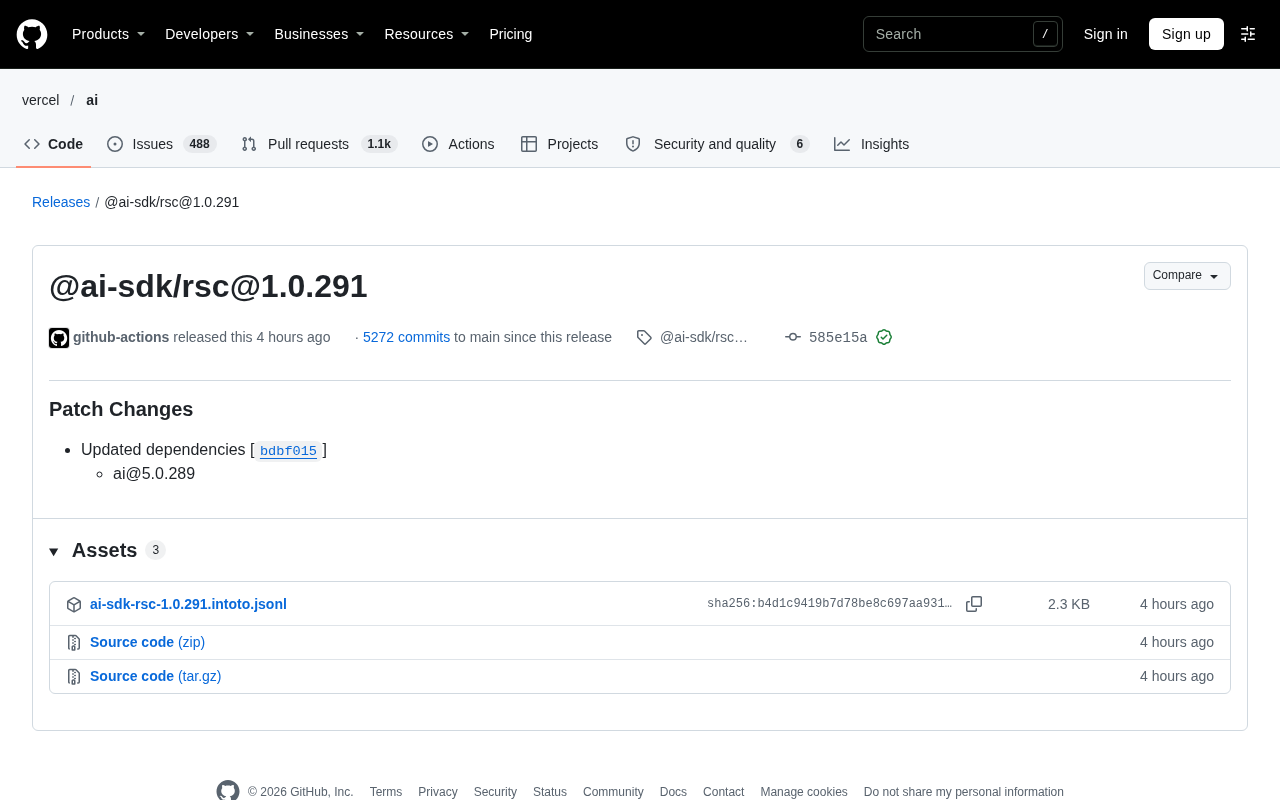
@ai-sdk/rsc Version 1.0.291 Released: Patch Fixes and Dependency Updates
@ai-sdk/rsc releases patch version 1.0.291, updating its dependency to ai@5.0.289. Learn about the changes, dependency relationships, and upgrade recommendations.