Self-Host n8n for Free with Docker: Zero-Cost Workflow Automation Setup

Deploy n8n locally with Docker Desktop for a completely free, self-hosted workflow automation platform.
This guide walks through self-hosting n8n for free using Docker Desktop. Unlike metered cloud subscriptions, the self-hosted approach has no execution limits and keeps data local. Key steps include installing Docker Desktop, pulling the official n8n image, configuring port mapping (default 5678) and environment variables like N8N_HOST, accessing the local URL to create an account, and claiming a free activation key via email. The entire setup takes just a few minutes.
Why Choose Self-Hosted n8n
n8n is an open-source workflow automation platform that connects apps, APIs, and services to build no-code or low-code automation pipelines. Compared to the cloud-hosted subscription, the biggest draw of self-hosting is that it's completely free and sustainable long-term — all you need is a local machine or server capable of running Docker, and you can spin up a fully functional n8n instance in your own environment.
This tutorial is based on a hands-on demo video. The core idea is to pull the official n8n image via Docker Desktop and run it locally — no paid license required at any point. It's ideal for individuals or small teams looking to try out automation tools at minimal cost.
n8n's main differentiator from tools like Zapier or Make (formerly Integromat) is its open-source nature and self-hosting capability. Cloud SaaS plans charge by execution count or number of workflows, with monthly fees ranging from tens to hundreds of dollars. The self-hosted version, on the other hand, imposes no limits on executions or workflows as long as your server has sufficient resources. n8n supports over 400 integration nodes — covering Slack, GitHub, Google Sheets, databases, Webhooks, and more — making it suitable for everything from simple notifications to complex workflows with conditional logic, loops, and sub-workflows. For technically inclined users who want full control over their automation stack, self-hosting is the most cost-effective option.
Prerequisites: Installing Docker Desktop
Before you begin, you'll need to install Docker Desktop (for Windows or Mac) on your system. Head to the Docker website, download the appropriate version, and install it. On first use, you'll need to register a Docker account (free with any email address). Docker Desktop requires you to be signed in before it can pull and run container images.
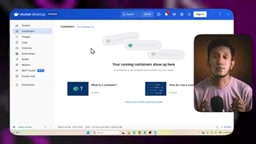
Once installed, make sure the Docker service is running — this is the foundation for everything that follows. This entire setup runs n8n inside a local Docker container, keeping all your data and workflows on your own machine for better privacy and control.
Docker is a containerization technology that packages an application along with all its dependencies into a self-contained "container," allowing it to run consistently on any machine with Docker installed — regardless of the host OS or installed software. Docker Desktop is a graphical client for Windows and macOS that bundles Docker Engine, image management, and a container management UI, lowering the barrier for users who prefer to avoid CLI configuration. Linux users can typically install Docker Engine directly without needing the Desktop version. By default, data inside a container is lost when the container is removed, so in production environments it's recommended to mount n8n's data directory to the host machine using a Docker Volume to persist workflow configs and execution history.
Pulling and Running the n8n Image
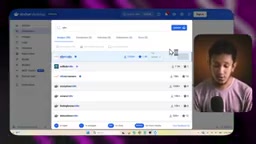
After opening Docker Desktop, type n8n into the image search box. Docker will surface the official image (listed under Easy Images). Select it and click Pull. Once the image is downloaded, it will appear in your local image list and is ready to run at any time.
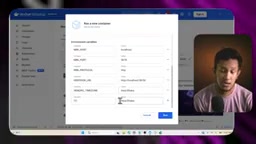
When you click Run, Docker will ask you to configure port mapping. n8n's default port is 5678 — you can use this directly or choose another port if needed. Pay attention to a few key environment variables during setup:
- N8N_HOST: Set this to
localhost - N8N_PORT: Set this to match the port number you specified
Fill these in as shown in the demo. Correct host and port settings are essential for the container to be accessible.
Starting the Container and Accessing the UI
Once all parameters are configured, click Run to start the container. If everything is set up correctly, the container will start successfully and the n8n workflow interface will load.
After startup, open your browser and navigate to the corresponding local URL (e.g., http://localhost:5678) to access n8n. On first visit, you'll be prompted to create an account by setting a username and password — the password must meet basic security requirements including uppercase and lowercase letters. Once that's done, your account is created.
Activating Your Free License
After creating your account, n8n will prompt you to enter an Activation Key to unlock the full feature set. Click the option to Send me a free license key, and the system will email the key to your registered address.
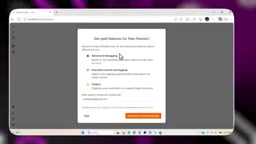
Once you receive the key, return to the n8n interface, paste it into the activation field, and confirm. After successful activation, you'll have access to the full Editor Panel and can start building automation workflows freely. This license is permanently free for personal and self-hosted use.
n8n uses a "Fair-code" licensing model rather than a traditional fully open-source license. The source code is publicly visible and self-hosting is free, but certain commercial use cases — such as reselling n8n as a service to third parties — require a commercial license. Personal use, internal team automation, and non-profit projects all fall within the free license scope. The activation key is essentially a confirmation of your use case rather than a feature gate — it helps the n8n team track self-hosted user numbers while also unlocking enterprise-tier feature entry points. If the key doesn't arrive in your inbox, check your spam folder or try a different email address.
Wrap-Up: Zero-Cost Automation in Minutes
Self-hosting n8n via Docker boils down to a simple sequence: install and sign into Docker Desktop → search for and pull the n8n image → configure host and port settings → run the container → create an account and activate your free license. Compared to cloud-based paid subscriptions, this approach is essentially zero-cost, and your data stays entirely under your control.
For developers and small teams who want to explore workflow automation without committing to subscription fees, this is a highly practical starting point. Install Docker, pull the image, and you can have your own automation platform up and running in just a few minutes.
Related articles

AI Weekly: Claude Code Backdoor Incident and AI Giants' Capital Game
AI security this week: Cursor marketplace seeded with a Claude Code backdoor affecting Mac and Windows developers. Meanwhile, Amazon AI capex hits $75.9B, Google AI search revenue lags traditional search, Anthropic launches Ultra subscription, and OpenAI commits to robots.txt training signals while publicly defending fair use.

Malicious Claude Code Extension Infiltrates Cursor: Version 2.1.313 Self-Check and Cleanup Guide
A malicious Claude Code build 2.1.313 appeared in the Cursor extension marketplace for about 11 hours, affecting up to 5,000 users. StepSecurity disclosed that it stole system information, git email, and environment variable names, and attempted to implant SSH keys and reverse tunnels. This article covers the incident, malicious behavior, and complete self-check and cleanup steps.

15 Essential Prompts for Vibe Coding: Keep AI from Wrecking Your Code
Vibe Coding often tempts AI to break your code. These 15 prompts—from PRD, architecture, and database to testing and debugging—chain each output as the source of truth, turning AI coding from casual chat into a controllable engineering process.