Set Up Codex with DeepSeek in 3 Minutes: The Complete CCSage Configuration Guide

Use CCSage to configure a DeepSeek API Key, bypass Codex's official login, and connect a third-party model at low cost.
The article breaks down a three-minute Bilibili tutorial: using CCSage as a provider management panel to let Codex skip the mandatory OpenAI login and call DeepSeek's API. Four steps: install Codex then close the login window and kill background processes; create and save an API Key on DeepSeek's platform; add DeepSeek as a provider in CCSage and paste the key; launch Codex and verify via the model-source indicator and a chat test. It adds details the tutorial skips—lingering background processes can overwrite config, the key is shown in full only once, and you must pick the right Codex target client in CCSage—and notes the approach is unofficial and may break if API rules change.
Codex, OpenAI's coding assistant, is bound to official models by default. But many developers want to take advantage of DeepSeek's lower API costs, which is why "Codex with DeepSeek" has become a high-volume search term. This three-minute tutorial from Bilibili lays out the full path. The core idea: skip Codex's official login and use CCSage as an intermediary to configure DeepSeek's API Key. This article breaks it down step by step and fills in the key details the tutorial doesn't explain clearly.
The Overall Approach: Why You Need CCSage
When Codex starts, it forces you to log in with an OpenAI account—that's the first hurdle to connecting a third-party model. The tutorial's approach: after installing Codex, don't log in. Just close the window and kill the background process, then let CCSage take over the model provider configuration.
CCSage acts as a "provider management panel" here—you add DeepSeekAd as a provider inside it and enter the API Key, and Codex picks up that configuration at startup, bypassing the official login flow. This isn't unique to Codex; many clients that support custom model sources use a similar middleware approach.

API Key and provider configuration: An API Key is a string issued by the platform used to identify the developer when calling model endpoints and to handle billing and permission checks. The client must include this key in the HTTP headers or parameters when making a request, and the server uses it to authorize access. "Provider configuration" refers to registering a model service's access details inside the client—including the endpoint URL (Base URL), the key, and the model name. Codex by default only recognizes OpenAI's official endpoint, so to route requests to DeepSeek, you have to make the client read a provider configuration that points to DeepSeek. CCSage's role is precisely to maintain this configuration outside the client so that Codex can load a non-official source at startup. Once you understand this, it's clear why accurately pasting the API Key and correctly selecting the provider entry are the make-or-break steps of the whole process.
Step 1: Install Codex and CCSage
First, download the installer package, double-click the extracted folder, and run the OpenAI installer. After installation, a login prompt appears—don't log in here. Click the X in the top-right corner to close the window, and also kill the related process in the background; otherwise, your later configuration may get overwritten.
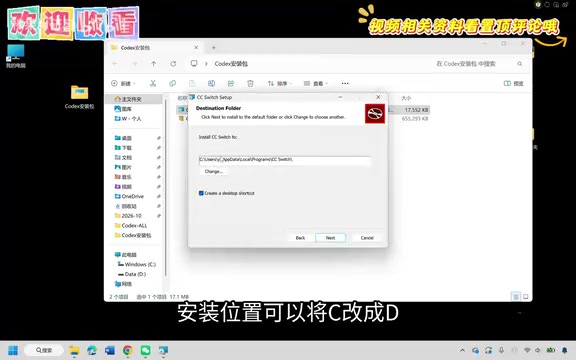
Next, install CCSage. After double-clicking the installer, you can change the install location from the default C drive to D drive—the tutorial keeps the path under the Program directory—then click Install and Finish. Once installed, open CCSage and select the Codex option in the interface, which indicates it's a configuration tool serving Codex.
Step 2: Get a DeepSeek API Key
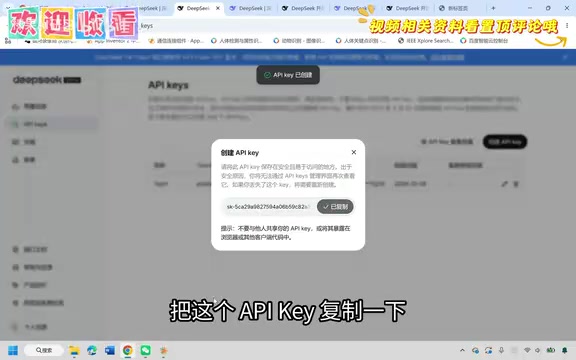
Open the DeepSeek website in your browser and go to the API platform linked at the bottom. If your account isn't activated yet, the tutorial suggests topping up first (the original text cites a threshold of five yuan—check the platform's actual requirements for the exact amount), then click API Keys in the left-hand menu and hit "Create API Key."
You can name it whatever you like; the tutorial uses Test1. Copy the key immediately after creating it and save it somewhere safe—most platforms only display the full key once, and once you close the page, you can't get it back.
API platform and top-up threshold: DeepSeek's API service is billed separately from its web chat product, so developers need to activate and top up on the API platform independently. Most large model platforms set a minimum top-up requirement or grant free credits for new accounts; if the account isn't activated or the balance is zero, calls will return authentication or insufficient-quota errors directly. The "five yuan top-up" mentioned in the original is just the minimum threshold at the time of the tutorial—the actual amount and credit policies may change with the platform, so check the console's display before proceeding. Also, API Keys usually support creating multiple keys with separate names, making it easy to track usage by project; if you suspect a key is leaked, delete and recreate it in the console immediately to avoid unexpected charges.
Step 3: Configure the Provider in CCSage
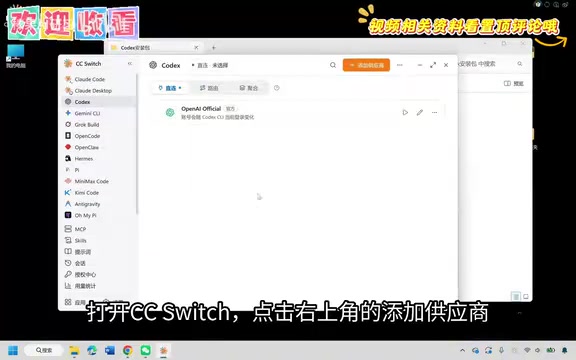
Back in CCSage, click "Add Provider" in the top-right corner, find DeepSeek in the list, paste the API Key you just copied, and click Add. This step is the heart of the whole process: CCSage registers DeepSeek as an available model source.
After saving the configuration, open Codex from the Windows Start menu—look for Codex under C. You'll see that the login step has been skipped, and the interface instead asks "What do you want to use it for." Pick anything; the tutorial chose Engineering and also checked Design, then just click Continue or skip through the steps. If it prompts that related components were previously installed, ignore it and continue.
Step 4: Verify It's Actually Connected
Once you're in the Codex main interface, the right side shows the currently mounted model source as DeepSeek—direct evidence that the configuration is in effect. The tutorial uses two questions to verify: typing "What model are you" and "Hello" both return normal responses, confirming that requests are indeed going through DeepSeek's channel.
Finally, a handy tip: if there's no shortcut on your desktop, find Codex in the Start menu and drag it to the desktop to automatically create one.
A Few Easily Overlooked Pitfalls
The tutorial moves fast, and a few details deserve separate mention. First, after installing Codex, you must close the login window and kill the background process; otherwise, CCSage's configuration may not take effect. Second, save the API Key promptly after creating it—once the page closes, you can't view the full content again. Third, don't miss the Codex option when installing CCSage; selecting the wrong target client means the configuration won't match.
It's also worth noting that this "third-party client + intermediary configuration" approach relies on the client's own extensibility, and neither DeepSeek nor OpenAI provides official support for it. If platform API rules change, the configuration method may need to change too. When troubleshooting, first check whether the API Key is valid and whether your balance is sufficient.
For developers who are budget-conscious but want to keep Codex's workflow habits, the value of this solution is that it separates two things: use the tool you're comfortable with, and use the cheaper model. Three minutes of effort for a more flexible development environment is worth a try.
The risk boundary of unofficial support: This approach essentially leverages the client's extensibility for custom model sources—it's a community-discovered usage, and neither OpenAI nor DeepSeek promises compatibility. The risks fall into three areas: first, client updates may change the configuration-reading logic, invalidating existing provider entries; second, if the server-side API changes its path, authentication method, or parameter format, requests will be rejected; third, the terms of service don't clearly define third-party intermediaries, so there's a chance of restrictions. So it's advisable to keep the original installer and configuration screenshots so you can quickly roll back or rebuild if something breaks; and don't leave critical production credentials on this kind of configuration long-term—rotating API Keys regularly is safer.
One-line Summary
Use CCSage as an intermediary to configure a DeepSeek API Key, bypass Codex's official login, and connect a third-party model at low cost.
Paragraph Summary
The article breaks down a three-minute Bilibili tutorial: using CCSage as a provider management panel to let Codex skip the mandatory OpenAI login and call DeepSeek's API instead. The process has four steps—install Codex, then close the login window and kill the background process; create and save an API Key on the DeepSeek platform; add DeepSeek as a provider in CCSage and paste the key; and launch Codex, verifying it works via the model-source indicator on the right side of the interface and a quick chat test. The article also fills in details the tutorial glosses over: leaving background processes running can overwrite your configuration, the key is only fully displayed once, and you must select the correct Codex target client in CCSage. It also warns that this approach is unofficially supported and may break if API rules change.
Related articles
 Tech Frontiers
Google Omni 1.2 Flash: 15-Second AI Video at Just $0.07 per Second
Google DeepMind releases Gemini Omni 1.2 Flash: 15-second video, 720p at $0.07/sec (30% cheaper), multi-turn editing without regeneration, draft upscaling to 4K.
 Tech Frontiers
No AI Ghostwriting: Writer's Quarter Reinvents Novel Writing with a Visual Workbench
The Writer's Quarter is an AI-free novel writing and planning tool that unifies character building, story planning, and manuscript writing in one visual workbench. This article analyzes its positioning, target users, and differentiated value amid the rise of AI writing tools.
 Tech Frontiers
Fleeep: A Unified Inspiration Collection Notes App for Creatives
Fleeep is a notes app for creatives that unifies screenshots, bookmarks, saved posts, and inspiration into one calm, cross-device, offline-capable space. This article analyzes its positioning, differentiation, and target users.