The Ultimate Bilibili Codex Tutorial: From Installation to Real-World Pitfall Avoidance
A comprehensive pitfall-avoidance guide for Codex desktop, from registration and login troubleshooting to quota management and hands-on practice.
Based on a Bilibili tutorial dubbed "the most detailed explanation of late October" for the Codex desktop client, combined with experiences from other tech bloggers, this article compiles key pitfall-avoidance points for the entire workflow from registration to practice. Registration: install on the system drive, Microsoft Store is more reliable. Login: three types of issues—phone verification, 403/token exchange failure, and reconnect prompts—with reproducible solutions like configuring the .env proxy port. Quotas: Plus uses weekly calculation plus a 5-hour rolling window; use the highest model cautiously, and heavy users can upgrade to Pro for 5x quota and no 5-hour limit. Settings: max out permissions and reasoning effort; the author advocates hands-on practice over paid tutorials.
OpenAI Codex desktop is becoming a favorite among developers and creators, but the various pitfalls in registration, installation, login, and quota management deter many beginners. A Bilibili tutorial dubbed by viewers as "the most detailed explanation of late October" breaks down the entire workflow from account registration to hands-on usage. This article combines that video's content with experiences from other tech bloggers to compile an actionable pitfall-avoidance guide.
Registering from Scratch: The Account Comes First
The tutorial starts with the most basic GPT account registration. Open the official website, click free sign-up, and use a 163 or QQ email to receive the verification code; name and age can be filled in arbitrarily. This step itself isn't hard—the real barrier comes later: downloading the desktop client.
The video author warns that when installing the Codex desktop client, installing it to a non-system drive may cause it to fail to open, so it's recommended to install directly to the C drive. An even easier approach is to open the Microsoft Store, search for ChatGPT, and install—the system will automatically install it to the system drive, and you'll basically never encounter the failure-to-open issue. This aligns with feedback from multiple tech communities: the desktop client is highly sensitive to installation paths, and the system drive is the safer choice.
Login Verification and a Systematic Solution to Network Issues
The login phase is where beginners most easily get stuck. The video summarizes three typical problems:
Phone number verification. Newly registered accounts usually require phone number verification when logging into Codex. There are two solutions—subscribing to a membership has a chance of skipping verification, or using a US phone number for code reception. The author specifically notes that even if a freshly registered account subscribes to a membership, verification is still highly likely required; accounts registered longer ago have a higher chance of skipping verification after subscribing.
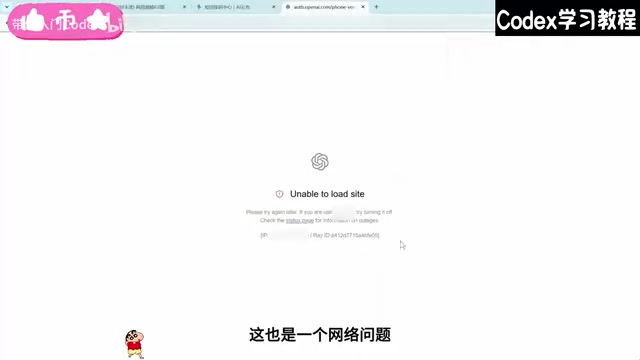
403 and token exchange failure. These errors are essentially network issues. According to the video demonstration, 403 "region not supported" prompts, token exchange failures, and a series of login anomalies basically all point to network and cache issues. After optimizing the network and clearing the cache, then logging in again, most cases can be resolved.
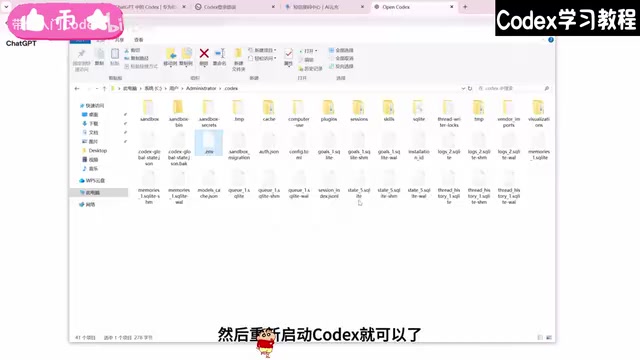
"Reconnect 5 times" prompt during conversation. This is the most frequently reported issue in the comments. The author's complete solution: go to the Codex directory under the C drive user directory, create a new TXT file, paste the specified code, and change the port number at the end to your network proxy's port (must be global or TUN mode). If you can't find the port, you can directly ask Codex to help find it and create the environment file. After saving, change the file extension to .env and restart Codex. Manually creating it works the same way.
For the situation where conversations error out after login, the author judges it to be caused by logging in via API. He suggests beginners first log in normally with an official GPT account, and only consider third-party tools like CCSwitch after getting familiar, otherwise various anomalies are likely.
Token Exchange Failed is a typical error in the OAuth authorization flow. When logging into the Codex desktop client, the client first obtains a short-term authorization code, then "exchanges" it with OpenAI's authentication server for a long-term access token. This process requires establishing a trusted HTTPS connection between the client and the authentication server, and verifying the callback address and region information. When the local network has proxy hijacking, DNS pollution, system time deviation, or cached expired certificates/tokens, the exchange request will be rejected, manifesting as token exchange failure or 403. Therefore, "optimize network + clear cache" works because it simultaneously repairs the connection chain and local expired state. If it fails repeatedly, check whether the system time is automatically synchronized, whether the proxy is in global mode, and whether old login credentials remain.
The .env file mentioned is a configuration file for storing environment variables, with key-value pairs written in the form KEY=VALUE, commonly used to store parameters like proxy addresses, ports, and API endpoints that shouldn't be hardcoded. After Codex reads this file, it uses the proxy port within as the exit for communicating with the server. Two things to note: first, the file must be saved as plain text with the .env extension—if the system hides known file extensions, it may easily become .env.txt and become ineffective; second, the proxy port must match the actual listening port of your local proxy software (such as Clash or V2Ray), and the proxy must be in global or TUN mode, otherwise Codex's traffic won't pass through the proxy and the configuration is useless. After modification, you need to fully exit and restart Codex for it to take effect.
Quota Mechanism: The Core Pain Point for Plus Users
Understanding the quota rules is more important than getting the software installed. The video uses concrete examples to break down the Plus membership limits: quotas are calculated weekly, with an additional 5-hour rolling window. For example, with 100 points per week and 20 points per 5 hours, if the 20 points are used up, you must wait for the next 5-hour window to recover; if this week's quota is exhausted, you must wait until next week. The highest model consumes extremely fast—if maxed out, it can be used up in just a few minutes.
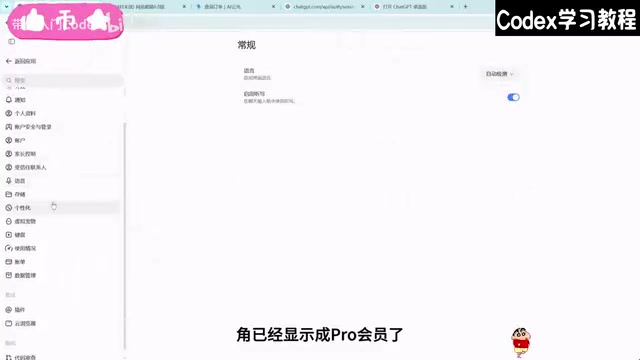
The author's advice is for Plus users to be cautious with the highest model. If demand is high, you can pay the difference in the store to upgrade to Pro—the video demonstrates the upgrade process: open the web page to confirm the account, get the Session and copy the code, calculate the price difference and submit the order, and the system usually completes the upgrade within a minute. After upgrading, the 5-hour limit disappears, the quota recovers to 5 times that of Plus, and a new month is calculated from the upgrade date.
The 5-hour rolling window is a rate-limiting strategy: the system does not reset at fixed times, but rather counts consumed quota over the interval of "the current moment going back 5 hours," and as old requests gradually slide out of the window, quota is gradually released. This stacks with the "weekly total quota" to form a two-layer limit—the short window controls burst usage, and the weekly quota controls the total. Therefore, when users feel "it works again after waiting a while," the essence is that early consumption has slid out of the 5-hour window. Understanding this helps with task planning: spread high-intensity, high-model-consumption work across different time periods to avoid maxing out the quota early in the window. The Pro tier eliminates the 5-hour limit, precisely removing the first layer of constraint.
Settings and Practice: Permissions, Reasoning Effort, and Usage Philosophy
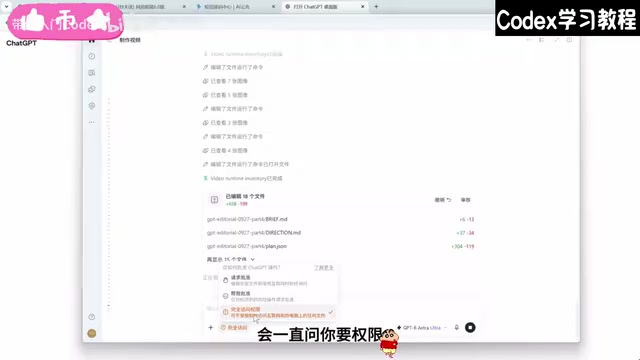
For the general settings after entering Codex, the author gives several practical suggestions: enable full access permissions to avoid repeated permission pop-ups when the AI is working; configure permissions to the maximum; turn on web search and reasoning effort fully, then adjust according to task complexity.
As for how to use it, the author's view is quite direct: most AI usage tutorials online, especially paid courses, are essentially scams. Today's large models are already very capable—needs like building websites or editing videos can be directly completed by the model, and you can just ask when you don't understand. Many demonstrations of installing plugins or controlling computers are just performance effects; as long as you clearly state your needs, the model will automatically achieve the goal.
His core advice is: rather than grinding through complicated tutorials, get hands-on and start using it first, watch more bloggers share finished products and ideas, and directly use them for creative work; with more use, you'll naturally be able to achieve results according to your own ideas. This view has a personal tone, but it also reflects a pragmatic shift in the current AI tool learning path—from "learning the tool" to "using the tool to solve problems."
Overall, the value of this tutorial lies in systematizing scattered errors and configuration issues, and providing reproducible solution steps. For users new to Codex, troubleshooting in this order can save a lot of trial-and-error time.
Reasoning Effort is an adjustable parameter provided by some large models, used to control the depth of internal reasoning the model performs before giving an answer. The higher the level, the more "thinking tokens" the model spends on decomposition, verification, and self-checking, and the accuracy on complex tasks is usually higher, but responses are slower and more quota is consumed; lower levels respond faster and cost less, suitable for format conversion, simple Q&A, and similar tasks. In practice, switch according to task complexity: turn it up when debugging tricky code or doing architecture design, and turn it down for daily copywriting or looking up information. Like the "web search" toggle, it's a trade-off item that exchanges quota for quality, not something where higher is always better.
One-line Summary
A comprehensive pitfall-avoidance guide for the Codex desktop client covering registration, login troubleshooting, quota management, and hands-on practice.
Paragraph Summary
Based on a Bilibili tutorial dubbed "the most detailed explanation of late October" for the Codex desktop client, combined with experiences from other tech bloggers, this article compiles key pitfall-avoidance points for the entire workflow from registration to practice. For registration, it reminds that the desktop client should be installed on the system drive, and Microsoft Store installation is more reliable; for login, it systematically summarizes three types of issues—phone number verification, 403 and token exchange failure, and the "reconnect 5 times" prompt during conversation—and provides reproducible solutions such as configuring the .env proxy port; for quotas, it breaks down the Plus membership mechanism of weekly calculation plus a 5-hour rolling window, advising caution with the highest model, and recommending heavy users pay the difference to upgrade to Pro for 5x quota and removal of the 5-hour limit. For settings, it suggests maxing out permissions and reasoning effort, and the author also advocates diving straight into practice rather than grinding through paid tutorials.
Related articles

Google Releases Gemini 4 Carbon: Its Strongest Model Yet, Debuting with a Cybersecurity Focus
Google releases Gemini 4 Carbon, calling it its strongest model, with a cybersecurity focus. It tops the third-party composite ranking at 59 points but leads by only one or two. This article analyzes its security test results, staged rollout, token pricing, and the divergence between self-reported and third-party tests on hallucinations.

LangChain Adds SchemagateRetriever: On-Demand Table Retrieval Cuts Text-to-SQL Prompts by 92.9%
LangChain docs add SchemagateRetriever: retrieves only the tables needed for text-to-SQL with permission filtering, cutting median prompt size by 92.9% on Spider 2.0 large schemas via offline BM25 selection with no model calls.

Multi-Step AI Agent Guardrail in Practice: Fact-Change Detection Drives False-Alarm Rate to 0%
Developer shares first version of a multi-step AI Agent guardrail: re-verifying dependency facts before irreversible actions cut false alarms from 50% to 17% across 23 scenarios, then to 0% via conservative normalization without lowering catch rate. Runs on local qwen2.5-7b.