Trace Canvas 0.3.0 Tutorial: Manage Multiple AI Agents with a Single Map
Trace Canvas manages multiple AI agents with a subway map, making project progress clear at a glance.
Trace Canvas 0.3.0 is a locally running, zero-dependency open-source tool that gathers multiple AI agent sessions into a visual "subway map." Each project is a line, branches are subtasks, and stations record ideas, tasks, agents, decisions, and notes. Through automatic Hooks logging and MCP tools, agents can read and write the canvas, and new agents catch up in seconds. It also offers stagnation detection, review, and multi-machine sync, helping users coordinate agents on laptops, workstations, and phones. Its positioning is "a map both humans and agents can understand," not a task manager.
Multiple AI agents kick off at the same time — one writing code, one revising a paper, one sending out resumes — and a few days later, keeping track of who got where and what stalled comes down to your memory. Trace Canvas tries to turn this chaos into a subway map: each project is a line, each step is a station, and both humans and agents can understand it. Version 0.3.0 covers the entire workflow from installation to multi-machine collaboration in 11 short lessons. Below is a breakdown of its core design.
Installation and Setup: Zero Dependencies, Local Execution
Getting it running only requires Node.js — no npm install. After cloning, a single command starts the page, which runs locally. On the empty page you can load sample data to see it in action; after clearing the data, all content lives in a single local file. Free, open source, and running locally set the tone for the entire tool.
Connecting an agent is also a single command: Claude Code automatically logs via Hooks, MCP tools let agents read and write the map, and Sk** lets you put a session onto the canvas with one sentence. With Codex plus Agents Codex, both types of agents share the same canvas. Once connected, every session appears on the map by itself.
MCP (Model Context Protocol) is an open protocol that standardizes how AI agents interact with external tools and data sources. Here, MCP tools expose the Trace Canvas canvas as an interface that agents can call: through it, an agent can read a line's goals, to-dos, and past decisions, and can also write new stations or update status. Unlike Hooks — which are callbacks automatically triggered by Claude Code during the session lifecycle for passive logging — MCP is the channel through which agents actively read and write the canvas. Together, they ensure that the session process is automatically recorded while also letting agents query context on demand, so a new agent can catch up on progress in seconds.
Core Concepts: Lines, Projects, Branches, and Agents
One Line Is One Project
The most important rule: a line corresponds to a project. Agents started in the TripSplit folder — whether Claude Code or Codex, no matter how many conversations — all record onto the same line. This line is the entire history of the project: goals, to-dos, every session that worked on it, and what each step did. Managing agents also happens by line: a new agent reads this line to catch up, to-dos are handed to agents on this line, and you get reminded when a line stalls.
When a Project Does Several Things at Once, Open a Branch
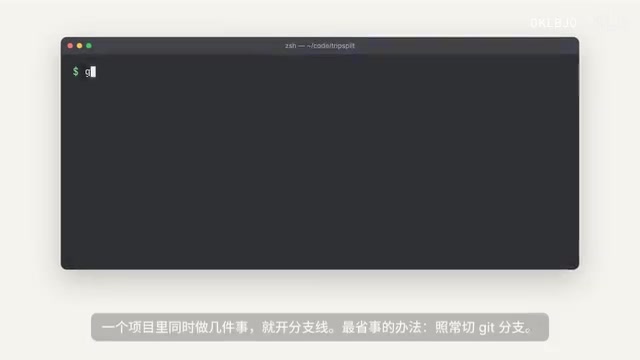
The easiest approach is to switch Git branches as usual — the map automatically splits off a new line, and sessions on that branch are recorded on it. You can also branch on the canvas yourself: click any station to fork from there and give it a name to create a branch; for an entirely new line, click New Thread in the toolbar, or simply tell the agent "branch a line called Dark Mode from TripSplit and put yourself on it." Whichever project and branch an agent is started in, it automatically appears on that line; to switch lines, click it in the real-time bar, change the assigned line in the panel, or say "put yourself on the Currencies line." To start a new agent directly on a certain line, use the to-do's "Hand to him."
Gather All Agents on the Computer into One Map
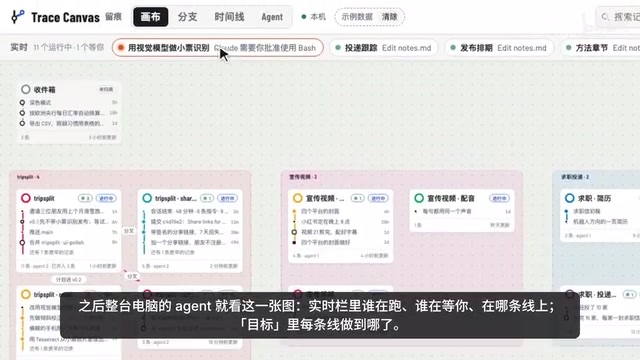
Suppose there are four projects on your computer: a bookkeeping app, a graduation thesis, a job search, and a promotional video — and several agents have been started in each. In any window, say "put the sessions from these projects all onto the canvas." It finds the sessions in each folder, confirms with you once, and puts them all up — one line per folder, with branches split out accordingly. It's a bit messy at first, so ask it to organize by project group; it will also make suggestions — for example, the thesis's data analysis in another folder is actually the same thing, so merge them into one line — and it only acts after confirmation. Once grouped, click organize: one box per project, with branches following right after their original line. From then on, sessions from both folders are recorded on this line, each session carries its folder, and a new agent reading this line knows which folder to work in.
Reading the Canvas: Five Station Types and Two Views
On the canvas, one card is one line, showing its stations. There are five station types: idea, task, agent, decision, and note; dark ones are written by you, colored ones by agents. Finished branches merge back into the main line, and the card says "merged n", so nothing is lost.
The branch-style view is a GET graph: all records arranged by time, one lane per line, with a small marker at the front of each row — a person icon means you wrote it, a star means an agent wrote it, and next to it is which agent. Click a line to highlight it; the panel shows that line's goals, sessions, and all stations. If you only want to see what was decided at the time, just view decisions and notes — the line stays complete, with the matching stations glowing. The timeline view shows which days each line was active, switchable by day, week, or month; when there are many projects, focus on just one, and collapse less-used groups.
GET graph here refers to a graph structure that arranges event records in chronological order (Graph of Events over Time), with one lane per line and all stations laid out horizontally by occurrence time. This view makes it easy to trace "who did what and when," rather than showing dependencies between tasks. Unlike common Gantt charts or kanban boards, a GET graph doesn't emphasize plans and deadlines but faithfully records interactions that have already happened, so both humans and agents can reconstruct the project's history from it. Combined with lanes and small markers (person/star), it quickly distinguishes human operations from agent operations.
Session Logging and Recovery
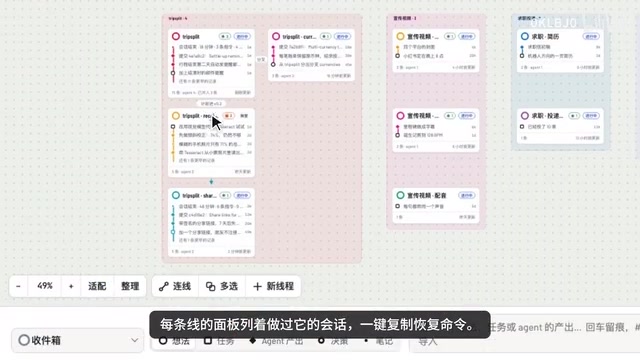
Once installed, you don't need to do anything — just work with agents as usual. Hooks automatically record the first instruction, which files were changed, and every commit, plus a summary at the end of the session. To have Claude write a few key points itself, type the slash command trace canvas, or say "put this session onto the canvas." The real-time bar in the header shows the sessions currently running, with those awaiting your approval first; the agent's view shows who started whom; each line's panel lists the sessions that worked on it, with one-click copy of the recovery command, and you can also jump directly back to that conversation or terminal window.
Hooks is an event hook mechanism provided by Claude Code that allows specified commands to be executed automatically at key points such as session start, tool calls, file modifications, commits, and session end. Trace Canvas uses Hooks to silently record the first instruction, file changes, and commit messages in the background, with no manual action required. This design turns "logging" from a burden into the default behavior, ensuring the completeness and real-time nature of the canvas data. At the same time, Hooks record structured events rather than full conversation text, which both protects privacy and makes later retrieval and review easier.
Goals and To-dos: A New Agent Catches Up in Seconds
First write a goal for the line — what this line should ultimately achieve. The goal in the header opens a checklist; each line's goal progress bar and to-dos are on the main page, and you can also record on your phone, noting occasional thoughts under the corresponding project's goal. Each to-do can be assigned to someone: hand it to him, copy the launch command and open it in the terminal, and he starts working directly on this line; or tell an agent "dispatch every line" — new to-dos go to the agent working on that line, running ones get a message, stalled ones are resumed, and ones with no owner get a new agent, which checks them off when done. When a new agent starts, it first reads this line's goals, to-dos, and every previous result and decision through MCP, catching up in seconds without you explaining from scratch.
Commits and Diff: No Code Stored in the Canvas
The agent says it's done — but what exactly changed? Open a commit station: changed files are sorted by amount of change, and clicking a file shows the diff, comparing what changed between two commits. The canvas doesn't store code; it asks Git when opened, so what you see always matches the repository.
Stagnation Detection and Review
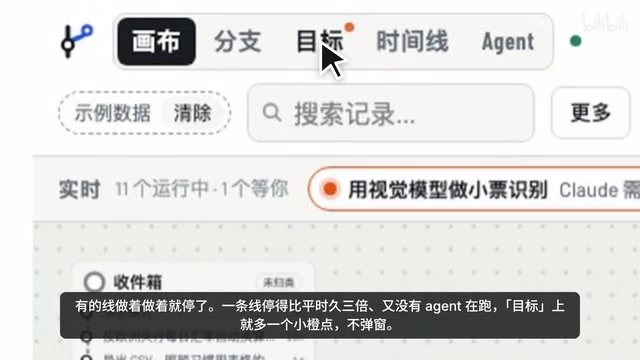
Some lines stall as they sit: if a line has been stalled much longer than usual and no agent is running, a small dot appears on the goal — no pop-up. Click it and the top row shows the quiet lines, each marked with how many days it's been stalled. Click one and it asks just one question: "Done?" — complete, on hold, or still working. Click "AI review" and Claude reads each line, suggesting which to merge, which to wrap up, and which to-dos are actually done; each has a button, and nothing changes until you click.
Review targets the things with the most back-and-forth: in the line panel, click Review, which by default continues from last time, reads this line's conversations, ranks each matter by number of rounds, writes out where each high-back-and-forth matter got stuck and which sentence finally clarified it, then gives a rule; only when you click "Write" does it go into the project rules or long-term memory, so next time even a different agent gets through in one round.
Multi-Machine Collaboration and Wrapping Up
Research on a laptop, training on a workstation, a quick glance on your phone — agents across several devices can also be coordinated on one map. Give each machine a name, point them to the same private Git repository, sync once, and they share one canvas; after that, it syncs automatically in the background every two minutes. Each station is labeled with the name of the machine that wrote it. To-dos can specify a machine; when dispatched, they go to the session on that line on that machine, remotely waking sessions on other computers, and the real-time bar shows agents running on both sides.
If it's too harsh on the eyes after a while, switch to the Ulan theme, and line colors soften accordingly; when a new version is available, you'll be prompted and can update with one click. Trace Canvas's positioning is clear — a map that both humans and agents can understand, not yet another task manager.
One-line Summary
Trace Canvas manages multiple AI agents with a subway map, making project progress clear at a glance.
Paragraph Summary
Trace Canvas 0.3.0 is a locally running, zero-dependency open-source tool that gathers multiple AI agent sessions into a visual "subway map." Each project is a line, branches are subtasks, and stations record ideas, tasks, agents, decisions, and notes. Through automatic Hooks logging and MCP tools, agents can read and write the canvas, and new agents catch up in seconds. It also offers stagnation detection, review, and multi-machine sync, helping users coordinate agents on laptops, workstations, and phones. Its positioning is "a map both humans and agents can understand," not a task manager.
Related articles

AI Tools Quietly Altering Settings: Postman Silently Installs Plugin, Codex Sharing Option Auto-Resets
AI Daily reports: Postman silently installs a Mac plugin and self-approves startup hooks, logged as auto-existing upgrade; Hacker News developers say Codex data-sharing opt-out flips back. Plus Simon Willison's raw float weight experiment with QEN 3.8-27B.

AI Learns to Rewrite AI: MIT's "Weightspace Programming" Redraws the Path to Recursive Self-Improvement
MIT team proposes weightspace programming: GPT-6 Astra reads and edits AI model weights directly. Math scores jump several-fold, hand-written networks beat trained models. Eight experiments analyzed, plus Anthropic's same-day warning and the real boundaries of recursive self-improvement.

Running Qwen 3.8 on a Laptop to Read Raw Weights: 46 Minutes Per Answer
Simon Willison reproduced weight space programming with Qwen 3.8 27B on a laptop: a 17GB model file, 46 minutes per answer, 43,506 reasoning tokens, Pong over an hour, Freeway failed. Suited for interpretability researchers.