Building E-commerce Videos with Coze Workflows: A Hands-On Tutorial with Seedance and Happy Horse
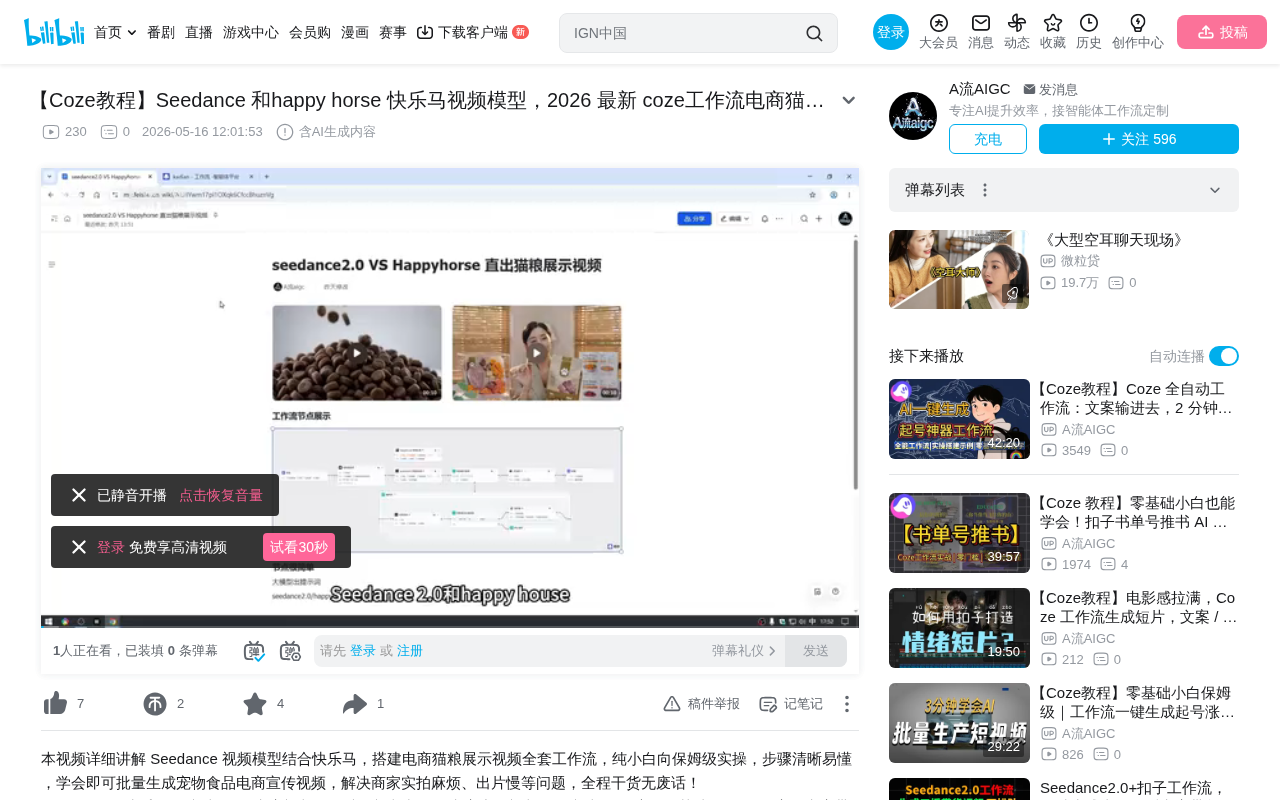
Build automated e-commerce product videos using Coze workflows with Seedance and Happy Horse plugins.
This article explains how to use the Coze workflow platform with Seedance 2.0 or Happy Horse video generation plugins to build an automated e-commerce product video pipeline. The core architecture flows from input parameters → LLM prompt generation → video generation plugin → loop query for results → video link output, with detailed guidance on node configuration and plugin selection.
Overview
Using the Coze workflow platform combined with Seedance 2.0 or Happy Horse video generation plugins, you can quickly build an automated pipeline for creating e-commerce product showcase videos. This article uses a cat food advertisement as an example to walk through every step from workflow creation to video generation.
Overall Architecture of the Coze Workflow
Coze is an AI application development platform launched by ByteDance. It allows users to chain together LLMs, plugins, code, and other components through a visual workflow editor to build automated AI applications. Its core advantages are a low-code barrier to entry and a rich plugin ecosystem, enabling non-developers to quickly build complex AI processing pipelines.
The core logic of the entire workflow is straightforward: Start Node (input parameters) → LLM generates video prompt → Video generation plugin → Loop to query results → Output video link.
There are only two core stages: prompt generation and video generation. The subsequent task querying is optional, since you can also look up results directly on the web interface using the task ID.
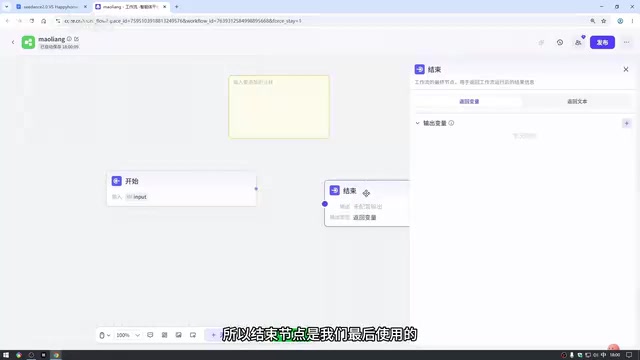
Start Node Configuration
The start node requires four input variables:
- Video duration: Integer type; Seedance supports 4–15 seconds
- Brand name: String type, e.g., the cat food brand name
- Aspect ratio: String type, e.g., 16:9 or 9:16
- API key: String type, required for calling third-party plugins
Pay attention to variable type selection — duration should be set as an integer to restrict input to numbers only. If you have a real product photo, you can also add an image-type reference image variable.
LLM Prompt Generation Configuration
Model Selection and Parameter Settings
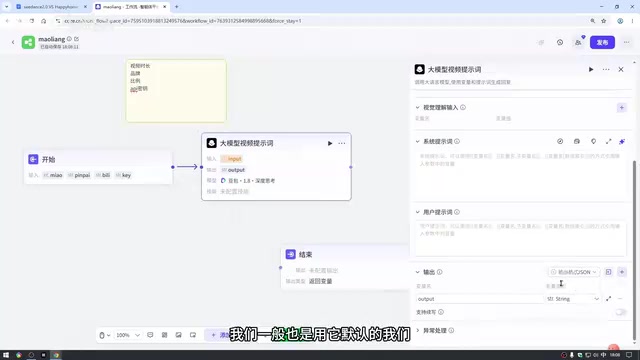
Doubao 2.0 mini is recommended. Key configurations include:
- Disable deep thinking: The task is simple, and disabling this significantly improves execution speed
- Temperature setting: Between 0.3–0.5, balancing precision with moderate creativity
- Max reply length: Set it generously to prevent output truncation errors
Regarding the temperature parameter, it is a core sampling parameter during LLM inference that controls output randomness. Lower values (e.g., 0.1–0.3) produce more deterministic and conservative outputs; higher values (e.g., 0.7–1.0) yield more diverse and creative outputs but may also produce incoherent content. For structured prompt generation tasks, 0.3–0.5 is a good balance point — it ensures stable output formatting while allowing some variation in ad creativity.
The system prompt has a pre-written camera language template for creative cat food ads. The user prompt simply references the brand variable. The shortcut for referencing variables is pressing Shift + { with the English input method active.
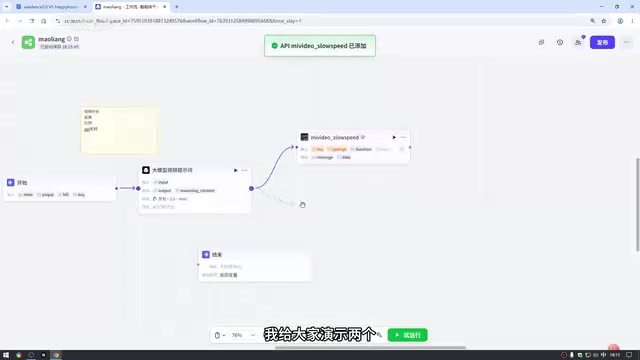
Seedance vs. Happy Horse Video Generation Plugins
Seedance 2.0 Plugin
Seedance is ByteDance's AI video generation model, built on a Diffusion Model architecture. It supports both Text-to-Video and Image-to-Video modes. Version 2.0 brings significant improvements in motion consistency, image quality, and physical realism. The diffusion model works by starting from random noise and gradually denoising to generate the target content, which enables coherent and high-quality frame transitions in video generation.
You can find it in the Coze plugin library by sorting by "Recently Published." It comes in a fast version and a slow version. The slow version is recommended — it consumes only half the compute of the fast version, generates a 15-second video in about 5–10 minutes, and is actually faster than the web interface. It supports the all-purpose reference mode (default), with configurations including API Key, prompt, duration, aspect ratio, and reference image.
Happy Horse Plugin
The configuration is essentially the same as Seedance, referencing the same variables. Both consume similar amounts of compute, and each has its own strengths — it's best to test and compare them in practice.
Reference Image Handling Tips
The plugin requires reference images in array format, but the start node passes in a single image. The solution is to add a "String to List" function from the "Simple Assistant" utility before the video generation node, converting the single image into an array format.
Loop Querying and Video Result Output
Task Query Mechanism
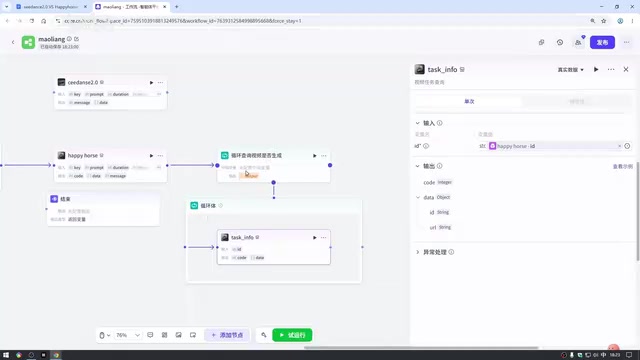
After video generation, a task ID is returned. A loop query node checks whether the task is complete:
- Set the loop type to infinite loop
- Add the corresponding plugin's task query node inside the loop body (note that Seedance and Happy Horse use different query nodes)
- Add a selector to check whether the returned URL is empty
- If no result is found, use a timer to wait 60 seconds before retrying to avoid triggering rate limits
- Once a result is found, exit via a break loop node
This polling mechanism is a common pattern for asynchronous task processing. Since video generation is computationally intensive, the server handles it asynchronously — it returns a task ID first, and the client periodically queries the status until completion. A 60-second wait interval strikes a good balance between timely results and avoiding API rate limiting from overly frequent requests.
Deduplicating Results
Since multiple queries may produce multiple outputs (some of which are empty), you can use the "Remove Empty Values from Array" function in the "Common Code Blocks" utility to ensure only valid video links are included in the final output.
Practical Tips and Notes
- During testing, use 720p resolution to save compute
- Before building, write clear notes for each node's logic — it's a good habit to develop
- If you don't need loop querying, you can simply use the task ID to check results on the web interface's task query page
Key Takeaways
- The workflow core consists of just two nodes: LLM prompt generation + video generation plugin
- Seedance 2.0 slow version offers better value, consuming half the compute of the fast version
- Reference images must be converted to array format using a string-to-list tool before being passed to the plugin
- Loop querying should include a 60-second timer to avoid triggering rate limits
- Seedance and Happy Horse each have their own strengths, with similar compute consumption
Related articles
 Tutorials
Cursor + Codex Dual-IDE Collaboration: A Practical Methodology for Open-Source Project Customization
A complete methodology for open-source project customization based on real-world experience, detailing the Cursor+Codex dual-IDE workflow, seven-stage process, MVP validation, and AI source code reading techniques.
 Tutorials
Cursor Multi-Agent in Practice: Building a Full-Stack Next.js Blog in 50 Minutes
Build a full-stack blog in 50 minutes using Cursor IDE's multi-Agent mode with Next.js, Clerk auth, and Supabase. Learn the 4-phase AI Agent workflow and key integration pitfalls.
 Tutorials
Building an AI Software Factory from Scratch: A Cursor Engineer's Hands-On Experience with Multi-Agent Collaboration
Cursor engineer Eric shares practical insights on building an AI software factory: automation levels, guardrail design, parallel Agent management, and scaling to 1000+ Agents for 24/7 development.