Codex Desktop App Hands-On Tutorial: 15 Use Cases from Beginner to Advanced
Codex Desktop App Hands-On Tutorial: 1…
A complete guide to 15 core use cases for OpenAI's Codex desktop app, from beginner to advanced.
OpenAI's Codex desktop app goes beyond traditional AI coding tools — it writes code, manipulates local files, controls browsers, and even operates your entire computer. This article covers 15 core use cases including file management, full website development workflows (Plan Mode + Annotation Editing + One-Click Deployment), browser control & data scraping, Computer Use, the Skills system, MCP services, automated tasks, memory mechanisms, code review, and mobile remote control, showcasing AI's evolution from code assistant to all-in-one work partner.
OpenAI's Codex desktop application is reshaping the landscape of AI programming tools. Unlike Cursor and Claude Code, which primarily focus on code editing, Codex can not only write code but also directly manipulate local files, control browsers, and even operate your entire computer. Based on a hands-on tutorial by Chinese tech YouTuber Yupi, this article systematically covers 15 core use cases for Codex from beginner to advanced, helping you quickly master this all-in-one AI assistant.
Getting Started: Installation & Basic Setup
The barrier to entry for Codex is low: all you need is a ChatGPT account to try it for free. A Plus subscription ($20/month) is recommended for more generous usage limits. It currently supports macOS and Windows — just download from the official website, install, and log in.
The interface is refreshingly clean — a feature panel on the left (conversation management, plugins, automation, etc.), a conversation window in the center, with none of the complexity of a traditional IDE. Zero learning curve to get started.
Regarding usage limits, Codex restricts usage across two dimensions: 5-hour and weekly quotas. You can check remaining quota in settings or type /status in the chat box for a quick view. Plus users will find the limits more than adequate for daily use.
File Management: Handle Local Files with a Single Command
Codex's real power lies in manipulating local files. Click the "Projects" entry on the left, select a local folder as your workspace, and the AI can read and operate on files within that scope.
There are three permission modes:
- Default Permissions: AI can read and edit workspace files, and will ask before requiring additional permissions
- Auto-Review: AI automatically reviews operations, saving time and effort
- Full Access: AI executes all operations autonomously without confirmation
In testing, after selecting auto-review mode and asking the AI to scan the Downloads folder, it automatically executed terminal commands to analyze file sizes, generated a clear cleanup report, and ultimately freed up 6.8GB of space. What used to take half a day of manual work is now done with a single sentence.
Website Development: Complete Workflow from Planning to Deployment
This is where Codex truly shines. Taking the creation of a personal digital business card website as an example, the entire process requires almost no manual intervention.
Plan Mode: Think Before You Act
Before development, make sure to enable "Plan Mode." With it on, the AI won't jump straight into coding — instead, it first helps you plan the approach, asks clarifying questions, and only starts building after confirmation. This is especially important for complex projects.

In testing, the AI first generated a complete implementation plan document (including overview, core requirements, and test plan). After confirming the approach, it began working autonomously: using the built-in image generation skill to create a cartoon avatar, writing multiple code files, independently opening a browser to test and verify — the entire process took about 7 minutes.
Annotation Editing: What You See Is What You Change
After the AI generates a website, you can have it start a development server and preview the result in the built-in browser on the right. If something doesn't look right, click the "Annotate" button in the top-right corner of the browser, select the element you want to modify directly on the page, write your feedback, and send it to the AI. It will automatically locate the corresponding code and make precise changes. No need to dig through code yourself — just refresh to see the results.
One-Click Deployment
After installing the Netlify plugin, a single sentence deploys your website online. Call the plugin via @Netlify in the conversation, and the AI will automatically create the project and complete deployment, generating a shareable link.
Browser Control & Data Scraping
Codex offers two browser control methods:
Built-in Browser Use: Enable it in settings, then invoke via @browser. You can have the AI automatically open web pages, click, fill forms, paginate, take screenshots, and more.
Chrome Extension Plugin: Controls the Chrome browser already logged in on your computer, preserving login states and capable of running in the background. Ideal for operations requiring authentication, such as batch analyzing and managing data behind a login.

In testing, the AI not only connected to the local Chrome browser but also detected already-open tabs, automatically navigated to a personal profile page to scrape data, and generated a clean, complete table — even including image icons.
Computer Use: Control Your Entire Computer
Computer Use lets the AI see screen content, move the mouse, click buttons, type, and even operate desktop applications like WeChat and Feishu (Lark).
In testing, the AI was asked to generate a new wallpaper in a similar style to the current desktop wallpaper — the result was quite impressive. An even more practical scenario: having the AI open the Notes app to record notes, download songs from a music app, and add them to notes — all operated autonomously by the AI.
However, there are several limitations to note: currently macOS only; operation efficiency is low; very token-intensive (a simple task consumed nearly 80,000 context tokens); some software has poor Agent support. If a task can be accomplished via terminal commands or browser, avoid using Computer Use.
Skills System: Making AI Better Over Time
Skills are "skill packs" provided to the AI, loaded on demand and only invoked when tasks match — no wasted context space.
Using Built-in Skills
Type $skill_name in the chat box to quickly invoke a skill. For example, use the image generation skill with a prompt template to generate high-quality images.
Installing Community Skills
The community offers many valuable skills: Firecrawl (web search), Context7 (fetching latest technical documentation), UI-UX Pro Max (beautifying frontend pages), and more. When installing, be security-conscious — for lesser-known skills, send the GitHub link to Codex for a security check before installing.
Custom Skills
A skill is essentially a skill.md description file plus supporting scripts. The best approach is to first run through the task workflow manually, and once satisfied, use the built-in Skill Creator skill to auto-generate it. For similar future tasks, reuse with one click — no need to write lengthy prompts every time.
MCP Services: AI's Universal Connector
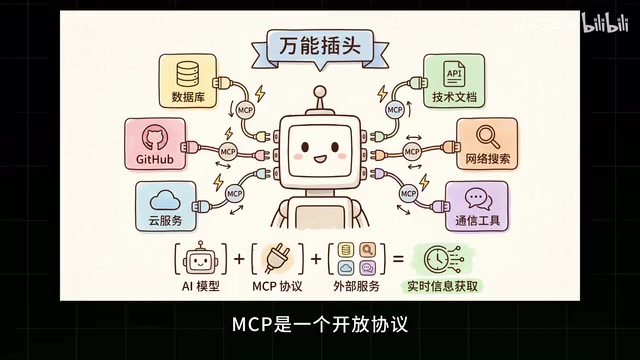
MCP is an open protocol for AI that connects it to various external tools and data sources. Taking Context7 as an example, a single terminal command installs it. Afterward, when developing websites, you can fetch the latest technical documentation in real-time. It also works as a learning assistant — the AI provides precise troubleshooting steps based on official documentation, so you never have to worry about finding outdated information.
Automated Tasks: Let AI Work on a Schedule
Go to the "Automation" panel on the left to create scheduled tasks. Two methods:
- Manual Creation: Fill in task name, prompt, trigger time, model, and other parameters
- Natural Language Creation: Simply tell the AI what task you want automated
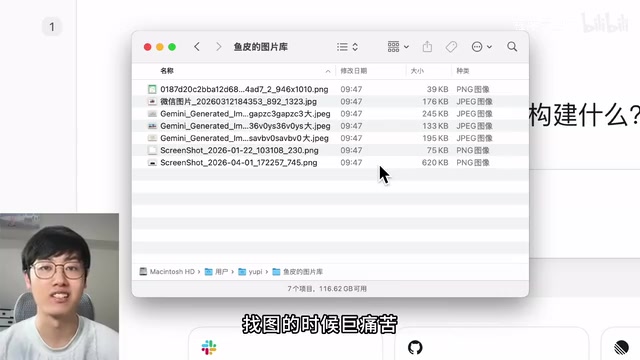
A practical example: as a content creator who takes tons of screenshots daily with messy filenames, having Codex create an auto-organization task means the AI will automatically rename files based on image content with human-readable names. After each execution, it writes the run log to a Memory file for easy review.
More combination ideas: auto-generate weekly report PPTs, daily organize study notes and sync to Notion, weekly scrape competitor website updates and generate analysis reports, and more.
Advanced Features at a Glance
Memory System
Three levels: Global Memory (Settings > Personalization, applies to all projects), Project Memory (agents.md file in the project root), and Auto Memory (AI automatically summarizes useful information from conversations). The more you use it, the better it understands you.
Code Review & Version Control
Codex uses Git under the hood to manage file changes. In the sidebar review panel, you can decide file by file, code block by code block, whether to keep or revert changes. It also has built-in capabilities for committing code, pushing to remote repositories, and creating PRs.
Worktree Mode
When creating a new conversation, select "New Worktree" — the AI works in an isolated branch without affecting current code. Perfect for multiple Agents working in parallel on the same project.
Mobile Remote Control
Generate a QR code in Codex desktop settings, scan it with the ChatGPT mobile app to connect, and you can issue tasks, approve operations, and check progress from anywhere.
Summary & Recommendations
The core advantage of the Codex desktop app is that it breaks down the barrier between AI and your local environment — it's not just a code editor, but an all-in-one assistant that can control files, browsers, and desktop applications. For developers, the Plan Mode + Annotation Editing + One-Click Deployment workflow is highly efficient. For non-technical users, file management, automated tasks, and data scraping are equally practical.
That said, keep in mind: Computer Use isn't mature enough yet, context consumption needs careful management, and Plan Mode should be enabled for complex tasks to prevent the AI from going off track. Overall, Codex represents the evolution of AI programming tools from "code assistant" to "all-in-one work partner" — well worth exploring for every developer and productivity enthusiast.
Related articles
 Tutorials
Cursor + Codex Dual-IDE Collaboration: A Practical Methodology for Open-Source Project Customization
A complete methodology for open-source project customization based on real-world experience, detailing the Cursor+Codex dual-IDE workflow, seven-stage process, MVP validation, and AI source code reading techniques.
 Tutorials
Cursor Multi-Agent in Practice: Building a Full-Stack Next.js Blog in 50 Minutes
Build a full-stack blog in 50 minutes using Cursor IDE's multi-Agent mode with Next.js, Clerk auth, and Supabase. Learn the 4-phase AI Agent workflow and key integration pitfalls.
 Tutorials
Building an AI Software Factory from Scratch: A Cursor Engineer's Hands-On Experience with Multi-Agent Collaboration
Cursor engineer Eric shares practical insights on building an AI software factory: automation levels, guardrail design, parallel Agent management, and scaling to 1000+ Agents for 24/7 development.