Cursor 1.0 Getting Started Guide: Complete Workflow from Installation to MCP Setup

Complete guide to Cursor 1.0: from installation and configuration to MCP setup and AI chat tips.
This article systematically covers the complete Cursor 1.0 workflow, including download/installation, language configuration, MCP protocol setup, and AI conversation techniques. Key points: use folders as project units, leverage Agent mode with Claude Sonnet model, extend AI capabilities through MCP, and optimize AI interactions using three file referencing methods.
After upgrading to version 1.0, Cursor's interface underwent a major overhaul. Many existing users reported that their familiar workflows were disrupted and feature entry points had changed. This article walks through the complete process of installing, configuring, setting up MCP, and using AI conversations in Cursor 1.0 from scratch, helping newcomers quickly get up to speed with this AI programming tool.
Download, Installation & Initial Configuration
Download and Installation
Visit cursor.com — the page will automatically detect your operating system. macOS users click "Download for macOS," while Windows users click the corresponding button. No need to worry about other version options; just download the latest version.
After installation, open Cursor and you'll see a clean initial page with four core buttons:
- Open Folder: Where all project files are stored
- Terminal Button: For developers; beginners can ignore this for now
- AI Chat Window: The core entry point for daily use
- Settings: Contains all Cursor configuration options
Setting Up Chinese Language
For Chinese-speaking users, the first step is installing the Chinese language pack. Click the "Install Extensions" button in the left folder panel, type Chinese in the search box, find the Chinese language pack (usually the third item in the list), and click install.
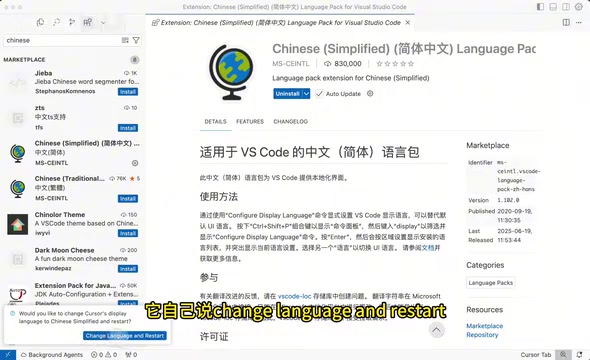
After installation, click "Change language and restart" to restart Cursor, and most of the interface will switch to Chinese. However, since the plugin was adapted for an earlier version, some settings may still appear in English — this is normal.
Setting AI Chinese Response Rules
Even with a Chinese interface, the AI may still respond in English by default. You need to manually add a rule to fix this:
- Click the "Settings" button
- Find the Rules option
- Click "Add Rule" under "User Rules"
- Enter the instruction: 用中文回复 (Reply in Chinese)
- Click Done to save
After completing these two steps, all subsequent AI conversations will be conducted in Chinese, essentially eliminating the language barrier.
Understanding How Cursor Works
Folders as the Working Unit
Unlike single-file editors like PowerPoint, Cursor is designed to work with folders as the primary unit. Opening a folder is equivalent to opening a complete project workspace — all files within it are recognized and managed by Cursor. This design inherits the "workspace" concept from VS Code — Cursor is built on the VS Code core, so the "folder equals project" logic will feel very familiar to users with development experience.
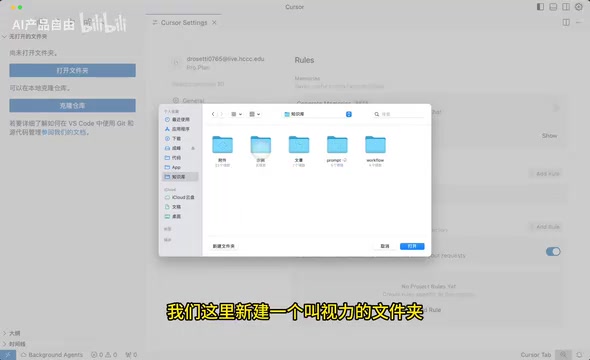
The folder panel has four common operations:
- New File: For example, creating
示例.md - New Folder: Create subdirectories; you can drag and drop to organize file structure
- Refresh: Reload all resources in the folder
- Collapse: Collapse the folder tree structure
Why .md Format is Recommended
You'll notice many files use .md (Markdown) as their extension. Markdown is a lightweight markup language co-designed by John Gruber and Aaron Swartz in 2004, originally intended to let people "write documents in an easy-to-read, easy-to-write plain text format that can be converted into valid HTML." Its syntax is extremely concise — # for headings, ** for bold, - for lists — and remains highly readable even without rendering.
Markdown format has excellent readability for AI because its structured semantic markup helps language models more accurately identify document hierarchy, distinguish code from body text, and understand content logic relationships. Currently, mainstream platforms like GitHub, Notion, and Obsidian all use Markdown as their core document format. Mastering Markdown has become a fundamental skill for knowledge workers and is one of the most widely used document formats among programmers.
If you need to use files outside of Cursor, you can right-click a file and select "Reveal in Finder" (or "Show in Folder" on Windows) to locate and open it in your system file manager.
MCP Configuration in Detail
What is MCP
MCP (Model Context Protocol) is an open protocol standard released by Anthropic in late 2024. Its core goal is to solve the "connection fragmentation" problem between AI models and external tools/data sources — before MCP, every AI application needed to develop separate integration solutions for different external services (such as databases, file systems, and third-party APIs), resulting in extremely high maintenance costs. MCP provides a unified communication specification that allows AI models to invoke any external capability through standardized interfaces, similar to how USB unified hardware connections. In Cursor, MCP enables AI to go beyond code editing — it can operate browsers, read/write databases, call third-party services, and more, greatly expanding the capability boundaries of AI programming assistants.
Disabling MCP Protection Prompts
The default protection prompts will frequently pop up confirmation dialogs, affecting the user experience. It's recommended to disable them before you start:
- Click "Settings"
- Find the Chat option
- Scroll down to find "Auto Run"
- Find MCP Tools Protection and turn it off
This option is enabled by default. Once disabled, MCP tools will execute automatically without prompting for confirmation each time.
Adding MCP Services
In Settings, find Tools and Integrations — you'll see the MCP Tools area. On first use, this will be empty, and you'll need to click "Add Custom MCP" to add services.
MCP configuration is essentially a JSON file that can register multiple MCP services. Each MCP contains three key pieces of information:
- Name: The identifier for the MCP service
- Startup Method: How to launch the service
- Parameters: Specific parameters for the startup method
Multiple MCPs are separated by commas. Manually organizing these configurations can be tedious. A practical tip is to let AI generate and organize your MCP configuration — simply describe the MCP functionality you need in a conversation, and the AI will output correctly formatted configuration code.
Tips for Using the AI Chat Window
Mode Selection
Cursor 1.0's AI chat window offers three modes:
| Mode | Description | Recommendation |
|---|---|---|
| Agent | Autonomous agent mode, fully automated execution | ⭐⭐⭐ Highly recommended |
| Ask | Standard conversation mode | Rarely needed |
| Manual | Manual mode | Rarely needed |
Agent mode represents a significant evolution in AI interaction paradigms. Traditional AI conversations follow a single-turn "question and answer" pattern, while Agent mode introduces a "plan-execute-reflect" loop mechanism: the AI breaks complex tasks into multiple sub-steps, sequentially invokes tools to execute them, and dynamically adjusts subsequent plans based on execution results. This concept originates from the academic ReAct (Reasoning + Acting) framework. In Cursor's Agent mode, AI can autonomously complete the entire development pipeline of "read files → analyze requirements → write code → run tests → fix errors," with users only needing to confirm at key checkpoints. This dramatically lowers the programming barrier. For the vast majority of use cases, simply select Agent mode.
Model Selection
For model selection, it's recommended to disable Auto (which automatically selects cheaper but less capable models) and Max (which requires additional payment), and directly choose Claude Sonnet as your default model.
Claude is a large language model series developed by AI safety company Anthropic. Anthropic was founded in 2021 by former core OpenAI members, focusing on AI safety research. Their proposed "Constitutional AI" training method aims to make models better aligned with human values. The Claude model series comes in three tiers: Haiku (lightweight and fast), Sonnet (balanced), and Opus (most powerful). The Sonnet version strikes an excellent balance between reasoning capability, code generation quality, and response speed, supporting up to 200K tokens of ultra-long context processing. It offers the best cost-performance ratio for development scenarios and is Cursor's officially recommended default model.
Three Ways to Reference Files
The effectiveness of AI conversations largely depends on the context you provide. Cursor offers three ways to reference files:
- Selection Reference: Select content in the editor, right-click and choose "Add to Chat" — the selected text is automatically added to the chat
- Manual Addition: Click the Add button in the chat window, select Files, and choose the files or folders you want to reference from the file list
- Drag and Drop: The most convenient method — simply drag files from the folder panel directly into the chat window
After referencing files, you can ask the AI questions directly. For example, type "Tell me what's in here," and the AI will analyze the referenced file content and provide an answer.
Usage Quota & Notes
Newly registered Cursor users receive 500 free usage credits, which is more than enough for initial learning and experimentation. If you exhaust the free quota, you can opt for an official subscription or obtain credits through third-party channels.
Overall, while Cursor 1.0's interface has changed dramatically, its core logic is clearer than ever: folders as project units, Agent mode as the primary interaction method, and MCP to extend AI's capability boundaries. Once you've mastered these basic operations, you'll have the fundamental skills needed for AI-assisted development.
Key Takeaways
- Cursor 1.0's redesigned interface centers around four buttons: Folder, Terminal, AI Chat, and Settings
- A complete Chinese experience can be achieved by installing the Chinese plugin and setting user rules
- MCP (Model Context Protocol) is an open standard by Anthropic that lets AI call external tools through unified interfaces; disable protection prompts for efficiency and use AI to auto-generate configuration code
- Use Agent mode with Claude Sonnet model for fully automated "plan-execute-reflect" operations
- Three ways to reference files: selection, manual addition, and drag-and-drop (drag-and-drop being the most convenient)
- Markdown (.md) format offers the best readability for AI collaboration due to its structured semantic markup
Related articles
 Tutorials
Cursor + Codex Dual-IDE Collaboration: A Practical Methodology for Open-Source Project Customization
A complete methodology for open-source project customization based on real-world experience, detailing the Cursor+Codex dual-IDE workflow, seven-stage process, MVP validation, and AI source code reading techniques.
 Tutorials
Cursor Multi-Agent in Practice: Building a Full-Stack Next.js Blog in 50 Minutes
Build a full-stack blog in 50 minutes using Cursor IDE's multi-Agent mode with Next.js, Clerk auth, and Supabase. Learn the 4-phase AI Agent workflow and key integration pitfalls.
 Tutorials
Building an AI Software Factory from Scratch: A Cursor Engineer's Hands-On Experience with Multi-Agent Collaboration
Cursor engineer Eric shares practical insights on building an AI software factory: automation levels, guardrail design, parallel Agent management, and scaling to 1000+ Agents for 24/7 development.