The Complete Guide to Cursor 2.0: Plan, Agent, and Ask — Three AI Modes Explained
The Complete Guide to Cursor 2.0: Plan…
A comprehensive guide to Cursor 2.0's three AI modes and core features for efficient development.
Cursor 2.0, an AI-enhanced fork of VS Code, introduces Agent/Editor dual views and three AI modes: Plan mode generates a development plan before execution, Agent mode fully automates code generation but requires careful review, and Ask mode provides Q&A without modifying files. Combined with inline editing, smart autocomplete, @ context references, project rules, Git version control, and MCP extensions, it forms an efficient workflow of Plan → Agent Execute → Ask Verify → Review → Git Save.
After the release of Cursor 2.0, the interface underwent a major overhaul, leaving many newcomers confused the moment they open it. As an AI-enhanced fork of VS Code, Cursor's core competitive advantage lies in deeply integrating AI into the coding workflow.
The Relationship Between Cursor and VS Code: Cursor is a fork built on VS Code's open-source codebase (VSCodium), fully inheriting VS Code's plugin ecosystem and keyboard shortcuts while deeply integrating large language model capabilities at the architectural level. This "fork" strategy allows developers to migrate with virtually zero additional learning cost, while enabling the Cursor team to bypass Microsoft's product limitations and embed AI capabilities at the editor's lowest level — this is the fundamental difference between Cursor and plugin-based solutions like GitHub Copilot.
This article systematically covers Cursor 2.0's three AI modes (Plan, Agent, Ask) and key features to help you quickly get up to speed with this currently most popular AI code editor.
Interface Overview: Agent View and Editor View
One of the biggest changes in Cursor 2.0 is the introduction of a dual-view switching mechanism. At the top, you'll see two tabs — Agent and Editor:
- Agent View: Centered around a conversation window, you can input prompts like using ChatGPT and have AI generate code directly. This is also where you manage multiple parallel Agents.
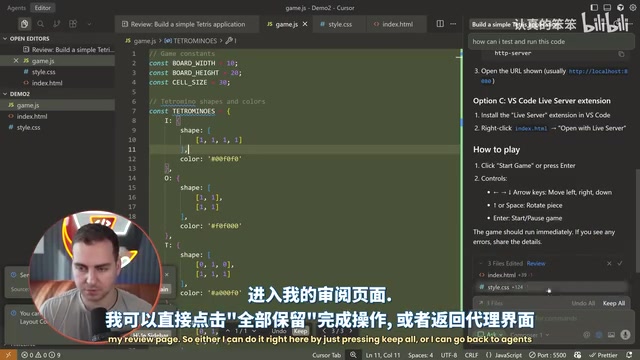
- Editor View: Closer to the traditional code editor experience, allowing you to directly view and edit files — ideal for code review and manual modifications.
In the upper-left corner, there's a set of toggle buttons that control the visibility of the Agent sidebar, terminal panel, and right-side editor. The layout is highly flexible, with all panels supporting drag-and-drop and resizing.
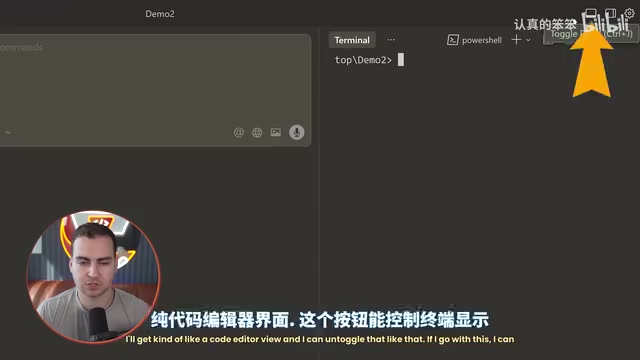
Notably, Cursor 2.0 introduced its proprietary model Composer, which the team claims is four times faster than comparable models. It also added the ability to run multiple Agents in parallel, executing multiple code generation tasks simultaneously to dramatically boost development efficiency.
The Three AI Modes Explained
Plan Mode: Plan Before You Build
Plan mode is the most recommended mode during the project kickoff phase. It doesn't generate code directly — instead, it first outputs a structured development plan (presented as a Markdown file).
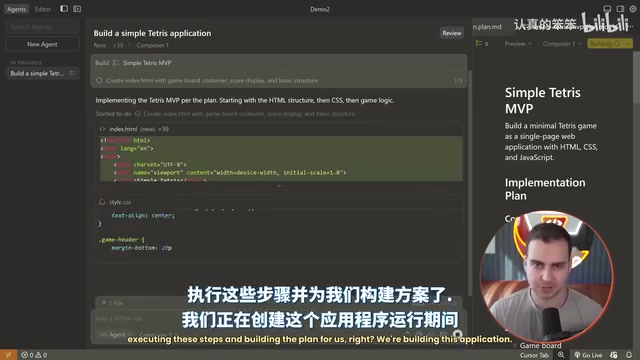
Taking the example of building a browser-based Tetris game, after entering your requirements, Plan mode generates a development plan with 9 to-do items. You can:
- Review the plan content to confirm it meets expectations
- Ask the model to adjust the plan, or edit it manually
- Once confirmed, click the Build button, and the system will automatically create a new Agent to execute the plan step by step
Key Advice: Before using any AI mode, think clearly about what you want to build. Is it a website, a game, a backend tool, or a server-side application? For visual projects, it's best to prepare wireframes or design mockups. The more specific your requirements, the higher the quality of AI output.
Agent Mode: Fully Automated Code Generation
Agent mode is Cursor's most powerful — and most cautiously used — mode. It directly modifies files, creates new files, and runs commands. Essentially, it's an autonomous programming AI agent.
The Technical Principles Behind Agent: Agent mode relies on a large model capability called "Tool Calling." The model can not only generate text but also invoke predefined tool functions — such as reading files, writing files, and executing terminal commands. Cursor wraps these tools and exposes them to the model, enabling it to complete multi-step tasks like a human programmer. This also explains why Agent mode carries higher risk: it has real file system operation permissions, and a single instruction can trigger cascading modifications across dozens of files.
When using Agent mode, keep the following in mind:
- Code takes effect immediately: Code generated by the Agent is written to the file system instantly — even if you close and reopen the project, the code persists
- Review mechanism: After completing a task, the Agent enters an "Awaiting Review" state where you can view all changes through the Diff view
- Limited undo window: The "Undo All" button may disappear after subsequent operations, so always test the code before confirming
Best Practice: Don't just click "Keep All" the moment you see code. First switch to the Editor view, run the project to verify functionality, and only accept changes after confirming everything works.
Ask Mode: A Safe Q&A Assistant
Ask mode is the safest of the three modes — it does not modify any files and only provides text responses. Suitable scenarios include:
- Asking how to run a project (e.g., "How do I test this code?")
- Understanding the logic of a code segment
- Getting technical solution recommendations
- Any scenario where you don't want AI to touch the code
In-Editor AI Assistance Features
Beyond the three modes, Cursor provides several fine-grained AI assistance capabilities within the editor:
Quick Inline Edit (Ctrl/Cmd + K)
Select a code segment and press Ctrl+K to make precise modifications to the selection. For example, select a function and type "add comments" — AI will only modify that function without affecting other code. This is particularly useful for small-scope optimizations in later project stages.
Code Reference (Ctrl/Cmd + L)
Select code and press Ctrl+L to send that code directly to the Agent conversation window, then ask in Ask mode "What does this code do?" to get a line-by-line explanation.
Smart Autocomplete
When writing code directly in the editor, Cursor automatically predicts the next line of content. Press Tab to accept suggestions for a smooth coding experience. This feature is based on "Fill-in-the-Middle" technology similar to GitHub Copilot — the model references code context both before and after the cursor to generate the most appropriate completion, rather than relying solely on preceding text.
@ Symbol Context References
Using the @ symbol in the conversation window lets you reference specific files, folders, terminal output, or even documentation to provide AI with more precise context. Precise context is key to improving AI output quality — the quality of large language model responses is highly dependent on the completeness of input information. The @ reference mechanism is essentially manual management of the model's "context window," prioritizing the most relevant code snippets into the model's field of view.
Project Rules and Version Control
Setting Up Project Rules
Cursor supports setting global rules and project rules that make AI automatically follow specific conventions when generating code.
Go to Settings → Rules to create rule files. Rules support three application scopes:
- Always Apply: Always active
- Apply Intelligently: AI decides whether it's applicable
- Apply to Specific Files: Only applies to specific file types
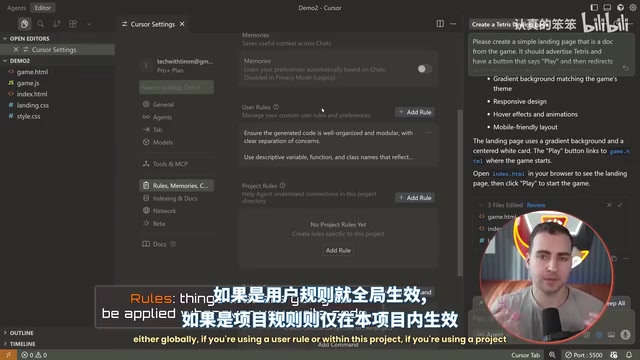
For example, setting "always generate doc strings for functions" means every function AI generates will automatically include documentation strings. Rule files are stored in the .cursor/rules folder at the project root.
Version Control (Git)
Cursor has built-in Git support — the last line of defense for protecting your code. You can even tell the Agent directly "use source control/Git and save this work," and it will automatically initialize a repository, add files, and create a commit.
Why Git Is Even More Important in the AI Programming Era: Git is currently the most mainstream distributed version control system, with its core value being the recording of every code change in history and allowing rollback to any historical state at any time. In AI-assisted programming scenarios, this value is further amplified: an Agent might modify dozens of files in a single operation, and without version control, tracing the root cause of problems becomes extremely difficult. Recommended habit: before each time you let an Agent execute large-scale modifications, manually create a Git commit as a safety checkpoint, rather than waiting until the task is complete.
Strong Recommendation: Regardless of project size, use Git for version management. When an AI Agent makes destructive changes, you can at least roll back to the last working state.
Multi-Agent Parallelism and MCP Extensions
Cursor 2.0's multi-Agent feature allows you to run multiple tasks simultaneously. Follow one key principle:
- Follow-up modifications to the same task: Continue in the original Agent, as it retains the complete decision context
- New independent tasks: Create a new Agent to avoid context contamination
Additionally, Cursor supports MCP (Model Context Protocol) servers, allowing AI Agents to connect to external tools and APIs to extend their capabilities.
MCP Protocol Background: MCP is an open standard protocol proposed by Anthropic in late 2024, designed to solve the fragmentation problem of AI model integration with external tools. Similar to how USB unified hardware connection standards, MCP provides a unified communication specification for AI Agents to connect to databases, APIs, local tools, and more — avoiding the need for each application to develop its own integration solution. Cursor's support for MCP means developers can extend AI capabilities beyond the codebase — for example, letting an Agent directly query production databases, call the Figma API to fetch design assets, or read requirement documents from Notion.
You can add and manage MCP servers in Settings → Tools → MCP.
Summary
Cursor 2.0's core workflow can be summarized as: Plan → Agent Execute → Ask Verify → Review → Git Save. Master the appropriate scenarios for the three AI modes, combine them with inline editing and autocomplete features, and you can dramatically boost development efficiency while maintaining code quality. Remember, AI is a tool, not a replacement — the clearer your understanding of requirements, the more precise AI's output will be.
Key Takeaways
- Cursor 2.0 offers three AI modes: Plan (planning), Agent (auto-generation), and Ask (safe Q&A), suitable for different development stages
- Agent mode is based on "Tool Calling" technology; generated code is written to files immediately — always test before accepting changes and use the Undo All button to prevent destructive modifications
- Cursor 2.0 introduced its proprietary Composer model, claimed to be four times faster than comparable models, with support for multi-Agent parallel execution
- The Project Rules feature lets AI automatically follow coding conventions, supporting both global and project-level rule configurations
- Strongly recommended to use Git version control, manually creating commit checkpoints before Agent executes large-scale modifications
- MCP (Model Context Protocol) extension support enables Agents to connect to databases, external APIs, and other tools, breaking beyond pure code editing capabilities
Related articles
 Tutorials
Cursor + Codex Dual-IDE Collaboration: A Practical Methodology for Open-Source Project Customization
A complete methodology for open-source project customization based on real-world experience, detailing the Cursor+Codex dual-IDE workflow, seven-stage process, MVP validation, and AI source code reading techniques.
 Tutorials
Cursor Multi-Agent in Practice: Building a Full-Stack Next.js Blog in 50 Minutes
Build a full-stack blog in 50 minutes using Cursor IDE's multi-Agent mode with Next.js, Clerk auth, and Supabase. Learn the 4-phase AI Agent workflow and key integration pitfalls.
 Tutorials
Building an AI Software Factory from Scratch: A Cursor Engineer's Hands-On Experience with Multi-Agent Collaboration
Cursor engineer Eric shares practical insights on building an AI software factory: automation levels, guardrail design, parallel Agent management, and scaling to 1000+ Agents for 24/7 development.