AI Coding CLI Tools Configuration Guide: Unified API Setup for Claude Code, Copilot, Codex, and 6 Other Tools

A step-by-step guide to configuring six major AI coding tools via a unified API gateway.
This article explains how to configure six mainstream AI coding tools — Claude Code CLI, Copilot CLI, Codex, Trae, and OpenCode — through a unified API gateway platform using the OpenAI-compatible interface format. No official account login is required; just configure an API Key and Base URL to get started, with support for freely switching between models like Claude and GPT.
Overview
This article is based on a detailed tutorial from a Bilibili creator, explaining how to configure mainstream AI coding (Vibe Coding) tools through a unified API gateway platform. The tools covered include Claude Code CLI, Copilot CLI, Codex Desktop, Codex CLI, Trae, and OpenCode. None of these tools require logging into official accounts — just configure an API Key and you're ready to go.
What is Vibe Coding? Vibe Coding is a concept introduced in 2025 by well-known AI figure Andrej Karpathy. It refers to a development approach where developers describe requirements in natural language, let AI generate the code, and primarily focus on validation and guidance rather than writing code line by line. In this workflow, efficient AI coding tools become the core productivity gateway.
What are API Gateways and OpenAI-Compatible Interfaces? An API Gateway is a proxy service that receives client requests and forwards them to actual backend AI services. Since OpenAI was the first to define a standard REST API format (including endpoints like /v1/chat/completions), many tools have built-in support for this format. Third-party gateways only need to implement the same interface specification to enable tools originally designed for OpenAI to seamlessly connect with models from other providers like Claude and Gemini — this is the core principle behind all configurations in this article.
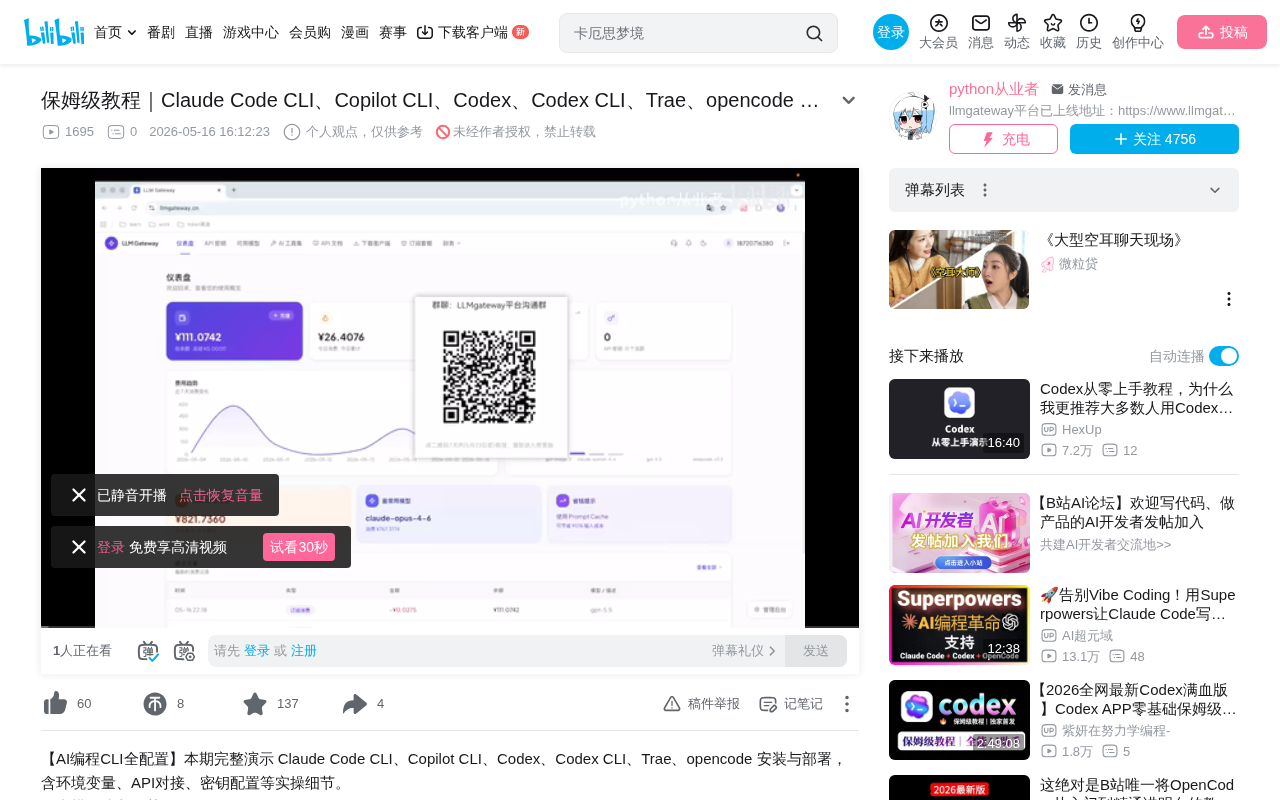
Claude Code CLI Configuration
Prerequisites: Network and Installation
Since these CLI tools require network access, Mac users need to configure proxy settings in their terminal environment variable files (such as .zshrc or .bashrc) to ensure the terminal can access external networks.
Why does the terminal need separate proxy configuration? GUI applications typically read system proxy settings automatically, but terminal programs don't use system proxies by default. You need to manually set HTTP_PROXY and HTTPS_PROXY environment variables (e.g., export HTTPS_PROXY=http://127.0.0.1:7890) so that network request libraries in the terminal route traffic through the specified proxy server.
Claude Code can be installed via brew. After installation, the first launch will prompt you to log in, but configuring environment variables allows you to skip the login step.
Core Environment Variable Configuration
Key configuration items include:
- API Base URL (pointing to the third-party gateway platform)
- API Key (obtained from the platform)
- Model parameters (multiple models can be configured, such as Claude 4, Sonnet, Opus, etc.)
After configuration, run source to refresh environment variables, then re-enter Claude Code to use it directly with free switching between multiple models.
Copilot CLI Configuration
Also installed via brew. Normally it requires GitHub login after installation, but environment variable configuration allows you to bypass the login flow.
Key configuration parameters:
- Auto-update set to false: Because auto-update requests to official addresses may fail
- Provider: Uses OpenAI-compatible SDK request method
- Base URL: Standard OpenAI format v1 endpoint
- API Key: Key obtained from the platform
Once configured, you can use it without logging in, with support for selecting models like Claude Opus.
OpenCode Configuration
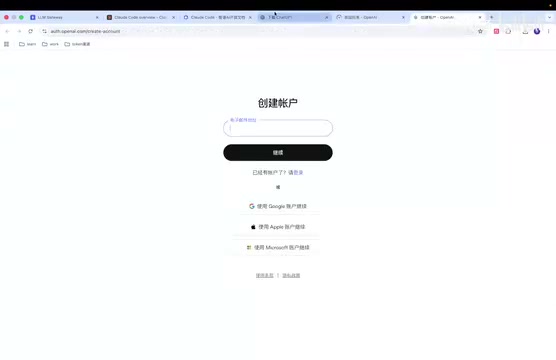
OpenCode is a feature-rich CLI coding tool with relatively simple configuration.
After entering the tool, select "Custom Provider" and fill in:
- Provider name (can be anything)
- API Base URL
- API Key
- Model ID (corresponding to the model name on the platform)
You can add multiple models such as Claude Opus 4, GPT-5.5, etc., and switch between them within the tool.
Trae Configuration
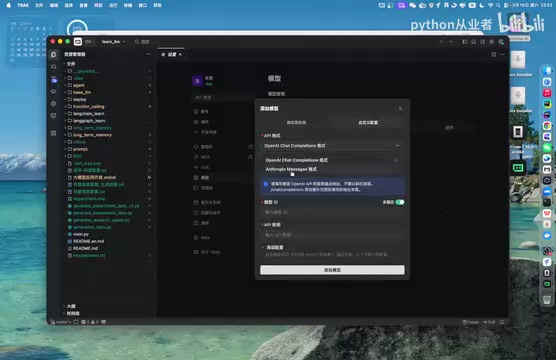
The international version of Trae is recommended. Follow these steps on the model configuration page:
- Select "OpenAI" compatible format
- Enter the Base URL (e.g.,
https://xxx.lmgateway.cn/v1) - Input the model name (e.g.,
claude-opus-4-6) - Paste the API Key
Once added successfully, you can use the custom model for AI-assisted coding in Trae.
Codex Desktop and CLI Configuration
After installing Codex CLI, it prompts three authentication methods: log in to ChatGPT, Device Code, or provide an API Key.
By writing the token (i.e., API Key) and model information into the configuration file in the ~/.codex directory, you can skip login and use it directly. The same applies to the desktop version — once the configuration file takes effect, import your project and start working.
Other Tools and Additional Notes
- Cursor: Requires a Pro subscription to use custom models, not included in this free tutorial
- Windsurf: Supported by the platform but has higher configuration difficulty; a separate tutorial will follow
- Windows version: Will be covered in the next video
The core approach is the same for all tools: forward requests to a unified API gateway platform using the OpenAI-compatible interface format, enabling one Key to work across all AI coding tools. This approach not only lowers the barrier to entry but also allows flexible switching between different AI models to meet diverse coding needs.
Key Takeaways
- Six mainstream AI coding CLI tools can be configured through a unified API gateway platform without logging into official accounts
- All tools use the OpenAI-compatible interface format with a consistent configuration approach
- Mac users need to configure proxy settings in terminal environment variables for CLI tools to work properly
- Claude Code and Copilot CLI are configured via environment variables; OpenCode and Trae are configured through their UI
- Codex achieves login-free usage by writing tokens to a configuration file in a hidden directory
Related articles
 Tutorials
Cursor + Codex Dual-IDE Collaboration: A Practical Methodology for Open-Source Project Customization
A complete methodology for open-source project customization based on real-world experience, detailing the Cursor+Codex dual-IDE workflow, seven-stage process, MVP validation, and AI source code reading techniques.
 Tutorials
Cursor Multi-Agent in Practice: Building a Full-Stack Next.js Blog in 50 Minutes
Build a full-stack blog in 50 minutes using Cursor IDE's multi-Agent mode with Next.js, Clerk auth, and Supabase. Learn the 4-phase AI Agent workflow and key integration pitfalls.
 Tutorials
Building an AI Software Factory from Scratch: A Cursor Engineer's Hands-On Experience with Multi-Agent Collaboration
Cursor engineer Eric shares practical insights on building an AI software factory: automation levels, guardrail design, parallel Agent management, and scaling to 1000+ Agents for 24/7 development.