CapCut + DeepSeek Batch Clipping: A Complete Tutorial to 10x Your Livestream Clip Production Efficiency
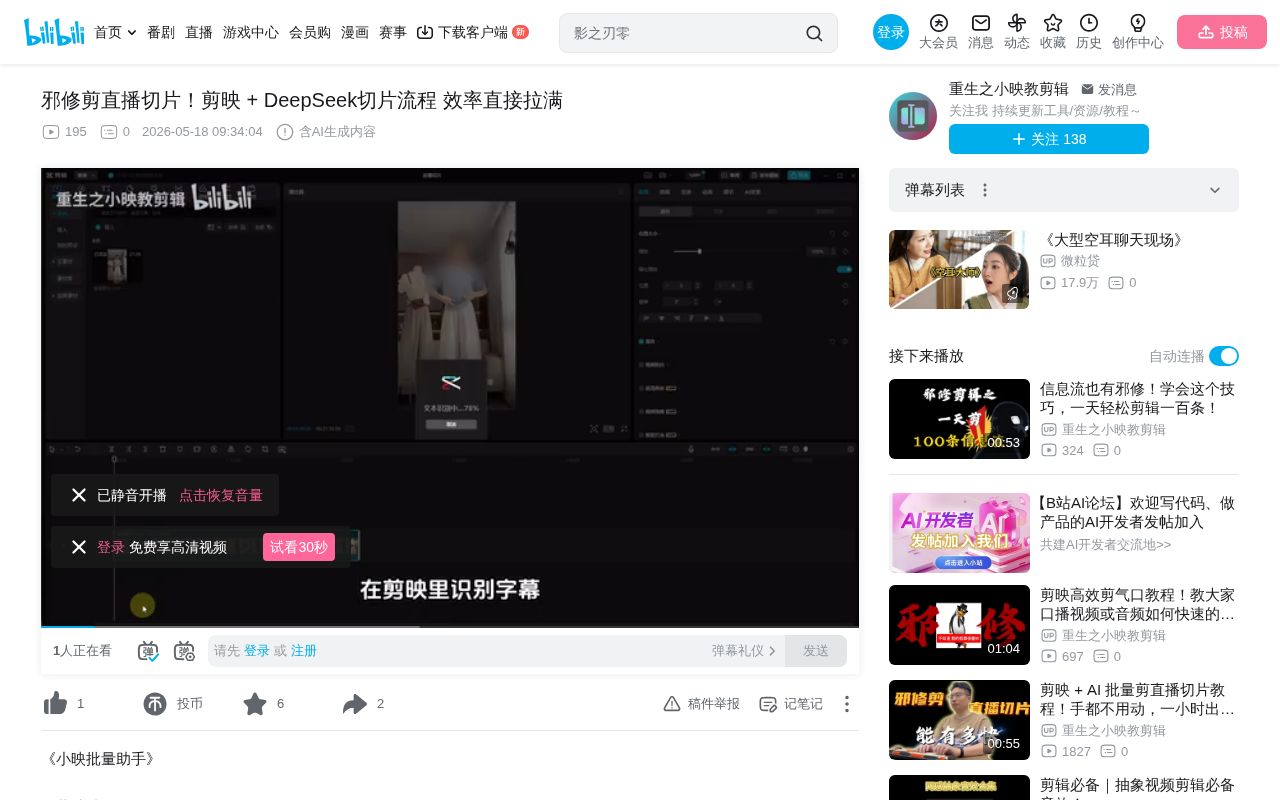
CapCut + DeepSeek enables semi-automated livestream clipping, multiplying production efficiency several times over.
This article introduces an AI-assisted livestream clipping workflow: first use CapCut to recognize livestream subtitles and export SRT files, then send the subtitle text to DeepSeek for intelligent highlight filtering based on prompts, and finally use Xiaoyin Batch Assistant to automatically match timestamps and batch-generate clip videos. This workflow compresses traditional hours of manual editing into minutes of automated operation, dramatically boosting output efficiency.
The Efficiency Revolution in Livestream Clipping
Livestream clipping is a major content source for short-video creators today, but the traditional manual editing approach is time-consuming and labor-intensive — requiring repeated rewatching of livestream recordings, hunting for highlights, and exporting clips one by one. Now, by combining CapCut's subtitle recognition with DeepSeek's AI text analysis capabilities, the entire clipping workflow can be semi-automated, multiplying efficiency several times over.
Livestream clipping has already formed a mature industry chain. Many top streamers authorize or tacitly permit clip accounts to exist, since clipped content creates secondary distribution on short-video platforms, continuously driving traffic to their livestream rooms. Some clip accounts earn tens of thousands of yuan monthly, with revenue sources including platform traffic sharing, livestream room CPS commissions (earning a cut when users enter the livestream room and place orders through clips), and the commercial value of the account itself. In this context, clipping efficiency directly determines an account's output volume and revenue ceiling — creators who can produce high-quality clips faster and in greater quantities have a clear competitive advantage.
This article breaks down a complete AI-assisted livestream clipping workflow. The core idea is: use AI to filter content, use tools to batch-generate output.
Complete Workflow Breakdown: CapCut + DeepSeek Batch Clipping
Step 1: Recognize Subtitles in CapCut and Export SRT Files
First, import the livestream recording into CapCut and use its built-in speech recognition feature to generate subtitles. CapCut's speech-to-text accuracy is quite high, capable of quickly converting hours of livestream content into text form.
After generating subtitles, export the subtitle file (typically in SRT format). SRT (SubRip Subtitle) is one of the most universal subtitle file formats, with a very simple structure: each subtitle entry consists of a sequence number, a timeline (start time --> end time, precise to milliseconds), and text content. This plain-text structure makes it extremely easy for programs to parse and process. In this workflow, the SRT file serves as a bridge between video content and AI text analysis — the timestamp information allows AI screening results to be precisely mapped back to specific positions in the original video, achieving seamless connection from "text filtering" to "video trimming." This subtitle file contains timestamp information corresponding to each spoken line, forming the critical data foundation for subsequent AI analysis and automated editing.
Step 2: Use DeepSeek to Intelligently Filter Highlight Segments
This step is the core innovation of the entire workflow. Send the exported subtitle file content along with a pre-written prompt to DeepSeek, letting AI help you filter valuable segments from the massive livestream content.
DeepSeek is one of China's leading large language models, developed by DeepSeek (深度求索). It excels in long-text comprehension and structured output. A 2-3 hour livestream transcription may produce tens of thousands of characters of subtitle text, and DeepSeek's long context window (supporting 64K or even longer token input) enables it to analyze an entire livestream's content in one pass without needing segmented processing. Compared to overseas models like GPT-4, DeepSeek has more precise understanding of Chinese language contexts and lower API costs, making it particularly suitable for work scenarios requiring frequent batch processing.
DeepSeek analyzes the subtitle text based on the prompt's requirements across dimensions such as content quality, topic completeness, and emotional climax points, quickly extracting text segments suitable for clipping. Compared to manual frame-by-frame review, AI filtering can be dozens of times faster.
The quality of prompt writing directly determines the effectiveness of clip filtering. Prompt Engineering refers to the technique of carefully designing input instructions to guide AI toward producing high-quality results. In the livestream clipping scenario, prompt design needs to balance two dimensions: "filtering criteria" and "output specifications." For example, you can ask AI to identify emotional peaks (moments when the streamer suddenly gets excited or viewers flood the chat), complete topic segments (discussions with clear beginnings and endings), memorable quotes, or controversial viewpoints. The output format typically requires AI to return the start/end times, content summary, and recommendation rationale for each suggested segment, facilitating quick creator decisions and automatic tool import.
Generally speaking, a good prompt needs to clearly specify:
- Target themes or keywords for clips
- Ideal duration range for each clip
- Content filtering criteria (e.g., entertaining, controversial, informative)
- Output format requirements (for easy import into subsequent tools)
Step 3: Xiaoyin Batch Assistant Automatically Matches and Generates
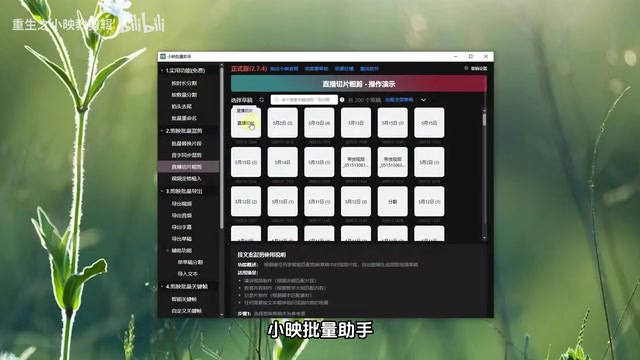
After filtering is complete, open CapCut's "Xiaoyin Batch Assistant" feature, click on the draft, select "Match content based on subtitle track," and import the curated text content organized by DeepSeek.
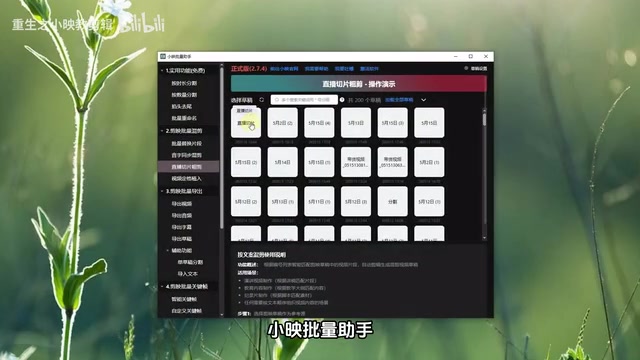
Xiaoyin Batch Assistant is an efficiency plugin tool within the CapCut ecosystem. Its core function is automated video trimming based on subtitle track timestamp information. The working principle is: it performs text matching between the filtered content and the original SRT subtitles, finds the corresponding time intervals, then automatically marks cut points on the timeline and exports independent segments. This "text-based positioning" approach avoids the tedious operation of manually dragging the timeline to find segments in traditional editing, essentially transforming the video editing problem into a text retrieval problem.
The tool automatically locates the corresponding segments in the original video based on the relationship between text content and subtitle timestamps, achieving precise trimming.
Step 4: Batch Parameter Settings and One-Click Export
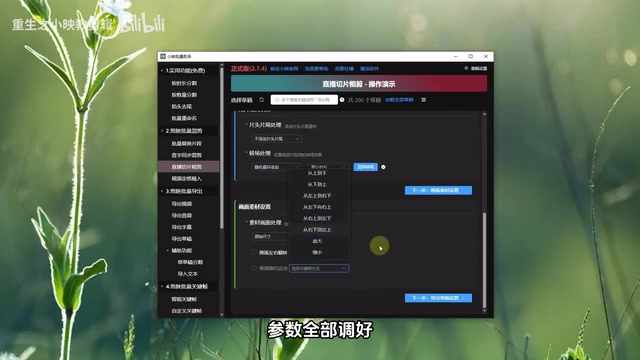
Before batch generation, you can configure multiple parameters as needed:
- Intro/Outro: Uniformly add brand identifiers or follow prompts
- Transitions: Automatically add transitions between segments
- Random zoom/flip: Add visual variation to avoid content repetition
- Keyframe animations: Make the visuals more dynamic
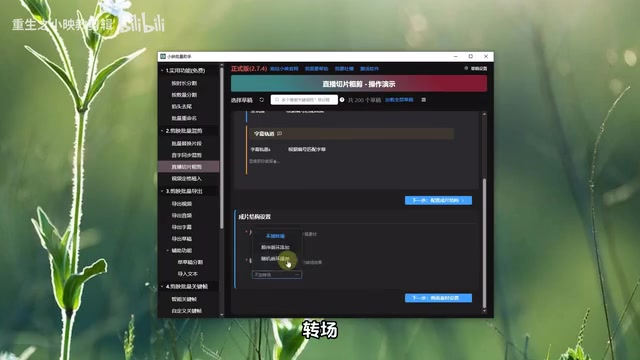
The "random zoom/flip" feature deserves special explanation: since a single livestream may be cut into multiple pieces of content, if the visuals are completely identical, platform algorithms may flag them as duplicate content and limit recommendations. Through random zoom ratios and mirror flipping, each clip will have visual differences, effectively reducing the probability of being caught by platform deduplication mechanisms.
Once all parameters are adjusted, click "Start Batch Remix," and the system will automatically generate multiple livestream clip videos.
Core Advantages of This Livestream Clipping Workflow
The core advantage of this workflow lies in delegating the two most time-consuming steps — "content filtering" and "video editing" — to AI and automation tools respectively:
- Dramatically reduced time cost: The traditional approach might require hours of rewatching livestreams; now you only need a few minutes to wait for AI analysis results
- Significantly increased output volume: In batch generation mode, a single operation can produce multiple clips
- Controllable quality: By optimizing prompts, you can continuously improve filtering accuracy
- Lower barrier to entry: No professional editing skills required; beginners can get started quickly
From a technical architecture perspective, this workflow essentially builds an automated pipeline of "speech → text → AI analysis → timestamp positioning → video trimming." Each step is supported by mature tools, and creators only need to intervene at key decision points (such as prompt design and final review), with all other work completed by machines.
Practical Tips and Considerations
For creators who want to try this workflow, here are some suggestions:
- Prompts need iterative optimization; it's recommended to test with short livestreams first
- Subtitle recognition accuracy affects AI analysis quality; manually correct key sections when necessary. Speech recognition error rates increase noticeably in livestream scenarios with heavy dialects, multiple people speaking simultaneously, or loud background music
- Batch-generated clips should still undergo manual review before publishing to avoid unnatural sentence breaks or incomplete content
- You can write different versions of filtering prompts for different platforms' content preferences. For example, Douyin (TikTok China) favors strong emotions and fast-paced content, while Bilibili users are more receptive to in-depth discussions and complete arguments
- Pay attention to copyright compliance: ensure you have obtained clipping authorization from the streamer or MCN agency to avoid infringement risks
This "CapCut + DeepSeek" combination essentially merges AI's text comprehension capabilities with video editing tools' automation capabilities, providing an efficient solution for the high-frequency demand of livestream clipping. As AI capabilities continue to evolve, similar workflows will only become more mature — it's foreseeable that the next stage may achieve end-to-end fully automated clipping: AI not only analyzes text but also directly understands facial expressions, actions, and bullet comment density in video frames, enabling more precise highlight capture.
Key Takeaways
- Use CapCut's speech recognition to export subtitle files, converting livestream content into analyzable text data
- Leverage DeepSeek's AI text analysis capabilities to automatically filter highlight segments from livestreams based on prompts
- Use Xiaoyin Batch Assistant to achieve subtitle track matching and batch video generation
- Support batch settings for intro/outro, transitions, random zoom/flip, and other parameters
- The entire workflow compresses traditional hours of manual editing into minutes of automated operation
Related articles
 Tutorials
Cursor + Codex Dual-IDE Collaboration: A Practical Methodology for Open-Source Project Customization
A complete methodology for open-source project customization based on real-world experience, detailing the Cursor+Codex dual-IDE workflow, seven-stage process, MVP validation, and AI source code reading techniques.
 Tutorials
Cursor Multi-Agent in Practice: Building a Full-Stack Next.js Blog in 50 Minutes
Build a full-stack blog in 50 minutes using Cursor IDE's multi-Agent mode with Next.js, Clerk auth, and Supabase. Learn the 4-phase AI Agent workflow and key integration pitfalls.
 Tutorials
Building an AI Software Factory from Scratch: A Cursor Engineer's Hands-On Experience with Multi-Agent Collaboration
Cursor engineer Eric shares practical insights on building an AI software factory: automation levels, guardrail design, parallel Agent management, and scaling to 1000+ Agents for 24/7 development.