Claude Code: 19 Essential Commands Explained with Practical Tips to Avoid Common Pitfalls
Claude Code: 19 Essential Commands Exp…
A comprehensive guide to Claude Code's 19 core commands with practical tips and a golden workflow.
This article systematically covers Claude Code's 19 core commands across five categories: Conversation Management (Clear, Compact, Resume, BTW, Rewind), Settings (Effort, Config), Utility Tools (Init, Add, Copy, Export, Memory), Permissions, Debugging & Automation (Permissions, Review, MCP, Chrome, Loop), and Plugins & Insights (Plugin, Insights). It highlights the golden workflow of "Init at the start → Compact during the process → Review at the end" to help developers avoid common productivity pitfalls.
Conversation Management: The Key to Keeping the Model's Thinking Clear
Many developers have experienced this: after chatting with Claude Code for two hours, the model suddenly starts outputting poor-quality code. It's not that the model got dumber — the conversation context has grown too long, and the model's attention has become diluted.
To understand this phenomenon, you need to know the underlying mechanism of how large language models process information. Every model has a fixed "Context Window" — the maximum amount of text it can process simultaneously, measured in tokens. Claude series models typically have context windows ranging from 100,000 to 200,000 tokens. The Attention Mechanism in the Transformer architecture means the model allocates weights across all tokens within the window — the longer the conversation history, the lower the proportion of effective attention the current task receives. This is the fundamental reason why code quality drops after long conversations. Conversation management commands are the core weapons for solving this problem.
Clear — Wipe the Conversation History
After completing a feature module, use Clear decisively to start a fresh conversation and keep the model's thinking sharp. Don't cling to previous conversation content — a clean context is far more valuable than a bloated history.
Compact — Compress the Conversation While Preserving a Summary
If there's important information in the conversation you don't want to lose, Compact is the better choice. It compresses the conversation history while retaining key summaries. You should use Compact when context usage reaches 60%-80% — this is one of the most frequently used commands.
Resume — Restore an Interrupted Conversation
Resume lets you restore a previous conversation and quickly continue an interrupted task. For example, if you stopped working before leaving the office, you can simply Resume the next day and pick up right where you left off.
BTW — Quick Questions Without Breaking the Flow
If a quick question pops into your head while a task is running, BTW lets you ask it without interrupting the current execution flow. This is a thoughtful design that eliminates the dilemma of "should I interrupt the current task or not."
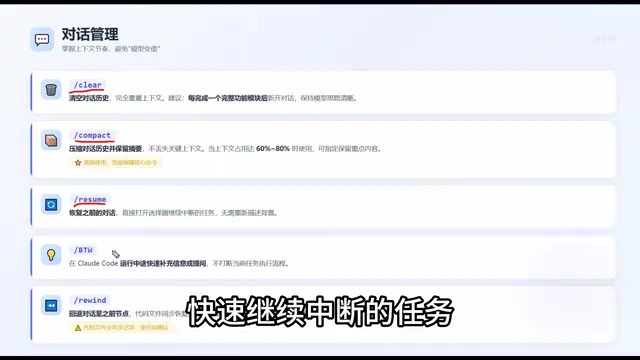
Rewind — A Time Machine for Your Code
Rewind acts like a time machine, letting you roll back to a previous conversation node with the code reverting in sync. When you realize the model has gone in the wrong direction, rolling back is far more efficient than re-describing your requirements.
Settings: Making the Model Match Your Needs
Effort — Control the Model's Thinking Depth
The Effort command sets the model's thinking depth with three levels:
- Effort High: Deep thinking, ideal for complex architecture design and tricky bug investigations
- Effort Low: Quick responses, suitable for simple fixes and formatting adjustments
- The default level works well for everyday development
Practical tip: Use the default level for daily development and only switch to Effort High for complex problems to avoid unnecessary token consumption.
Config — Open the Settings Panel
Config lets you modify themes, model versions, interface language, and other configuration options. It's a basic but essential command.
Utility Tools: Productivity Boosters for Daily Development
These commands are used very frequently — mastering them is highly recommended.
Init — The First Step for Any New Project
This is one of the most critical commands. Init helps the model quickly understand your project structure, tech stack, and coding conventions. Skip this step, and the quality of subsequently generated code will suffer significantly, because the model knows nothing about your project and can only guess.

Add — Include Additional Working Directories
Add is used to associate multiple project directories. When your work spans multiple repositories or microservices, this command lets the model understand the context of multiple projects simultaneously.
Copy & Export — Content Output
Copy: Copies the model's response to your clipboard for easy pasting elsewhereExport: Exports the entire conversation as a text file for permanent archival of important technical discussions
Memory — Help the Model Understand You Better Over Time
Memory lets you edit a memory file so the model remembers your coding preferences and code style. To understand this command, you need to know a key fact: large language models are inherently stateless — they don't automatically retain any information after a conversation ends. The implementation behind the Memory command is "persistent prompt injection" — your coding preferences, naming conventions, tech stack preferences, and other information are written to a special configuration file (typically CLAUDE.md) and automatically injected into the system prompt at the start of each new conversation. This aligns with the philosophy of RAG (Retrieval-Augmented Generation) technology, extending the model's effective memory boundary through an external knowledge base. For example, if you prefer functional programming or a specific naming convention, writing it into Memory ensures the model consistently follows your preferences — the longer you use it, the better it understands you.
Permissions, Debugging, and Automation
Permissions — Reduce Confirmation Pop-up Interruptions
Set auto-approve permissions for frequently used tools to reduce the annoyance of repeated confirmation dialogs. For trusted operations (like reading files or running tests), granting direct access can significantly improve workflow smoothness.
Review — Your Safety Net Before Committing
Review audits your Pull Request before submission, helping you catch bugs, code convention violations, and security vulnerabilities. It's strongly recommended to run this before every commit — it's the last line of defense against problematic code reaching production.
From a software engineering perspective, this command embodies the modern concept of "Shift Left Testing" — the earlier you find problems, the lower the cost to fix them. Research shows that manual code reviews catch only about 60% of defects on average, with efficiency dropping significantly as code volume increases. AI-driven Review systematically checks for security vulnerabilities (such as SQL injection and XSS), logic errors, and performance anti-patterns through semantic understanding, without being affected by fatigue. It's essentially adding a low-cost quality gate at the very front of your CI/CD pipeline.
MCP — Breaking Through Tool Chain Boundaries
MCP connects external tools, integrating services like GitHub, Slack, and databases to break through the boundaries of your entire workflow. This transforms Claude Code from an isolated coding tool into the hub of your entire development ecosystem.
MCP (Model Context Protocol) is an open protocol standard introduced by Anthropic in late 2024, designed to solve the fragmentation problem of integrating AI models with external tools. Before MCP, every AI tool needed to develop separate adapter layers for each external service, resulting in extremely high maintenance costs. MCP defines a unified communication specification — similar to how the USB interface standardized hardware connections — configure once and reuse the same tool connections across multiple AI tools. MCP is currently supported by mainstream development tools including VS Code, Cursor, and Zed, and is becoming the industry standard for AI tool chain integration.
Chrome — A Powerful Tool for Frontend Debugging
The Chrome command connects to a browser for debugging frontend pages, providing real-time access to DOM elements and the console. For frontend developers, this means no more constantly switching between the editor and the browser.
Loop — Automated Monitoring
Loop automatically runs commands at set time intervals — for example, checking service status every 30 minutes. It's ideal for scenarios that require continuous monitoring.
Plugins and Insights: Extending Your Capabilities

Plugin — The Official Plugin Marketplace
Browse the official plugin marketplace and install recommended plugins to extend Claude Code's capabilities. The plugin ecosystem is a crucial component of the tool's long-term value.
Insights — Usage Analytics Reports
Insights generates usage analytics reports — reviewing them weekly is recommended. It not only displays data about your coding habits but also recommends efficient commands you haven't tried yet, helping you continuously optimize your workflow.
Three Critical Mistakes Beginners Must Avoid
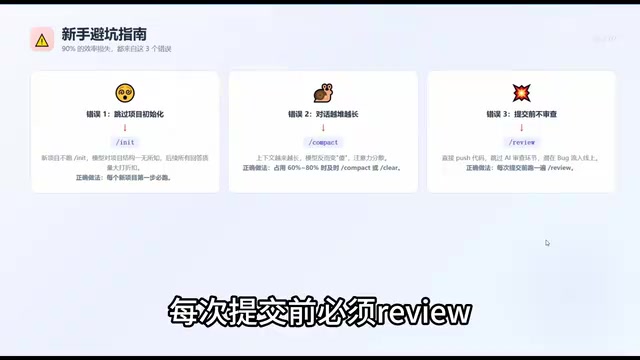
Mistake #1: Skipping Init
Not running Init on a new project means the model knows nothing about it, and the quality of subsequently generated code drops dramatically. The right approach: Init should always be the first step for every new project.
Mistake #2: Letting Conversations Grow Too Long
The longer the context, the more diluted the model's attention becomes, and output quality actually decreases. The right approach: Compact or Clear immediately when context usage reaches 60%-80%.
Mistake #3: Not Reviewing Before Committing
Pushing code directly means bugs only get discovered after they've reached production. The right approach: Always Review before every commit.
Remember this golden workflow sequence: Start with Init → Use Compact during the process → End with Review — this alone will help you avoid 90% of productivity pitfalls.
Quick Reference Summary of All 19 Commands
| Category | Commands | Count |
|---|---|---|
| Conversation Management | Clear, Compact, Resume, BTW, Rewind | 5 |
| Settings | Effort, Config | 2 |
| Utility Tools | Add, Copy, Export, Init, Memory | 5 |
| Permissions, Debugging & Automation | Permissions, Review, MCP, Chrome, Loop | 5 |
| Plugins & Insights | Plugin, Insights | 2 |
Master these 19 core commands with the right usage habits, and your Claude Code productivity will surpass the vast majority of users. Bookmark this article as a quick reference guide to consult whenever you need it.
Related articles
 Tutorials
Cursor + Codex Dual-IDE Collaboration: A Practical Methodology for Open-Source Project Customization
A complete methodology for open-source project customization based on real-world experience, detailing the Cursor+Codex dual-IDE workflow, seven-stage process, MVP validation, and AI source code reading techniques.
 Tutorials
Cursor Multi-Agent in Practice: Building a Full-Stack Next.js Blog in 50 Minutes
Build a full-stack blog in 50 minutes using Cursor IDE's multi-Agent mode with Next.js, Clerk auth, and Supabase. Learn the 4-phase AI Agent workflow and key integration pitfalls.
 Tutorials
Building an AI Software Factory from Scratch: A Cursor Engineer's Hands-On Experience with Multi-Agent Collaboration
Cursor engineer Eric shares practical insights on building an AI software factory: automation levels, guardrail design, parallel Agent management, and scaling to 1000+ Agents for 24/7 development.