Claude Code Desktop Installation Guide: No Account Required + Full DeepSeek Integration Tutorial
Claude Code Desktop Installation Guide…
Claude Code Desktop setup guide: account-free usage, DeepSeek integration, and Chinese localization.
This article provides a detailed low-cost setup guide for Claude Code Desktop: bypass official login via Developer Mode, use CC Switch (v3.15.0+) to integrate affordable models like DeepSeek instead of the expensive native Claude API, apply community localization patches for a Chinese interface, and upload custom Skills as compressed packages to extend functionality — helping developers get a powerful AI coding experience at minimal cost.
Claude Code Desktop has officially launched, but the cost of using the official model has deterred many developers. This article walks you through the entire setup process for Claude Code Desktop — from installation and account-free usage to Chinese localization, DeepSeek model integration, and custom Skill configuration — helping you get the most out of this powerful AI coding tool at minimal cost.
About Claude Code: Why It Deserves Your Attention
Claude Code is an AI programming assistant from Anthropic, built on their flagship large language model, Claude. Founded by former core members of OpenAI, Anthropic focuses on AI safety research, and the Claude model series is renowned for its strong code comprehension, long-context processing, and instruction-following capabilities. AI coding tools have rapidly gained popularity in recent years — from GitHub Copilot to Cursor to Claude Code — and their core value lies in embedding LLM code generation capabilities into developers' daily workflows to significantly boost coding efficiency. However, Claude's official API pricing isn't exactly friendly for individual developers, which is precisely where the low-cost alternatives covered in this article come in.
Installing Claude Code Desktop
First, visit the official Claude Code page. On the homepage, you'll see a prominent "Get Claude Code" entry point. Hovering over it reveals multiple usage options, with Desktop listed first — that's the version we need.
Clicking it takes you to the download page, where the system automatically matches the version to your operating system (Windows/Mac). After downloading, run the installer — it's a straightforward, wizard-style installation. Just click "Next" all the way through. Once installed, you'll see a login screen offering sign-in options like Google accounts.
But we're not going the conventional route here — next up is the account-free usage method.
Account-Free Usage: Enabling Developer Mode
Don't want to deal with overseas accounts? You can bypass the login requirement through Developer Mode. Here's how:
- Click the hamburger menu (three horizontal lines) in the top-left corner
- Select "Help"
- In the Help menu, find the third option, scroll down to Enable Developer Mode
- Click to enable it, confirm, and wait for Claude Code to restart
After restarting, you'll see a new interface. Set it aside for now, because we still need to install a crucial companion tool.
Installing CC Switch and Integrating DeepSeek
Why DeepSeek?
DeepSeek is a series of domestically developed large language models by the company DeepSeek, known for its extremely competitive cost-performance ratio. Its API pricing is far lower than international mainstream models like OpenAI GPT-4 or Claude, while delivering excellent performance on tasks like code generation and mathematical reasoning. Versions such as DeepSeek-V3 and DeepSeek-R1 have approached or even surpassed some top-tier closed-source models on multiple benchmarks, making DeepSeek a go-to alternative for developers looking to replace expensive overseas models. By combining Claude Code's powerful interface with DeepSeek's low-cost API, you can achieve the best price-to-performance AI coding experience.
Installing CC Switch
CC Switch is a software tool for unified management of AI tool workflows. Its core function is enabling you to freely switch between different models.
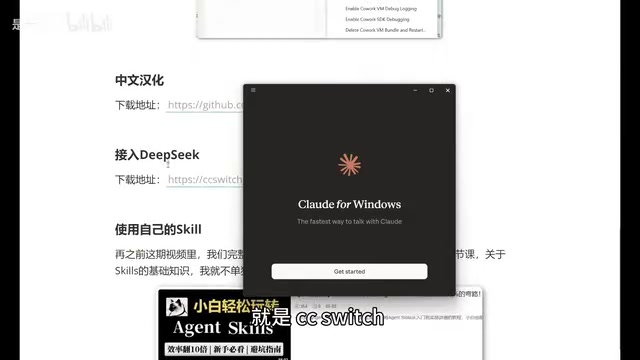
Pay attention to the version when downloading: it must be version 3.15.0 or higher. Older versions of CC Switch don't support Claude Code Desktop configuration. If you previously installed an older version, make sure to update to the latest. The installation process is equally straightforward.
After installation, open CC Switch and you'll notice a new Desktop option in the top navigation bar alongside the original command-line mode, marked with a small computer icon.
Configuring Local Routing
In CC Switch, follow these steps:
- Click the "Settings" button on the left
- Go to "Routing"
- Find "Local Routing" and click the arrow to enable it
- Return to the main interface and select "Desktop"
Adding the DeepSeek Model
Click the "Add" button on the right and select DeepSeek as the model to load. The key step is entering your API Key:
- Go to the DeepSeek official website's API documentation
- Navigate to the Key management page and create a new API Key
- Copy the Key and paste it into the corresponding input field in CC Switch
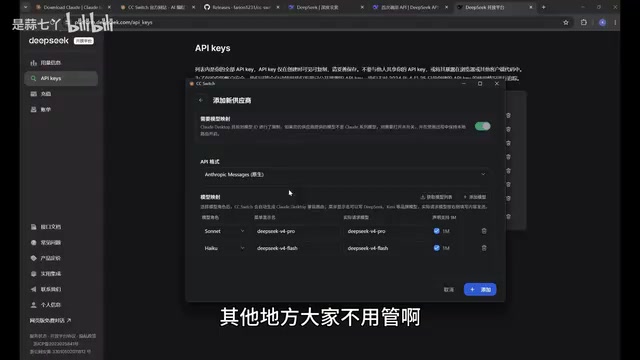
At the bottom of the configuration page, there are two checkable options related to context size settings. It's worth explaining the concept of a context window here: it refers to the maximum text length an LLM can process in a single conversation or inference, typically measured in tokens (1 Chinese character ≈ 1.5–2 tokens). A 1M context means the model can process approximately 750,000 English words or hundreds of thousands of lines of code at once — critical for analyzing large codebases, cross-file refactoring, and maintaining long conversation memory. Early models typically had only 4K–8K context, while modern models have broken through the million-token barrier, vastly expanding the boundaries of AI-assisted programming. Therefore, it's recommended to check the 1M context option so Claude Code can handle a broader code context, which is very helpful for real-world development.
After completing the configuration, click "Add," then make sure to click Start. Once started, you can minimize CC Switch (clicking the close button only minimizes it to the system tray — it won't actually exit).
Completing the Desktop Integration
Back in Claude Code Desktop:
- Click the hamburger menu in the top-left corner
- You'll now see a new "Developer" option
- Click "Configure Third-Party"
- You'll find that the relevant information has been automatically filled in by CC Switch
- Click "Apply" and restart
After restarting, you'll enter the Claude Code main interface. The model list will show Flash and Pro versions, including 1M context versions. Select the Flash version to start chatting. Type "Who are you" as a test — if you get a normal response, the configuration is successful.
Chinese Localization
The default interface is entirely in English, which isn't ideal for Chinese-speaking users. Fortunately, the community has provided a localization patch, and the process is very simple.
After downloading and extracting the localization resource pack, you'll find localization files for both Mac and Windows.
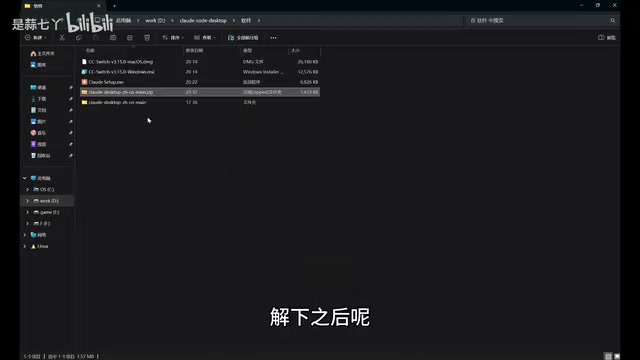
Find the .bat file (Windows) or corresponding file for your system and double-click to run it. You'll see 5 options:
- Install Simplified Chinese
- Install Traditional Chinese
- Install Traditional Chinese (Hong Kong version)
- Restore original / Uninstall patch
- Exit
Select 1 and press Enter. The localization tool will automatically close Claude Code to perform the replacement, then automatically restart it. When you reopen it, you'll see the interface is completely in Chinese — menus like New Task, Project Plan, and Task Customization are all clearly labeled.
Using Custom Skills
What Are Skills?
Skills are custom instruction modules in Claude Code — essentially structured Markdown or proprietary-format text used to preset the AI's behavioral rules, output formats, and task logic. Developers can package prompt engineering results for specific domains into Skill files, enabling a write-once, reuse-many approach. This mechanism is similar to ChatGPT's custom GPTs or system prompts, but it's deeply integrated with Claude Code and can be invoked directly within the coding workflow. By accumulating and sharing Skills, the developer community can build a rich "AI workflow asset library," making it an important tool for increasing AI tool personalization.
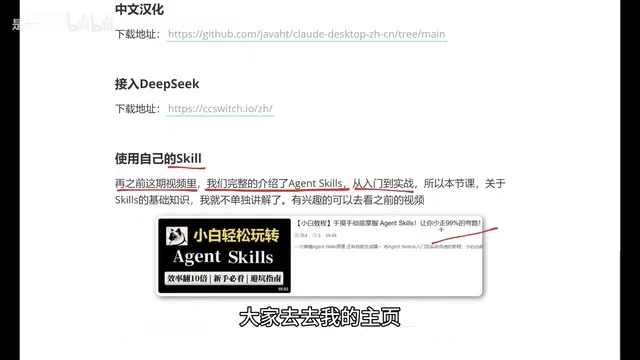
How do you use your own Skills in the Desktop version? Unlike the CLI version, the Desktop version requires uploading and installing Skills as compressed packages.
Steps
- Create a new task
- Click the "+" icon → "Skills" → "Manage Skills"
- Click "Add Skill" → "Upload Skill"
- Supported file formats:
.mdfiles, compressed packages (.zip), or.skillfiles
Using a creative generation Skill called IvanCreative as an example: compress the Skill folder into a zip package and drag it to the upload area to complete the installation.
Once installed, click "Skills" during a conversation to select the corresponding Skill. For example, type "Generate a creative idea for free beer on weekends," and the AI will generate content following your custom Skill logic. The entire process produces the same results as the CLI version — the only difference is the interface has shifted from command line to GUI.
Summary
Through the five steps above, we've achieved:
- Zero-cost startup: No Claude official account needed — bypass login via Developer Mode
- Significantly reduced usage costs: Integrate affordable domestic models like DeepSeek instead of the expensive native Claude model
- Chinese-friendly: One-click localization eliminates the language barrier
- Flexible extensibility: Support for custom Skill uploads to build personalized AI workflows
Note that CC Switch must be version 3.15.0 or above — otherwise it won't support Desktop configuration. Also, when using third-party models like DeepSeek, some Claude-native features (such as specific code analysis capabilities) may differ, so choose the appropriate model based on your actual needs.
Key Takeaways
- Claude Code Desktop can be used without an account by enabling Developer Mode to bypass official login restrictions
- CC Switch (version 3.15.0+) enables integration with domestic models like DeepSeek, dramatically reducing usage costs
- Community-provided Chinese localization patches support one-click installation for Simplified Chinese, Traditional Chinese, and more
- Custom Skills in the Desktop version must be uploaded as compressed packages, supporting
.md,.zip, and.skillfile formats - Enabling the 1M context option during configuration is recommended to enhance the AI's ability to handle large-scale codebases
Related articles
 Tutorials
Cursor + Codex Dual-IDE Collaboration: A Practical Methodology for Open-Source Project Customization
A complete methodology for open-source project customization based on real-world experience, detailing the Cursor+Codex dual-IDE workflow, seven-stage process, MVP validation, and AI source code reading techniques.
 Tutorials
Cursor Multi-Agent in Practice: Building a Full-Stack Next.js Blog in 50 Minutes
Build a full-stack blog in 50 minutes using Cursor IDE's multi-Agent mode with Next.js, Clerk auth, and Supabase. Learn the 4-phase AI Agent workflow and key integration pitfalls.
 Tutorials
Building an AI Software Factory from Scratch: A Cursor Engineer's Hands-On Experience with Multi-Agent Collaboration
Cursor engineer Eric shares practical insights on building an AI software factory: automation levels, guardrail design, parallel Agent management, and scaling to 1000+ Agents for 24/7 development.