Complete Guide to Claude Code GitHub Integration and Hooks
Complete Guide to Claude Code GitHub I…
A complete guide to Claude Code's GitHub integration and Hooks mechanism for automated dev workflows.
This article covers Lecture 7 of the official Claude Code tutorial, explaining how to integrate Claude Code into GitHub workflows for automated PR reviews and Issue fixes, and how to use the Hooks mechanism to inject custom logic before and after tool execution for test automation, permission control, and security protection.
Introduction
In previous lessons, we learned how to use Claude Code in the terminal for coding and project management. But Claude Code's capabilities extend far beyond that — it can deeply integrate into GitHub workflows to automatically review Pull Requests, fix Issues, and even inject custom logic before and after tool execution through the Hooks mechanism. This is Lecture 7 of the official Claude Code tutorial jointly released by Andrew Ng and Anthropic, focusing on GitHub integration configuration and the Hooks feature.
Installing Claude Code's GitHub Integration
Using the install-github-app Command
Claude Code comes with a built-in command for installing GitHub integration. Simply run install-github-app in your terminal to start the installation process. Additional authentication may be required during installation, and the system will open a browser to guide you through the GitHub App authorization configuration.
A GitHub App is an integration mechanism provided by GitHub. Unlike traditional OAuth Apps, it runs as an application identity rather than a user identity, offering more fine-grained permission control. GitHub Apps can be installed on specific repositories or entire organizations, requesting only the minimum set of permissions needed to complete their tasks. Claude Code's GitHub integration is essentially a GitHub App — it listens for repository events (such as Issue creation and PR submission) via Webhooks, then triggers the corresponding automated workflows. Long-lived Tokens allow GitHub Actions to run continuously in an unattended manner, avoiding frequent authentication interruptions.
After installation, you'll need to select which Workflows to enable. The tutorial installs two core workflows:
- Issue Fix Workflow: Allows you to @Claude in a GitHub Issue, letting it automatically analyze the problem and generate fix code
- PR Auto-Review Workflow: Claude automatically reviews each Pull Request for code quality and security concerns
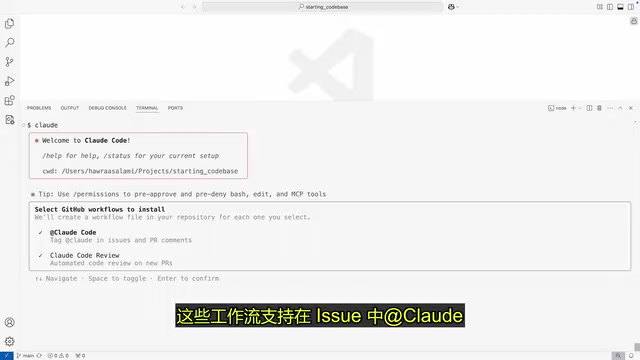
The installation process also requires creating a Long-lived Token and authorizing login to Claude. Once complete, the system automatically generates repository configuration information and creates a Pull Request containing the configuration changes.
Understanding the GitHub Integration Configuration Files
The auto-generated PR contains two key files:
- YAML Workflow File: Defines GitHub Actions execution rules, supporting author filtering, specifying runtime environments, etc.
- Code Review Configuration File: Controls the review prompt, allowing you to specify the level of thoroughness and focus areas
GitHub Actions is GitHub's built-in CI/CD and automation platform that allows developers to define workflows through YAML files. Each workflow consists of triggers (such as push, pull_request, and issue events) and a series of Jobs that run on GitHub-provided virtual machines (Runners). Claude Code's GitHub integration leverages this mechanism — when specific events occur, GitHub Actions spins up a Runner with the Claude Code runtime environment, allowing Claude to perform code analysis, modifications, and commits within it. The advantage of this architecture is that it's completely serverless, requiring no additional infrastructure maintenance from the team.
These configuration files are all Git-tracked, so teams can modify review strategies at any time as needed. Once you merge this PR, the GitHub integration is officially active.
PR Auto-Review in Practice
After merging the configuration PR, the Claude GitHub Action automatically activates. From this point on, every time a Pull Request is submitted, Claude will automatically join the review process as a "new teammate."
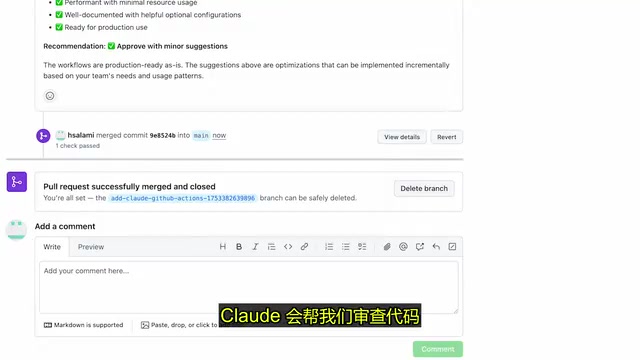
During the review, Claude performs the following operations:
- Reads and analyzes changed files: Understands the context and intent of code changes
- Checks code quality: Identifies potential code convention issues
- Identifies security concerns: Flags possible security risks
- Provides detailed feedback: Including what's done well and suggestions for improvement
Automated Code Review is a critical component of modern DevOps practices. Traditional tools like SonarQube and CodeClimate primarily rely on static analysis rules to detect code smells and security vulnerabilities, but they struggle to understand business semantics and design intent. LLM-based code review can understand context, evaluate architectural decisions, find logic errors, and even offer refactoring suggestions. However, AI review still faces challenges with false positive rates and consistency, which is why the industry generally recommends using it as a supplement to human review rather than a replacement, forming a dual-layer review model of "AI screening + human confirmation."
The level of review thoroughness can be adjusted through directives in the configuration file. While Claude's review can't replace human review, it's extremely valuable as a first automated check.
Using Claude to Automatically Fix GitHub Issues
Creating and Assigning Issues to Claude
Beyond reviewing PRs, Claude can also directly fix GitHub Issues. The tutorial demonstrates a real-world scenario: during application iteration, a header bar was added, and the team wants to revert to the old design.
When creating an Issue, be as specific as possible in the description:
- Revert to the old header
- Keep the theme toggle switch
- Remove the course assistant header
- Remove the secondary heading and horizontal line below the question section
Once created, simply @Claude in the Issue and it will start processing.
Claude's Complete Issue Fix Workflow
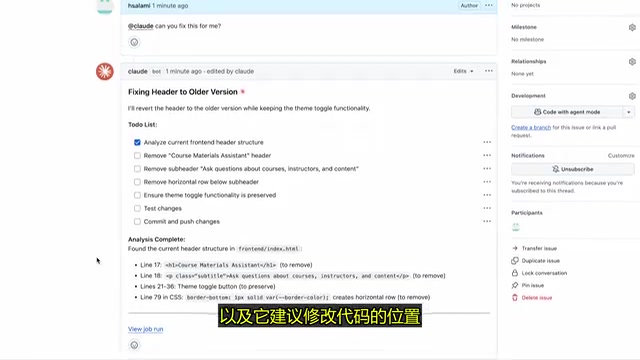
After Claude takes on an Issue, its workflow is very similar to working in the terminal:
- Analyze the problem: Understand the requirements described in the Issue
- Locate the code: Find the files and positions that need modification
- Execute changes: Make code changes according to requirements
- Test and verify: Test changes sequentially to ensure correctness
- Commit and push: Complete the necessary Git commits
- Create a PR: Automatically generate a Pull Request containing the fix
The generated PR includes a detailed explanation of the changes and the reasoning behind them. Even more interesting, after the PR is submitted, the previously configured auto-review workflow kicks in again — meaning code written by one Claude gets reviewed by another Claude, creating a double layer of assurance.
Claude Code Hooks Mechanism Explained
What Are Hooks?
Hooks are a powerful feature released for Claude Code. They allow developers to inject custom code at specific points during Claude Code's various operations. If you're familiar with the concept of Git Hooks, Claude Code's Hooks work very similarly.
Git Hooks are event callback mechanisms built into the Git version control system, allowing custom scripts to run before and after operations like commit, push, and merge. Common Git Hooks include pre-commit (checking code formatting before committing) and pre-push (running tests before pushing). Claude Code's Hooks borrow this design philosophy but with a broader scope — they cover not only Git operations but also the entire lifecycle of AI Agent tool calls, notification sending, user input reception, and more. This enables developers to insert custom logic at any node in the AI workflow, much like orchestrating middleware, achieving fine-grained behavior control and security protection.
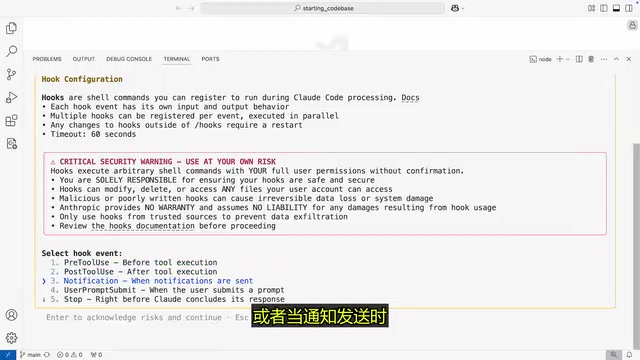
Hooks support listening to the following events:
| Event Type | Trigger Timing |
|---|---|
| Pre-Tool Execution | Can block tool execution or modify parameters |
| Post-Tool Execution | Perform additional operations after a tool completes |
| Notification Sent | Triggered when Claude sends a notification |
| Pre-User Submit | Before the user submits a prompt |
| Operation Stopped | When an operation is terminated |
| Pre-Agent Response | Before a sub-agent returns results |
Hooks Configuration Example
The tutorial demonstrates a simple but intuitive example: every time Claude executes a Read or Grep command, the computer plays a voice prompt saying "Done."
Configuration steps:
- Add a Matcher: Specify the tool names to match, such as
ReadandGrep - Define the execution command: Set the terminal command to run after tool execution (e.g., the
saycommand) - Write to the configuration file: Add the Hook configuration to
settings.local.json
The configuration file structure is roughly as follows: in settings.local.json, in addition to permission settings, a hook named PostToolUse is defined, containing matching rules (specifying Read or Grep) and the command to execute. If you remove the matching rules, the Hook will apply to all tool calls.
Practical Use Cases for Hooks
While the voice prompt is just a fun demo, the practical potential of Hooks is enormous:
- Auto-run tests: Automatically execute unit tests after every code modification
- Code linting: Automatically run lint tools before commits
- Permission control: Prevent Claude from using certain dangerous tools in specific scenarios
- Auto-review: Automatically complete code reviews when specific events are triggered
- Logging: Record every step Claude takes for auditing purposes
Security during AI Agent tool calls (Tool Use) is one of the core topics in current AI engineering. Since Agents may perform file read/write operations, Shell commands, network requests, and more, the lack of proper sandboxing and permission control could lead to data leaks, system damage, or supply chain attacks. The Hooks PreToolUse event is designed precisely as a protective layer for this purpose — developers can intercept requests before tools actually execute, check parameter validity, and even completely block dangerous operations. This "intercept-inspect-allow" pattern is similar to middleware or firewall rules in web applications and represents an important engineering practice for AI safety.
⚠️ Security Reminder: Hooks can execute arbitrary Shell commands. Configure them carefully to avoid introducing security risks.
Summary and Best Practices
This lesson demonstrated Claude Code's ability to expand from a terminal tool into a complete development workflow. Through GitHub integration, Claude becomes an always-online "AI teammate" on your team; through the Hooks mechanism, developers can finely control Claude's behavior and inject automation logic.
Key best practices:
- Be specific in Issue descriptions: The clearer the task description for Claude, the higher the fix quality
- Leverage dual review: Let Claude review Claude's code, then add human confirmation
- Adopt Hooks incrementally: Start with simple notification Hooks, then gradually expand to testing and permission control
- Version-control configuration files: Review configurations and Hook configurations should all be managed in Git for team collaboration
The next lesson will demonstrate how to use Claude Code with Jupyter Notebook for data visualization and code refactoring — stay tuned.
Related articles
 Tutorials
Cursor + Codex Dual-IDE Collaboration: A Practical Methodology for Open-Source Project Customization
A complete methodology for open-source project customization based on real-world experience, detailing the Cursor+Codex dual-IDE workflow, seven-stage process, MVP validation, and AI source code reading techniques.
 Tutorials
Cursor Multi-Agent in Practice: Building a Full-Stack Next.js Blog in 50 Minutes
Build a full-stack blog in 50 minutes using Cursor IDE's multi-Agent mode with Next.js, Clerk auth, and Supabase. Learn the 4-phase AI Agent workflow and key integration pitfalls.
 Tutorials
Building an AI Software Factory from Scratch: A Cursor Engineer's Hands-On Experience with Multi-Agent Collaboration
Cursor engineer Eric shares practical insights on building an AI software factory: automation levels, guardrail design, parallel Agent management, and scaling to 1000+ Agents for 24/7 development.