Claude Code in Practice: Plan Mode and MCP Automated Development Tips Explained

Advanced Claude Code guide: from precise file referencing to fully automated testing with MCP
This article walks through advanced Claude Code techniques via hands-on case studies, covering precise file referencing with @ to optimize context quality, enabling Plan Mode for a plan-first development strategy, leveraging screenshot-driven UI iteration, persisting development rules through project memory files, and integrating the Playwright MCP server to create a fully automated browser testing loop — elevating the AI coding assistant from a passive tool to a proactive collaborative partner.
Introduction
What happens to development efficiency when an AI coding assistant goes beyond passively executing instructions — actively planning, automatically modifying multiple files, and even optimizing interfaces through screenshot analysis? This article breaks down advanced Claude Code techniques through a complete hands-on case study, covering everything from file referencing and Plan Mode to integrating MCP servers for fully automated testing.
Precise File Referencing: The Foundation for Better Claude Code Output
Claude Code's performance largely depends on the quality of context you provide. Rather than letting the AI fumble through your codebase on its own, explicitly pointing it to the files that need modification dramatically improves efficiency.
This relates to a core limitation of large language models — the context window. The context window is the maximum number of tokens a model can process in a single interaction. When you dump an entire codebase into the AI, irrelevant code consumes precious context space, diluting the model's attention to critical information. In the Transformer architecture, this is known as the "attention dilution" problem. Precise file referencing essentially helps the model concentrate its limited computational resources on the code snippets that actually need processing, significantly improving output accuracy and relevance.
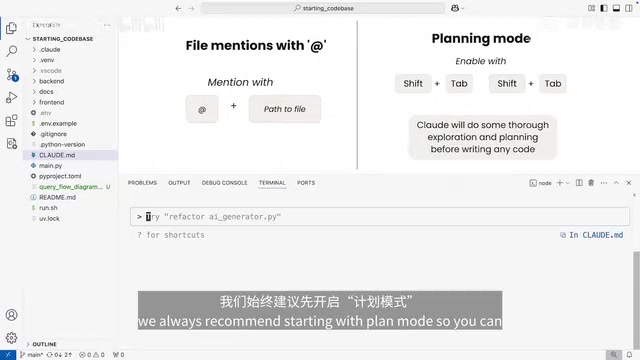
The actual operation is straightforward: type the @ symbol in Claude Code to select target files. For folders, you can directly reference files within them; for individual files, pressing Tab auto-completes the full filename. This seemingly simple action is the foundation of using Claude Code effectively — the more precise the context you provide, the higher the quality of AI output.
Plan Mode: A Plan-First, Execute-Later Development Strategy
For larger feature development or changes spanning multiple files, jumping straight into code generation is rarely the optimal approach. A better practice is to first enable Plan Mode, letting Claude generate a detailed change plan.
Plan Mode's design philosophy stems from Chain-of-Thought prompting techniques. Research shows that when LLMs are asked to think step-by-step before providing answers, their performance on complex reasoning tasks improves dramatically. In software development, asking AI to generate code directly is essentially demanding it complete the entire process of "understanding requirements → designing architecture → writing implementation" in one shot, which easily leads to omissions or inconsistencies. Plan Mode explicitly splits this into a planning phase and an execution phase, letting the model first clarify dependencies and scope of changes at an abstract level before progressively implementing concrete code. This aligns perfectly with the software engineering best practice of "design before code."
How to Enable Plan Mode
Press Shift + Tab twice to activate Plan Mode. Once enabled, Claude won't write code directly. Instead, it first maps out the complete chain from frontend to backend, identifies the features to implement, and then generates a structured execution plan.
Plan Mode Workflow
- Generate the plan: Claude studies the core files and outputs a change proposal
- Review and confirm: Developers can approve directly or provide feedback on what needs adjustment
- Execute the plan: After confirmation, enable "auto-accept edits" (press
Shift + Tabonce), and Claude automatically modifies all relevant files
This "plan first, act later" philosophy is crucial for building complex features. Whenever you feel things are heading in the wrong direction, press Escape to redirect Claude Code's execution at any time.
Hands-On Case Study: Adding Citation Sources to a Chat Application
In this hands-on example, the goal was to add a "citation sources" feature to a chatbot application — when users request a course outline, the app not only displays the content but also renders data sources as clickable links.
Round 1: Feature Implementation
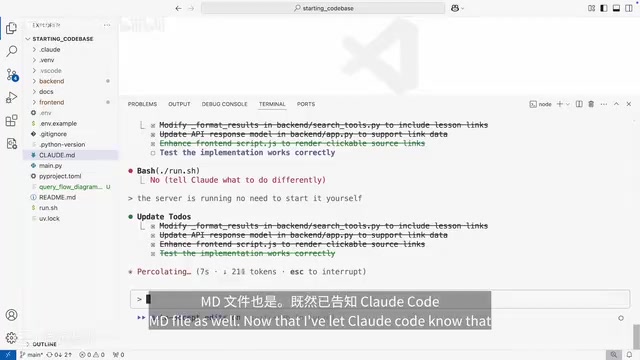
Using Plan Mode, Claude automatically completed coordinated frontend and backend modifications, successfully rendering citation sources as navigable links.
Round 2: Screenshot-Driven Visual Optimization
After the feature was implemented, the default blue links were hard to read against the dark interface. This demonstrates another high-frequency use case for Claude Code — screenshot-driven iterative development:
- Take a screenshot of the current interface
- Paste the screenshot into Claude Code
- Describe the problem: "These links are completely unreadable — can you optimize the visual styling?"
- Claude analyzes the screenshot, identifies the frontend areas that need adjustment, and automatically modifies the styles
Screenshot-driven development works thanks to Claude's multimodal understanding capabilities. Modern multimodal large models use a Vision Encoder to convert images into vector representations the model can understand, then jointly reason with textual information. In UI development scenarios, this means Claude can not only "see" the visual presentation of interface elements (color contrast, layout spacing, font size) but also map visual issues to specific CSS properties or frontend component code. This capability fills a blind spot in traditional code review — many UI issues can only be discovered after rendering, and developers previously had to manually switch back and forth between the browser and editor.
This approach of having Claude Code "understand screenshots and directly modify code" is a powerful tool for rapid UI iteration.
Hands-On Case Study: Adding a New Conversation Button
Before adding new features, an important step is to clear the conversation history. This offers two benefits: a more spacious context window and preventing Claude from being misled by outdated information.
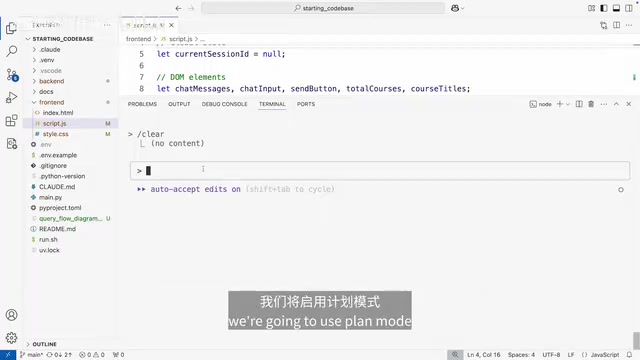
The new feature requirement was clear: add a "New Conversation" button to the interface that clears the chat and starts a fresh session when clicked. The workflow remained the same: enable Plan Mode → review the proposal → auto-execute. Claude automatically injected JavaScript code to handle click events, cleared the input field with auto-focus, and added styles to match the existing interface design.
Project Memory: Persisting Development Rules
During development, you'll frequently encounter rules that need to be communicated to Claude repeatedly, such as "don't auto-start the server — I'll start it manually." Claude Code provides two types of memory files to solve this:
- Project-level memory (.claude/rules.md): Shared team rules, tracked by Git
- Local memory (claude-local.md): Personal preferences, ignored by Git
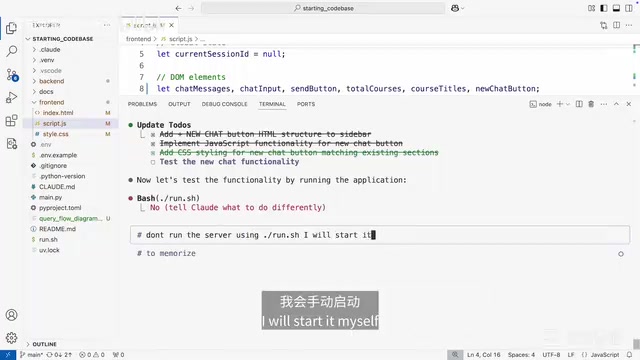
This design is similar to the layered configuration philosophy of files like .editorconfig or .eslintrc — project-level configuration ensures team consistency while local configuration respects individual work habits. The contents of memory files are automatically injected into Claude's System Prompt at the start of each conversation, effectively setting persistent behavioral guidelines for the AI and eliminating the inefficiency of restating preferences in every new conversation.
For example, the rule "don't start the server" is better suited for the local memory file since other developers may have different preferences. This satisfies individual needs without affecting team collaboration.
Integrating the Playwright MCP Server for Fully Automated Testing
MCP (Model Context Protocol) gives Claude Code the ability to connect to external data sources and systems. MCP is an open standard released by Anthropic in late 2024, designed to establish a unified communication interface between AI models and external tools and data sources. Its architecture follows a client-server pattern: Claude Code acts as the MCP client sending requests, while tools like Playwright serve as MCP servers providing capabilities. This design draws from the success of LSP (Language Server Protocol) — just as LSP unified communication between editors and language tools, MCP unifies interactions between AI models and external systems. Developers can connect a new MCP server with a single command, without writing custom integration code for each tool, dramatically reducing the cost of extending the AI toolchain.
In this case study, the Playwright MCP server was integrated to enable automated browser testing. Playwright is an open-source browser automation framework developed by Microsoft, supporting three major browser engines: Chromium, Firefox, and WebKit. Compared to the earlier Selenium, Playwright offers a more modern API design, more reliable auto-wait mechanisms, and native support for modern web features like Shadow DOM and Service Workers.
MCP Server Integration Steps
claude mcp add playwright -- npx @playwright/mcp --latest
After restarting Claude, enter the /mcp command to check the server connection status. Tools provided by Playwright include: executing JavaScript, uploading files, keyboard navigation, screenshot analysis, and more — testing operations that previously required manual effort can now all be automated through code.
The Core Value of MCP Automation
With Playwright MCP, developers no longer need to manually take screenshots or repeatedly communicate interface issues with Claude. Claude can automatically open a browser, capture the screen, analyze the current state, and then directly modify the code — forming a fully automated development loop. When Playwright is connected to Claude Code as an MCP server, the AI gains complete programmatic control over the browser — including page navigation, element interaction, network request interception, and visual screenshot comparison. This enables the "write code → auto-verify → discover issues → fix code" cycle to run continuously without human intervention.
Summary
Effective use of Claude Code can be distilled into several core principles:
- Provide precise context: Reference the right files with
@to improve output quality - Plan before executing: Use Plan Mode to avoid blind coding
- Leverage visual capabilities: Paste screenshots for rapid UI iteration
- Persist rules: Use project memory to reduce repetitive communication
- Extend capability boundaries: Integrate MCP servers for fully automated testing
Once you master these techniques, an AI coding assistant is no longer just a simple code completion tool — it becomes a true collaborative partner capable of autonomously planning and executing complex development tasks.
Related articles
 Tutorials
Cursor + Codex Dual-IDE Collaboration: A Practical Methodology for Open-Source Project Customization
A complete methodology for open-source project customization based on real-world experience, detailing the Cursor+Codex dual-IDE workflow, seven-stage process, MVP validation, and AI source code reading techniques.
 Tutorials
Cursor Multi-Agent in Practice: Building a Full-Stack Next.js Blog in 50 Minutes
Build a full-stack blog in 50 minutes using Cursor IDE's multi-Agent mode with Next.js, Clerk auth, and Supabase. Learn the 4-phase AI Agent workflow and key integration pitfalls.
 Tutorials
Building an AI Software Factory from Scratch: A Cursor Engineer's Hands-On Experience with Multi-Agent Collaboration
Cursor engineer Eric shares practical insights on building an AI software factory: automation levels, guardrail design, parallel Agent management, and scaling to 1000+ Agents for 24/7 development.