Claude Code Permission Management Fully Explained: Configure It Right Before You Trust It
A complete guide to Claude Code's permission system for safe and efficient AI-assisted development.
This article breaks down Claude Code's permission management system, covering its four permission categories (Bash, File, MCP, WebFetch), the two-level configuration hierarchy (user-level and project-level), Allow/Deny rule mechanics, the dangerously-skip-permissions flag, and three common configuration pitfalls — helping developers use AI tools confidently and securely.
Claude Code is incredibly powerful — it can delete files and modify configurations right out of the gate. But an AI tool without boundaries... do you really dare use it freely? In fact, Claude Code has a complete built-in permission management system where every sensitive operation requires your explicit authorization. Today, we'll thoroughly dissect this permission system so you can enjoy AI's efficiency without worrying about it going off the rails.
Three Authorization Options: Allow, Allow Once, Deny
When Claude Code attempts a sensitive operation, a permission prompt pops up with three choices:
- Allow: Permanently grant access for this type of operation. Note — this isn't for a single command, but for an entire category of operations. For example, if you Allow
bash(git*), all commands starting with git will pass through without prompting from now on. It's essentially a permanent pass. - Allow Once: Grant access just this one time. The next time the same operation comes up, it'll ask again.
- Deny: Reject outright. The operation is not allowed to execute.
Understanding the "scope" of Allow is key — it grants access to a category of operations, not a single command. This design avoids the annoyance of constant pop-ups while retaining sufficient control granularity.
The underlying mechanism follows the classic information security principle of "default deny, explicit allow," also known as the Allowlist Model. The opposite approach is the Blocklist Model (default allow, explicit deny). Virtually all mature security systems recommend the allowlist model for a simple reason: you can't foresee every possible dangerous operation to deny one by one, but you can explicitly list the operations you need and allow them individually. This principle was first articulated by security expert Marcus Ranum in the 1990s and later became a foundational guideline in firewall design, operating system permission management, application sandboxing, and more. In the context of AI tools, this principle is especially important — large language models behave with inherent uncertainty, and you can't fully predict what commands they'll attempt to execute. Therefore, "deny everything not explicitly allowed" is the safest security posture.
Four Permission Categories: Bash, File, MCP, WebFetch
Claude Code's permission system is divided into four independent categories, each governing a different scope of operations.
Bash Permissions: The Gateway for Terminal Commands
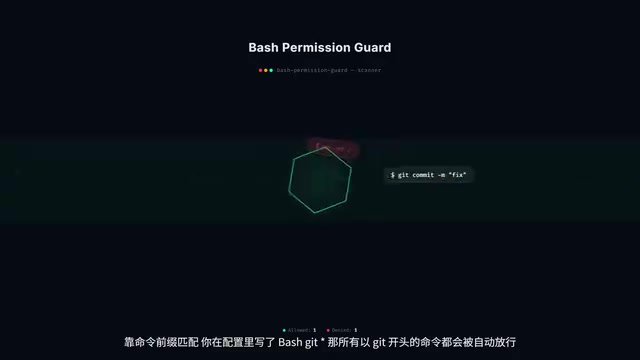
All terminal command execution rights are controlled through this gate, including git, npm, rm, and more. Permission decisions rely on command prefix matching: if you configure bash(git*), all commands starting with git will be automatically allowed.
Command prefix matching is a common access control strategy widely used in firewall rules, API gateways, and operating system permission management. The core idea is to decide whether to allow an action by matching the beginning of a command string. Compared to regular expression matching, prefix matching has lower computational overhead and rules are more intuitive. However, it has limitations — attackers could bypass prefix checks through command injection, for example by crafting compound commands like git; rm -rf /. Therefore, Claude Code's prefix matching implementation also needs to parse and split commands, ensuring that semicolons, pipe characters, and other Shell metacharacters can't be exploited to bypass permission controls.
If you only configure bash(npm test*), then only npm test can pass through — npm run build won't. Dangerous commands like rm are blocked by default unless you explicitly configure them as allowed. This is the default deny, explicit allow security philosophy in action.
File Permissions: The Gatekeeper for File Read/Write
File permissions are controlled through path pattern matching. If you configure write(src/**), all write operations to files under the src directory will be allowed. A single * matches any characters within a single directory level, while ** recursively matches subdirectories at any depth.
The path pattern matching used here is based on Glob syntax, a filename matching specification that has been used in Unix/Linux systems for decades. A single asterisk * matches any characters within a single directory level without crossing directory separators, while a double asterisk ** recursively matches subdirectories at any depth. This syntax is also widely adopted by .gitignore, Webpack configurations, GitHub Actions path filters, and more. Understanding the difference between Glob and regular expressions is important: Glob is a simplified matching syntax designed for file paths — less expressive than regex, but safer and harder to get wrong in path matching scenarios. For example, src/**/*.ts will match all TypeScript files at every level under src without accidentally matching files in other directories.
You might not have noticed that read and write are controlled separately. Read permissions are relatively relaxed by default since read operations generally don't break anything. Write and edit permissions are strict by default because write operations carry real risk. For sensitive files like .env, you can add a dedicated deny rule to explicitly block write access.
MCP Permissions: The Safety Valve for External Tools
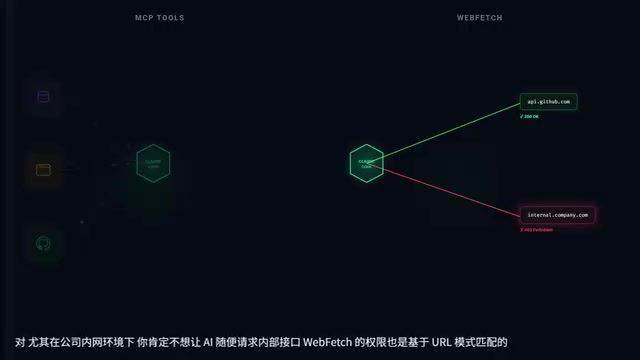
MCP handles permission management for external tools. If you've connected third-party tools like database tools or browser tools, each operation from these tools also requires separate authorization. Permissions can be granular down to mcp(server-name.tool-name) — you can pre-authorize trusted tools in your configuration or manually confirm each time.
MCP (Model Context Protocol) is an open standard protocol introduced by Anthropic, designed to provide large language models with a unified interface for interacting with external tools and data sources. Before MCP, every AI tool needed custom integration code for different external services, leading to severe ecosystem fragmentation. MCP's design borrows from the USB interface concept — defining a standard communication protocol so any compliant tool can be plug-and-play. The MCP ecosystem currently covers dozens of tool types including database queries, browser automation, file system operations, and API calls. Precisely because MCP opens a channel between AI and the external world, its permission management becomes critically important — an unauthorized database tool call could lead to data leaks, and an uncontrolled browser tool could access sensitive intranet pages.
WebFetch Permissions: The Firewall for Network Requests
This controls whether Claude Code can access specific web pages, based on URL pattern matching. Especially in corporate intranet environments, you definitely don't want AI freely requesting internal endpoints — this gate exists for exactly that purpose.
Two-Level Configuration System: User-Level and Project-Level
Manually clicking Allow every time is too tedious, so Claude Code provides a persistent configuration solution.
- User-level configuration: Stored in your home directory, applies to all projects, ideal for personal preferences.
- Project-level configuration: Stored in the
.claudefolder within the project directory, applies only to the current project, and can be committed to a Git repository so the entire team shares the same permission rules.
The configuration file format is straightforward — a JSON file with allow and deny arrays under permissions, where each element is a rule.
Deny Always Takes Priority Over Allow
What happens when configurations at the two levels conflict? Deny takes priority — no matter which level sets a denial, the final result is denial. This follows the same logic as firewalls: security rules always take precedence.

Think of Allow as a whitelist and Deny as a blacklist — the blacklist always overrides the whitelist. The recommended approach is: first use Allow to open a broad scope, then use Deny to precisely exclude sensitive files. For example, first use write(*) to open all write permissions, then use write(.env*) to protect sensitive files — convenient and secure.
dangerously-skip-permissions: The Switch That Disables the Fire Suppression System
The name of this flag literally contains "dangerously" — it sounds scary because it genuinely is dangerous. Once you add this flag, all permission checks are bypassed. Claude Code can do whatever it wants without asking you.

It does have legitimate use cases: CI/CD automation pipelines. When running Claude Code in GitHub Actions, there's no one to manually click Allow, so this flag is needed. But the critical prerequisite is that the runtime environment must be sandboxed.
Using this flag in CI/CD pipelines is relatively safe because modern CI/CD platforms (like GitHub Actions, GitLab CI) run each build in isolated containers or virtual machines. These environments have several key security properties: first, ephemerality — the environment is destroyed after the build completes, leaving no persistent damage; second, least privilege — containers typically contain only the code and dependencies needed for the build, without SSH keys, personal credentials, or other sensitive information (sensitive data is injected through Secrets mechanisms with access auditing); third, network isolation — outbound network access from containers can be restricted.
Using this in local development environments is strongly discouraged. Your local machine has all your sensitive files, SSH keys, and environment variables. If the AI executes a mistaken operation, there's nothing to intercept it. By contrast, a developer's local machine is a long-running environment with full privileges, containing browser cookies, Git credentials, cloud service keys, and many other sensitive assets. If the AI tool goes out of control, the damage scope is unpredictable. It's like removing a building's fire suppression system — everything's fine until something goes wrong, and then it's catastrophic.
Three Common Permission Configuration Pitfalls
Pitfall 1: Overly Broad Wildcards
Configuring bash(**) is equivalent to leaving the front door wide open — rm, curl download-and-execute, even chmod 777, nothing gets blocked. The correct approach is to precisely specify the command prefixes you need, such as bash(git*) and bash(npm*).
Pitfall 2: Inconsistent Configuration Levels
You Allow a certain operation in your user-level configuration on your own machine, but the project-level config doesn't have it. The result: everything works fine on your machine, but your colleagues get bombarded with permission prompts the moment they pull the code. Team-shared rules should go in project-level configuration; personal preferences go in user-level. Don't mix them up.
Pitfall 3: The Symbolic Link Path Trap
Symbolic links can cause actual paths to differ from expected paths. You configure write(config/*), but config is a symbolic link that actually points to /shared/config — the rule won't match.
The path inconsistency caused by symbolic links is known in the security field as a variant of TOCTOU (Time of Check to Time of Use) race conditions. The path the operating system sees when checking permissions may differ from the path actually accessed when the operation executes — this is a classic security vulnerability category. In container escape attacks, attackers frequently use symbolic links to redirect paths inside a container to sensitive directories on the host machine. Claude Code faces a similar problem: permission rules are based on path string matching, but symbolic links can cause actual file system access to bypass these rules. Beyond the solutions mentioned below, a stricter approach would be to resolve symbolic links to their real paths before performing rule matching, though this adds performance overhead.
The solution is to use ** for broader matching, or cover the link target path in your rules.
Five Golden Rules for Permission Management
- Be precise with permission configurations — don't take shortcuts with broad wildcards.
bash(**)is absolutely unacceptable. - Put team-shared rules at the project level — commit them to the Git repository. Don't put them at the user level.
- Use Deny rules to protect sensitive files — for
.envfiles, keys, and similar assets, explicit denial gives the most peace of mind. - Only use dangerously-skip-permissions in CI/CD sandboxes — never enable it in local development.
- Audit permission configurations regularly — as projects evolve, permission rules need to be updated too. Don't configure them once and forget about them.
Permission management isn't about limiting AI's capabilities — it's about drawing the runway lines so it runs fast without veering off course. Good permission configuration lets you confidently let AI do the work, and that's the ultimate goal of permission management.
Related articles

CodeGraph: The 50K-Star Open-Source Tool That Cuts AI Coding Token Usage in Half
CodeGraph is a 50K-star open-source tool that builds a code knowledge graph so AI coding assistants can locate code instantly—cutting Token usage by 47%, boosting speed by 22%, all running 100% locally.

VibeCoding Beginner's Guide: A Complete Guide to Building Software with Natural Language from Scratch
VibeCoding lets anyone build software through natural language conversations with AI. Learn the core concepts, learning path, and practical methods to get started.

Using UU Accelerator to Speed Up Cursor: A Compliant Solution for Stable AI Coding in China
Learn how to use NetEase UU Accelerator to speed up Cursor AI coding tool in China, with step-by-step setup including node selection and launch configuration.