Claude Code's Four Permission Modes Explained: A Complete Guide from Plan Mode to Full Permission Mode

A complete guide to Claude Code's four permission modes, their features, use cases, and switching methods.
Claude Code offers four permission levels: Plan Mode, Default Mode, Auto-edit Mode, and Full Permission Mode. From the most conservative Plan Mode (requiring confirmation for every step) to the most aggressive Full Permission Mode (no confirmation needed), developers can flexibly choose based on task risk. During daily development, use the Shift+Tab shortcut to cycle through the first three modes; Full Permission Mode requires command-line parameters to activate.
Overview of Claude Code Permission Modes
As a powerful AI programming assistant, Claude Code offers multiple permission modes to meet development needs across different scenarios. From the most conservative Plan Mode to the most aggressive Full Permission Mode, developers can flexibly choose based on the risk level of their tasks. This article provides a detailed introduction to the characteristics, use cases, and switching methods for these four permission modes.
Claude Code is a command-line AI programming tool developed by Anthropic, built on the Claude large language model. It can understand code context, edit files, and execute commands directly in the terminal. Unlike traditional IDE plugins (such as GitHub Copilot, Cursor, etc.), Claude Code uses a terminal-native interaction approach, meaning it can directly manipulate the file system and execute shell commands—making permission management particularly important. The design philosophy behind the permission modes stems from the "Principle of Least Privilege" in information security, which states that any program or user should only be granted the minimum set of permissions necessary to complete their task, thereby minimizing potential risks.
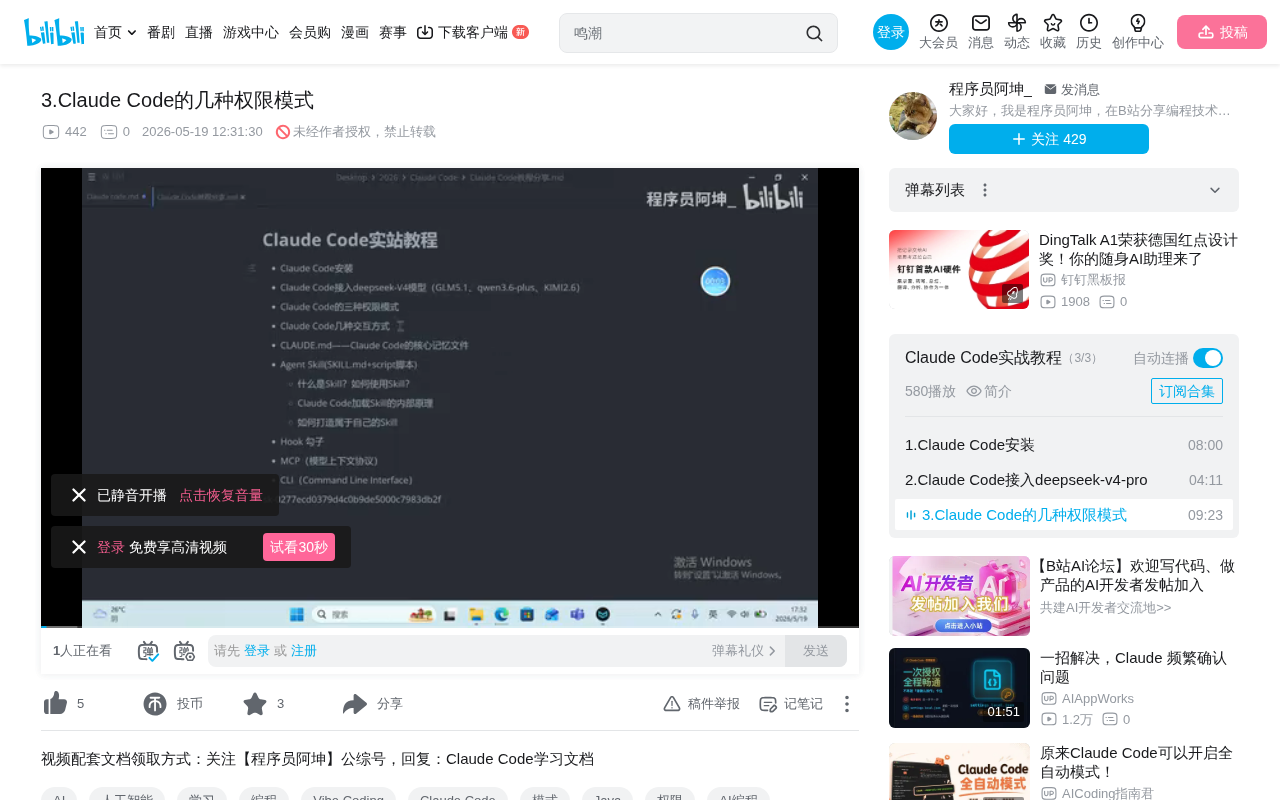
Prerequisites: cloud.json and ccswitch
Before diving into the permission modes, there are two important configuration matters to understand.
cloud.json Configuration Fix
If you encounter error messages when entering the Claude Code interface, you need to add the corresponding configuration fields to the cloud.json configuration file. For first-time users, this file may contain only a few lines—simply add the specified fields to the outermost object to resolve the error. Save and close the file for changes to take effect.
cloud.json is the core file Claude Code uses to store cloud service connection configurations, typically located in the .claude folder under the user's home directory. The file uses JSON format to store critical parameters such as API endpoints, authentication information, and model selections. JSON (JavaScript Object Notation) is a lightweight data interchange format, and its "outermost object" refers to the key-value pairs contained within the top-level curly braces {} in the file. Claude Code's hot-reload mechanism means modifications take effect immediately after saving without requiring an application restart, greatly simplifying the configuration debugging process.
How ccswitch Works
The ccswitch tool operates on a very simple principle—when dynamically switching between options, it automatically modifies the settings.json configuration file in the Claude directory. For example, when switching from DeepSeek to the Alibaba Cloud Bailian platform, the model information in the configuration file is updated accordingly to the Qwen model.
ccswitch is a community-developed model switching tool for Claude Code that addresses the need to quickly switch between multiple AI model providers (such as Anthropic's native API, DeepSeek, Alibaba Cloud Bailian, etc.). settings.json is Claude Code's runtime configuration file, storing information like the current model name, API key, and base URL. When ccswitch performs a switch operation, it's essentially rewriting the values of these configuration items.
If you prefer not to use the ccswitch tool, you can configure settings directly through environment variables, which have the highest priority and permissions. This design of giving environment variables the highest priority follows the configuration management principles from the "Twelve-Factor App" methodology—environment variables won't be accidentally committed to code repositories and offer greater flexibility when switching between different deployment environments. Common environment variables include ANTHROPIC_API_KEY, ANTHROPIC_BASE_URL, ANTHROPIC_MODEL, etc., which can be set in shell profile files (such as .bashrc or .zshrc) or specified temporarily before the startup command.
Detailed Explanation of the Four Permission Modes
Plan Mode: The Safest Choice
Plan Mode is the most conservative mode. In this mode, Claude Code won't directly execute tasks but instead outputs a detailed execution plan first, waiting for user confirmation before proceeding.
This mode's design draws from the "Human-in-the-Loop" (HITL) AI safety concept. In this architecture, every critical decision point of the AI system requires human confirmation, forming a three-stage workflow of "propose-review-execute." Similar practices exist in the DevOps field, such as Terraform's plan/apply separation mechanism—first displaying the infrastructure change plan, then actually executing only after confirmation.
Core Features:
- Asks the user before executing any task
- Continues execution only after the user clicks "Yes"
- Ideal for handling important files or production environment operations
This mode is particularly suitable for scenarios requiring strict control over code changes, such as modifying core business logic or database-related code. For irreversible operations involving database DDL operations (like ALTER TABLE, DROP INDEX) or production environment configuration changes, this confirmation mechanism effectively prevents catastrophic errors.
Default Mode: Balancing Efficiency and Safety
This is the mode Claude Code enters by default upon startup. In Default Mode, the AI independently determines which tasks require user confirmation and which can be executed directly.
The AI's ability to assess operation risk levels in Default Mode relies on the Claude model's deep understanding of operational semantics. The model intelligently categorizes operations: read-only operations like reading files, viewing directory structures, and searching code are typically classified as low-risk; while operations like deleting files, modifying system configurations, and making network requests are classified as high-risk. This classification mechanism is similar to permission levels in operating systems (like Linux's read/write/execute permissions) but more intelligent—it understands the business semantics of operations. For example, modifying .gitignore and modifying a database connection string are both file write operations, but their risk levels are completely different.
Core Features:
- AI independently assesses operation risk levels
- Low-risk operations may be executed directly
- High-risk operations still require confirmation
- Balances efficiency and safety
This is the most commonly used mode in daily development, achieving a good balance between security and efficiency.
Auto-edit Mode: A Code Refactoring Powerhouse
Auto-edit Mode further relaxes permission restrictions. In this mode, Claude Code doesn't need user confirmation when modifying code files, but still asks for user input when executing commands.
This mode separates "file modification" from "command execution" by risk level, based on an important observation: file modifications are typically reversible (can be rolled back through Git version control), while command execution may produce irreversible side effects (such as sending network requests, deleting remote data, or starting/stopping service processes). Git, as a distributed version control system, provides a natural safety net for file modifications—even if the AI writes incorrect content, developers can view change details via git diff and quickly revert to a previous state using git checkout or git restore. This makes the risk tolerance for file operations much higher than for command execution.
Core Features:
- File creation and modification require no confirmation
- Command execution still requires user authorization
- Ideal for large-scale code refactoring scenarios
In actual testing, when asking Claude Code to create a text file containing Li Bai's poem "Bring in the Wine," Auto-edit Mode directly creates the file and writes the content, while Plan Mode first asks whether to create the file.
Full Permission Mode (Dangerously Skipping Permissions): Maximum Efficiency
This is the highest-permission and most dangerous mode. In this mode, Claude Code executes any operation without user confirmation, including file operations and command execution.
The mode's naming itself contains the warning word "Dangerously," which is an intentional design choice by Anthropic. In software engineering, similar "dangerous operation" naming conventions appear in other tools, such as Git's --force push, Docker's --privileged mode, and npm's --force install. This naming approach ensures users are fully aware of potential risks before executing operations through semantic-level warnings.
Core Features:
- All operations execute directly without confirmation
- Highest efficiency but also highest risk
- Requires specific command-line parameters to start
- Displays a risk warning at startup, requiring the user to select "Yes, I accept"
⚠️ Warning: This mode should only be used when you fully trust the AI output and the operating environment is controllable, such as rapid prototyping in an isolated test environment. An "isolated test environment" typically refers to containerized environments (like Docker containers), virtual machines, or dedicated development sandboxes—environments that won't affect production systems even if compromised. In practice, it's recommended to use this mode in conjunction with snapshot mechanisms (like Docker's commit or VM snapshots) to enable quick environment recovery when issues arise.
How to Switch Between Claude Code Modes
Switching with the Shift+Tab Shortcut
In the Claude Code interface, use the Shift + Tab keyboard shortcut to cycle through the first three modes:
Default Mode → Auto-edit Mode → Plan Mode → Default Mode (cycle)
Each time you press the shortcut, the current mode name is displayed at the bottom of the interface. This cyclic switching design allows developers to adjust permission levels at any time within the same session based on the current task's risk level, without needing to exit and restart.
Starting Full Permission Mode via Command Line
Full Permission Mode must be started with specific command-line parameters and cannot be switched to via keyboard shortcuts. After startup, the system displays a risk warning that requires explicit user acceptance before entering the mode. This additional startup barrier is a form of "Friction Design," which prevents users from inadvertently entering a high-risk state by adding extra steps.
Mode Selection Recommendations for Different Scenarios
| Development Scenario | Recommended Mode | Reason |
|---|---|---|
| Production code modifications | Plan Mode | Every step is controllable, avoiding mistakes |
| Daily feature development | Default Mode | Balances efficiency and safety |
| Large-scale code refactoring | Auto-edit Mode | Efficient file modifications, commands still controllable |
| Test environment rapid prototyping | Full Permission Mode | Maximizes development speed |
In practice, developers often need to handle tasks of different risk levels within a single development session. For example, you might use Default Mode during feature development, switch to Auto-edit Mode when batch-renaming variables or restructuring code, and switch back to Plan Mode when reviewing AI-generated database migration scripts. Flexible use of mode switching makes the entire development workflow both efficient and safe.
Conclusion
Claude Code's four permission modes provide developers with a complete spectrum of choices from conservative to aggressive. Understanding the characteristics and use cases of each mode helps us maximize development efficiency while ensuring code safety. Beginners are advised to start with Plan Mode or Default Mode, and gradually try higher-permission modes as they become more familiar with the tool. Mastering the Shift+Tab shortcut switching technique allows you to quickly adjust permission levels between different tasks for a smoother development experience.
From a broader perspective, Claude Code's permission mode design reflects a core challenge in AI tool development: how to find the optimal balance between AI autonomy and human control. As AI capabilities continue to grow, this tiered authorization approach will become the standard design paradigm for all AI-assisted tools.
Related articles
 Tutorials
Cursor + Codex Dual-IDE Collaboration: A Practical Methodology for Open-Source Project Customization
A complete methodology for open-source project customization based on real-world experience, detailing the Cursor+Codex dual-IDE workflow, seven-stage process, MVP validation, and AI source code reading techniques.
 Tutorials
Cursor Multi-Agent in Practice: Building a Full-Stack Next.js Blog in 50 Minutes
Build a full-stack blog in 50 minutes using Cursor IDE's multi-Agent mode with Next.js, Clerk auth, and Supabase. Learn the 4-phase AI Agent workflow and key integration pitfalls.
 Tutorials
Building an AI Software Factory from Scratch: A Cursor Engineer's Hands-On Experience with Multi-Agent Collaboration
Cursor engineer Eric shares practical insights on building an AI software factory: automation levels, guardrail design, parallel Agent management, and scaling to 1000+ Agents for 24/7 development.