Claude Code Core Features Explained: 12 Essential Tips to Boost Your Development Efficiency
Claude Code Core Features Explained: 1…
A systematic guide to the 12 most important Claude Code features, from beginner to power user.
This article systematically covers the 12 core features of Claude Code, including CLAUDE.md project memory, permission management, Plan Mode, checkpoint rollback, reusable skills, hook automation, MCP external tool integration, plugin sharing, context compression, slash commands, and sub-agent task delegation. Developers are advised to start with the essential trio and gradually master advanced features to dramatically boost coding efficiency.
AI coding agents like Claude Code are fundamentally changing the way software is developed. But many developers only scratch the surface with basic conversational programming, overlooking a wealth of built-in features that can significantly improve efficiency and safety. This article systematically covers the 12 most important features of Claude Code to help you go from beginner to power user.
1. Project Memory: The CLAUDE.md File
Every time you start a new session, Claude knows nothing about your project structure or coding preferences. The CLAUDE.md file solves this problem — it's a Markdown file placed in your project's root directory containing key information like coding preferences and project structure. Claude reads it at the start of every session and uses it as persistent memory.
You can write rules like "always write unit tests," and Claude will follow them in every session. CLAUDE.md has no fixed format — just keep it concise and easy to read. Even better, typing init during a session will have Claude automatically generate a CLAUDE.md file for your current project.
2. Permission Management: Balancing Speed and Safety
Coding agents are powerful but come with risks — they can edit files and run commands on your machine. By default, Claude Code asks for your consent before editing files or running commands. The permissions feature lets you customize this behavior: pre-approve safe operations (like running tests or committing code) while blocking dangerous ones (like deleting files).
Typing /permissions during a session opens an interactive menu where you can add or remove tools from the allow list. It's recommended to start with a conservative approach and gradually relax permissions as you build trust with specific workflows.
3. Plan Mode: Think Before You Act
It's tempting to jump straight into coding, but when handling complex tasks, Claude might edit the wrong files and waste tokens. Plan Mode completely separates planning from execution.
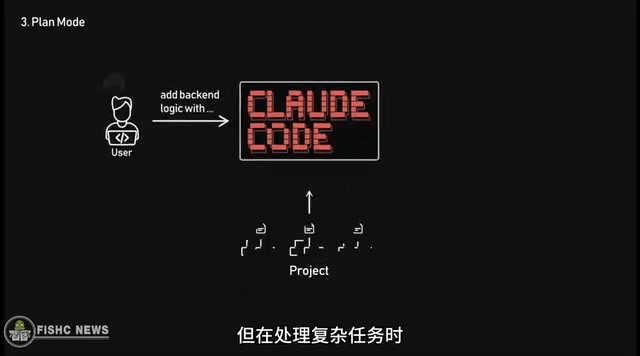
Press Shift+Tab to toggle between Plan Mode and normal mode. With Plan Mode enabled, Claude can read files, ask questions, and propose a step-by-step plan, but it's restricted to read-only tools and cannot make any changes. Once you've reviewed and approved the plan, switch back to normal mode and let Claude execute it. This "plan first, execute later" approach effectively prevents wrong turns during complex refactoring.
4. Checkpoints: A Safety Net for Bold Experimentation
You ask Claude to refactor a module, it edits numerous files, and then you realize the approach was wrong — now you have to manually undo everything. Sound familiar? The checkpoint feature solves this problem perfectly.
Before each edit, Claude automatically creates a snapshot of your files. Typing /rewind shows you a list of checkpoints with timestamps and descriptions. Select the checkpoint you want to restore, and you're back to that exact state. Checkpoints let you boldly experiment with risky ideas without losing working code.
5. Skills: Reusable Workflow Automation
Some workflows require the same detailed instructions every time, and typing them repeatedly is tedious. Skills are preset instruction sets that Claude can load on demand.
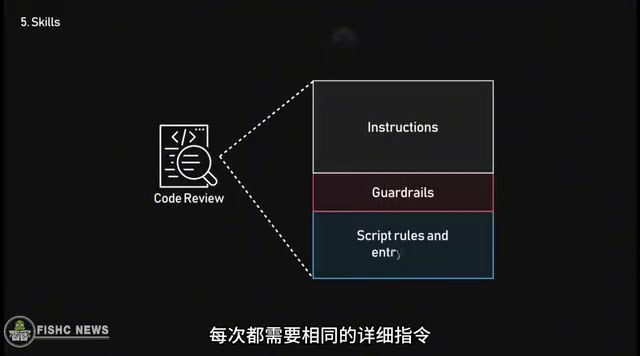
Each skill is a .skill.md file containing a name, description, and specific instructions. At the start of a session, Claude gets a list of available skills and automatically invokes the appropriate one when needed. Skills turn repetitive workflows into reusable, shareable automated operations — build once, and the entire team benefits without having to remember lengthy prompts.
6. Hooks: Automating Deterministic Operations
Some operations should happen every single time — like formatting code after every change. Claude Code runs through a workflow loop, deciding when to invoke tools and repeating the process as needed.
Hooks are scripts that automatically run at specific workflow nodes, such as before or after a tool runs. They're ideal for deterministic operations that must always happen, like code formatting, security checks, or logging. Unlike skills, hooks don't require Claude to decide whether to invoke them — they trigger automatically at the specified nodes.
7. MCP Protocol: An Open Standard for Connecting External Tools
Claude Code can read files and run commands, but what if you need to access external tools like Figma designs or Slack messages? MCP (Model Context Protocol) is an open protocol that allows anyone to build and expose tools to agents.
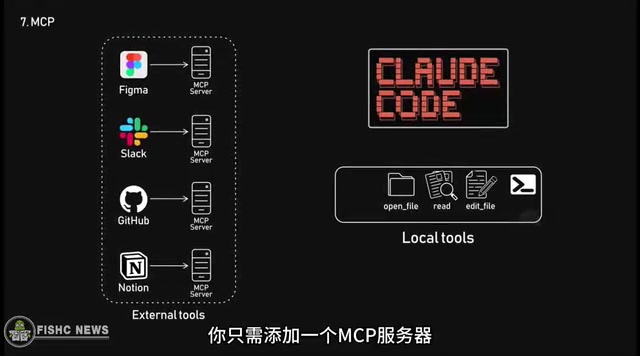
Simply add an MCP server, and Claude can access all the tools it exposes. There are already thousands of publicly available MCP servers covering databases, design tools, project management, and more — vastly expanding Claude Code's capabilities.
8. Plugins: One-Click Sharing of Complete Configurations
You've spent hours configuring the perfect environment — custom skills, hooks, sub-agents, and MCP servers. Now a teammate wants the same setup. Are you going to walk them through configuring every file manually?
Plugins are bundles that package skills, hooks, agents, MCP servers, and metadata into a single installable unit. Create a plugin, publish it to a marketplace or Git repository, and teammates can install it with a single command. This is a massive efficiency boost for team collaboration.
9. Context Management and Compression
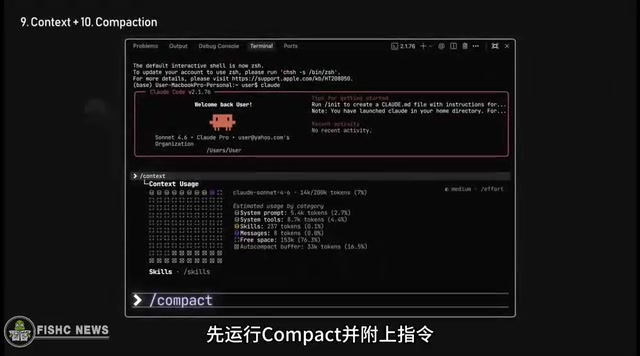
Claude Code operates within a fixed context window of approximately 200,000 tokens. As conversations grow, this window fills up. When approaching capacity, Claude can compress the conversation — preserving key decisions while freeing up space.
Running the /context command shows you exactly what's consuming your context window: CLAUDE.md files, skills, MCP tool descriptions, conversation history, and more. If critical content is about to be lost, it's recommended to run /compact with instructions before automatic compression kicks in, giving you active control over the compression process.
10. Slash Commands: Efficiency Shortcuts
Some operations are so common that typing them manually every time slows you down. Slash commands are like keyboard shortcuts for Claude Code, giving you quick access to frequently used workflows.
Whether it's checking costs, managing context, or clearing the current session, just type a slash followed by the command name. Mastering common slash commands makes your workflow significantly smoother.
11. Sub-Agents: Divide and Conquer Task Management
For complex tasks, trying to handle everything in a single session quickly becomes chaotic. Sub-agents are separate Claude sessions spun up for specific tasks. Claude breaks complex tasks into smaller, more focused parts and handles them individually.
Sub-agents work independently and return concise summaries to the main session. Type /agent and choose to create an agent, give it a name, and set a prompt focused on a specific domain (like security review). Sub-agents keep your main conversation clean and your context window lean. They're recommended for tasks that require extensive exploration, parallel work, or specialized expertise.
12. Practical Advice: Start Simple and Level Up Gradually
These 12 features form the complete working ecosystem of Claude Code. From project memory (CLAUDE.md) to permission management, from Plan Mode to checkpoints, from skills to sub-agents — each feature addresses a real pain point in development.
Here's the recommended learning path:
- Master the essential trio first: CLAUDE.md, permission management, Plan Mode
- Then learn the safety features: checkpoints, context management
- Finally explore advanced capabilities: skills, hooks, MCP, plugins, sub-agents
The best way to learn is to open your terminal, type claude, and start building. Unlock these features through practice, and you'll experience a quantum leap in your programming efficiency.
Related articles
 Tutorials
Cursor + Codex Dual-IDE Collaboration: A Practical Methodology for Open-Source Project Customization
A complete methodology for open-source project customization based on real-world experience, detailing the Cursor+Codex dual-IDE workflow, seven-stage process, MVP validation, and AI source code reading techniques.
 Tutorials
Cursor Multi-Agent in Practice: Building a Full-Stack Next.js Blog in 50 Minutes
Build a full-stack blog in 50 minutes using Cursor IDE's multi-Agent mode with Next.js, Clerk auth, and Supabase. Learn the 4-phase AI Agent workflow and key integration pitfalls.
 Tutorials
Building an AI Software Factory from Scratch: A Cursor Engineer's Hands-On Experience with Multi-Agent Collaboration
Cursor engineer Eric shares practical insights on building an AI software factory: automation levels, guardrail design, parallel Agent management, and scaling to 1000+ Agents for 24/7 development.