The Complete Guide to Claude Code Commands: 10 Core Commands & Practical Workflows

A systematic guide to Claude Code's core commands, shortcuts, and practical workflows.
This article comprehensively covers Claude Code's ten most commonly used commands across three major modules: session & context management (Memory, Compact, Clear/Fork/Resume), code review & security (Diff, Security Review, Plan), and model & performance control (Sonnet/Opus switching strategy). It also details keyboard shortcuts, CLI startup parameters, and four practical workflows to help developers go from beginner to expert, achieving cost savings and efficiency gains.
Claude Code is Anthropic's command-line AI programming assistant that can help you write code, fix bugs, refactor, and generate tests. But many people only use it as a "conversational code generator," far from unlocking its full potential. To truly master Claude Code, you need to understand its core command system.
This article systematically covers Claude Code's ten most commonly used commands, keyboard shortcuts, CLI startup parameters, and four proven practical workflows to take you from beginner to expert.
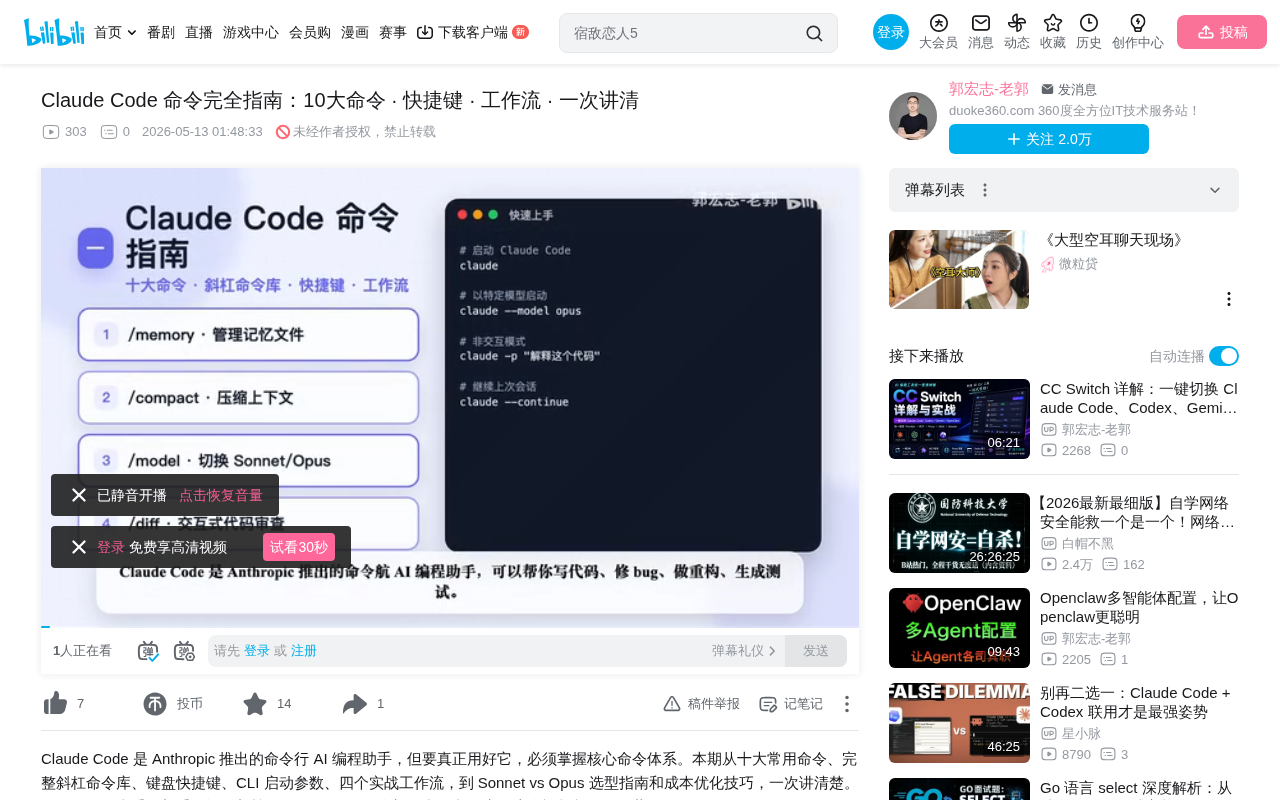
Session & Context Management: Five Core Commands
Context management is the foundational capability of Claude Code and the key factor determining your efficiency. Master these five commands, and you'll be able to effectively control conversation quality and Token consumption.
To understand why these commands matter, you first need to understand a core limitation of LLMs: the Context Window. The context window is the maximum text length a model can process in a single inference, measured in Tokens. Tokens are the smallest units the model uses to process text — an English word typically corresponds to 1-2 Tokens, while Chinese characters usually map to 1-2 Tokens each. Claude 3.5 Sonnet and Claude 3 Opus have a context window of 200K Tokens. When a conversation accumulates beyond this limit, earlier information gets truncated. More importantly, API calls are billed by Token count (input and output priced separately), so controlling context length directly impacts your costs. This is why context management commands are so critical.
Memory: Project Memory File Management
Claude Code uses .claude.md memory files to persist project information. The relevant commands are:
/memory view: View the current memory file contents/memory edit: Edit the memory file/memory clear: Clear the memory
Record project architecture, coding standards, common tool configurations, and other information in the memory file. This content is automatically injected into every conversation, saving you from repeating explanations. For long-term projects, this is a must-configure feature.
From a technical implementation perspective, .claude.md is essentially an engineered System Prompt solution. In traditional LLM applications, developers use System Prompts to set behavioral boundaries and background knowledge for the model, but this typically requires manual injection with every API call. Claude Code automates this process — the memory file's contents are automatically loaded into the context at the start of each session. This is similar to Cursor's .cursorrules or GitHub Copilot's .github/copilot-instructions.md files. Best practices for memory files include recording: the project's tech stack and versions, directory structure conventions, code style guidelines (naming rules, comment requirements), commonly used third-party libraries and their usage, and team-specific development workflows.
Compact: The Conversation Compression Powerhouse
When a conversation exceeds 50 messages, the context becomes bloated — not only consuming large amounts of Tokens but potentially causing the model to "forget" critical early information. The /compact command compresses redundant conversation, reducing Token consumption by 30% to 50%.
For more granular control, you can specify what to prioritize, for example:
/compact focus TypeScript type system
This ensures the compression prioritizes retaining context related to the TypeScript type system while discarding unrelated conversation content.
Clear, Fork, Resume: Session Flow Control
/clear: Directly clears the context and starts fresh. Ideal for complete topic switches./fork: Creates a session branch. Extremely useful when you need to explore different approaches without affecting the main thread — for example, simultaneously exploring two architectural approaches without interference./resume: Resumes a previously interrupted session. When you accidentally disconnect or need to continue the next day, this command helps you pick up seamlessly.
Code Review & Security: Three Protective Commands
Writing code is just the first step — review and security checks are equally important. Claude Code has three dedicated commands to cover this area.
Diff: Visualize Code Changes
/diff displays code changes in a color-highlighted format, supporting grouped display of additions, deletions, and modifications. More importantly, it supports approving or rejecting changes one by one, giving you complete control over every modification.
Security Review: Automated Security Auditing
/security review automatically analyzes security risks in branch changes, covering checks including:
- SQL injection vulnerabilities
- XSS (Cross-Site Scripting) attacks
- Secret/key leaks
- Privilege escalation vulnerabilities
These checks closely correspond to the OWASP (Open Web Application Security Project) Top 10. The OWASP Top 10 is the globally recognized list of web application security risks and the industry standard for security auditing. SQL Injection has long held the top spot — attackers embed malicious SQL statements in inputs to manipulate databases. XSS allows attackers to execute malicious scripts in other users' browsers. Secret leaks fall under the "Security Misconfiguration" category, commonly occurring when API Keys, database passwords, and other credentials are hardcoded in source code and committed to version control systems. Privilege escalation falls under "Broken Access Control," where attackers bypass permission checks to access unauthorized resources. While automated security reviews can't replace professional penetration testing, they can catch most common vulnerabilities during the development phase.
Running a security review before committing code effectively prevents security risks from reaching production.
Plan: Planning Mode
/plan puts Claude into planning mode — it proposes a plan first and only executes after you confirm. This is especially important for sensitive operations like deleting files or modifying critical logic. Review the plan before taking action to avoid irreversible mistakes.
Model & Performance Control: The Key to Cost Optimization
Claude Code supports switching between different models, which is the core mechanism for controlling costs and efficiency.
Model Switching Strategy
Use the /model command (shortcut Alt+P or Cmd+P) to switch between two modes:
| Dimension | Sonnet (Fast Mode) | Opus (High-Performance Mode) |
|---|---|---|
| Speed | ⭐⭐⭐⭐⭐ | ⭐⭐⭐ |
| Reasoning | ⭐⭐⭐⭐ | ⭐⭐⭐⭐⭐ |
| Code Generation | Excellent | Best-in-class |
| Cost | Baseline | ~2-3x |
| Recommended Usage | 70% | 30% |
Core principle: Use Sonnet for everyday coding, Opus for complex reasoning and system design.
Claude 3.5 Sonnet and Claude 3 Opus represent two different design philosophies within Anthropic's model family. Sonnet is optimized for speed and cost, with a relatively smaller parameter count and low inference latency, making it suitable for high-frequency everyday coding tasks like code completion, simple refactoring, and generating boilerplate code. Opus is Anthropic's flagship model, with a larger parameter count and stronger Chain of Thought reasoning capabilities, significantly outperforming Sonnet in scenarios requiring multi-step logical reasoning, complex system design, and cross-file dependency analysis. In terms of pricing, Opus costs $15 per million input Tokens and $75 per million output Tokens; Sonnet costs $3 for input and $15 for output. This 5x price difference makes model switching strategy a core cost control mechanism.
Additionally, /fast directly toggles fast mode on/off, /cost shows API Token usage and cost details, and Pro subscription users can use /stats to view usage statistics. By combining these commands strategically, practical experience shows you can save 50% to 70% on costs while improving efficiency by 3 to 5x.
Keyboard Shortcuts & Permission Modes
Shortcuts are key to boosting operational speed. Here are the essential ones for daily use.
Basic Operation Shortcuts
Ctrl+C: Cancel current inputCtrl+D: Exit sessionCtrl+L: Clear screen but preserve conversation↑↓Arrow keys: Browse command historyTab: Auto-complete
Permission Mode Switching
Shift+Tab is one of the most frequently used shortcuts, cycling through three permission modes:
- Plan Mode: Claude proposes a plan and only executes after your confirmation
- Auto Mode: Claude executes automatically without confirmation
- Normal Mode: Pure conversation, no code execution
Flexibly switching permission modes based on the risk level of the current task is a core technique for using Claude Code efficiently.
CLI Startup Parameters: Flexible Launch Options
Claude Code's CLI startup parameters support various scenarios. Here are the commonly used launch commands:
# Basic launch
claude

# Launch in a specific directory
claude --cwd /path/to/project

# Launch with a specific model
claude --model opus

# Non-interactive mode (ideal for script integration)
claude -p "your prompt"

# Continue last session
claude -c

# Resume a specific session
claude --resume

# Launch in a worktree
claude -w

# Advanced combo: continue session + Opus model + JSON output
claude --continue --model opus --output-format json
Non-interactive mode (the -p parameter) is particularly well-suited for integration into CI/CD pipelines or automation scripts, making Claude Code part of your engineering toolchain. CI/CD (Continuous Integration/Continuous Deployment) is a core practice in modern software engineering that ensures code quality and delivery speed through automated build, test, and deployment processes. Common CI/CD platforms include GitHub Actions, GitLab CI, Jenkins, and others. Through non-interactive mode, you can automatically trigger Claude Code for code review when a PR (Pull Request) is created, automatically run security scans before merging, or automatically generate changelogs before deployment. Combined with the --output-format json parameter, the output can be parsed and processed by downstream tools, forming a complete automated toolchain.
The -w parameter leverages Git Worktree functionality. Git Worktree allows you to simultaneously check out multiple branches into different directories within the same repository, without needing to frequently switch branches or maintain multiple repository copies. Traditional git checkout replaces files in the working directory when switching branches, meaning you can't work on two branches simultaneously. Git Worktree creates independent working directories for each branch while sharing the same .git database, saving disk space while supporting parallel development. Using worktree mode in Claude Code means you can have the AI develop in an independent branch directory without affecting the main branch you're currently working on.
Four Practical Workflows
Once you've mastered the commands, the key is knowing how to combine them. Here are four proven high-efficiency workflows.
Workflow 1: Rapid Prototyping
- Start a session, switch to Sonnet for quick exploration
- Use
/planto outline the approach Shift+Tabto switch to Auto mode for execution- Use
/diffto review changes - Use
/memoryto record key decisions
Workflow 2: Code Review & Optimization
- Launch with the Opus model (
claude --model opus) /planto outline the review approach/security reviewto run security auditing/diffto review change details- Execute refactoring optimizations and generate test cases
Workflow 3: Long-Term Project Maintenance
- Create a memory file to record architecture and conventions
- Next time, use
/resumeto restore the session - After long conversations, use
/compactto optimize context - Commit code after feature completion
Workflow 4: Team Collaborative Development
- Develop a new feature branch in a worktree (
claude -w) /planto outline the development approach/security reviewfor security checks- Submit after review approval
Three Core Recommendations
To wrap up, here are the three most important usage principles:
- Use Sonnet for daily development, Opus for complex tasks, and Memory for long-term projects. This is the optimal balance between cost and efficiency.
- Leverage Resume to maintain efficient context. Don't start from scratch every time — continuous context helps Claude understand your project better over time.
- Use Fork liberally to safely explore different approaches. Branch exploration is far more efficient than repeatedly undoing changes on the main thread.
Master this command system, and you'll truly unlock Claude Code's full potential — graduating from "able to use it" to "using it well."
Related articles
 Tutorials
Cursor + Codex Dual-IDE Collaboration: A Practical Methodology for Open-Source Project Customization
A complete methodology for open-source project customization based on real-world experience, detailing the Cursor+Codex dual-IDE workflow, seven-stage process, MVP validation, and AI source code reading techniques.
 Tutorials
Cursor Multi-Agent in Practice: Building a Full-Stack Next.js Blog in 50 Minutes
Build a full-stack blog in 50 minutes using Cursor IDE's multi-Agent mode with Next.js, Clerk auth, and Supabase. Learn the 4-phase AI Agent workflow and key integration pitfalls.
 Tutorials
Building an AI Software Factory from Scratch: A Cursor Engineer's Hands-On Experience with Multi-Agent Collaboration
Cursor engineer Eric shares practical insights on building an AI software factory: automation levels, guardrail design, parallel Agent management, and scaling to 1000+ Agents for 24/7 development.