Codex Keeps Reconnecting? Fix the Proxy Configuration Issue in One Step
Codex Keeps Reconnecting? Fix the Prox…
Codex keeps reconnecting because the CLI bypasses your proxy — set environment variables to fix it.
OpenAI Codex CLI repeatedly shows Reconnecting because Node.js processes don't read system proxy settings — they only recognize HTTP_PROXY/HTTPS_PROXY environment variables. The fix is to temporarily set these variables in your terminal and launch Codex from the same window. If you encounter 401/403 errors, check your API Key permissions. You can also create a dedicated startup script for persistence. This technique applies to virtually all CLI tools.
The Problem: Codex Keeps Reconnecting
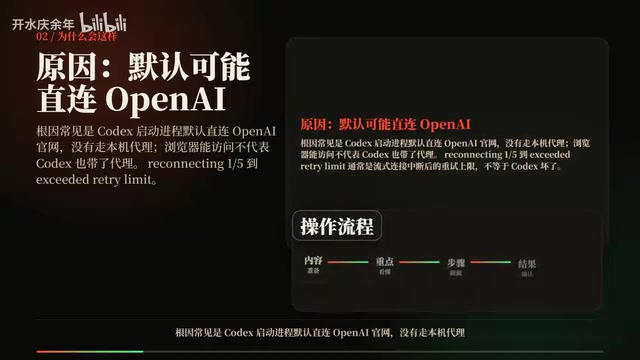
When using OpenAI Codex CLI, many users run into a frustrating issue: the terminal repeatedly shows Reconnecting 1/5 through 5/5, eventually failing to connect. Most people's first reaction is "Is Codex down?" — but the actual root cause is surprisingly simple: the Codex process connects directly to OpenAI's servers by default, bypassing your local proxy.
For users who need a proxy, even if your browser and system are already configured with one, Codex CLI runs as an independent terminal process and won't automatically inherit those proxy settings. This is due to the operating system's process environment variable isolation mechanism: system proxy settings (like Windows "Internet Options" or macOS "Network Preferences") are typically stored in the registry or system configuration files, not in environment variables. GUI applications like browsers actively call system APIs (WinINet on Windows, CFNetwork on macOS) to read these configurations. However, Codex CLI is built on Node.js, and Node.js's HTTP client only recognizes the standard HTTP_PROXY/HTTPS_PROXY environment variables — it won't proactively query system proxy settings. Once you understand this, the fix becomes very straightforward.
Five-Step Troubleshooting: From Version Check to Complete Fix
Step 1: Verify Your Codex Version
Run the following commands in your terminal to make sure your Codex CLI version isn't outdated:
codex --version
codex --help
Older versions may have known connection issues. If your version is too old, upgrade to the latest version first with npm update -g @openai/codex. Once you've confirmed the version is current, proceed to proxy configuration.
Step 2: Temporarily Set the Proxy in Your Terminal (Windows)
The core idea is to inject the proxy environment variables into the current terminal session where Codex will be launched. Start with temporary commands that don't modify global settings, so you won't affect other programs:
# Windows CMD
set HTTP_PROXY=http://127.0.0.1:7890
set HTTPS_PROXY=http://127.0.0.1:7890

# Windows PowerShell
$env:HTTP_PROXY="http://127.0.0.1:7890"
$env:HTTPS_PROXY="http://127.0.0.1:7890"
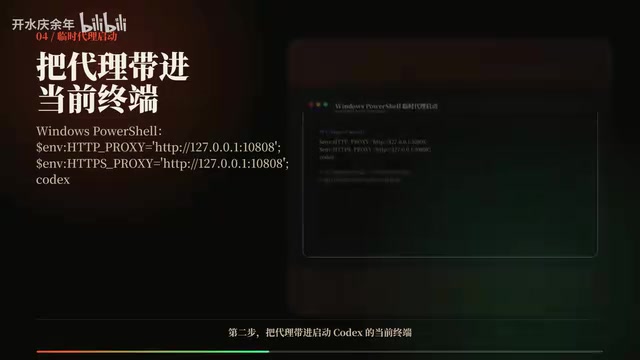
Replace 7890 with your actual proxy port (Clash defaults to 7890, V2Ray defaults to 10809 — different tools use different ports). After setting these, launch Codex in the same terminal window, and it will access OpenAI's API through your proxy. The emphasis on "the same terminal window" is important because environment variables set with set/$env: only take effect in the current process and its child processes — opening a new window requires setting them again.
Step 3: Proxy Setup for Mac/Linux Users
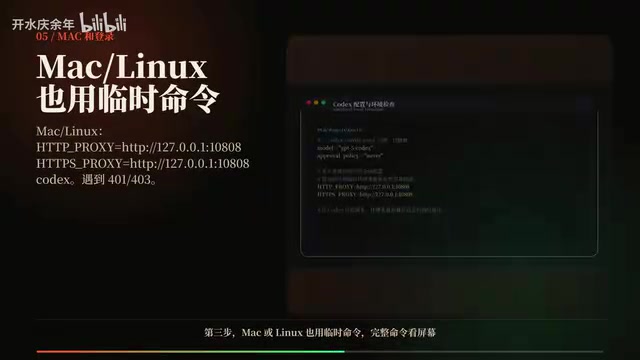
Mac and Linux users follow the same approach with temporary environment variables:
export HTTP_PROXY=http://127.0.0.1:7890
export HTTPS_PROXY=http://127.0.0.1:7890
codex
Or as a one-liner:
HTTP_PROXY=http://127.0.0.1:7890 HTTPS_PROXY=http://127.0.0.1:7890 codex
This syntax leverages Shell's prefix environment variable feature — the proxy settings only apply to that single Codex launch without polluting the current Shell session's other commands, and they automatically expire when the terminal is closed. Very safe. If you use zsh (the default Shell on macOS), you can also add the export commands to ~/.zshrc for permanent effect, but be aware this will affect all terminal programs — a dedicated script approach is more precise.
Step 4: Handling 401/403 Errors
If the Reconnecting issue stops after configuring the proxy but you encounter 401 Unauthorized or 403 Forbidden errors, the proxy is working — the problem lies with your API Key or permissions.
These two errors have distinct meanings: 401 means authentication failed, typically indicating the API Key doesn't exist, is malformed, or has been revoked. 403 means authentication succeeded but permissions are insufficient — the Key may lack access to a specific model, or the account may be in arrears or suspended. OpenAI API Keys start with "sk-" and are passed via Bearer Token in HTTP request headers. Codex CLI typically stores them in ~/.codex/config.json (Mac/Linux) or %USERPROFILE%\.codex\config.json (Windows).
Here's a practical tip: let Codex diagnose the problem itself. Copy the diagnostic prompt shown on screen and have Codex read your configuration file to analyze the issue:

Common causes for 401/403 include: expired API Key, Key lacking Codex access permissions, or exhausted account quota. Troubleshoot based on Codex's diagnostic results.
Step 5: Generate a Persistent Startup Script
If you don't want to manually type proxy commands every time, you can create a dedicated startup script. But here's an important principle: only create a dedicated Codex startup script — don't modify system-wide configurations.
For example, create a file named codex-with-proxy.bat (Windows) or codex-with-proxy.sh (Mac/Linux) that sets the proxy environment variables and then launches Codex. From then on, just double-click the script to start Codex with proxy support, eliminating repetitive steps. The advantage of this approach is the principle of least privilege — the proxy settings are strictly scoped to the Codex process and won't interfere with other tools' network behavior.
The Root Cause: Network Configuration Differences Between CLI Tools and GUI Apps
This issue reflects a common difference in network configuration between CLI tools and GUI applications: GUI apps typically read system proxy settings, while command-line tools rely on environment variables. This isn't unique to Codex — virtually all CLI tools built on Node.js or Python behave the same way, including npm, pip, curl (in default mode), and more. The fundamental reason is that the network libraries these tools use (such as Node.js's http module or Python's requests library) follow POSIX-standard environment variable conventions rather than calling platform-specific system proxy APIs.
Once you've mastered the use of HTTP_PROXY and HTTPS_PROXY environment variables, you'll be able to quickly diagnose and resolve similar connection issues when using other AI development tools like Cursor CLI, Aider, Claude CLI, and more. It's also worth noting that some tools support ALL_PROXY (for setting HTTP/HTTPS/SOCKS proxies simultaneously) and NO_PROXY (for specifying domains that should bypass the proxy) — these are all extensions of the same environment variable system.
Summary
When Codex keeps reconnecting, troubleshoot in this order:
- Verify your version is up to date
- Set proxy environment variables in the terminal (HTTP_PROXY and HTTPS_PROXY)
- Launch Codex in the same terminal window
- If you get 401/403, check your API Key permissions
- Optional: Generate a dedicated startup script to simplify daily use
The entire process takes about 1 minute. It all boils down to one thing: make sure the Codex process can see your proxy.
Related articles
 Tutorials
Cursor + Codex Dual-IDE Collaboration: A Practical Methodology for Open-Source Project Customization
A complete methodology for open-source project customization based on real-world experience, detailing the Cursor+Codex dual-IDE workflow, seven-stage process, MVP validation, and AI source code reading techniques.
 Tutorials
Cursor Multi-Agent in Practice: Building a Full-Stack Next.js Blog in 50 Minutes
Build a full-stack blog in 50 minutes using Cursor IDE's multi-Agent mode with Next.js, Clerk auth, and Supabase. Learn the 4-phase AI Agent workflow and key integration pitfalls.
 Tutorials
Building an AI Software Factory from Scratch: A Cursor Engineer's Hands-On Experience with Multi-Agent Collaboration
Cursor engineer Eric shares practical insights on building an AI software factory: automation levels, guardrail design, parallel Agent management, and scaling to 1000+ Agents for 24/7 development.