Complete Google AI Studio Tutorial: Interface Configuration, Model Selection & Hands-On Applications
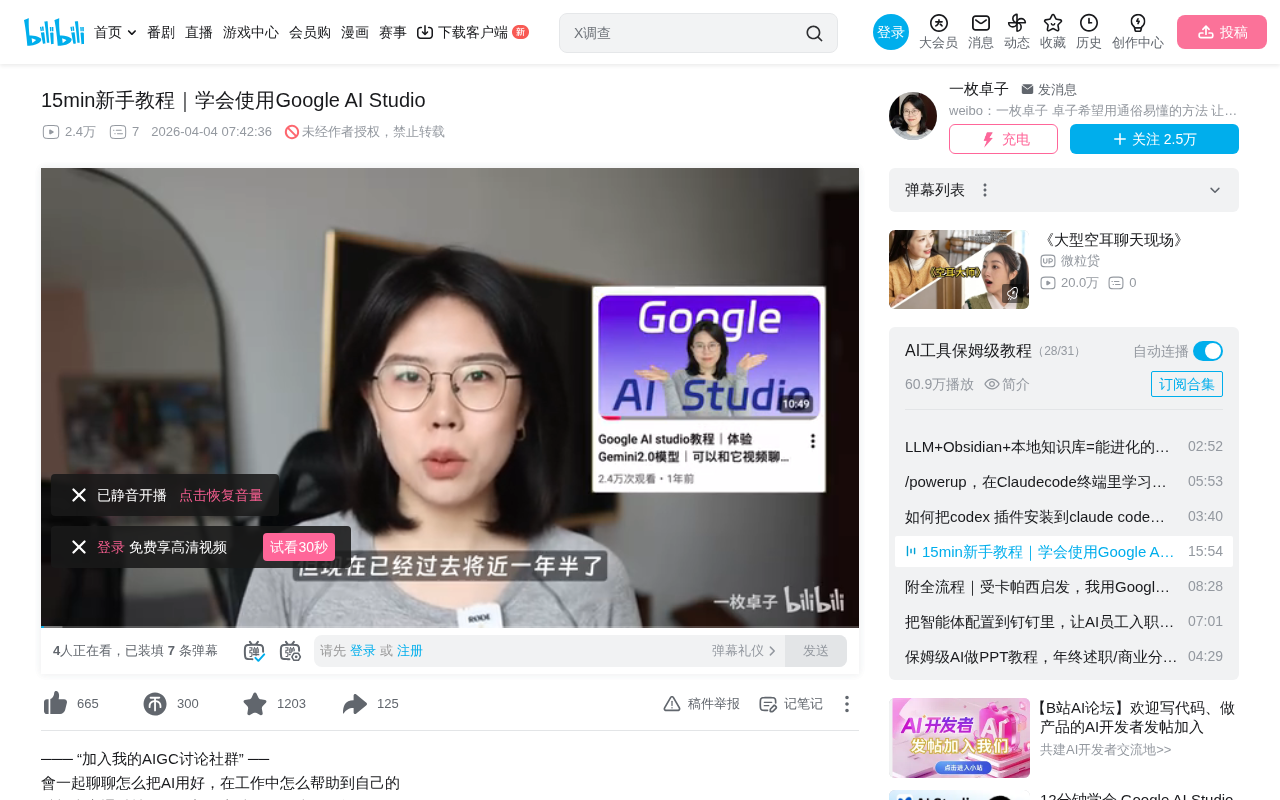
A complete Google AI Studio tutorial covering model selection, parameter tuning, and multi-scenario hands-on use.
This article provides a systematic walkthrough of Google AI Studio, covering its three-panel interface layout, API key configuration, Gemini series and specialized model selection strategies, core parameter tuning techniques for Temperature and Top P, and hands-on demonstrations of the Build zero-code AI app development feature. The platform integrates five major scenarios — coding, image generation, video production, music creation, and real-time chat — with the Build feature enabling users to combine multiple AI capabilities into publishable standalone products.
Introduction
It's been a year and a half since Google AI Studio's last major update, and both its interface and models have undergone dramatic changes. Based on a recent hands-on tutorial from a Bilibili creator, this article systematically covers the complete usage of Google AI Studio — including interface layout, model selection, parameter tuning, and four practical scenarios: coding, image generation, music creation, and video production.
Interface Layout & Basic Configuration
Three Core Panels at a Glance
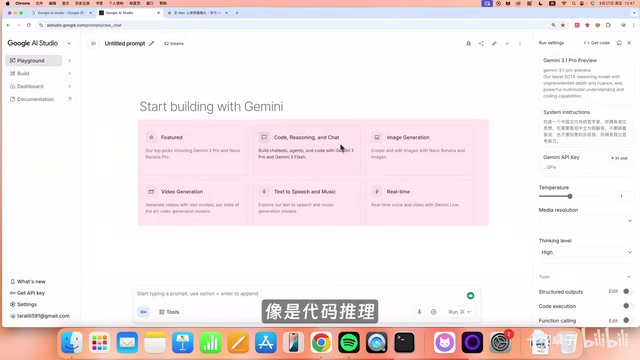
Google AI Studio features a clean, well-organized interface divided into three core panels:
- Left Panel (Navigation): Includes entries for Playground, Build, Dashboard, Documentation, and more
- Center Panel (Workspace): The main area for conversations and interactions
- Right Panel (Settings): Model selection, system instructions, temperature controls, and other configurations
API Configuration (Essential First Step)
Before getting started, it's strongly recommended to configure your API key first. Click "Get API Key" in the bottom-left corner and follow the prompts to link a credit card (an international Visa card works fine). Once configured, a green "In Use" indicator will appear on the right side.
An API (Application Programming Interface) key serves as your identity credential for accessing cloud-based AI models. Every time you send a request to a model, the system uses this key to verify your identity and handle billing. This works exactly the same way as using APIs on other cloud platforms like AWS or Azure — the key is both your ID card and your wallet.
A practical tip: create a separate API key for each development project. This makes it easy to track spending per project, similar to setting up independent budget accounts for different departments. According to the tutorial author's experience, a simple project typically costs no more than $2.
Model Ecosystem Explained
Google AI Studio currently offers a rich matrix of models:
Gemini Series (Text/Multimodal)
| Model | Tier | Best For |
|---|---|---|
| Gemini Pro | Flagship | Complex reasoning, high-quality output |
| Gemini Flash | Mid-tier | Everyday use, best value |
| Gemini Flash Light | Lightweight | Simple tasks, fast responses |
Gemini is a multimodal large model series from Google DeepMind. "Multimodal" means it can simultaneously understand and process multiple types of information — text, images, video, audio — not just text alone. The three tiers differ primarily in parameter scale and reasoning capability: Pro has the largest parameter count and strongest reasoning ability but is slower and more expensive; Flash Light is the opposite — smaller parameters, faster speed, lower cost, ideal for batch tasks where quality requirements aren't as high.
Text, image, and video input costs approximately $0.25, with output around $1.5; audio input is about $0.5. It's worth comparing these prices against OpenAI and Anthropic's pricing to find the best fit for your project.
Other Specialized Models
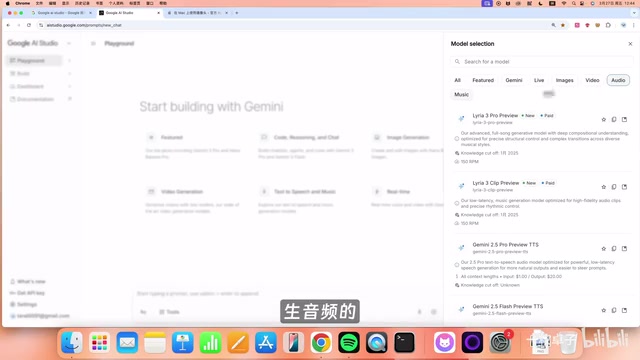
- Live Model: Real-time voice and video conversations (similar to Doubao's video calling feature)
- Images Model: Nano Banana 2 and Nano Banana Pro (image generation)
- Video Model: VEO 3.1 (Google's most powerful video generation model)
- Audio/Music Model: Text-to-speech and music generation
VEO is Google DeepMind's video generation model series, competing directly with OpenAI's Sora and Runway's Gen series. A key technical highlight of VEO 3.1 is its native support for synchronized audio-visual generation — video footage and corresponding ambient sounds and music are produced simultaneously, rather than generating silent video first and adding audio in post-production. This is a notably advanced capability in the current video generation landscape.
The Art of Parameter Tuning
Temperature
This parameter essentially controls the "creativity" of the model's output. The tutorial offers a vivid analogy: Temperature is how much wine you give the model to drink.
From a technical standpoint, when a large language model generates each token (text fragment), it calculates probabilities for all candidate words in its vocabulary. The Temperature value adjusts how "flat" this probability distribution is: higher values make the distribution flatter, giving originally low-probability words a better chance of being selected, resulting in more diverse and surprising output; lower values make the model favor only the highest-probability words, producing more deterministic and conservative output. At Temperature=0, the model always picks the highest-probability word, and identical inputs will produce nearly identical outputs.
- Writing essays or poetry → Turn up Temperature, let it become "Li Bai" (the legendary Chinese poet)
- Writing official documents or technical docs → Turn down Temperature, let it be your "diligent secretary"
Top P (The Bodyguard Mechanism)
If Temperature is "how much wine," then Top P is the "bodyguard" standing beside the model — telling it "no matter how drunk you get, don't say anything too outrageous." Generally set between 0.9–0.95, it eliminates the 5%–10% of completely unreliable outputs.
Top P's academic name is "Nucleus Sampling," proposed by Holtzman et al. in 2019. It works by ranking all candidate words from highest to lowest probability, cumulatively adding probabilities until the total reaches the P threshold, then sampling only from this subset. For example, Top P=0.9 means the model only considers high-frequency candidates whose cumulative probability accounts for 90%, completely excluding extremely low-probability "absurd" options. Top P and Temperature are typically used together: Temperature determines the overall degree of randomness, while Top P sets a hard safety boundary.
Other Useful Settings
- Thinking Level: Low/Medium/High — controls the depth of internal reasoning the model performs before giving a final answer. Higher thinking levels mean the model spends more time "thinking," which is ideal for math, logic, and other complex tasks requiring multi-step analysis, but also increases response time and token consumption
- Media Resolution: Controls the clarity of media output
- Add Stop Sequence: Stops output when specific characters are encountered, solving the "model talks too much" problem. For example, setting "###" as a stop sequence causes the model to immediately stop once it generates that string — particularly useful when batch-processing structured data
- Safety Setting: Filters harmful content such as violence and explicit material
Build Feature: Zero-Code AI Application Development
This is the most exciting feature in Google AI Studio — a complete Web Coding platform that lets you build applications through natural language descriptions. Such "natural language programming" tools have been rapidly emerging in recent years, including Anthropic's Claude Artifacts and Vercel's v0. The core philosophy is enabling people who can't write code to create runnable applications by simply describing their requirements. Google AI Studio's Build feature takes this a step further by directly accessing the platform's various AI model capabilities, enabling rapid development of AI-native applications.
Hands-On Example: Emotional Healing App
The tutorial author demonstrated building an "Emotional Healing AI App":
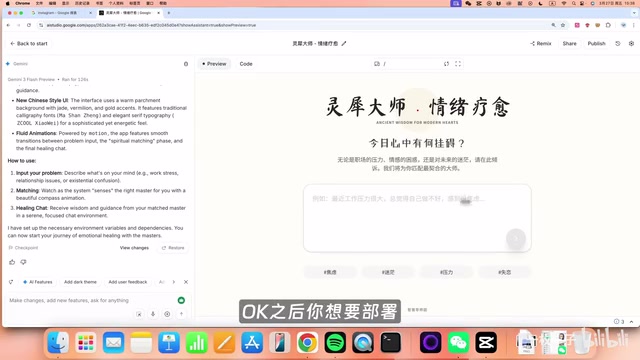
Requirements: After a user inputs their problem, the system matches them with an appropriate "master" (Laozi, Zhuangzi, Wang Yangming, Shakyamuni, Steve Jobs, Elon Musk, etc.) to provide guidance, all styled in a modern Chinese aesthetic.
After clicking Build, the system quickly generated a complete application. When tested with the input "I'm always worried that what I create is useless and wastes other people's time," the system matched Wang Yangming and delivered a remarkably insightful response — from "seeking principles outside the mind" to "unity of knowledge and action" — perfectly aligned with Wang Yangming's philosophical framework.
Publishing & Deployment
Once development is complete, you can publish with one click:
- Click Publish → Get Started
- Set a monthly spending cap (e.g., $10) to prevent abuse
- After publishing, you get a standalone link that anyone can access via web browser
- You can also publish to GitHub as open source
Gallery: A Source of Inspiration
The Gallery within the Build section showcases official and community example projects, including shooting games, pet passport generators, and other creative applications — perfect for newcomers who aren't sure "what to build with it."
Four Hands-On Scenarios
Image Generation
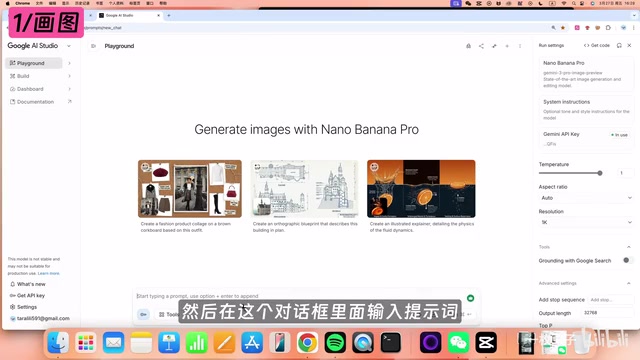
Select the Nano Banana Pro model and enter your prompt. The tutorial demonstrated an interesting case: generating fantasy-style interior design renderings for a modern villa, then having the model reason through renovation progress at 0%, 30%, 50%, 70%, and 90%. The model maintained the original architecture while demonstrating excellent character consistency. "Character consistency" is an important evaluation metric in image generation — it refers to the model's ability to maintain core elements like character appearance and scene structure across multiple images of the same subject, rather than producing completely different content in each image.
Video Generation
Select the VEO 3.1 model, which supports 1080p and 4K resolution with customizable duration and aspect ratio. The audio-visual synchronization in the generated results is remarkably impressive.
Music Generation
Music generation offers two approaches:
- Text Description: Simply say "I want warm, lyrical background music suitable for a tech channel"
- Composer Mode: Compose descriptions using professional music structures like intro, bridge, etc. This mode borrows from the "arrangement" concept in professional music production, allowing users to describe music structure section by section — for example, a gentle piano intro, strings joining in the verse, enhanced rhythm in the chorus, and an emotional shift in the bridge — enabling the AI to generate more professionally structured music based on these descriptions
The tutorial author rated the generated results as "surprisingly good" and noted they can be downloaded locally for use in video production.
Real-Time Video Chat
With your camera enabled, you can have real-time video conversations with the AI. The AI can recognize and describe your appearance, delivering a smooth and natural interactive experience.
Summary & Recommendations
The core value of Google AI Studio lies not just in the power of individual features, but in Build's ability to combine all capabilities together. You can integrate conversation, image generation, voice interaction, and more into a single application, rapidly creating AI-powered product prototypes.
For developers and creators alike, this is a platform with an extremely low barrier to entry but a remarkably high ceiling — 15 minutes to get started, but virtually unlimited room for creative combinations.
Key Takeaways
- Google AI Studio is divided into three panels: Navigation, Workspace, and Settings. First-time users must configure an API key and link a credit card
- The Gemini series offers three tiers — Pro/Flash/Flash Light — plus specialized models for images, video, audio, and real-time conversation
- Temperature and Top P are the two core parameters, controlling creativity level and output reliability boundaries respectively
- The Build feature supports zero-code AI application development through natural language descriptions, with one-click publishing as standalone web products
- The platform integrates five major scenarios — coding, image generation, video production, music creation, and real-time chat — supporting multi-capability creative combinations
Related articles
 Tutorials
Cursor + Codex Dual-IDE Collaboration: A Practical Methodology for Open-Source Project Customization
A complete methodology for open-source project customization based on real-world experience, detailing the Cursor+Codex dual-IDE workflow, seven-stage process, MVP validation, and AI source code reading techniques.
 Tutorials
Cursor Multi-Agent in Practice: Building a Full-Stack Next.js Blog in 50 Minutes
Build a full-stack blog in 50 minutes using Cursor IDE's multi-Agent mode with Next.js, Clerk auth, and Supabase. Learn the 4-phase AI Agent workflow and key integration pitfalls.
 Tutorials
Building an AI Software Factory from Scratch: A Cursor Engineer's Hands-On Experience with Multi-Agent Collaboration
Cursor engineer Eric shares practical insights on building an AI software factory: automation levels, guardrail design, parallel Agent management, and scaling to 1000+ Agents for 24/7 development.