Complete Guide to Connecting Codex with DeepSeek V4: API Configuration & Plugin Unlock
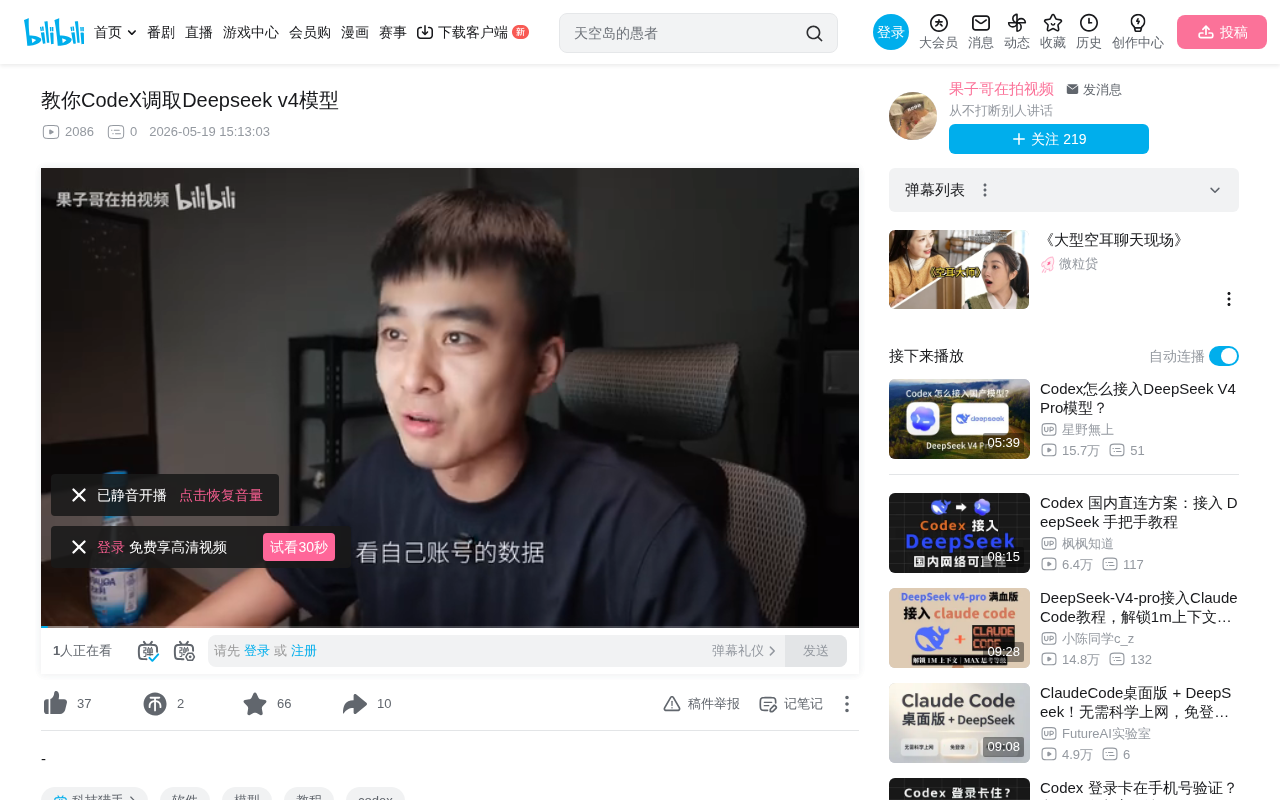
Tutorial on connecting Codex to DeepSeek V4 via CC Switch relay and unlocking all plugin features.
This article provides a detailed guide on using CC Switch relay tool to connect DeepSeek V4's API to Codex, bypassing GPT Plus payment and phone verification restrictions while unlocking full plugin functionality through third-party extensions. The entire solution costs only 5-20 RMB per month, offering an extremely cost-effective AI programming tool path for users in China.
Introduction: Why Pair Codex with DeepSeek V4?
More and more people are using AI tools to assist with daily work — writing, video production, data analysis, and even turning ideas into apps published on app stores. Codex, as a powerful AI programming and conversation tool, delivers an exceptional cost-effective experience when paired with the DeepSeek V4 model.
Codex was originally a code generation model released by OpenAI, which later evolved into a comprehensive development environment integrating AI conversation, code writing, and plugin extensions. Its core advantage lies in supporting multiple large language model integrations and extending functionality through a plugin system. DeepSeek V4 is the latest-generation large language model from DeepSeek, utilizing a Mixture of Experts (MoE) architecture that excels in programming, mathematical reasoning, and multilingual understanding. Compared to GPT-4, DeepSeek V4's API pricing is roughly one-tenth the cost, and it offers superior Chinese language comprehension and generation capabilities, making it the preferred alternative for developers in China.
However, in practice, many users encounter various barriers: GPT Plus requires a US account for payment, Codex login requires phone number verification, and plugin features are disabled after API login. This article provides a detailed guide on how to use a relay solution to successfully connect Codex with the DeepSeek V4 model and unlock all plugin features.
Preparation: Software Checklist Before Installation
Before starting the configuration, you'll need three core tools:
- Codex main program: The core AI conversation and programming tool
- CCX Plugin: A third-party plugin for extending Codex functionality
- CC Switch: An API routing software that serves as a bridge between Codex and DeepSeek
CC Switch is essentially an API gateway proxy tool that works similarly to a reverse proxy server. When Codex sends an API request, CC Switch intercepts it and redirects the call — originally destined for OpenAI's servers — to DeepSeek's API endpoint. Since DeepSeek's API interface is designed to be compatible with OpenAI's Chat Completions format (following the same request/response JSON structure), Codex cannot distinguish which model is actually being called on the backend. This compatibility design is standard practice in the current open-source LLM ecosystem — virtually all major model providers offer OpenAI-compatible interfaces.
CC Switch is available for both Mac and Windows. Simply download the version that matches your operating system.
Installing the Codex Main Program
Installation via Terminal
The Codex installer is a binary file. Follow these steps:
- Open your system terminal (Terminal on Mac, CMD or PowerShell on Windows)
- Drag the downloaded binary file into the terminal window
- Press Enter to execute the installation
If you're unfamiliar with terminal operations, you can simply ask an AI assistant: "This is a binary file — how do I use it in the terminal?" and follow the instructions. A binary file refers to a pre-compiled executable program that can run without any additional programming environment or interpreter, unlike Python scripts that require a runtime environment.
Verifying Successful Installation
After installation, check the terminal window for relevant confirmation messages. Codex's interface is accessed through a browser — copy the local address displayed in the terminal (typically in a format like http://localhost:port_number) and open it in your browser to access the control panel. You'll need to enter a login password on first access, which will be displayed in the terminal.
Configuring the DeepSeek V4 API
Obtaining a DeepSeek API Key
- Go to the DeepSeek official website
- Top up your account with any amount
- Click "API Key" in the left menu
- Click "Create" and give your Key a name
- Important: Save this Key immediately after creation — it's only displayed once and cannot be viewed again
An API Key is a secret string used for authentication, similar to a "digital pass." Each time you call the API, the server uses this Key to identify the caller and handle billing. DeepSeek uses a per-token billing model — a token is the smallest unit of text the model processes. In Chinese, each character corresponds to roughly 1-2 tokens, while in English, each word corresponds to approximately 1-4 tokens. DeepSeek V4's input price is about 1 RMB per million tokens, and output is about 2 RMB per million tokens, making daily usage costs extremely low.
Obtaining the API Endpoint URL
Find the API documentation on DeepSeek's official website, select "First API Call," and you'll see the Base URL for calling the DeepSeek model. Copy it for later use. The Base URL is the root address of the API service — all specific interface requests append paths to this address. For example, /v1/chat/completions is the full path for the chat completion endpoint.
Adding a Channel in the Codex Admin Panel
- In the Codex admin panel, select the "Codex" option at the top
- Click "Add Channel"
- Paste the DeepSeek API address
- On a new line, paste your API Key
- In "Detailed Configuration," set the service type to "OpenAI Chat"
- Scroll to the bottom and enable the "Normalize" option (this step is critical)
- Click "Create Channel"
Enabling the "Normalize" option ensures that request and response data formats strictly conform to the OpenAI API standard specification. Different model providers may have subtle differences in their compatible interface implementations — such as chunking methods for streaming output (Server-Sent Events), naming of token count fields, or finish_reason return values. The normalization feature automatically converts and corrects these differences at the middleware layer, ensuring Codex can properly parse data returned by DeepSeek. Without this option enabled, you may experience conversation interruptions, plugin call failures, or response format errors.
Establishing the Relay Connection via CC Switch
CC Switch Configuration Steps
- Install and open CC Switch
- Click the ChatGPT icon at the top
- Select "New Custom Configuration"
- API Key: Enter the connection address from the Codex admin panel (i.e., the intermediate key)
- Request URL: Enter the API address displayed in the admin panel
The configuration logic here is: CC Switch acts as a local proxy, listening to network requests from the Codex client and forwarding them to the relay service configured in your Codex admin panel. The relay service then forwards the requests to DeepSeek's API endpoint. While this multi-layer forwarding architecture adds slight latency, it provides flexible model switching capabilities and unified interface management.
Testing the Connection
Click "Manage & Speed Test." If the latency shows 0 milliseconds, the connection is successful. Then click "Get Model List" — under normal circumstances, you should retrieve available models. Find "DeepSeek V4 Pro" in the list and click to add it, completing the model binding.
If the speed test fails or you can't retrieve the model list, common causes include: incorrect API Key entry, an extra trailing slash in the request URL, local firewall blocking the request, or temporary DeepSeek server overload. Troubleshoot these issues one by one.
Unlocking Codex Plugin Features
After completing the above configuration, Codex can successfully call the DeepSeek V4 model for conversations, but plugin features will still appear grayed out and unavailable.
Codex's plugin system is implemented through the Function Calling mechanism. When a user's request involves specific functionality, the model generates a structured function call instruction. The Codex client receives it and executes the corresponding local operation (such as file read/write, code execution, network requests, etc.), then returns the result to the model for continued reasoning. Plugins are disabled when logging in directly via API because the official system restricts Function Calling permissions for non-subscription users. Third-party unlock plugins bypass this restriction by modifying the client's permission verification logic, enabling full plugin ecosystem access even when connected through a relay API.
Using Codex Itself to Install the Unlock Plugin
Here's a clever approach: since Codex can already have normal conversations, let it handle the plugin installation itself. This demonstrates an interesting property of AI tools — bootstrapping, where the tool's own capabilities are used to enhance itself.
Specific steps:
- Find the unlock plugin's GitHub repository URL
- Send Codex the instruction: "Install this plugin" along with the GitHub link
- Codex will automatically identify and install the plugin
Restart to Apply Changes
After installation, you need to completely quit Codex and reopen it. After restarting, you'll notice a new entry called "Codex++" in the software list — use this version directly. You'll now see the plugin entry in the upper right corner, with all plugin features fully unlocked.
Practical Use Cases & Recommendations
With plugins unlocked, you can leverage Codex paired with DeepSeek V4 for various applications:
- Video effects creation: Generate animation effects through AI, such as using the code execution plugin to run Python's Manim library for mathematical animations
- Tables & data visualization: Automatically generate charts and dynamic displays, supporting mainstream visualization frameworks like ECharts and D3.js
- Code writing & debugging: Leverage DeepSeek V4's powerful programming capabilities with real-time execution and debugging across multiple programming languages
- Content creation assistance: Writing, data analysis, copywriting, and more — combined with web browsing plugins for real-time information retrieval
The core logic of this entire solution is: using CC Switch as a middleware layer to connect DeepSeek's API to Codex, bypassing GPT Plus payment and phone verification restrictions, while unlocking full functionality through third-party plugins. DeepSeek V4's API pricing is far lower than GPT-4 (approximately 1/10 to 1/20), making it an extremely cost-effective solution for users in China. Based on typical daily usage intensity, monthly API costs usually range from 5-20 RMB, far below GPT Plus's $20/month subscription fee.
Security Notice: Third-party tools and workaround solutions like these may carry security risks. It's recommended to back up your data before use and avoid entering sensitive information. Additionally, third-party plugin code has not been officially reviewed — users with the ability to do so should review the GitHub repository source code before installation to confirm no malicious behavior exists. Also note that such solutions may violate the software's terms of service, and users assume all associated risks.
Key Takeaways
- Use CC Switch relay software to connect Codex with the DeepSeek V4 API, bypassing GPT Plus payment restrictions
- The DeepSeek API Key is only displayed once after creation — save it immediately
- When configuring channels, select the OpenAI Chat service type and enable the Normalize option to ensure compatibility between different API formats
- Use the already-connected Codex to have AI install the unlock plugin from GitHub, then restart and use the Codex++ version for full plugin functionality
- This complete solution provides users in China with a low-cost alternative path to AI programming tools, with monthly costs controllable to under 20 RMB
Related articles
 Tutorials
Cursor + Codex Dual-IDE Collaboration: A Practical Methodology for Open-Source Project Customization
A complete methodology for open-source project customization based on real-world experience, detailing the Cursor+Codex dual-IDE workflow, seven-stage process, MVP validation, and AI source code reading techniques.
 Tutorials
Cursor Multi-Agent in Practice: Building a Full-Stack Next.js Blog in 50 Minutes
Build a full-stack blog in 50 minutes using Cursor IDE's multi-Agent mode with Next.js, Clerk auth, and Supabase. Learn the 4-phase AI Agent workflow and key integration pitfalls.
 Tutorials
Building an AI Software Factory from Scratch: A Cursor Engineer's Hands-On Experience with Multi-Agent Collaboration
Cursor engineer Eric shares practical insights on building an AI software factory: automation levels, guardrail design, parallel Agent management, and scaling to 1000+ Agents for 24/7 development.